Optoelectronics Active Learning Training Panel
Use an active learning workflow to arrive at a machine learning model for predicting electronic properties of molecules relevant to optoelectronics.
To open this panel: click the Tasks button and browse to Materials → Informatics → Optoelectronics Active Learning Training.
For a tutorial, see Optoelectronics Active Learning
The following licenses are required to use this panel: MS Maestro, Active Learning, Jaguar, MS Informatics (optional), (Deep)AutoQSAR (optional)
- Overview
- Using
- Features
- Additional Resources
Overview of Optoelectronics Active Learning Training
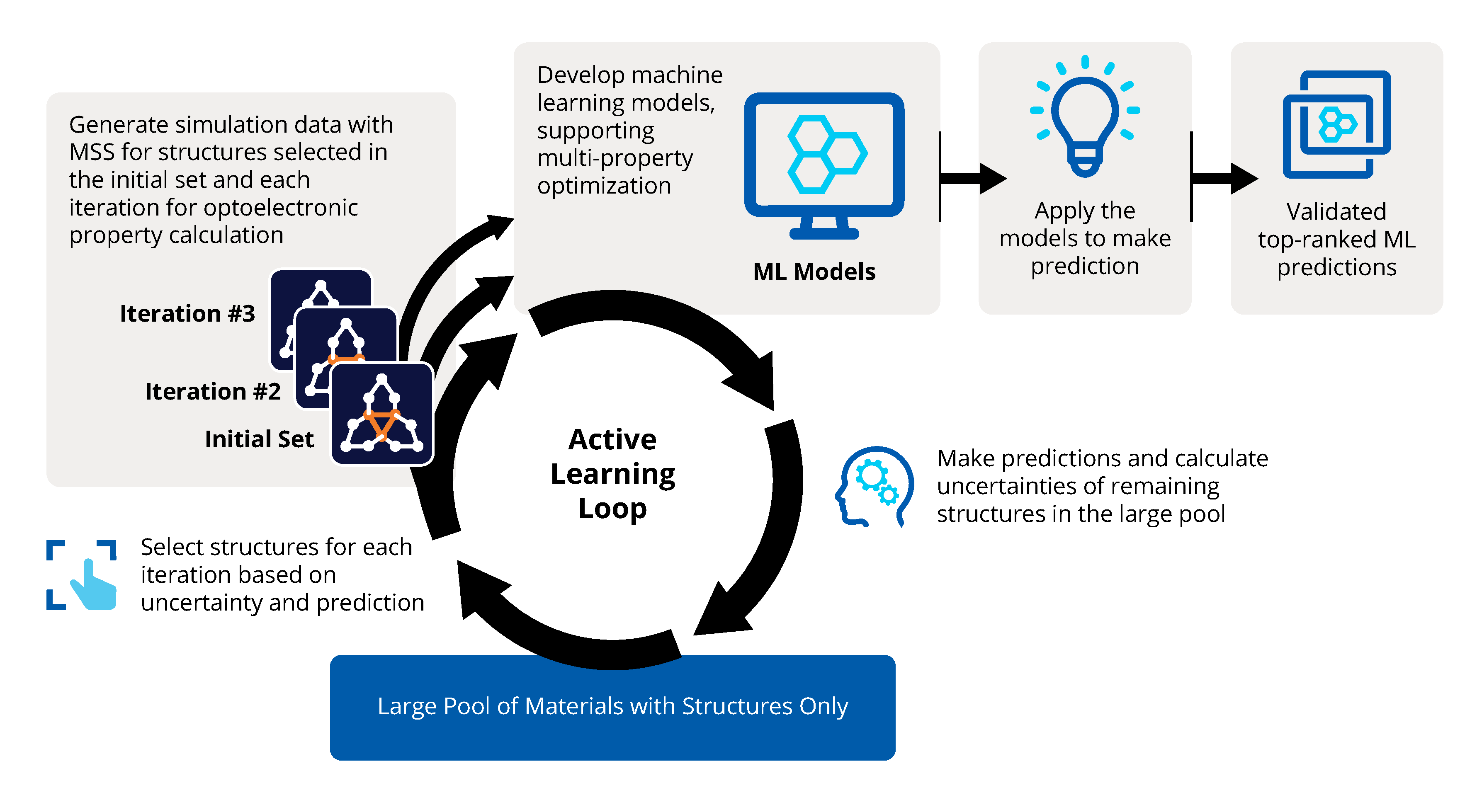
Like the Optoelectronics Calculations Panel, one intention of the optoelectronics active learning workflow is to screen and identify a set of related molecules for properties that are of importance in optoelectronics. Since screening approaches in the Optoelectronics Calculations Panel rely solely on quantum mechanics (QM) calculations, when faced with large data sets (>1000 molecules) and limited computational resources, it may be desirable to use an active learning approach instead. The active learning approach efficiently combines machine learning (ML) and ab initio approaches in an adaptive way to minimize the number of expensive QM computations needed while still arriving at a representative molecule set. In addition, it can generate machine learning models for quickly predicting optoelectronic properties for large data sets.
In optoelectronics, there are often multiple properties that need to be considered at the same time. Multi-property optimization (MPO) is utilized in order to easily identify compounds that fit a certain property profile and quantify the predictive power of a ML model on multiple properties. For more information on MPO, please see An Overview of Multi-Property Optimization (MPO).
The optoelectronics active learning workflow implented in Maestro is as follows:
- An initial subset of structures in a large data set is randomly selected.
- QM computations are performed on the initial subset with the Jaguar package. The properties selected for MPO are calculated. An MPO score is calculated from the QM results. The set of structures on which QM computations are performed is the training data.
- The training data is used to train an ML model with the Random Forest machine learning method. During this process, the training data is randomly split into a training set (90% of the training data)and a test set (10% of the training data). The hyperparameters of the model are tuned with Bayesian Optimization.
- The ML model is used to predict the MPO score on each remaining structure of the large data set. The uncertainty of the model itself is also quantified. An expected improvement score is calculated for each of these structures based on their MPO score and the model uncertainty. This score is a measure of whether the addition of that molecule into the training data would improve the overall performance of the model. Both the MPO score and model uncertainty are accounted for in order to avoid sampling from the same local minimum of chemical space.
- A selection of molecules is chosen based on the expected improvement score and QM computations are performed on the new selection. These are then added to the training data .
- Steps 3 to 5 are repeated until a user defined stopping condition is met. In every iteration of the active learning loop, ML models that predict the selected individual properties are generated in addition to a model which predicts MPO score.
Using the Optoelectronics Active Learning Training Panel
The Optoelectronics Active Learning Training panel can be used both to generate a machine learning model for predicting optoelectronic properties and to effectively screen a set of molecules from a large data set for select properties.
The active learning workflow can be used on any large set of structures. For example, you can generate set of related molecules by varying a functional group at a particular position on a reference molecule using the Custom R-Group Enumeration Panel.
Since quantum mechanical computations are performed to obtain values for selected electronic properties, you can customize the methods used to calculate the properties using the Mode options and the Advanced Options dialog box. Please refer to the Optoelectronics Calculations Panel for information on troubleshooting failed QM subjobs.
The active learning workflow generates ML models at every iteration of the active learning loop. A model for predicting the MPO score is saved to a file with the naming scheme <jobname>_mpo_x.alomgz, where x is the iteration number. Models for predicting individual properties are also generated for each property selected in the MPO section of the panel. Each model is saved to a file with the naming scheme <jobname>_property_x.alomgz, where property is the electronic property that the model can predict (e.g., <jobname>_triplet_x.alomgz for a model that predicts the Triplet energy).
To review the models generated by the active learning workflow and apply them to make property predictions, you can use the Review and Apply Optoelectronics Active Learning Model Panel.
It is important to note that, due to the inherent randomness of selected steps in the active learning workflow, running a job with the exact same input structures and set up parameters as another job may not generate the same set of training data or machine learning models.
To write out the input file and a script for running the job from the command line, click the arrow next to the Settings button  and choose Write.
Optoelectronics Active Learning Training Panel Features
- Use structures from option menu
-
Choose the structure source for defining the data set on which to perform the active learning workflow.
- Project Table (n selected entries)—Use the entries that are currently selected in the Project Table or Entry List. The number of entries selected is shown on the menu item.
- Workspace (n included entries)—Use the entries that are currently included in the Workspace, treated as separate structures. The number of entries in the Workspace is shown on the menu item.
- File—Use the specified file. When this option is selected, the File name text box and Browse button are displayed.
- Project Table (n selected entries)—Use the entries that are currently selected in the Project Table or Entry List. The number of entries selected is shown on the menu item.
- Open Project Table button
-
Open the Project Table panel, so you can

- File name text box and Browse button
-
Enter the file name in this text box, or click Browse and navigate to the file. The name of the file you selected is displayed in the text box.
- Mode options
-
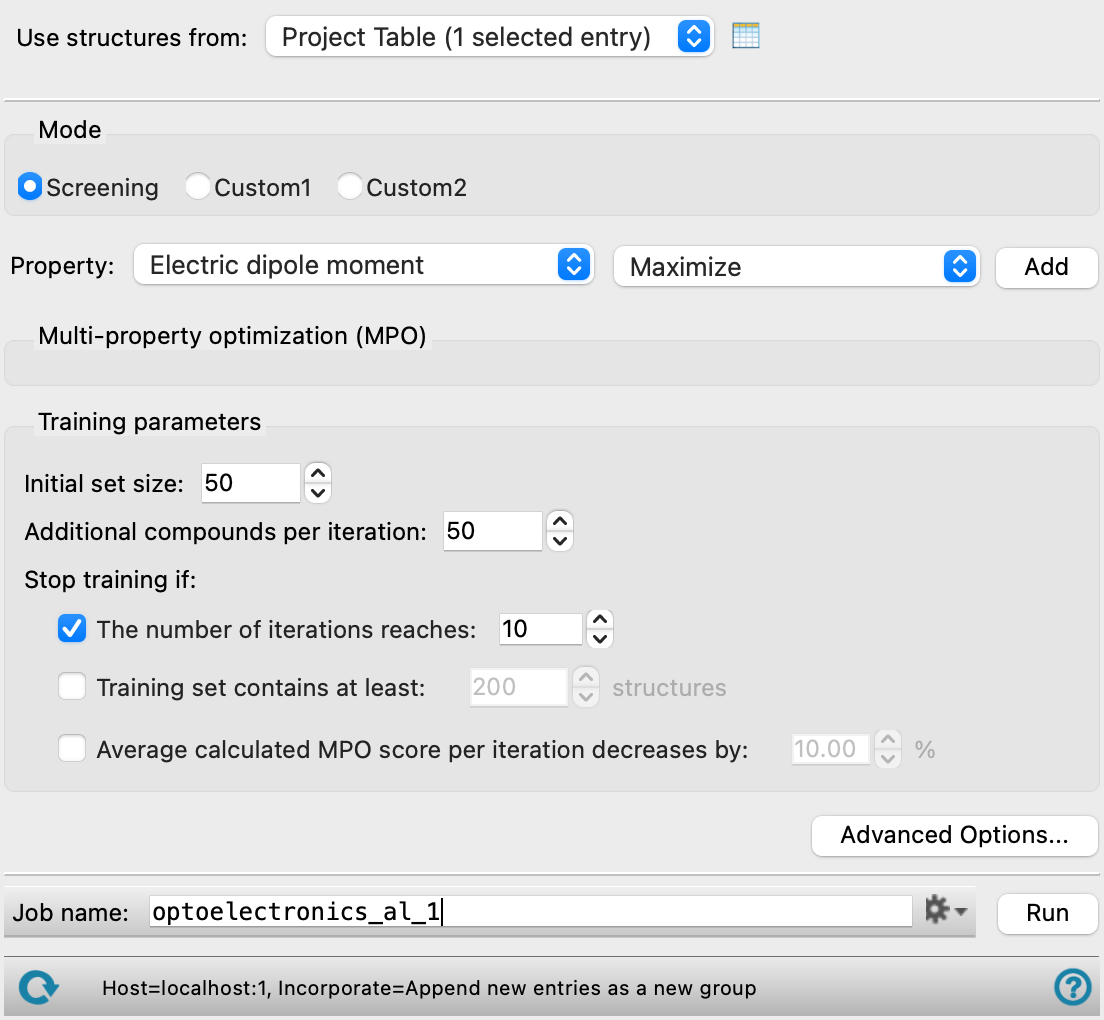
Select an option for the type of calculation that is done. The first option, Screening is a rapid calculation based on a well-parametrized model for the redox potentials and triplet energy using a small basis set, and is suitable for screening a larger number of molecules. The other two options (Custom1 and Custom2) allow you to customize the calculations to your own specifications. See the Optoelectronics - Advanced Options Dialog Box topic for more information.
- Property tools
-
Select properties to include in the MPO and the type of optimization method that is needed for the property.
- Property menu
-
Select the properties to include in the MPO. After a property is selected to be included in the MPO section, it is no longer be available in the Property menu. The properties are:
- Electric dipole moment
- Oxidation potential
- Reduction potential
- Scaled HOMO
- Scaled LUMO
- Scaled HOMO-LUMO gap
- Hole reorganization energy
- Electron reorganization energy
- First triplet energy
- Triplet reorganization energy
- S1 energy at S0 geometry
- S2 energy at S0 geometry
- S3 energy at S0 geometry
- S1-S0 transition dipole moment
- S2-S0 transition dipole moment
- S3-S0 transition dipole moment
- S1-T1 energy separation
- S1-T2 energy separation
- S1-T3 energy separation
- Maximum absorption (λmax)
- Maximum emission (λem)
-
See Optoelectronics Properties for a description of these properties.
-
The following ML properties are also available. These properties use pre-trained machine learning models for prediction instead of DFT calculations.
- ML Density of molecular liquids
- ML Viscosity of organic liquids
- ML Boiling point of organic molecules
- ML Vapor pressure of organic molecules
- ML Boiling point of organometallic molecules
- ML Absorption peak position
- ML Absorption bandwidth
- ML Extinction coefficient
- ML Emission peak position
- ML Emission bandwidth
- ML Emission lifetime
- ML Photoluminescence quantum yield
- ML Oxidation potential
- ML Reduction potential
- ML Aqueous solubility
- ML Melting point
-
Select Define new AutoQSAR property to define a custom property from a pre-trained AutoQSAR model. See below for details.
- Optimization method menu
-
Choose how to optimize the selected property: Maximize, Minimize, Targeted value, or Exclude targeted value. For a detailed explanation of these optimization methods, see the An Overview of Multi-Property Optimization (MPO).
- Add button
-
Add the selected property and optimization method as a row in the Multi-property optimization (MPO) section. Various optimization criterion for the property then has to be selected in the Multi-property optimization (MPO) section.
- Define new AutoQSAR property option
-
Select this option from the Property menu to define a custom property from a pre-trained AutoQSAR model. Opens the Define AutoQSAR Property dialog box with the following options:
- Property name text box
-
Specify the name to be used for the custom property. This name is used in the Multi-property optimization (MPO) section. The name must not contain spaces or conflict with an existing property name.
- AutoQSAR model file text box and Browse button
-
Enter the path to the AutoQSAR model file that defines the custom property, or click Browse to navigate to the file. The file must have a
.qzipextension. AutoQSAR model files are created using the AutoQSAR Panel. - Units text box
-
Specify the units for the custom property (optional). These units are displayed in the main panel and used in the log file.
- Multi-property optimization (MPO) section
-
Add a property with Property tools. For each chosen property and optimization method, select threshold values for separating property values into 3 ranges:
Good,OK, andBadand weights. See the An Overview of Multi-Property Optimization (MPO) for a complete description of each option. The units of each option depend on the selected property and is shown in the panel.- Minimize/Maximize options
-
When Minimize or Maximize is selected as the optimization method, the following options are needed:
-
Good/Ok cutoff text box—enter a threshold value for separating property values into the
Goodrange and theOKrange. -
Bad/Ok cutoff text box—enter a threshold value for separating property values into the
OKrange and theBadrange. -
Weight text box—enter the weight of the selected property to use for calculating the MPO score. By default, the weight is set to 1 and each selected property is weighted equally.
-
- Targeted value options
-
When Targeted value is selected as the optimization method, the following options are needed:
-
Targeted value text box—enter a target value for the property. This value is defined as the middle of the Good range and represents the desired value for the property.
-
Inner tolerance text box—enter the inner tolerance for the property value. The Inner tolerance is the absolute difference between the Targeted value and threshold value that separates property values into the
Goodrange and theOKrange on either side of the Targeted value. -
Outer tolerance text box—enter the outer tolerance for the property value. The Outer tolerance is the absolute difference between the Targeted value and threshold value that separates property values into the
Okrange and theBadrange on either side of the Targeted value. -
Weight text box—enter the weight of the selected property to use for calculating the MPO score. By default, the weight is set to 1 and each selected property is weighted equally.
-
- Exclude targeted value options
-
When Exclude targeted value is selected as the optimization method, the following options are needed:
-
Exclude targeted value text box—enter an excluded target value for the property. This value is defined as the middle of the Bad range and represents the unwanted value for the property.
-
Inner tolerance text box—enter the inner tolerance for the property value. The Inner tolerance is the absolute difference between the Exclude targeted value and threshold value that separates property values into the
Badrange and theOKrange on either side of the Exclude targeted value. -
Outer tolerance text box—enter the outer tolerance for the property value. The Outer tolerance is the absolute difference between the Exclude targeted value and threshold value that separates property values into the
Okrange and theGoodrange on either side of the Exclude targeted value. -
Weight text box—enter the weight of the selected property to use for calculating the MPO score. By default, the weight is set to 1 and each selected property is weighted equally.
-
- Delete button (
 )
) -
Delete the current row from the Multi-property optimization (MPO) section. After a property is deleted, it reappears in the Property menu.
- Training parameters section
-
Set various parameters that are used during the active learning workflow. Please refer to the Overview section for more details about the active learning workflow.
- Initial set size text box
-
Select the size of the initial subset of compounds on which QM calculations are performed. The compounds of the initial set are randomly selected. The first ML model is trained on the this data. The default value of 50 compounds gives a balance between the computational time needed to perform the optoelectronics property calculations and the size of training data needed to generate an adequate initial model.
- Additional compounds per iteration text box
-
Select how many compounds are added to the data set used to train the model at every iteration of the active learning loop. The compounds are selected based on the expected improvement score. QM computations for calculating optoelectronic properties are performed on each added compound.
- Stop training if options
-
Select options for when to stop the active learning training loop. Multiple options can be selected. In the case that multiple options are selected, the procedure stops whenever one of the conditions is reached.
- The number of iteration reaches text box
-
Select the maximum number of times the active learning loop is run. ML models for predicting the MPO score and individual properties are generated at each iteration. If the Average calculated MPO score per iteration decreases by option is also selected, the active learning loop stops whenever one of these options is reached first.
- Training set contains at least text box
-
Select the maximum number of structures included in the training data before stopping the active learning loop. Here, "training set" refers to the set of structures that have undergone QM calculations. This option can be used if you want to limit the total number of QM calculations to perform. If the Average calculated MPO score per iteration decreases by option is also selected, procedure stops whenever one of these options is reached first.
- Average calculated MPO score per iteration decreases by text box
-
Select the maximum percentage the average calculated MPO score can decrease by from one iteration to the next before stopping the active learning loop. This number is obtained by taking the average of the MPO scores calculated from a QM computation for all the molecules for which a QM computation was done.The MPO score is a number between 0 (worst) and 1 (best). If the average calculated MPO score is decreasing rather than increasing per iteration, it is an indication that all of the structures with the user defined desired properties have already been added to the training data. It is recommended that this option be used in combination with the other stopping conditions, and not by itself. Please see An Overview of Multi-Property Optimization (MPO) for more information about the MPO score.
- Advanced Options button
-
Open the Optoelectronics - Advanced Options Dialog Box, to make settings for the method of calculating the oxidation and reduction potentials, the triplet energy, and the QM methods used. Settings can be made for each of the three calculation modes: Screening, Custom1, and Custom2.
- Job toolbar
-
Manage job submission and settings. See Job Toolbar for a description of this toolbar.
The Job Settings button opens the Optoelectronics Active Learning Training - Job Settings Dialog Box, where you can make settings for running the job.
- Status bar
-
 to reset the panel to its default settings and clear any data from the panel.
If you can submit a job from the panel, the status bar displays information about the current job settings and status for the panel. The settings include the job name, task name and task settings (if any), number of subjobs (if any) and the host name and job incorporation setting. The job status can include messages about job start, job completion and incorporation.
The status bar also contains the Help button
 , which opens an option menu with choices to open the help topic for the panel (Documentation), launch Maestro Assistant, or if available, choose from an option menu of Tutorials. If the panel is used by one or more tutorials, hover over the Tutorials option to display a list of tutorials. Choosing a tutorial opens the tutorial topic.