Query Local Materials Panel
Search the local file system for structures that match an ASL expression or contain specified structure properties, and import the results into the project.
To open this panel: click the Tasks button and browse to Materials → Tools → Query Local Materials.
The following licenses are required to use this panel: MS Maestro
- Using
- Features
- Additional Resources
Using the Query Local Materials Panel
This tool allows you to find structures in the local file system that match a query on the structure or its properties. The search descends specified directories recursively to find Maestro and CMS files, which are parsed for matches to the query. If you provide both a structure query and a property query, the structures in the files must match both (i.e. a logical AND is used). The results are listed in the Result tab if the Maestro session is still open when the search finishes. You can then select the results to incorporate into the project. If Maestro was closed before the search finishes, all structures found are incorporated into the project that was active when the search was started.
To write out the input file and a script for running the job from the command line, click the arrow next to the Settings button  and choose Write.
Query Local Materials Panel Features
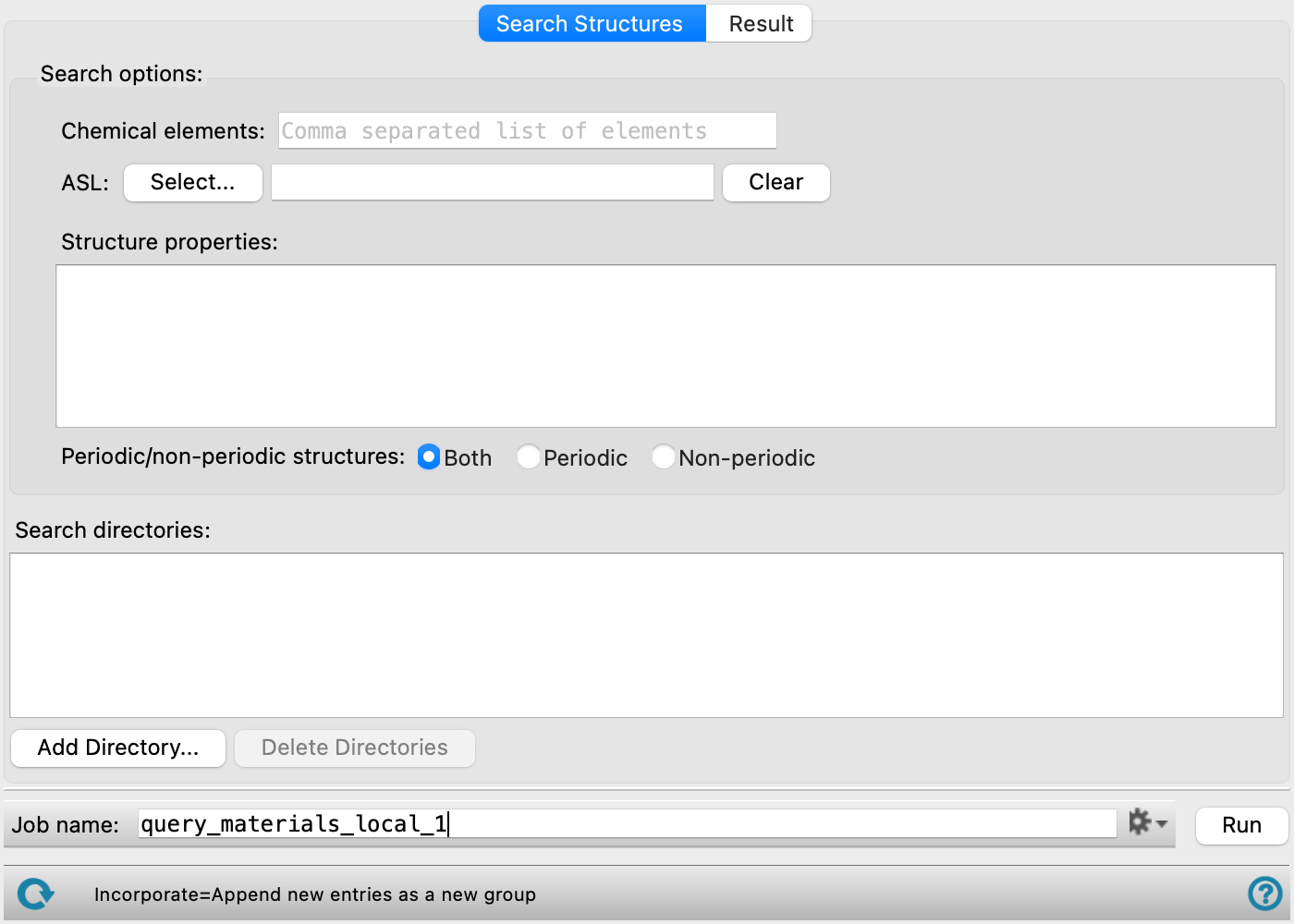
- Search Structures tab
-
Set up and run the search for structures.
- Search options section
-
Specify conditions for the search for materials. You can specify conditions with any or all of the tools listed below. The conditions are combined with a Boolean AND.
- Chemical elements text box
-
Specify chemical elements that the structure must contain, as a comma-separated list, e.g. Fe,O.
- ASL tools
-
Specify an ASL expression to use for matching structures. Click Select to open the Atom Selection Dialog Box to construct the expression. By default, picking mode is selected so you can pick atoms in the Workspace to use for matching structures. You can also enter an ASL expression in the text box—see Atom Specification Language for more information. Click Clear to clear the expression.
- Use structure properties text area
-
Enter a boolean expression for the values of properties that should be matched by any structure. The expression must be a valid Boolean Python expression that specifies conditions on structure properties. For example:
'Fe' in s_m_Unit_Cell_Formula and 'O' in s_m_Unit_Cell_Formula
looks for matches to structures that have both Fe and O in the unit cell formula. The properties are specified by the internal name—see Property Names for information on how these names are constructed.
- Periodic/nonperiodic structures options
-
Specify whether to search for periodic structures, nonperiodic structures, or both.
- Search directories list
-
List of directories to search, one per line. The directories are searched recursively. The list is stored in your User resources directory, so the last used list is displayed whenever you open the panel. If there are many files in the directories you specify, the search can take a long time.
- Add Directory button
-
Add a directory to the Search directories list. Opens a standard file selector, in which you can browse to and select a directory. You must add at least one directory to search.
- Delete Directories button
-
Delete the selected directories from the list.
- Job toolbar
-
Manage job submission and settings. See Job Toolbar for a description of this toolbar.
The Job Settings button opens the Query Local Materials - Job Settings Dialog Box, where you can make settings for running the job.
- Result tab
-
Shows the results of the search, and allows you to import selected or all structures. If the results are not returned in the same Maestro session, all results are incorporated into the project that was active when the search was run.
- Result table
-
List of the results of the search, giving the structure title and the path to the file. You can select multiple rows for incorporation into the project.
- Incorporate All Structures button
-
Incorporate all structures in the table into the Maestro project. If no strucures This is the default, and is performed if the results of the search are not returned in the same Maestro session.
- Incorporate Selected Structures button
-
Incorporate the structures that are selected in the table into the Maestro project.
- Clear Selection button
-
Clear the table selection.
- Status bar
-
The status bar displays information about the current job settings and status for the panel. The settings includes the job name, task name and task settings (if any), number of subjobs (if any) and the host name and job incorporation setting. The job status can include messages about job start, job completion and incorporation.
Use the Reset button
 to reset the panel to its default settings and clear any data from the panel.
 The status bar also contains the Help button
 , which opens the help topic for the panel in your browser. If the panel is used by one or more tutorials, hovering over the Help button displays a
  button, which you can click to display a list of tutorials (or you can right-click the Help button instead). Choosing a tutorial opens the tutorial topic.