Trajectory Electrostatic Potential Analysis Viewer Panel
Plot the charge density and electrostatic potential, generated using the Trajectory Electrostatic Potential Analysis Panel.
To open this panel: click the Tasks button and browse to Materials → Classical Mechanics → Trajectory Analysis → Trajectory Electrostatic Potential Analysis Results.
To open this panel from the entry group for the results of a job .
.
The following licenses are required to use this panel: MS Maestro
- Features
- Additional Resources
Trajectory Electrostatic Potential Analysis Viewer Panel Features
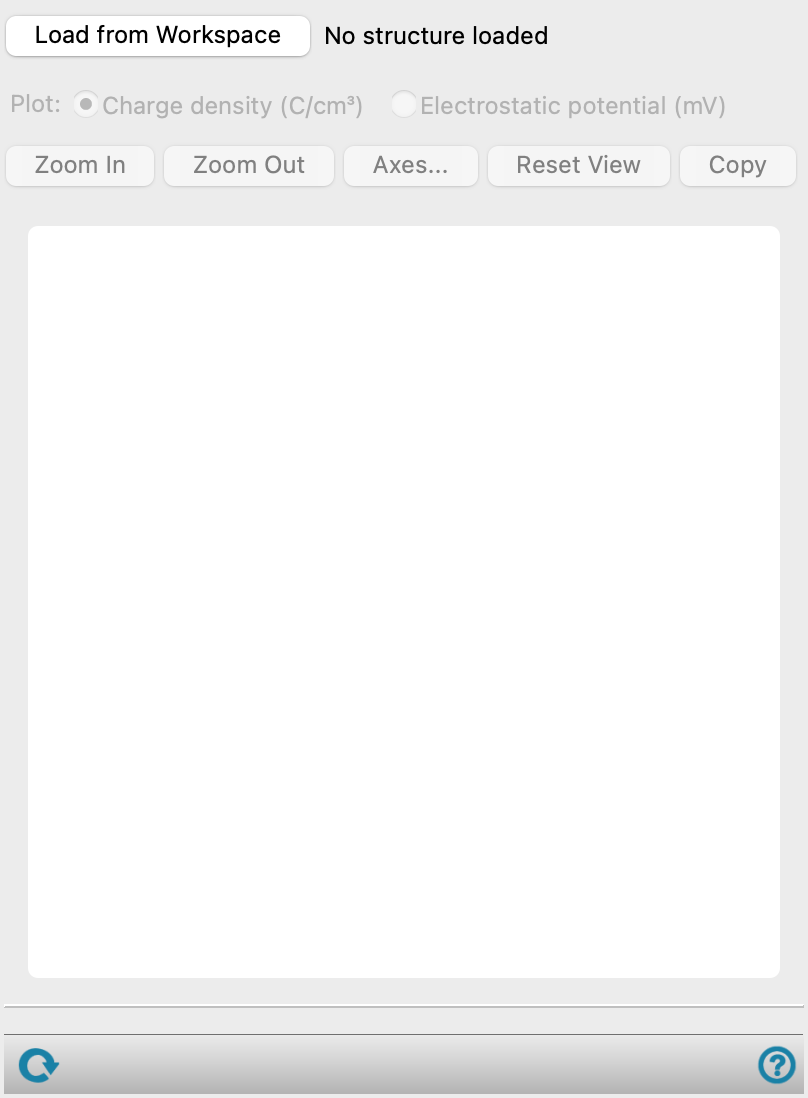
- Load from Workspace button
-
Load the analysis data associated with the structure in the Workspace, which must be the output structure from a job run from the Trajectory Electrostatic Potential Analysis Panel.
- Plot options
-
Choose the type of plot to display in the plot area. For calculation details, see the Trajectory Electrostatic Potential Analysis Panel
- Plot buttons
-
Use these buttons to configure the plot.
- Zoom In—Zoom in on the plot. Each click zooms in by a predefined factor, enlarging the view of the current center of the plot. You can also zoom in on a particular area by dragging out a rectangle.
- Zoom Out—Zoom out by a predefined factor. Each click zooms out by a predefined factor, to show more of the plot.
- Axes—Set the range and labeling options for the axes. Opens the Axes Parameters Dialog Box.
- Reset View—Reset the view of the plot to the original zoom and pan values.
- Copy—copy an image of the plot to the clipboard, for use in other applications.
- Plot area
-
The charge density or electrostatic potential is plotted against the distance from the trajectory center, in angstroms, in this area. If the system contains planar interfaces the reference on which the trajectory is centered (0 Å) is at the center of the plot x-axis. The values of the ploy x-axis are the distances from the reference along the direction perpendicular to the planar interface. The electrostatic potential is defined to be zero at x = 0 and should be reflected on the plot. If the system is a micelle the reference point on which the trajectory is centered (0 Å) is at the beginning of the plot x-axis. The values of the plot x-axis are the radial distances going outward from the center of the sphere. The electrostatic potential approaches zero with increasing radial distance and should be reflected in the plot.
You can zoom in to an area by dragging out a rectangle.
- Status bar
-
 to reset the panel to its default settings and clear any data from the panel.
If you can submit a job from the panel, the status bar displays information about the current job settings and status for the panel. The settings include the job name, task name and task settings (if any), number of subjobs (if any) and the host name and job incorporation setting. The job status can include messages about job start, job completion and incorporation.
The status bar also contains the Help button
 , which opens an option menu with choices to open the help topic for the panel (Documentation), launch Maestro Assistant, or if available, choose from an option menu of Tutorials. If the panel is used by one or more tutorials, hover over the Tutorials option to display a list of tutorials. Choosing a tutorial opens the tutorial topic.