TST Rate Calculation Panel
Calculate the rate of a reaction using transition state theory, from the output of quantum mechanical calculations on the reactants and the transition state.
To open this panel, click the Tasks button and browse to Materials → Quantum Mechanics → Workflows → TST Rate Calculation.
The following licenses are required to use this panel: MS Maestro
- Using
- Features
- Additional Resources
Using the TST Rate Calculation Panel
In this panel, you can calculate the rate of a reaction using transition state theory, from the output of quantum mechanical calculations on the reactants and the transition state. The rate constant is calculated as follows:

Here,  denotes the total partition functions for the reactants and transition state. The transition state total partition function,
  , includes the Wigner tunneling correction if the option is selected in the panel. The energy,
  , is the sum of the SCF and ZPE energies for the transition state less that summed over reactants:

Before using this panel, you must perform Jaguar optimizations on the reactants as separate molecules (if it is a bimolecular reaction), run a transition state search, and then perform frequency calculations on the reactants and the transition state. The panel uses the output from these calculations for the rate calculation.
To run the quantum mechanical calculations with Jaguar:
| 1. | Run a transition state search with Jaguar for the desired reaction and calculate the vibrational frequencies at the transition state. |
Use the Jaguar - Transition State Search Panel to set up the job.
You must supply the required structures. It is highly recommended that you do a reaction path interpolation calculation using the Reaction Path Interpolation Panel, to produce the reactant, product and transition state guesses, and use a QST search.
Choose Vibrational frequencies in the Properties tab to calculate the frequencies after the search, but do not select Use available Hessian, as the Hessian from the search is not accurate enough for the frequency calculation.
| 2. | Optimize the geometries of the reactants as separate molecules and calculate their vibrational frequencies. |
Use the Jaguar - Optimization Panel to set up the job. If the structures are in the Project Table, you can select them and choose Project Table (selected entries) from the Use structures from option menu to run the optimizations in the same job. When you start the job you can distribute the calculations over multiple processors.
Choose Vibrational frequencies in the Properties tab to calculate the frequencies at the end of the optimization, but do not select Use available Hessian, as the Hessian from the geometry optimization is not accurate enough for the frequency calculation.
The reactants must be in their ground state geometry, not pre-positioned for reaction in a reaction complex. If the reactants are only available in the pre-reactive complex, you can use Table → Split → By Molecule in the Project Table to split the entry into separate molecules, and then run the geometry optimization on each of these molecules.
| 3. | If you want to calculate the backward rate as well as the forward rate, optimize the geometries of the products as separate molecules and calculate their vibrational frequencies, using the same procedure as for the reactants. |
To calculate the rates with this panel:
| 1. | Specify the Jaguar output files to use for the rate calculation. |
These files are the text output (.out), not the structure output files.
| 2. | Choose the prefactor partition functions to use (see the Prefactor partition functions section). |
| 3. | If you want to include the Wigner tunneling correction in the rate calculation, select Wigner tunneling correction. |
| 4. | If you want to calculate rates at a range of temperatures as well as 298.15 K, select Calculate rates at additional temperatures and specify the temperature limits and interval in the boxes. |
| 5. | Enter a job name, and click Run. |
If you have calculated the forward rate for a reaction and want to calculate the backward rate, you can clear the reactants files, and import the optimized product outputs as the “reactants”, then proceed with the rest of the setup and the calculation.
To visualize the results, you can use the TST Rate Viewer Panel (click the Tasks button and browse to Quantum Mechanics → TST Rate Viewerclick the Tasks button and browse to Materials → Quantum Mechanics → Workflows → TST Rate Viewer). To open this panel from the entry group for the results of a job .
.
TST Rate Calculation Panel Features
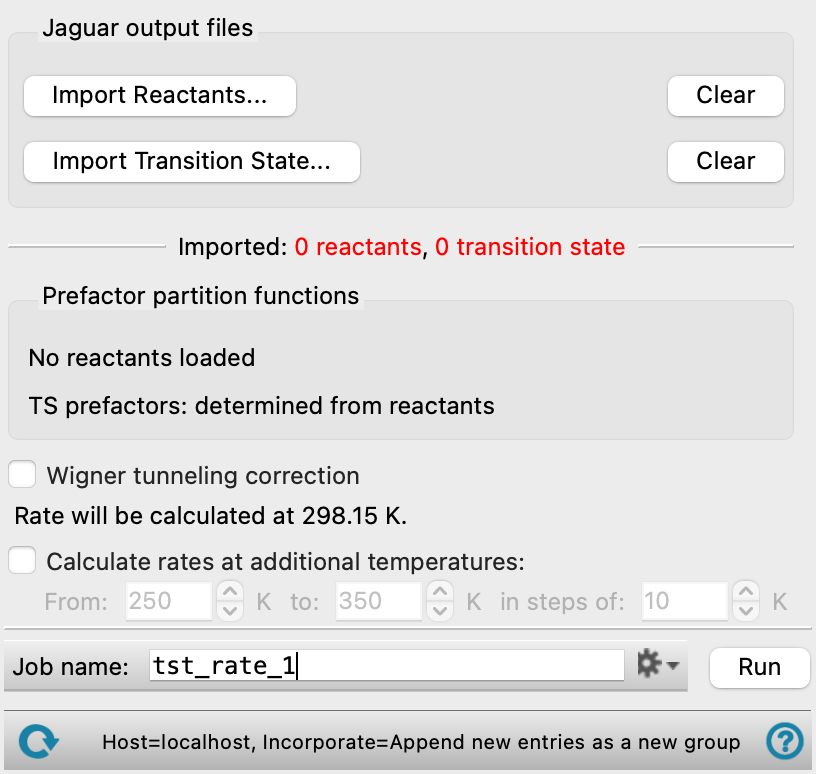
- Jaguar output files section
-
Specify the Jaguar output files to use for the rate calculation. You must specify one file for each reactant and one for the transition state. These output files must contain the results of a frequency calculation for the structures.
- Import Reactants button
-
Import the Jaguar output files (
.out) for the reactants. Opens a file selector, in which you can select one or more files to import. You can use this button more than once to import each file separately. Each file must contain the results of a calculation on a reactant at its minimum geometry. This is not the same as the "reactant" file you use in the transition state search, which must contain all the reactants, pre-positioned for the search. - Import Transition State button
-
Import the Jaguar output file (
.out) for the transition state. Opens a file selector so you can select the file. If you use this button again, it replaces the previous file. - Clear buttons
-
Clear the file selection for the reactants or for the transition state. This allows you to change the selection if you make a mistake in the selection.
- Prefactor partition functions section
-
In this section you can choose which partition functions to use in the rate calculation. By default, all three partition functions are used in the prefactor, on the assumption that the molecule is free to move. If it is confined but still able to rotate, deselect Translational; if it is not able to translate or rotate, deselect both Translational and Rotational. For the transition state, a vibrational partition function is always used, a rotational partition function is used if all reactants have a rotational partition function or are monatomic, and a translational partition function is used if all reactants have a translational partition function. The partition functions for the reactants and the transition state are added as properties to the output Maestro files.
- Wigner tunneling correction option
-
Include the Wigner tunneling correction in the rate calculation.
- Calculate rates at additional temperatures option and boxes
-
In addition to the default calculation at 298.15 K (25 C), calculate rates over a temperature range at specified intervals. Enter the lowest and highest temperatures in the range and specify the temperature step in the boxes.
- Job toolbar
-
Manage job submission and settings. See Job Toolbar for a description of this toolbar.
The Job Settings button opens the TST Rate Calculation - Job Settings Dialog Box, where you can make settings for running the job.
- Status bar
-
 to reset the panel to its default settings and clear any data from the panel.
If you can submit a job from the panel, the status bar displays information about the current job settings and status for the panel. The settings include the job name, task name and task settings (if any), number of subjobs (if any) and the host name and job incorporation setting. The job status can include messages about job start, job completion and incorporation.
The status bar also contains the Help button
 , which opens an option menu with choices to open the help topic for the panel (Documentation), launch Maestro Assistant, or if available, choose from an option menu of Tutorials. If the panel is used by one or more tutorials, hover over the Tutorials option to display a list of tutorials. Choosing a tutorial opens the tutorial topic.