Tune DFT Range-Separation Parameter Panel
Tune the range-separation parameter ω in long-range-corrected density functionals so that the ionization potential as calculated from separate DFT calculations is as close to the HOMO orbital energy as possible, and likewise for the electron affinity and the LUMO orbital energy. The tuning is performed separately for each input molecule.
To open this panel: click the Tasks button and browse to Materials → Quantum Mechanics → Workflows → Tune DFT Range-Separation Parameter.
The following licenses are required to use this panel: MS Maestro, Jaguar
- Overview
- Using
- Features
- Additional Resources
Overview of Tuning the DFT Range-Separation Parameter
The tuning algorithm is based on the work in Ref. 47. Basically, the tuning attempts to ensure that the HOMO orbital energy is as close as possible to the ionization potential (IP) and the LUMO orbital energy is as close as possible to the electron affinity (EA). This is a requirement of exact density functionals. The tuning is applied to the range-separation parameter ω in functionals that include a separation of the Coulomb interaction into short-range and long-range terms (see Long-Range-Corrected Density Functionals). This is done by performing DFT calculations on the neutral molecule and the singly-charged cation and anion for a set of values of ω, and minimizing the value of |εHOMO − IP| + |εLUMO− EA| as a function of ω. In addition to this value, the values of two other error functions, which involve squares of the differences, are returned as Error_Jn2 and Error_J2:
Jn2 = (εHOMO + IP)2 + (εLUMO− EA)2
J2 = (εHOMO + IP)2 + (εHOMO(anion) + EA)2
Using the Tune DFT Range-Separation Parameter Panel
The input molecules should be at the desired geometry, as no geometry optimization is performed as part of the process. As calculations are done for the electron affinity, you may want to choose a basis set with diffuse functions, so that the electron affinity is well described.
Results are returned in a CSV file, containing the data for each ω value, the HOMO, LUMO, IP, EA, and the tuned ω value for each molecule. The tuned value is returned as a Maestro property for each structure, Koopmans omega lrc (1/bohr). The ω value can then be supplied to a Jaguar-based calculation that uses the same functional as used to tune ω, by setting the lrc-omega keyword. This should yield more accurate results.
Tune DFT Range-Separation Parameter Panel Features
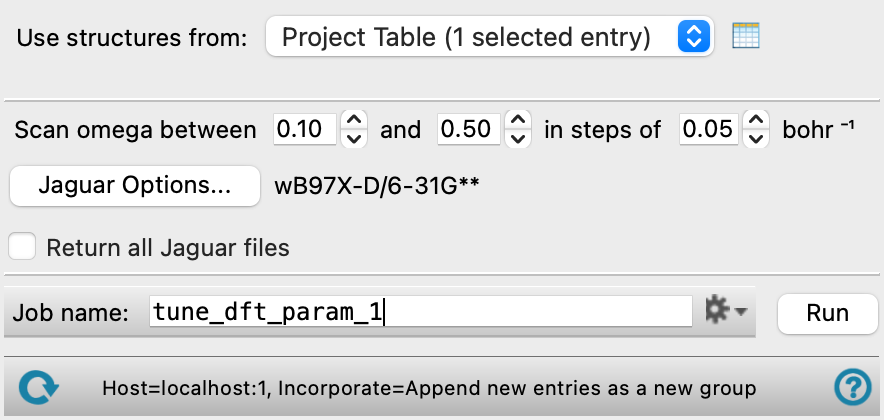
- Use structures from option menu
-
Choose the structure source for parameter tuning.
- Project Table (n selected entries)—Use the entries that are currently selected in the Project Table or Entry List. The number of entries selected is shown on the menu item.
- Workspace (included entries)—Use the entries that are currently included in the Workspace, treated as separate structures.
- File—Use the specified file. When this option is selected, the File name text box and Browse button are displayed.
- Project Table (n selected entries)—Use the entries that are currently selected in the Project Table or Entry List. The number of entries selected is shown on the menu item.
- Open Project Table button
-
Open the Project Table panel, so you can

- File name text box and Browse button
-
Enter the file name in this text box, or click Browse and navigate to the file. The name of the file you selected is displayed in the text box.
- Scan omega between P and Q in steps of S bohr-1 text boxes
-
Specify the minimum and maximum values of the range-separation parameter omega and the step length, used to generate a set of omega values for the tuning. A DFT calculation with the specified range-corrected functional is run for each value of omega.
- Options button
-
Set Jaguar options for the DFT calculations. Opens the Jaguar Options - Tune DFT Range-Separation Parameter Dialog Box. This dialog box also allows you to specify additional Jaguar keywords. The solvent (if any), level of theory, and basis set are shown to the right of the button.
- Return all Jaguar files option
-
Return all Jaguar files from the execution host to the working directory.
- Job toolbar
-
Manage job submission and settings. See Job Toolbar for a description of this toolbar.
The Job Settings button opens the Tune DFT Range-Separation Parameter - Job Settings Dialog Box, where you can make settings for running the job.
- Status bar
-
 to reset the panel to its default settings and clear any data from the panel.
If you can submit a job from the panel, the status bar displays information about the current job settings and status for the panel. The settings include the job name, task name and task settings (if any), number of subjobs (if any) and the host name and job incorporation setting. The job status can include messages about job start, job completion and incorporation.
The status bar also contains the Help button
 , which opens an option menu with choices to open the help topic for the panel (Documentation), launch Maestro Assistant, or if available, choose from an option menu of Tutorials. If the panel is used by one or more tutorials, hover over the Tutorials option to display a list of tutorials. Choosing a tutorial opens the tutorial topic.