Umbrella Sampling Viewer Panel
View the free energy curve from an umbrella sampling calculation.
To display this panel:- click the Tasks button and browse to Materials → Classical Mechanics → Umbrella Sampling → Umbrella Sampling Viewer
- Click the Workflow Action Menu
 for the results entry group and choose Umbrella Sampling Viewer.
The following licenses are required to use this panel: MS Maestro
- Features
- Additional Resources
Umbrella Sampling Viewer Panel Features
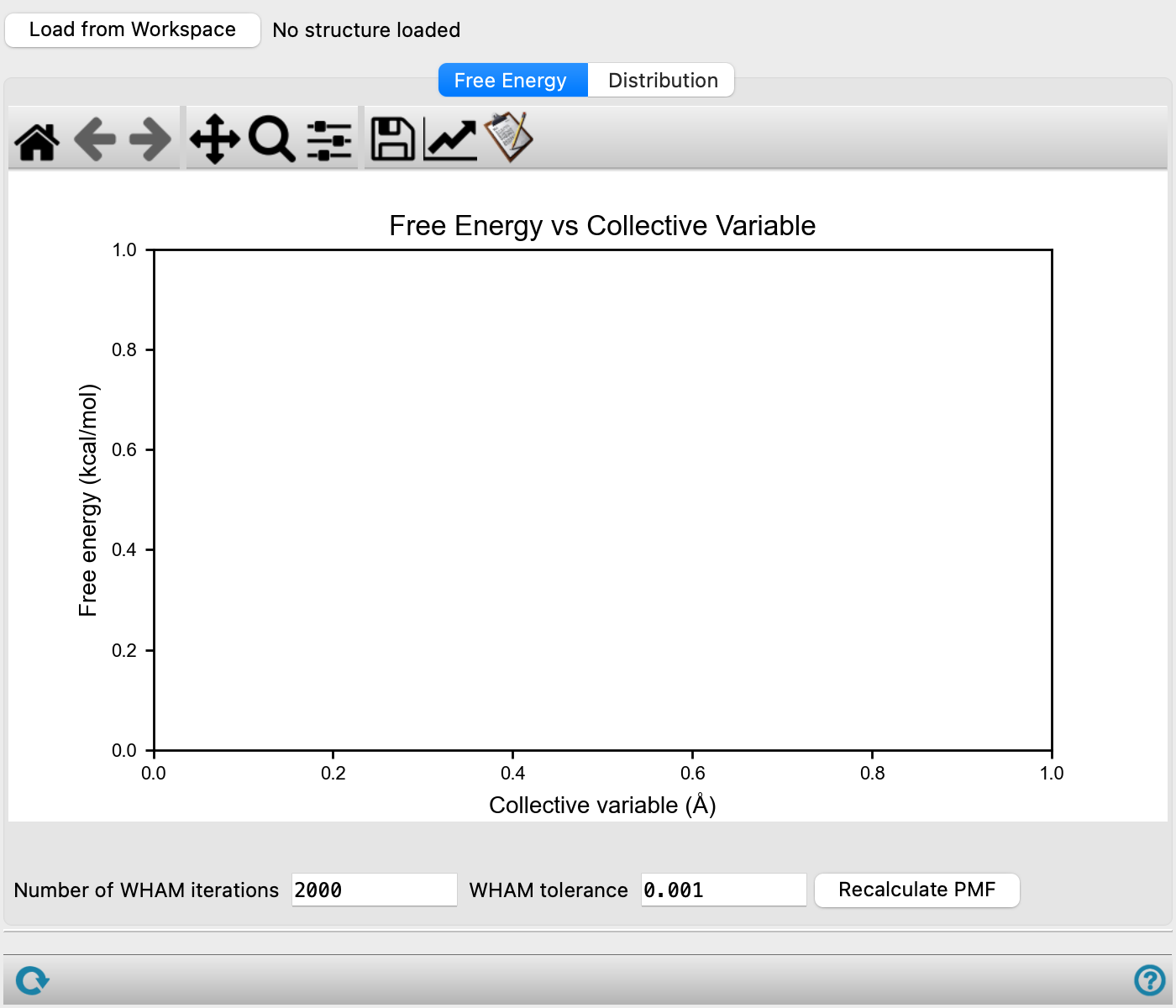
- Load from Workspace button
Load the output structure from the umbrella sampling calculation into the viewer.
- Export PMF button
Click to export the potential of mean force (PMF) data to a CSV file. Opens a file selector in which you can navigate to a location and name the file.
- Free Energy tab
This tab contains the plot of the free energy as a function of the collective variable. The free energy is determined from the histograms of collective variable values for each window, using the weighted histogram analysis method (WHAM) to combine the histograms and remove the effects of the harmonic constraining potential to generate a potential of mean force. The method is iterative, and you can set or adjust the parameters used to obtain convergence.
- Plot toolbar
The toolbar has tools for manipulating the plot and for saving images. The buttons that are common to all plot toolbars are described in the Plot Toolbar topic.
- Plot area
This area displays the plot of free energy against collective variable values.
- WHAM converged after N iterations text
Displays the number of iterations after which the WHAM converged.
- Number of WHAM iterations text box
Maximum number of iterations to use in the WHAM procedure.
- WHAM tolerance text box
Threshold for convergence of the WHAM iterations.
- Recalculate PMF button
Click to recalculate the potential of mean force (PMF) using the current settings in the panel. Only available when the Number of WHAM iterations, WHAM tolerance, Sampling start Time, or Resolution are changed.
- Distribution tab
This tab contains the plot of the probability as a function of the collective variable. The plot displays histograms representing the center-of-mass position of the mobile group within each umbrella window. These histograms are considered "biased" because a harmonic potential is applied to maintain the mobile group at specific, desired positions, causing their centers to align with the approximate center of each umbrella window. Reviewing these biased distributions in this plot serves as a method to check the reliability of the PMF. Sufficient overlap between the tails of the biased distributions indicates a reliable PMF.
- Plot toolbar
The toolbar has tools for manipulating the plot and for saving images. The buttons that are common to all plot toolbars are described in the Plot Toolbar topic.
- Plot area
This area displays the plot of probability against collective variable values. An overlap plot is below the curves where the overlap is calculated by
 where the expected value of Pj is evaluated at points drawn from Pi, where i and j are two overlapping windows. The overlap is colored according to the following values:
green when overlap > 0.3
yellow when 0.1 < overlap < 0.3
red when overlap < 0.1
- Sampling start Time text box
Specify the starting point of the sampling in ps.
- Resolution text box
Specify the resolution of the plot in Angstrom.
- Status bar
 to reset the panel to its default settings and clear any data from the panel.
If you can submit a job from the panel, the status bar displays information about the current job settings and status for the panel. The settings include the job name, task name and task settings (if any), number of subjobs (if any) and the host name and job incorporation setting. The job status can include messages about job start, job completion and incorporation.
The status bar also contains the Help button
 , which opens an option menu with choices to open the help topic for the panel (Documentation), launch Maestro Assistant, or if available, choose from an option menu of Tutorials. If the panel is used by one or more tutorials, hover over the Tutorials option to display a list of tutorials. Choosing a tutorial opens the tutorial topic.