Wulff Viewer Panel
Predict the crystal shape from the energies of its surfaces with the Wulff construction method.
To open this panel: click the Tasks button and browse to Materials → Classical Mechanics → Crystal Morphology → Wulff Viewer.
To open this panel from the entry group for the results of a crystal morphology job .
.
The following licenses are required to use this panel: MS Maestro, MS Morph
- Using
- Features
- Additional Resources
Using the Wulff Viewer Panel
The Wulff construction predicts equilibrium particle shapes from surface energies of the crystal faces. Surfaces with lower energies require less work to grow the surface and thus are more important for the overall shape of a particle, as determined by the surface area of a surface relative to the overall surface area of the particle. You can calculate the surface energies with the Crystal Morphology Calculations Panel. The algorithm starts by drawing vectors from an arbitrary central point in the direction normal to a crystal face. The length of these vectors is proportional to the surface energy of the corresponding crystal face (Wulff theorem). The vectors represent the distance of a crystal face to the center of the crystal. For spherical particles, these vectors correspond to the radius of the sphere. A surface plane is drawn perpendicular to the vector at a distance that corresponds to the surface energy. The polyhedron formed by the inner envelope of these planes represents the equilibrium particle shape.
An alternative to the Wulff theorem is the Bravais-Friedel-Donnay-Harker (BFDH) model, which uses the interplanar distance dhkl instead of the surface energies. According to the BFDH model, surfaces with larger interplanar distances have a larger relative surface area and are thus more important for the shape of the particle.
To display the particle shape with the Wulff construction method:
- Include the bulk crystal structure in the Workspace and click Load Bulk from Workspace.
- Select all slab models in the Entry List or Project Table and click Load Selected Entries.
- Click Plot to show the Wulff construct in the plot area of the panel.
Wulff Viewer Panel Features
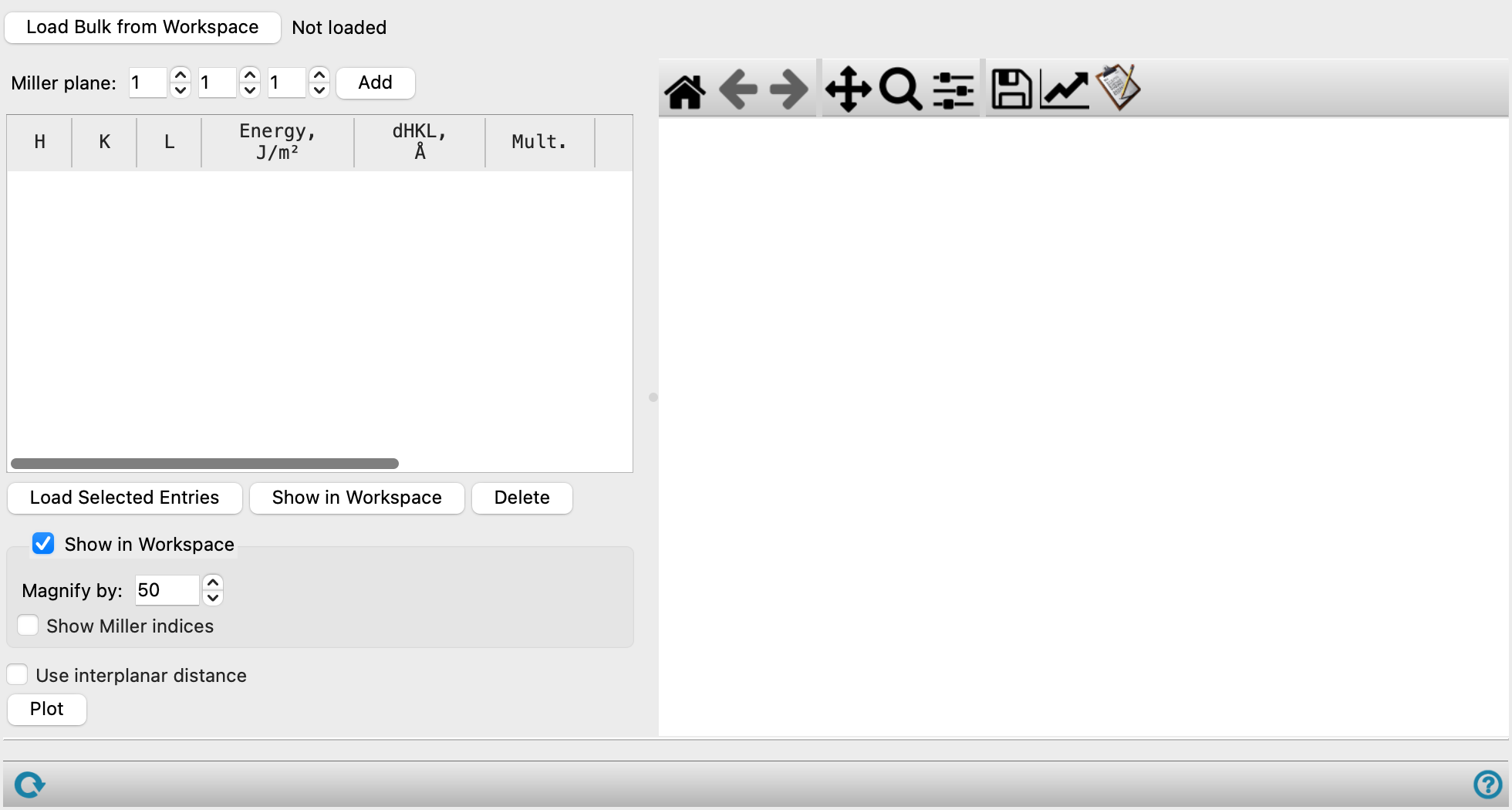
- Load Bulk from Workspace button
- Miller plane text boxes and Add button
- Miller plane table
- Load Selected Entries button
- Show in Workspace button
- Delete button
- Show in Workspace option
- Magnify by text box
- Show Miller indices option
- Use interplanar distance option
- Plot button
- Plot toolbar
- Plot area
- Status bar
- Load Bulk from Workspace button
-
Use the structure that is currently included in the Workspace as bulk crystal structure.
- Miller plane text boxes and Add button
-
Enter the values for the Miller indices h, k, and l into the text boxes and click Add to add the plane defined by these indices. This can be useful if you want to predict the particle shape with the BFDH model, which does not need surface energies.
- Miller plane table
-
Lists defined planes with their properties such as the h, k, and l indices; the surface energy, in mJ/m2; the interplanar distance dhkl; the multiplicity of the surface; the area as determined by the vector cross product of the in-plane unit cell vectors of the slab models, in Å2; the relative area, which is the area of the surface relative to the total surface area of the crystal); and title, which corresponds to the title of the slab model of the surface in the Entry List or Project Table. Click on the column header to sort the table by the values of the selected column in ascending or descending order. This can be useful to sort the surfaces according to ascending surface energies or descending interplanar distances.
- Load Selected Entries button
-
Select slab models in the Entry List or Project Table and click Load Selected Entries to add their surfaces to the table.
- Show in Workspace button
-
Select one row in the table and click Show in Workspace to show the slab model for the selected surface in the Workspace.
- Delete button
-
Select one row in the table and click Delete to delete the surface.
- Show in Workspace option
-
Select this option to show the Wulff crystal as a polyhedron in the Workspace.
- Magnify by text box
-
Increase the size of the polyhedron shown in the Workspace by entering a larger value in the text box.
- Show Miller indices option
-
Show Miller indices as labels for the surfaces of the polyhedron in the Workspace.
- Use interplanar distance option
-
Use interplanar distances dhkl instead of surface energies to predict the particle shape (BFDH model).
- Plot button
-
Display the Wulff construct in the Plot area and in the Workspace.
- Plot toolbar
-
The toolbar has tools for manipulating the plot and for saving images. The buttons that are common to all plot toolbars are described in the Plot Toolbar topic.
- Plot area
-
This area displays the Wulff construct. Surfaces with a higher surface energies are colored in a darker blue than surfaces with lower surface energies.
- Status bar
-
 to reset the panel to its default settings and clear any data from the panel.
If you can submit a job from the panel, the status bar displays information about the current job settings and status for the panel. The settings include the job name, task name and task settings (if any), number of subjobs (if any) and the host name and job incorporation setting. The job status can include messages about job start, job completion and incorporation.
The status bar also contains the Help button
 , which opens an option menu with choices to open the help topic for the panel (Documentation), launch Maestro Assistant, or if available, choose from an option menu of Tutorials. If the panel is used by one or more tutorials, hover over the Tutorials option to display a list of tutorials. Choosing a tutorial opens the tutorial topic.