Selecting Predefined Atom Sets
As well as picking atoms directly in the Workspace, you can select all atoms that belong to a predefined set. There are several tools that provide standard atom sets for selection, and you can also define custom sets, which can be stored internally or externally—see Saving the Selection for more information. By default, the atoms in the set replace the selection in the Workspace: any previous selection is cleared.
Selecting Standard Sets
The Quick Select section of the Selection toolbar provides access to some common sets that are relevant to the Maestro profile, and a button for access to a larger collection of sets.

The Maestro profile has buttons for all protein atoms (P), all ligand atoms (L), and all solvent atoms (S). In the BioLuminate profile, the ligand atom button is replaced with a protein-protein interface button (I). These buttons are absent in the Materials Science profile. Ligands are defined by a set of criteria that can be modified in the Ligand Detection Preferences of the Preferences Panel. Solvent atoms include small molecules that are commonly used in mixed solvents. These items are also available from the Select menu. You can also select a ligand from the 2D Overlay.
The larger collection of predefined sets can be displayed by clicking the Choose item button,
or Select → More Objects. The lists of objects available for selection and their arrangement depend on the profile; the antibody-specific and protein-related items are absent in the Materials Science profile, and the ligand-related items are largely absent in the BioLuminate profile.
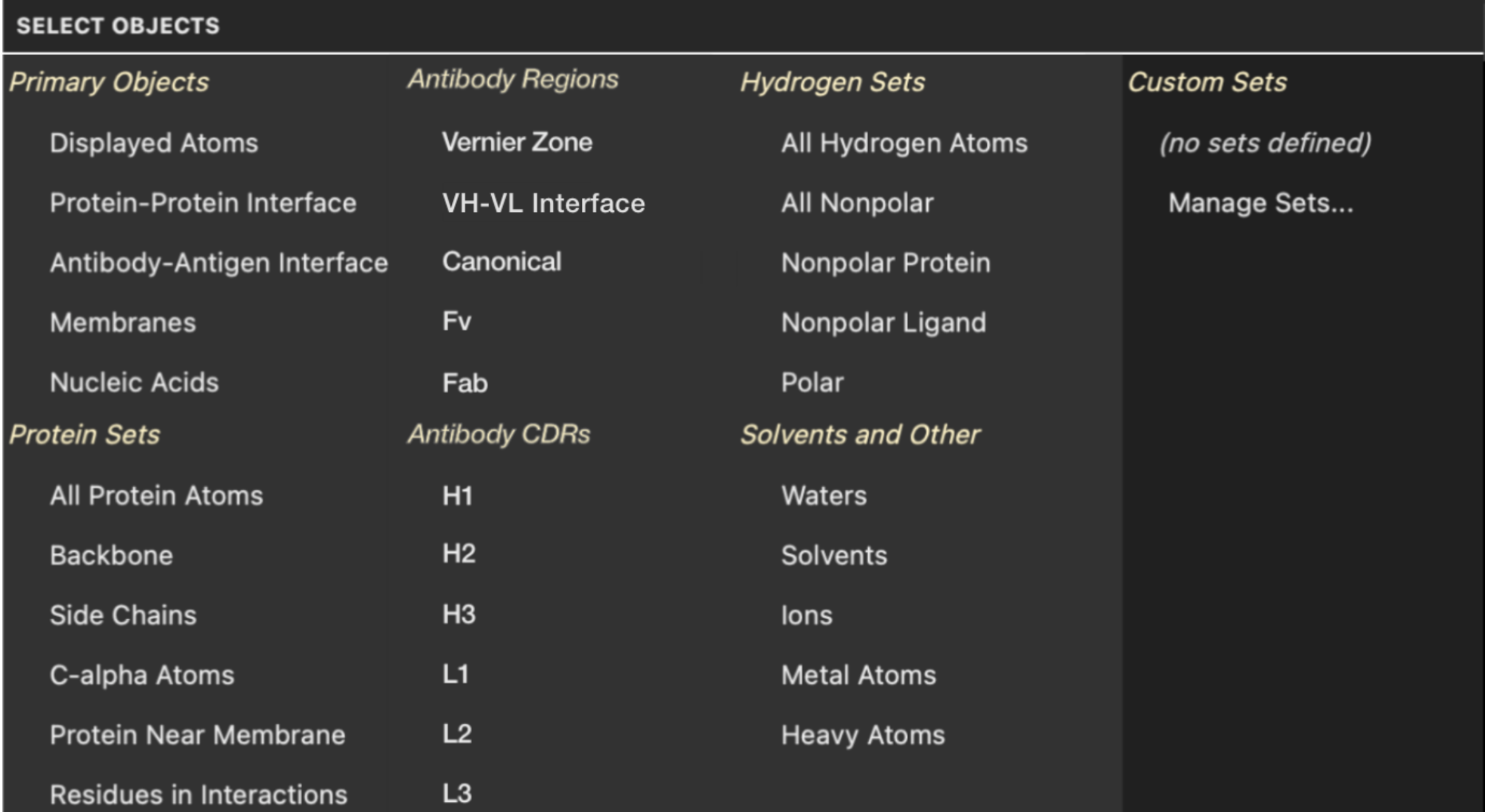
The items that are dependent on the structure are defined by built-in atom selection queries (ASL expressions that are aliased—see ASL Aliases for the definitions). The Residues in Interactions item also depends on the interactions selected in the Interactions Toolbox (whether or not the interactions are actually displayed), as it selects residues that are involved in any of the selected interactions.
The action taken when you choose one of the predefined sets (either in the Select Objects panel or with the buttons under Quick Select) depends on the picking mode. By default, the selection is replaced, but you can add to the selection or remove from the selection by changing the picking mode, as described in later topics.
To select all atoms, you can click the All button under Quick Select, double-click the Select by picking (arrow) button, choose Select → All, or press Ctrl+A (⌘A). If you want to apply an action to all atoms, it might not be necessary to select them. Some actions that operate on a selection still take place if there is no atom selection. In this case, all atoms are assumed to be selected for the purpose of the action.
You can also select the visible (displayed) atoms by choosing Select → Visible.
The selection scope for these objects (except for the hydrogen sets) can be modified to exclude nonpolar hydrogen atoms from the selection, so only the polar hydrogens are selected. See Selecting Hydrogen Atoms for details.
Selecting Custom Sets
You can select named custom sets by clicking the Choose item button
or choosing Select → More Objects, then choosing the set under Custom Sets. You can create these sets in the Create Custom Set Dialog Box or the Atom Selection Dialog Box
You can also retrieve a selection that you stored in one of ten memory locations and apply it to the Workspace, by pressing the numeral key for the set (1 through 9, 0 for set 10) when the pointer is in the Workspace. These selections are also available under Select → Restore Quick Save, or by right-clicking on Selection in the Structure Hierarchy and choosing Restore Quick Save.
See Saving the Selection for information on saving custom sets.