Adsorption Site Finder Panel
Locate sites of adsorption of an adsorbate on a surface using Monte Carlo - Simulated Annealing simulation, and analyze the energetics of adsorption.
To open this panel, click the Tasks button and browse to Materials → Structure Builders → Adsorption Site Finder.
To open this panel from the entry group for the results of a Enumerate Adsorbates job .
.
The following licenses are required to use this panel: MS Maestro, OPLS (optional), MS Force Field Applications (optional)
- Using
- Features
- Additional Resources
Using the Adsorption Site Finder Panel
The Adsorption Site Finder performs a Monte Carlo simulation where random configurations of the adsorbate on the substrate are generated. The best configurations are chosen based on the “binding energy” value, which is calculated by the following equation:
E(substrate+adsorbate) − E(substrate) − E(adsorbate )
If you choose to minimize the structure, then the substrate+adsorbate complex found using the MC method is then minimized using the force field before the “binding energy” is calculated. More negative binding energies indicate stronger adsorption.
To locate sites of adsorption, you must first use the Enumerate Adsorbates Panel or Disordered System Builder Panel to set up the system containing the substrate and the adsorbate. To build the system using the Disordered System Builder Panel, you should do the following:
- Select the adsorbate structure(s) in the Workspace.
- Select the Substrate option.
- Load the substrate structure using the Import button.
- Choose Planar interface from the Substrate type option menu.
- Define the interface.
After you have set up the system, you can modify the adsorbate in the Workspace before proceeding to find adsorption sites. Note that periodic boundary conditions are applied in the simulations.
The results include the total energy, the adsorbate energy, and the binding energy of the adsorbate to the surface calculated with the force field, which are added as Maestro properties. If minimization was performed on the final structures, the total energy and binding energy for the minimized structures are also reported as Maestro properties.
If you have only one adsorbate molecule, you will get the binding energy for the adsorbate at the sites located on the surface. If you have more than one adsorbate molecule, the simulations return the favored locations of the collection of molecules, and the binding energy is the total for all the adsorbate molecules.
The binding energy is a rough approximation to the adsorption energy calculated with a force field and is intended for qualitative analysis of sites. Output structures with one gas molecule for each substrate can be used as initial geometries for calculation of adsorption energies with the Adsorption Energy Calculations Panel.
To write out the input file and a script for running the job from the command line, click the arrow next to the Settings button  and choose Write.
Adsorption Site Finder Panel Features
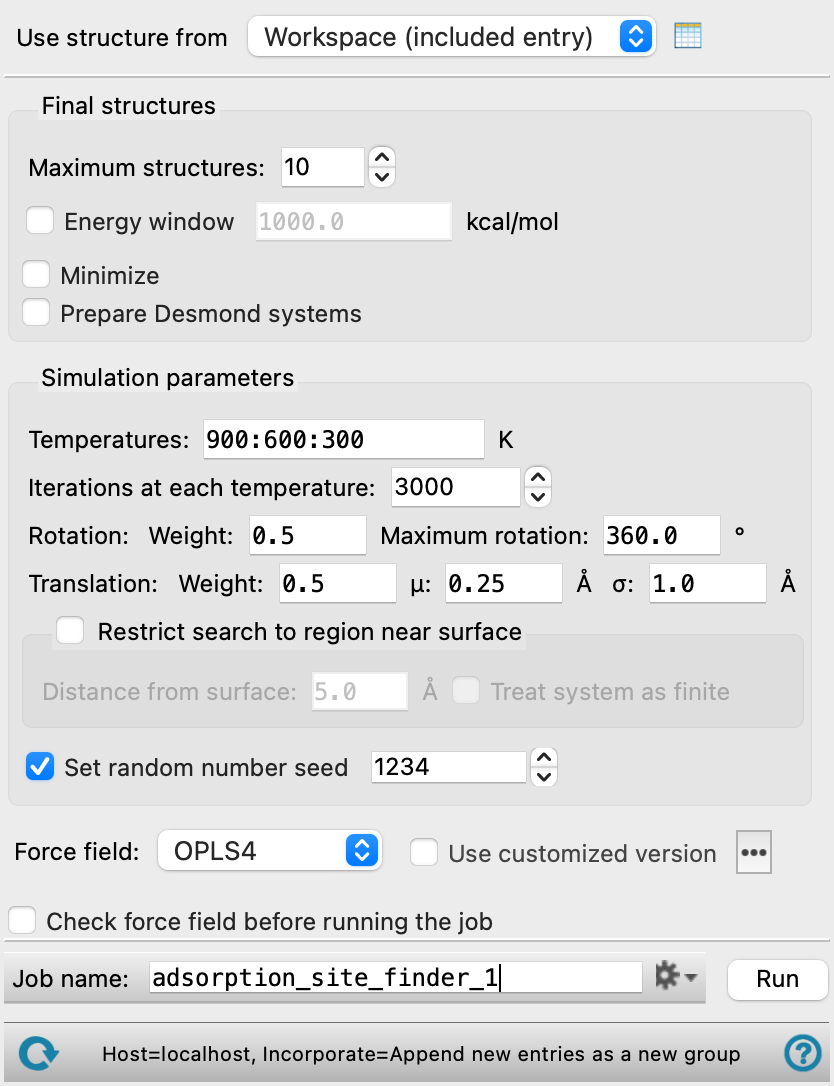
Final structures section
In this section you can make settings for the number of structures (sites found) to return and how the structures are treated.
- Maximum structures option
-
Specify the maximum number of adsorbate-surface structures to return. Structures are returned in order of energy. Fewer structures may be returned if an energy window is specified or fewer sites are found.
- Energy window option and text box
-
Specify an energy cutoff for returning the structures. Structures whose energy is within this amount above the lowest-energy structure are returned, subject to the cutoff on the maximum number of structures.
- Minimize option
-
Minimize the structures at the end of the simulations. Only the adsorbate is minimized: the substrate is frozen.
- Prepare Desmond systems option
-
Create a Desmond model system (
.cmsfile) from the output structures. This is useful if you want to perform MD simulations on the adsorbate-surface structures. By default, a Maestro file is written.
Simulation parameters section
In this section you can set up the parameters of the MC-SA simulation.
- Temperatures text box
-
Temperatures in kelvin for the simulated annealing, given in order of application, separated by colons.
- Iterations at each temperature box
-
Number of iterations (Monte Carlo moves) to be performed at each temperature.
- Rotation settings
-
These settings control the probability and size of rotation moves in the Monte Carlo simulation.
- Weight text box
-
Relative probability of a rotation move in the Monte Carlo simulation, compared to a translation move. The rotation and translation weights do not need to add up to 1, as they are normalized before use.
- Maximum rotation text box
-
Maximum size of a rotation move, in degrees. The random sampling to generate a rotation move is confined to the range specified.
- Translation settings
-
These settings control the probability and size of translation moves in the Monte Carlo simulation. The translation moves are chosen using a log-normal probability distribution for the selection of the translation distance, and a random direction.
Note that the mean value of the log-normal distribution is exp(μ+σ2/2), so for the default values of μ and σ the mean distance would be about 2 Å.
- Weight text box
-
Relative probability of a translation move in the Monte Carlo simulation, compared to a rotation move. The translation and rotation weights do not need to add up to 1, as they are normalized before use.
- μ text box
-
Location parameter of the log-normal distribution used to choose a translation move. The median translation distance is exp(μ).
- σ text box
-
Scale parameter of the log-normal distribution used to choose a translation move.
- Restrict search to region near surface option
-
Select this option to restrict the Monte Carlo moves of the adsorbate centroid to the region close to the substrate surface. The region is enclosed by a convex surface whose minimum distance from the substrate is specified in the Distance from surface text box.
- Distance from surface text box
-
Specify the distance from the substrate surface atoms that defines the region in which the adsorbate centroid is allowed to move. This distance is used to create an isosurface which is modified to produce a convex surface, filling in the cusps. The adsorbate centroid is confined to be inside this surface. The distance is therefore approximately the maximum distance from the surface to the adsorbate centroid.
- Treat system as finite option
-
Select this option to turn off periodic boundary conditions for the Monte Carlo simulation.
- Set random number seed option and text box
-
Select this option to specify a random seed for the Monte Carlo moves. Specifying the seed allows you to reproduce the results, unless other factors affect them. If this option is not selected, a seed is chosen at random. The seed actually used is reported as a Maestro property.
Force field settings
Choose the force field for calculation of energies and for minimization (if selected).
- Use customized version option
-
Use your customized version of the OPLS4 or OPLS5 force field, rather than the standard version in the distribution.
If the customized version is missing or invalid, the text of this option turns orange and an orange warning icon is displayed to the right, with a tooltip about the problem.
- Parameter set button
-
Select the set of custom parameters for the OPLS4 or OPLS5 force field. Opens the Set Custom Parameters Location Dialog Box.
- OPLS5 Metals force field options button (
 )
) -
Click this button to open a popdown pane with options for enabling the OPLS5 Metals force field. This button is only displayed when OPLS5 is selected as the force field.
- Enable OPLS5 Metals force field (beta) option
-
Select this option to use the OPLS5 Metals force field for systems containing supported metals. The supported metals are Ca, Fe, Ir, Mg, Pt, Zn. The OPLS5 Metals force field is significantly slower than the standard OPLS5 force field. Only available after the input structures have been analyzed successfully and the criteria for using the OPLS5 Metals force field has been met.
- Analyze Structures button
-
Click this button to analyze the input structures and determine whether the OPLS5 Metals force field can be used. The analysis checks that the structures contain supported metal elements and that the coordination environment around each metal center is compatible with the OPLS5 Metals force field. If the structures meet the criteria, the Enable OPLS5 Metals force field (beta) option becomes available. If the input structures change after the analysis, the analysis must be repeated.
When you choose MLFF as the force field, you can select the machine learning force field model to use, including a Custom model that you have trained yourself using the MLFF Fine-tuning Panel. See Machine Learning Force Fields.
Check the structure for any possible problems in assigning the force field parameters before running the job. A warning message is displayed if this is the case. If the check is not done and there are problems the job will fail. The checking of the force field assignment can take some time, so if you are sure that there will be no problems, turning off this option speeds up job submission.
Problems with force fields can arise when you have been using the Build Cell toolbox to display and hide extents (super cells) for the system, and you have turned off recalculation of connectivity and bonds.
Job toolbar
Manage job submission and settings. See Job Toolbar for a description of this toolbar.
The Job Settings button opens the Adsorption Site Finder - Job Settings Dialog Box, where you can make settings for running the job.
Status bar
The status bar displays information about the current job settings and status for the panel. The settings includes the job name, task name and task settings (if any), number of subjobs (if any) and the host name and job incorporation setting. The job status can include messages about job start, job completion and incorporation.
Use the Reset button  to reset the panel to its default settings and clear any data from the panel.
The status bar also contains the Help button  , which opens the help topic for the panel in your browser. If the panel is used by one or more tutorials, hovering over the Help button displays a
  button, which you can click to display a list of tutorials (or you can right-click the Help button instead). Choosing a tutorial opens the tutorial topic.