Clean Up Structures Panel
Perform short force-field minimization of structures, both periodic and discrete.
To open this panel: click the Tasks button and browse to Materials → Tools → Clean Up Structures.
The following licenses are required to use this panel: MS Maestro, MS Force Field Applications (optional)
- Using
- Features
- Additional Resources
Using the Clean Up Structures Panel
This panel is intended for quickly cleaning up a small number of structures to alleviate clashes and strain, particularly those with periodic boundary conditions. You can perform a quick minimization in Maestro with Ctrl+M (⌘M) , but it does not recognize periodic boundary conditions. This panel provides a similar tool that can be used to clean up periodic structures as well as discrete structures. The minimization is short (1500 iterations) so that it can be run immediately. You can repeat the minimization if the structures still have ugly contacts after one cleanup. See Interactions Toolbox for more information on showing contacts.
For more thorough minimization of structures, you can use the Desmond — Minimization Panel for periodic structures, and the MacroModel — Minimization Panel for discrete structures.
Clean Up Structures Panel Features
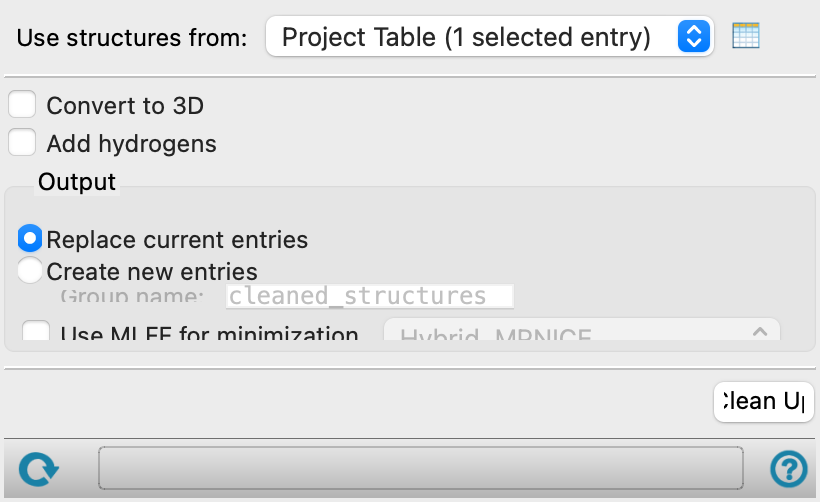
- Use structures from option menu
-
Choose the structure source for cleanup.
- Project Table (n selected entries)—Use the entries that are currently selected in the Project Table or Entry List. The number of entries selected is shown on the menu item.
- Workspace (n included entries)—Use the entries that are currently included in the Workspace, treated as separate structures. The number of entries in the Workspace is shown on the menu item.
- Project Table (n selected entries)—Use the entries that are currently selected in the Project Table or Entry List. The number of entries selected is shown on the menu item.
- Open Project Table button
-
Open the Project Table panel, so you can

- Convert to 3D option
-
Convert 2D structures to 3D. This option is useful if structures are imported from SMILES strings, as they are converted to 2D without hydrogens. The structures must be single molecules without periodic boundary conditions for this option to work.
- Add hydrogens option
-
Add hydrogens to the structure to satisfy valences. If Convert to 3D is selected, this option is selected and cannot be changed, as addition of hydrogens is required in the 2D to 3D conversion. You can add hydrogens without converting to 3D, but they are added in 3D to the 2D structure.
- Output section
-
Specify options for the output of the cleanup.
- Replace current entries option
-
When cleaning up structures, replace the original structure with the cleaned-up structure.
- Create new entries option
-
When cleaning up structures, create a new entry for each structure in a new entry group. The new structures have the same title as the old structures.
- Use MLFF for minimization option and menu
-
Select this option to clean up the structures using machine learning force fields rather than OPLS force fields. Select which pre-trained machine learning force field model to use for the minimization. The choice of model should be appropriate considering the input chemical structure(s). See Machine Learning Force Fields for more information on the models. To use your own trained model, generated by the MLFF Fine-tuning Panel, select Custom, then specify the folder that contains the model files with the Directory field and Browse button.
- Clean Up button
-
Perform the cleanup. The minimizations are done sequentially, and Maestro is unavailable until they finish.
- Progress bar
-
Displays the progress of the cleanup.
- Status bar
-
 to reset the panel to its default settings and clear any data from the panel.
If you can submit a job from the panel, the status bar displays information about the current job settings and status for the panel. The settings include the job name, task name and task settings (if any), number of subjobs (if any) and the host name and job incorporation setting. The job status can include messages about job start, job completion and incorporation.
The status bar also contains the Help button
 , which opens an option menu with choices to open the help topic for the panel (Documentation), launch Maestro Assistant, or if available, choose from an option menu of Tutorials. If the panel is used by one or more tutorials, hover over the Tutorials option to display a list of tutorials. Choosing a tutorial opens the tutorial topic.