Clean Up Complexes Panel
Clean up the structure of one or more complexes by performing a force-field minimization. The metal is treated generically, with the current positions as the equilibrium geometry.
To open this panel, click the Tasks button and browse to Materials → Tools → Clean Up Complex.
The following licenses are required to use this panel: MS Maestro
- Using
- Features
- Additional Resources
Using the Clean Up Complexes Panel
This panel is useful for cleaning up the geometries of complexes after building, for example in the Single Complex Builder Panel or the Build Multiple Complexes Panel.
The atoms that are coordinated to the metal can be specified in several ways. You can include or exclude hydrogens, keep existing bonds to the metal, and specify a shell of coordinated atoms by distance or by number of closest atoms. Atoms with existing bonds that are not already in the coordinated set can be added to the coordinated set specified by other means. The set of atoms coordinated to the metal is the union of the set of atoms with existing bonds and the sets determined by distance or order of proximity.
The metal atom is treated as though the metal-ligand bonds are at their equilibrium distances, with a generic force field whose minimum is at the current distance, and likewise with the bending parameters. The geometry around the metal is therefore not likely to change much, so the minimization will largely affect the ligand geometries.
The minimization is performed with the OPLS_2005 force field, to a convergence of 0.05 kcal mol-1 Å-1. Bonds to the metal from the coordinating atoms are replaced with single bonds or dative bonds (which appear as zero-order bonds in the Workspace).
Structures from the Workspace or the Project Table are replaced by the cleaned-up structures. If you choose to clean up structures from a file, the minimized structures are written to a file named filestem-minimized.maegz.
There is likely to be strain around the metal center even after the cleanup. It is recommended to perform a QM (Jaguar) optimization on the complexes after they have been cleaned up. The cleanup should provide a much better starting geometry for the optimization than the raw structure. Choose Click the Tasks button and browse to General Modeling → Ab Initio QM to set up the geometry optimization and run the job. Details of geometry optimization can be found in Jaguar Optimizations and Scans.
To clean up a set of complexes:
-
Choose the source of structures.
-
Choose an option for determining which atoms are coordinated to the metal:
-
Click Clean Up.
The cleanup job is run locally.
Clean Up Complexes Panel Features
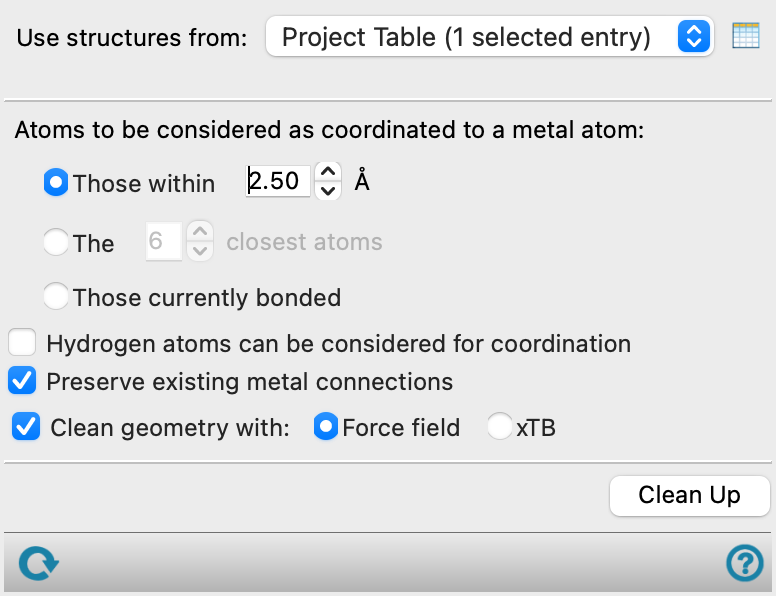
- Use structures from option menu
-
Choose the structure source for the current task.
- Project Table (selected entries)—Use the entries that are currently selected in the Project Table.
- Workspace (included entries)—Use the entries that are currently included in the Workspace, treated as separate structures.
- File—Use the specified file. When this option is selected, the File name text box and Browse button are displayed.
- File name text box and Browse button
-
Enter the file name in this text box, or click Browse and navigate to the file. The name of the file you selected is displayed in the text box.
- Atoms to be considered as coordinated options
-
Specify the atoms that are considered to be coordinated to the metal.
-
Those within d Å—Specify that ligand atoms are coordinated to the metal by their distance from the metal. Specify the distance cutoff for detecting atoms that are coordinated to the metal in the text box. If Preserve existing metal connections is selected, there may be coordinated atoms that lie outside this distance, as the union of the two sets (those inside the distance and those with existing bonds) is taken.
-
The N closest atoms—Specify that ligand atoms are coordinated to the metal by order of their proximity to the metal. Specify the number of atoms to be coordinated in the text box. If Preserve existing metal connections is selected, the final number of coordinated atoms may be greater than the number you specify in the text box, as the union of the two sets (the closest N and those with existing bonds) is taken.
-
Those currently bonded—Specify that ligand atoms are coordinated to the metal if they are currently coordinated, i.e. preserve the current bonds to the metal but possibly change the bond orders or types.
-
- Hydrogen atoms can be considered for coordination option
-
Consider hydrogen atoms to be bonded to the metal if they are within bonding distance of the metal.
- Preserve existing metal connections option
-
Keep existing bonds to the metal, regardless of whether they satisfy the criteria for coordination. These atoms are considered coordinated in addition to the ones specified by number or distance. The final number of coordinated atoms depends on how many atoms with existing bonds to the metal also satisfy the other criteria. The bond type of the existing bonds might change from single to dative to satisfy the valence requirements on the coordinating atom.
- Clean geometry with option
-
Optionally, perform a minimization on the complexes and specify the method to use for the minimization.
- Force field—Minimize the geometry of the complexes with force-field minimization.
- xTB —Minimize the geometry of the complexes with GFN2-xTB. GFN2-xTB is a fast, quantum mechanics-based method and may yield more accurate geometries for many complexes at little additional computational cost.
- Clean Up button
-
Clean up the complexes. The cleanup job is run locally. A progress bar is displayed to the right if the cleanup takes longer than a few seconds.
- Status bar
-
 to reset the panel to its default settings and clear any data from the panel.
If you can submit a job from the panel, the status bar displays information about the current job settings and status for the panel. The settings include the job name, task name and task settings (if any), number of subjobs (if any) and the host name and job incorporation setting. The job status can include messages about job start, job completion and incorporation.
The status bar also contains the Help button
 , which opens an option menu with choices to open the help topic for the panel (Documentation), launch Maestro Assistant, or if available, choose from an option menu of Tutorials. If the panel is used by one or more tutorials, hover over the Tutorials option to display a list of tutorials. Choosing a tutorial opens the tutorial topic.