Create PBC Panel
Create simulation cells for a set of structures that do not have periodic boundary conditions.
This is useful for calculations on a set of isolated structures with periodic tools such as Desmond MD or Quantum ESPRESSO.
To open this panel: click the Tasks button and browse to Materials → Tools → Create PBC.
The following licenses are required to use this panel: MS Maestro
- Features
- Additional Resources
Create PBC Panel Features
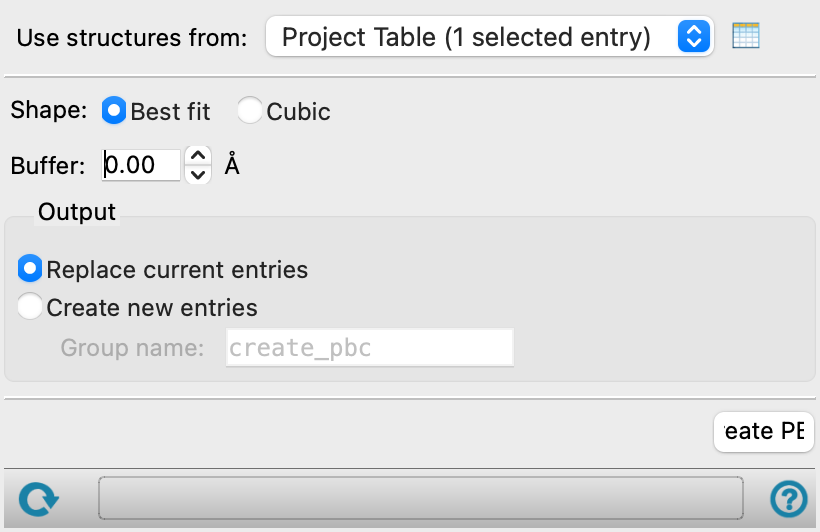
- Use structures from option menu
-
Choose the structure source for the addition of periodic boundaries.
- Project Table (n selected entries)—Use the entries that are currently selected in the Project Table or Entry List. The number of entries selected is shown on the menu item.
- Workspace (n included entries)—Use the entries that are currently included in the Workspace, treated as separate structures. The number of entries in the Workspace is shown on the menu item.
- Project Table (n selected entries)—Use the entries that are currently selected in the Project Table or Entry List. The number of entries selected is shown on the menu item.
- Open Project Table button
-
Open the Project Table panel, so you can

- Shape options
-
Specify the shape of the cell.
- Best fit—use the best fit to an orthorhombic cell (minimum volume). Each edge length is determined by the system extent in that direction, including a van der Waals radius of 1 Å for all atoms.
- Cubic—use a cubic cell with sides chosen to ensure that the molecule remains inside the buffer distance when rotated. The edge length is determined by the largest system extent, taking actual atom van der Waals radii into account.
- Buffer text box
-
Specify the buffer distance to add to the minimum-sized cell, in angstroms. The dimensions of the cell are increased by this amount. The structure is centered in the new cell, so that the smallest distance between the structure (the van der Waals surface) and the sides of the cell is half the buffer distance.
- Output options
-
Select an option for the output entries.
- Replace current entries option
-
Replace the entries that contained the input molecules with the periodic cells; this simply sets the periodic boundary properties for those entries.
- Create new entries option
-
Create new entries for the periodic structures, in an entry group specified in the Group name text box.
- Create PBC button
-
Create periodic boundaries for the input entries. Progress is displayed in a progress bar, below.
- Job toolbar
-
Manage job submission and settings. See Job Toolbar for a description of this toolbar.
- Status bar
-
If the panel has a Job toolbar, you can reset the panel from the Settings button menu.
If you can submit a job from the panel, the status bar displays information about the current job settings and status for the panel. The settings include the job name, task name and task settings (if any), number of subjobs (if any) and the host name and job incorporation setting. The job status can include messages about job start, job completion and incorporation.
The status bar also contains the Help button
 , which opens an option menu with choices to open the help topic for the panel (Documentation), launch Maestro Assistant, or if available, choose from an option menu of Tutorials. If the panel is used by one or more tutorials, hover over the Tutorials option to display a list of tutorials. Choosing a tutorial opens the tutorial topic.