Defect Formation Energy Diagram Panel
Plot defect formation energy as a function of Fermi energy for defects exported from the Defect Formation Energy Panel.
To display this panel: click the Tasks button and browse to Materials → Quantum Mechanics → Quantum ESPRESSO → Defect Formation Energy Diagram
The following licenses are required to use this panel: MS Maestro, MS DefectPro, Quantum Espresso Interface
- Features
- Additional Resources
Defect Formation Energy Diagram Panel Features
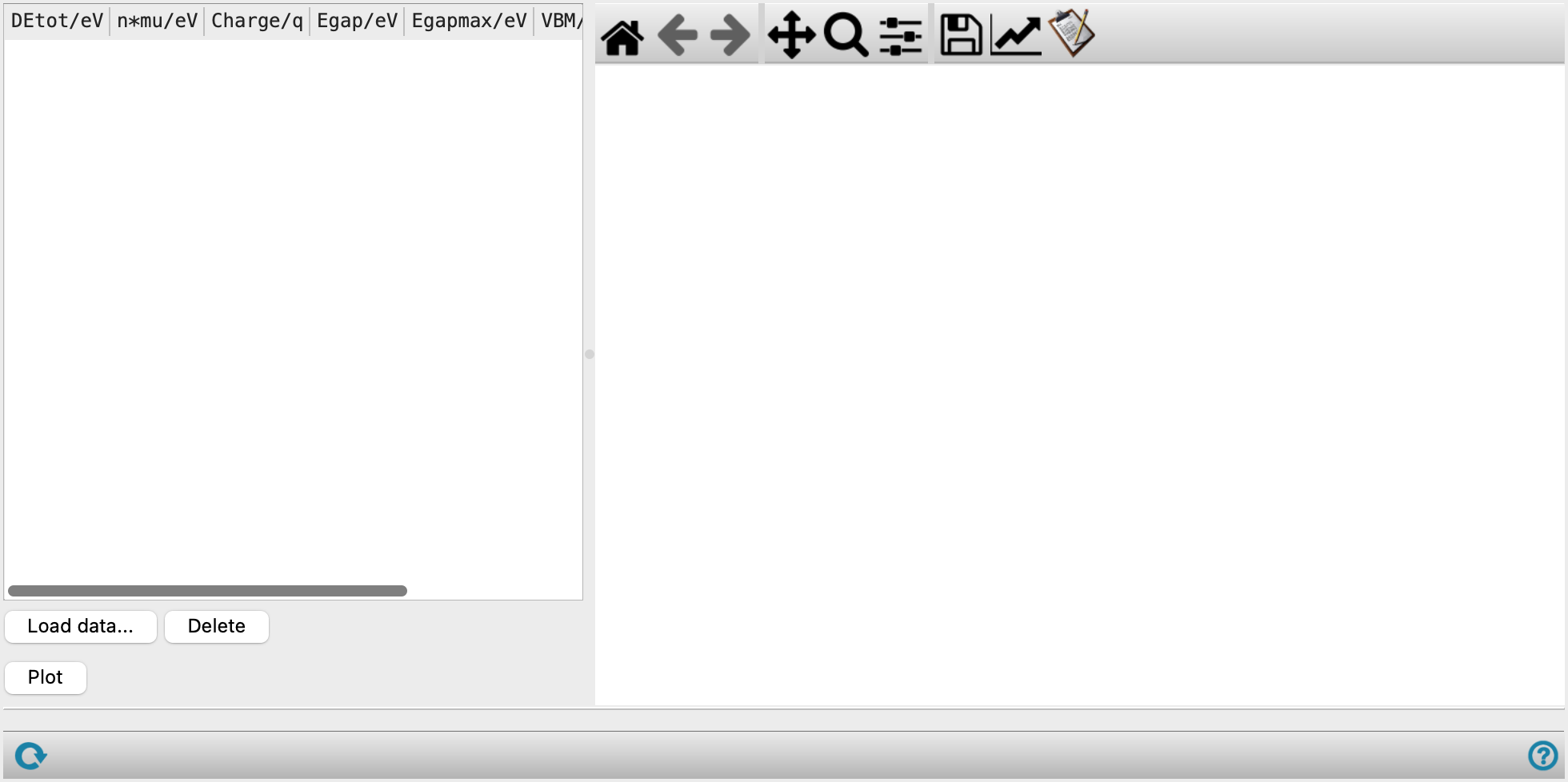
- Defect data table
-
Display the defect data loaded from CSV files exported from the Defect Formation Energy Panel. The size of the table and plot can be toggled by dragging the divider between them side to side. The table contains the following columns:
-
DEtot/eV—Total energy difference between the defect and bulk supercells, in eV.
-
n*mu/eV—Chemical potential correction term (number of atoms added or removed multiplied by the chemical potential), in eV.
-
Charge/q—Charge state of the defect.
-
Egap/eV—Fermi energy (relative to the bulk valence band maximum) at which the formation energy was calculated when the CSV was exported from the Defect Formation Energy Panel, in eV.
-
Egapmax/eV—Band gap of the bulk system, in eV. Sets the upper bound of the Fermi-energy range plotted on the x-axis.
-
VBM/eV—Valence band maximum of the bulk system, in eV.
-
Ecorr/eV—Calculated defect correction energy, in eV.
-
Eform/eV—Calculated defect formation energy, in eV.
-
- Load data button
-
Click this button to open the Load file dialog box and load a CSV file exported from the Defect Formation Energy Panel. Each loaded file becomes a row in the Defect data table.
- Delete button
-
Delete the selected row(s) from the table. The plot is updated to reflect the remaining rows.
- Plot button
-
Update the plot with the current data in the table.
- Plot toolbar
-
The toolbar has tools for manipulating the plot and for saving images. The buttons that are common to all plot toolbars are described in the Plot Toolbar topic.
- Plot area
-
Display defect formation energy (eV) as a function of Fermi energy relative to the bulk valence band maximum (eV). Each defect is shown as a line labeled with its row number and charge state. The size of the table and plot can be toggled by dragging the divider between them side to side.
- Status bar
-
 to reset the panel to its default settings and clear any data from the panel.
If you can submit a job from the panel, the status bar displays information about the current job settings and status for the panel. The settings include the job name, task name and task settings (if any), number of subjobs (if any) and the host name and job incorporation setting. The job status can include messages about job start, job completion and incorporation.
The status bar also contains the Help button
 , which opens an option menu with choices to open the help topic for the panel (Documentation), launch Maestro Assistant, or if available, choose from an option menu of Tutorials. If the panel is used by one or more tutorials, hover over the Tutorials option to display a list of tutorials. Choosing a tutorial opens the tutorial topic.