Distribute Voids Panel
Create voids in a system of multiple molecules by randomly deleting molecules. The molecules can be all-atom or coarse-grained.
To open this panel: click the Tasks button and browse to Materials → Structure Builders → Distribute Voids.
The following licenses are required to use this panel: MS Maestro
- Using
- Features
- Additional Resources
Using the Distribute Voids Panel
This panel creates structures that have voids, or defects, by deleting molecules from a source structure. The source structure must be displayed in the Workspace. It must consist of multiple molecules (not an atomic solid). The molecules can be all-atom molecules or coarse-grained molecules. The structure can have periodic boundary conditions, but does not need to. The choice of molecules is random, in that it selects molecules by use of a random number generator, for which you can specify a seed. By default there are restrictions on which molecules can be deleted: once a molecule is deleted, its neighbors are not deleted. This restriction can mean that the specified percentage of voids is not reached. However, you can set an option to allow neighbors to be deleted, which ensures that the specified percentage of voids is reached.
One application of this panel is to create materials with defects, and study their thermophysical properties using the Thermophysical Properties Panel.
To write out the input file and a script for running the job from the command line, click the arrow next to the Settings button  and choose Write.
Distribute Voids Panel Features
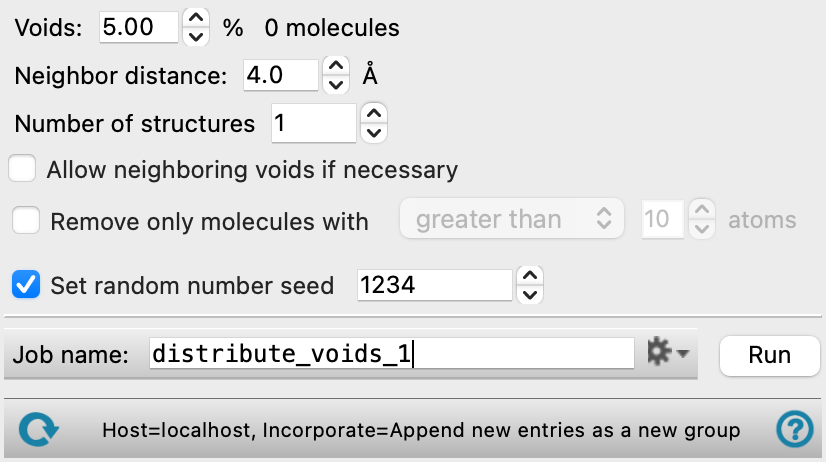
- Voids text box
-
Specify the approximate percentage of molecules in the system to delete. The number of molecules removed to create voids is calculated by rounding the percentage of the total number of molecules to the nearest integer. This number is reported next to the text box. As neighboring voids are not created by default, the actual number of voids may be less than this number.
- Neighbor distance text box
-
Specify the minimum interatomic distance between two molecules for the molecules to be considered neighbors. If a molecule is removed to create a void, neighbor molecules are not considered for removal, unless Allow neighboring voids if necessary is selected.
- Number of structures text box
-
Specify the number of structures with voids to create. Each structure is created by random selection of molecules to delete, so that each structure has different voids.
- Allow neighboring voids if necessary option
-
Select this option to allow neighboring voids to be created if the target percentage of voids cannot be created without removing neighbors. If this option is not selected, the number of voids might be less than that specified by the Voids text box.
- Remove only molecules with check box, menu, and text box
-
Remove only molecules that have the number of atoms specified by the condition chosen from the menu (greater than, exactly, or fewer than) and the value in the text box.
- Set random number seed option and text box
-
Select this option to specify a random seed used to select the molecules for deletion. The random number generator is seeded once and used for all structures created in a single job. Specifying the seed allows you to reproduce the results, unless other factors affect them. If this option is not selected, a seed is chosen at random.
- Job toolbar
-
Manage job submission and settings. See Job Toolbar for a description of this toolbar.
The Job Settings button opens the Distribute Voids - Job Settings Dialog Box, where you can make settings for running the job.
- Status bar
-
The status bar displays information about the current job settings and status for the panel. The settings includes the job name, task name and task settings (if any), number of subjobs (if any) and the host name and job incorporation setting. The job status can include messages about job start, job completion and incorporation.
Use the Reset button
 to reset the panel to its default settings and clear any data from the panel.
 The status bar also contains the Help button
 , which opens the help topic for the panel in your browser. If the panel is used by one or more tutorials, hovering over the Help button displays a
  button, which you can click to display a list of tutorials (or you can right-click the Help button instead). Choosing a tutorial opens the tutorial topic.