MLFF Calculations Panel
Use pre-built machine learning force field models to make predictions on energy and geometry.
To display this panel: click the Tasks button and browse to Materials → Informatics → MLFF Calculation
The following licenses are required to use this panel: MS Maestro, MS Force Field Applications, OPLS
- Using
- Features
- Additional Resources
Using the MLFF Calculations Panel
This panel is intended for predicting single point energies and optimizing geometries of atomistic periodic and non-periodic systems using machine learning force fields (MLFF). When you select the pre-trained ML model to use for the prediction, you should make sure that you use the one that best matches the chemistry of your input system(s).
The predicted single point energy and ML model used are added to the output structure as a Maestro properties, energy, which is given in units of Hartree, and Prediction Model respectively. For the full list of properties and units MLFF calculations can write, including forces and stresses for geometry optimizations, see Output Properties in Machine Learning Force Fields.
To write out the input file and a script for running the job from the command line, click the arrow next to the Settings button  and choose Write.
MLFF Calculations Panel Features
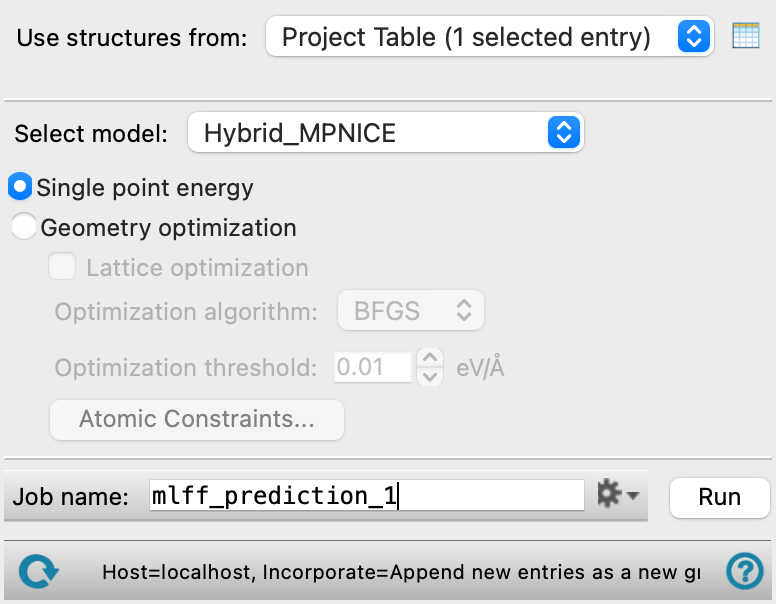
- Use structures from option menu
-
Choose the structure source for the current task.
- Project Table (n selected entries)—Use the entries that are currently selected in the Project Table or Entry List. The number of entries selected is shown on the menu item.
- Workspace (included entry)—Use the entry that is currently included in the Workspace. Only one entry must be included in the Workspace.
- File—Use the specified file. When this option is selected, the File name text box and Browse button are displayed.
- Project Table (n selected entries)—Use the entries that are currently selected in the Project Table or Entry List. The number of entries selected is shown on the menu item.
- Open Project Table button
-
Open the Project Table panel, so you can

- File name text box and Browse button
-
Enter the file name in this text box, or click Browse and navigate to the file. The name of the file you selected is displayed in the text box.
- Select model option menu
-
Select which pre-trained machine learning force field model to use for predictions. The choice of model should be appropriate considering the input chemical structure(s). See Machine Learning Force Fields for more information on the models. The model used for the prediction is added to the output as a structure property. To use your own trained model, generated by the MLFF Fine-tuning Panel, select Custom, then specify the folder that contains the model files with the Directory field and Browse button.
- Single point energy option
-
Predict the single point energy of the system, in Hartree, using the selected ML model.
- Geometry optimization option
-
Optimize the geometry of the system using the selected ML model. For periodic systems, the unit cell is held fixed unless the Lattice optimization option is selected. The following options are only available when the Geometry optimization option is selected.
- Lattice optimization option
-
Optimize the positions of the atoms and the unit cell parameters for a system with periodic boundary conditions.
- Optimization algorithm option menu
-
Select which optimizer algorithm to use for the geometry optimization. The menu items include BFGS and FIRE.
- Optimization threshold text box
-
Specify the optimization threshold value in eV/Å.
- Atomic Constraints button
-
Set or remove Cartesian constraints for atoms in the system. Opens the Atomic Constraints Dialog Box, where you can choose the constraint type (X, Y, Z, or all three), and pick atoms in the Workspace or use the Workspace selection to apply the constraints to. You can delete selected or all constraints.
- Vibrations/Phonons option
-
Select this option to calculate vibrational properties. For periodic systems, this calculates phonon dispersion. For non-periodic systems, this calculates molecular frequencies. The following options are only available when this option is selected.
- Supercell size text box
-
Specify the supercell size multiplier for phonon calculations. Applies to periodic systems only.
- Temperature text box
-
Specify the temperature in Kelvin for vibrational thermochemistry calculations.
- Pressure text box
-
Specify the pressure in atm for thermochemistry calculations.
- Job toolbar
-
Manage job submission and settings. See Job Toolbar for a description of this toolbar.
The Job Settings button opens the MLFF Calculations - Job Settings Dialog Box, where you can make settings for running the job.
- Status bar
-
 to reset the panel to its default settings and clear any data from the panel.
If you can submit a job from the panel, the status bar displays information about the current job settings and status for the panel. The settings include the job name, task name and task settings (if any), number of subjobs (if any) and the host name and job incorporation setting. The job status can include messages about job start, job completion and incorporation.
The status bar also contains the Help button
 , which opens an option menu with choices to open the help topic for the panel (Documentation), launch Maestro Assistant, or if available, choose from an option menu of Tutorials. If the panel is used by one or more tutorials, hover over the Tutorials option to display a list of tutorials. Choosing a tutorial opens the tutorial topic.