MLFF Fine-tuning Panel
Fine-tune machine learning force field models to specific chemical systems using training data from Quantum ESPRESSO or Jaguar calculations.
To display this panel: click the Tasks button and browse to Materials → Informatics → MLFF Fine-tuning
The following licenses are required to use this panel: MS Maestro, MS Force Field Applications, Quantum Espresso Interface (optional), Jaguar (optional)
- Overview
- Using
- Features
- Additional Resources
Overview of MLFF Fine-tuning
Pre-trained machine learning force field (MLFF) models provide near-quantum accuracy at a fraction of the cost of DFT, but their accuracy depends on how well the training data represents the chemistry of the target system. Fine-tuning adapts a pre-trained Machine Learning Force Fields (Message Passing Network with Iterative Charge Equilibration) model to a specific chemical system by training on a smaller set of reference data, improving accuracy for the target chemistry without the cost of training a model from scratch.
The MLFF Fine-tuning panel takes structures with energies and forces computed by Quantum ESPRESSO or Jaguar and uses them to fine-tune an existing MPNICE model. The fine-tuned model can then be used in other Materials Science workflows, such as the MLFF Calculations Panel. See Machine Learning Force Fields for more information on available models and their application areas.
Using the MLFF Fine-tuning Panel
The input structures must contain reference energies and forces from a quantum mechanical calculation. Use Quantum ESPRESSO output structures for periodic DFT training data, or Jaguar output structures for molecular (non-periodic) quantum mechanical calculations. At least two structures are required for training. You can provide multiple input files, which are merged into a single training set.
Select the Machine Learning Force Fields model that best matches the chemistry of your system. The choice of model determines which element types and levels of theory the fine-tuned model supports. Only MPNICE models that are compatible with periodic boundary conditions are available for fine-tuning.
Set the training parameters in the Tuning tab. The Training cycle size defaults to the number of input structures but can be adjusted. You can set a fixed random number seed to ensure reproducible results across runs.
After the job completes, the Training and Validation Metrics tab displays training and validation metric plots from the job output directory. These plots include training loss, energy and gradient errors, stress errors, and learning rate curves. The fine-tuned model is returned as part of the job output and can be used in other panels that accept MLFF models.
To write out the input file and a script for running the job from the command line, click the arrow next to the Settings button  and choose Write.
MLFF Fine-tuning Panel Features
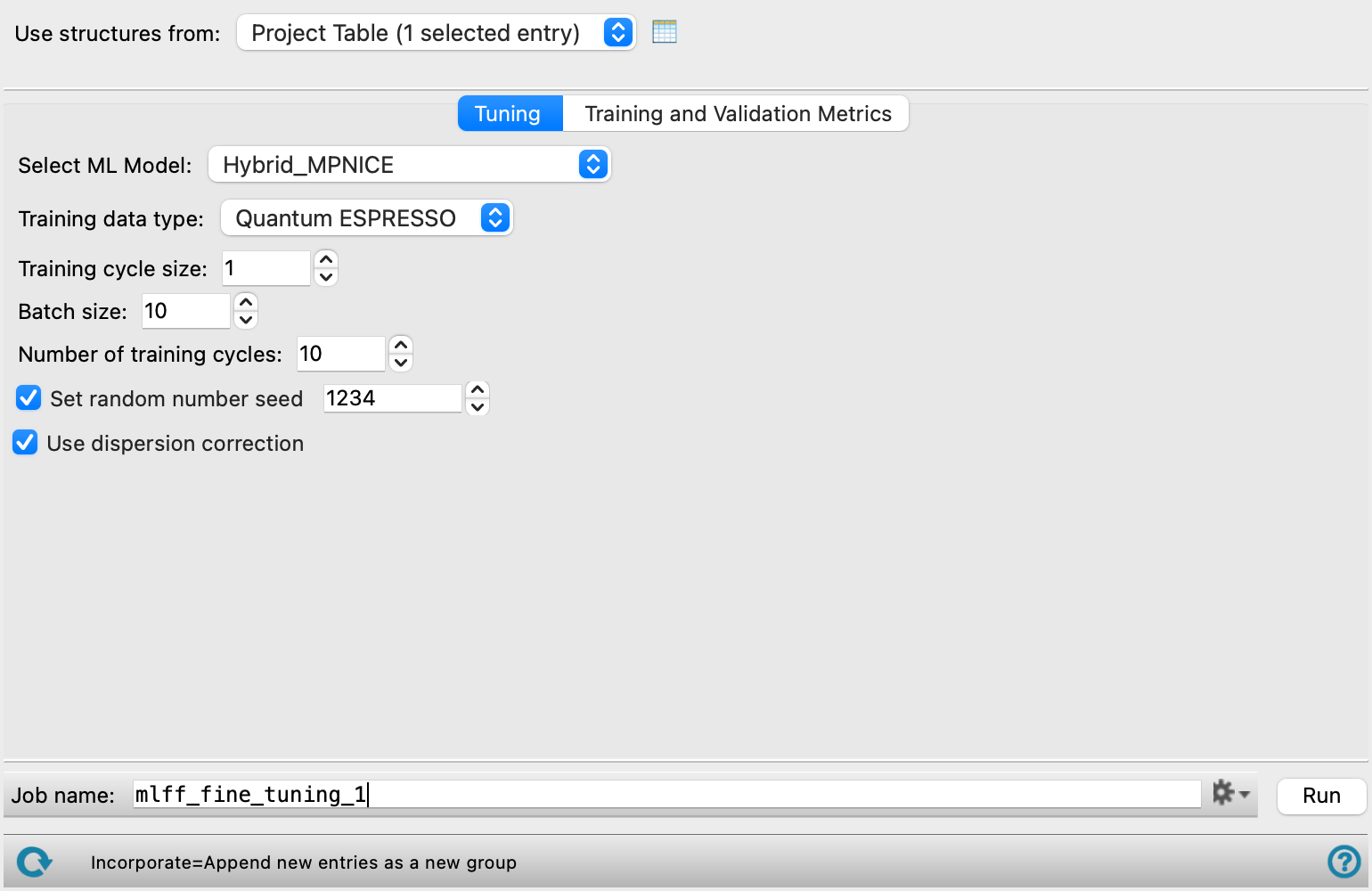
- Use structures from option menu
-
Choose the structure source for the current task.
- Project Table (n selected entries)—Use the entries that are currently selected in the Project Table or Entry List. The number of entries selected is shown on the menu item.
- Files—Use structures from the specified files. When this option is selected, the File name text box and Browse button are displayed.
- Project Table (n selected entries)—Use the entries that are currently selected in the Project Table or Entry List. The number of entries selected is shown on the menu item.
- Open Project Table button
-
Open the Project Table panel, so you can

- File name text box and Browse button
-
Enter the file name
- Tuning tab
-
Set the model and training parameters for fine-tuning.
- Select ML Model option menu
-
Select the pre-trained MPNICE model to fine-tune. The choice of model should match the chemistry of your input structures. Only models compatible with periodic boundary conditions are listed. See Machine Learning Force Fields for descriptions of each model.
- Training data type option menu
-
Select the source of the quantum mechanical reference data used for training. Choose Quantum ESPRESSO for periodic DFT training data or Jaguar for non-periodic calculations. The input structures must contain the corresponding energy properties.
- Training cycle size text box
-
Specify the number of structures to include in each training cycle. The default is set to the number of input structures.
- Batch size text box
-
Specify the number of structures in each training batch.
- Number of training cycles text box
-
Specify the maximum number of training cycles to run.
- Set random number seed option and text box
-
Select this option to specify a random seed for training. Specifying the seed allows you to reproduce the results, unless other factors affect them. If this option is not selected, a seed is chosen at random. The default seed is 1234.
- Use dispersion correction option
-
Select this option to apply Grimme dispersion correction during training.
- Training and Validation Metrics tab
-
View training and validation metric plots from a completed fine-tuning job. When a job completes, this tab is automatically populated with the results. You can also load results from a previous job manually.
- Job Directory text box
-
Displays the path to the loaded job output directory.
- Load Job Directory button
-
Click this button to open a file selector and select a job output directory.
- Plot area
-
Displays training and validation metric plots from the job output directory.
- Training Loss—the training loss over each training cycle.
- Energy Errors—the error between the predicted and reference energies.
- Gradient Errors—the error between the predicted and reference forces.
- Stress Errors—the error between the predicted and reference stress tensors.
- Learning Rate—the learning rate used at each training cycle.
- Job toolbar
-
Manage job submission and settings. See Job Toolbar for a description of this toolbar.
The Job Settings button opens the MLFF Fine-tuning - Job Settings Dialog Box, where you can make settings for running the job.
- Status bar
-
 to reset the panel to its default settings and clear any data from the panel.
If you can submit a job from the panel, the status bar displays information about the current job settings and status for the panel. The settings include the job name, task name and task settings (if any), number of subjobs (if any) and the host name and job incorporation setting. The job status can include messages about job start, job completion and incorporation.
The status bar also contains the Help button
 , which opens an option menu with choices to open the help topic for the panel (Documentation), launch Maestro Assistant, or if available, choose from an option menu of Tutorials. If the panel is used by one or more tutorials, hover over the Tutorials option to display a list of tutorials. Choosing a tutorial opens the tutorial topic.