Enumerate Metal-Organic Frameworks Panel
Enumerate metal-organic frameworks from a chosen metal system and a library of organic linkers.
To open this panel: click the Tasks button and browse to Materials → Enumeration → Metal-Organic Frameworks.
The following licenses are required to use this panel: MS Maestro
- Using
- Features
- Additional Resources
Using the Enumerate Metal-Organic Frameworks Panel
The metal-organic frameworks can be constructed by choosing any metal, and supplying a library of linkers. Once you have created the MOFs, you can load them with various penetrants using the Penetrant Loading Panel. You may want to create slabs of the MOF on a surface with the Build Slabs and Interfaces Panel.
To write out the input file and a script for running the job from the command line, click the arrow next to the Settings button  and choose Write.
Enumerate Metal-Organic Frameworks Panel Features
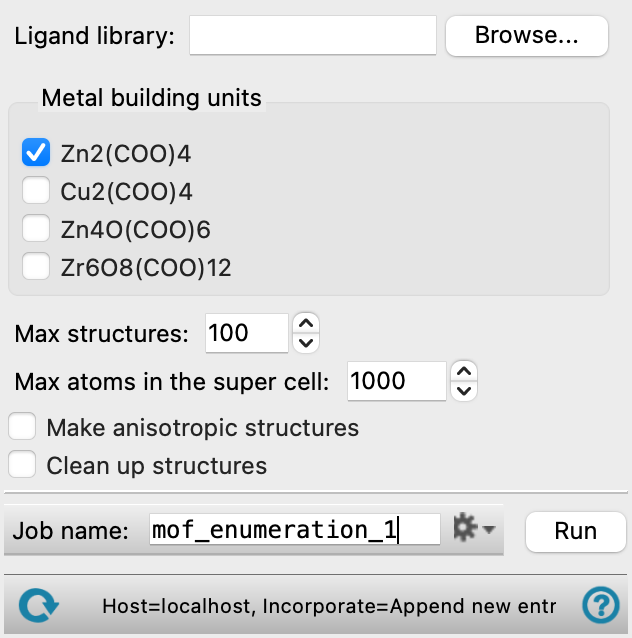
- Ligand library text box and Browse button
-
Specify the library of organic linkers to use in the framework.
- Metal building units options
-
Check the boxes for the metal units you want to use to build a MOF. The metal units have several atoms, with bridging carboxylates that are replaced by the linkers.
- Max structures text box
-
Specify the maximum number of structures to return.
- Max atoms in the super cell text box
-
Specify the maximum number of atoms in the super cell when building a MOF.
For example, for a unit cell of 30 atoms, and max atoms set to 10000, the maximum number of unit cells in the super cell is 10000/30 = 333. This means that a super cell can be created with extents 6 by 6 by 6, i.e. 216 unit cells, with a total of 6480 atoms; a 7 by 7 by 7 super cell would have 10290 atoms, which is above the limit set.
- Make anisotropic structures option
-
Use combinations of different ligands (linkers) to build anisotropic structures, as well as isotropic structures. All possible combinations of ligands are used in each Cartesian direction. If this option is deselected, only the isotropic structures are built (same ligand in each Cartesian direction).
- Clean up structures option
-
Clean up the structures with a force-field minimization of the ligands. This does the same cleanup as in the Clean Up Structures Panel.
- Job toolbar
-
Manage job submission and settings. See Job Toolbar for a description of this toolbar.
The Job Settings button opens the Enumerate Metal-Organic Frameworks - Job Settings Dialog Box, where you can make settings for running the job.
- Status bar
-
The status bar displays information about the current job settings and status for the panel. The settings includes the job name, task name and task settings (if any), number of subjobs (if any) and the host name and job incorporation setting. The job status can include messages about job start, job completion and incorporation.
Use the Reset button
 to reset the panel to its default settings and clear any data from the panel.
 The status bar also contains the Help button
 , which opens the help topic for the panel in your browser. If the panel is used by one or more tutorials, hovering over the Help button displays a
  button, which you can click to display a list of tutorials (or you can right-click the Help button instead). Choosing a tutorial opens the tutorial topic.