REINVENT Panel
Use REINVENT de novo design to train undirected models on SMILES data, prepare generative models with property constraints, and generate novel molecular structures.
To display this panel: click the Tasks button and browse to Materials → Informatics → REINVENT
The following licenses are required to use this panel: MS Maestro, MS DeNovoML, MS Informatics, (Deep)AutoQSAR (optional)
- Using
- Features
- Additional Resources
Using the REINVENT Panel
The REINVENT panel uses recurrent neural networks and reinforcement learning to generate novel molecular structures (de novo design) that are optimized against one or more user-defined property objectives. The workflow is divided across three tabs that are designed to be run in sequence, with the output of each tab supplying the input for the next.
For background on the REINVENT method used in this panel, see Olivecrona et al. [93].
On the Train Undirected Model tab, you train an undirected (or "prior") model that learns the chemical vocabulary of an input set of SMILES strings. Click Load SMILES to import a .smi or .csv file of unlabeled SMILES strings, adjust the number of epochs and the batch size if required, and submit the job. The trained prior is the input for the next tab.
On the Prepare Generative Model tab, you use the trained prior together with one or more property objectives to train a generative (or "agent") model by reinforcement learning. The Undirected Model tab is automatically populated with the prior produced on the previous tab; to start from an existing prior instead, click Load Undirected Model and select its directory. On the Generative Model Settings tab, configure the property objectives using DeepAutoQSAR models, property space targets, or both. For each property added, specify how the property should be optimized — minimized, maximized, targeted to a single value, or constrained to a range of values.
On the Generation tab, you use the trained agent to generate new compounds. The Generative Model tab is automatically populated with the agent produced on the previous tab; to start from an existing agent instead, click Load Generative Model and select an agent checkpoint (.ckpt) file. On the Generation Settings tab, set the number of compounds to generate and choose whether to calculate property scores. When the job finishes, the generated SMILES and (when requested) their scores are displayed in the Generated Compounds section.
To write out the input file and a script for running the job from the command line, click the arrow next to the Settings button  and choose Write.
REINVENT Panel Features
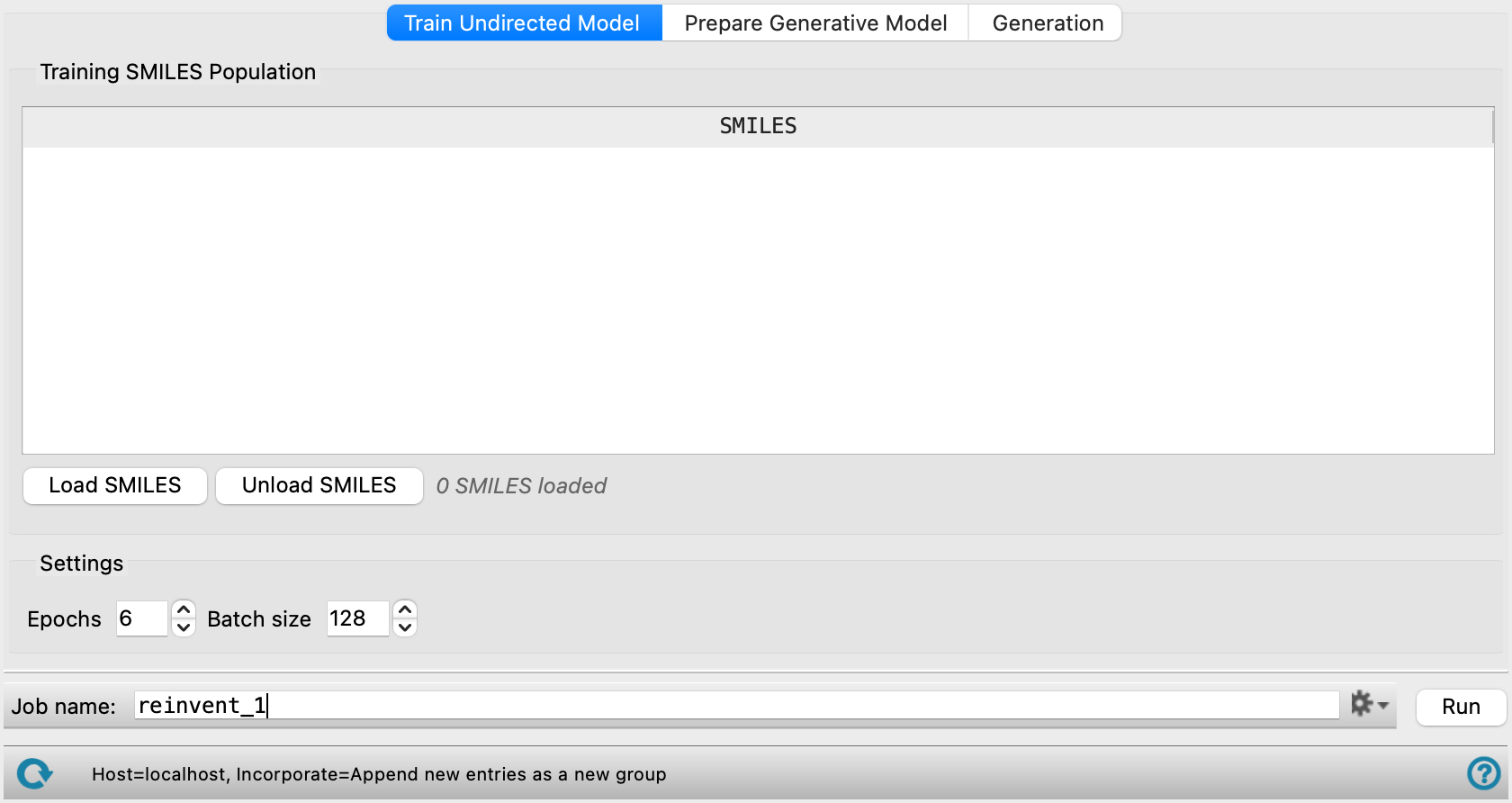
- Train Undirected Model tab
-
Train an undirected model on a set of SMILES strings to learn the chemical vocabulary.
- Training SMILES Population section
-
Load and view SMILES data for training the undirected model. Loaded SMILES are displayed in a table. Click any SMILES entry in the table to open it in the 2D sketcher for visualization and editing. A count label below the table shows the number of loaded SMILES.
- Settings section
-
Specify settings for training the undirected model in this section.
- Prepare Generative Model tab
-
Prepare a generative model by loading an undirected model, applying one or more property objectives, and using reinforcement learning to train.
- Undirected Model tab
-
Load an undirected model for preparing the generative model. When a model is loaded, the path is displayed and training plots are shown.
- Load Undirected Model button
-
Click this button to load an undirected model generated using the Train Undirected Model tab. Opens the Select Undirected Model Directory dialog box, where you can load the model directory.
- Training Loss plot
-
Displays the training loss over each step. A plot converging toward zero by the end of the training process indicates that the training was successful. If the plot is not converging, increase the amount of data or the number of epochs used in the training. Only present when an undirected model is loaded.
- Training Metrics plot
-
Displays the fraction of valid and fraction of unique SMILES strings over each epoch. A plot of fraction of unique and fraction of valid SMILES strings approaching one indicates the model generates reasonable new molecules related to the chemical space of the training set. If this is not the case, increase the amount of data or the number of epochs used in training. Only present when an undirected model is loaded.
- Generative Model Settings tab
-
Configure models, targets, and settings for the generative model.
- Models and properties section
-
Select DeepAutoQSAR models and property space targets for the generative model. Added targets are displayed and can be removed.
- DeepAutoQSAR Models option menu
-
Select a DeepAutoQSAR model. Click Add Model to browse for a model file (.qzip) and open the Add Target dialog, where you set the optimization target for the model. If the model does not have a known property name, a text box is provided to set it manually. If the model has additional features (such as temperature), input fields for those features are shown in a Model descriptors section. Click Clear Models to remove all added models.
- Property Space Targets option menu
-
Select a molecular property to optimize during generative model preparation. Click Add Property to open the Add Target dialog, where you set the optimization target for the selected property. Click Clear Properties to remove all added targets.
- Add Target dialog
-
Set the optimization target for a model or property. Select the Target Type from the option menu:
- Minimize—Minimize the property value, with an optional upper cutoff. The property value cannot exceed this cutoff.
- Maximize—Maximize the property value, with an optional lower cutoff. The property value cannot go below this cutoff.
- Single Value—Target a specific property value.
- Range—Target a range of property values defined by minimum and maximum values.
- Settings section
-
Settings for the generative model.
- Generation tab
-
Generate novel molecular structures using a trained generative model.
- Generative Model tab
-
Load a generative model for compound generation. When a model is loaded, the filename is displayed and a training plot is shown.
- Load Generative Model button
-
Click this button to load a generative model checkpoint file (.ckpt) for generating compounds created using the Prepare Generative Model tab. Opens the Select Generative Model Checkpoint dialog box, where you can load the checkpoint file. The checkpoint filename (without the extension) must contain only letters, numbers, underscores, and hyphens.
- Non-Zero Score Percentage plot
-
Displays the percentage of generated compounds with a non-zero score at each optimization step. If the model is far from converging towards 100%, increasing the Steps or Number of compounds in the Generative Model Settings tab can help. Only present when a generative model is loaded.
- Generation Settings tab
-
Configure settings for compound generation.
- Number of compounds text box
-
Set the number of compounds to generate.
- Calculate scores option
-
Select this option to calculate scores for each generated compound using the generative model. The score measures how optimal a compound's properties are. When selected, the property values for each target property are also returned in addition to their scores.
- Generated Compounds section
-
View and manage generated compounds. Generated compounds with valid SMILES are displayed in a table showing the SMILES strings and, when scores are calculated, score columns for each property. The generated compounds are ordered by highest total score. Click any SMILES entry in the table to open it in the 2D sketcher for visualization and editing. A label below the table shows the number of valid SMILES loaded and the percentage of invalid SMILES.
- Job toolbar
-
Manage job submission and settings. See Job Toolbar for a description of this toolbar.
The Job Settings button opens the REINVENT - Job Settings Dialog Box, where you can make settings for running the job.
- Status bar
-
 to reset the panel to its default settings and clear any data from the panel.
If you can submit a job from the panel, the status bar displays information about the current job settings and status for the panel. The settings include the job name, task name and task settings (if any), number of subjobs (if any) and the host name and job incorporation setting. The job status can include messages about job start, job completion and incorporation.
The status bar also contains the Help button
 , which opens an option menu with choices to open the help topic for the panel (Documentation), launch Maestro Assistant, or if available, choose from an option menu of Tutorials. If the panel is used by one or more tutorials, hover over the Tutorials option to display a list of tutorials. Choosing a tutorial opens the tutorial topic.