Surface Tension Viewer Panel
Plot the results of a surface tension calculation.
To open this panel: click the Tasks button and browse to Materials → Classical Mechanics → Surface Tension → Surface Tension Results.
To open this panel from the entry group for the results of a job .
.
For a tutorial, see Surface Tension.
The following licenses are required to use this panel: MS Maestro
- Using
- Features
- Additional Resources
Using the Surface Tension Viewer Panel
The viewer allows you to view the components of a surface tension calculation generated from the Surface Tension Calculation Panel as a function of simulation time. The average and standard deviation of each component over a selected time range can be saved to the project entry.
Surface Tension Viewer Panel Features
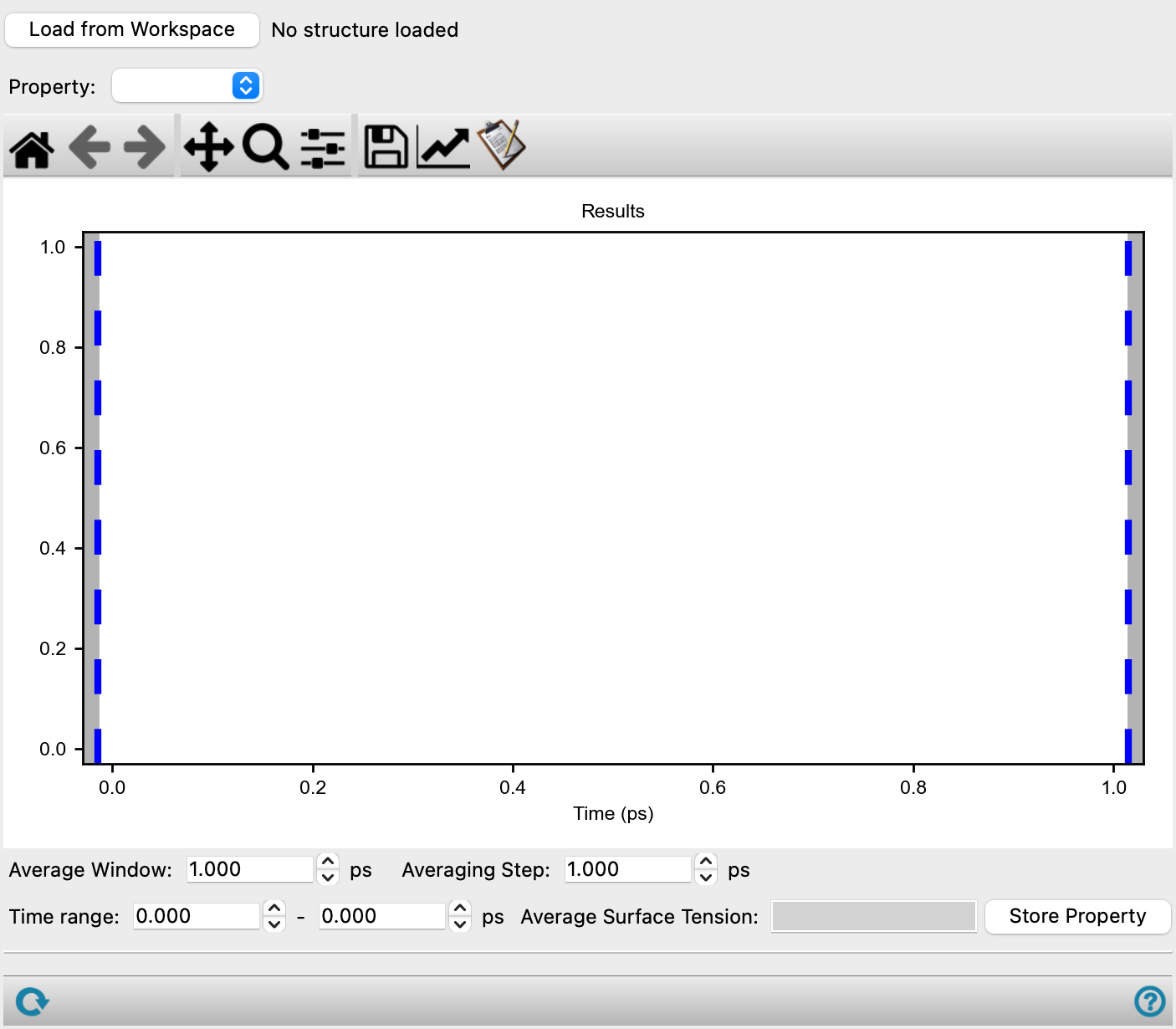
- Load from Workspace button
-
Load the analysis data associated with the structure in the Workspace, which must be the output structure from a job run from the Surface Tension Calculation Panel.
- Property option menu
-
Select the property to plot on the y-axis. The properties include the surface tension and the components of a surface tension calculation as described in the Surface Tension Calculation Panel. The options are:
- Surface Tension—Surface tension in dynes/cm
- Pxx—The component of the pressure tensor in the x-direction, in bar
- Pyy—The component of the pressure tensor in the y-direction, in bar
- Pzz—The component of the pressure tensor in the z-direction, in bar
- Lz—Length of the simulation box in the z-direction, in angstroms. This should stay constant with simulation time.
Please note that the system is always rotated such that the fixed plane is perpendicular to the z-direction.
- Plot toolbar
-
The toolbar has tools for manipulating the plot and for saving images. The buttons that are common to all plot toolbars are described in the Plot Toolbar topic.
- Plot area
-
Displays a plot of the selected property as a function of the simulation time. The blue vertical dashed lines mark the starting and ending time. You can drag these lines to change the time range, which is updated in the Time range text boxes. The lines are moved if you edit the values in the text boxes. When the time range is changed, the value in the Average property text box is updated.
- Time range text boxes
-
Specify the time range of the simulation over which the selected property is averaged, in picoseconds (ps). Changing the values of the text boxes moves the blue dashed lines in the plot; moving the blue dashed lines changes the values in the text boxes. When the range is changed, the value in the Average property text box is updated.
- Average property text box
-
This text box displays the average value and standard deviation for the selected property over the selected time range. The value is noneditable but you can select it to copy the number.
- Store Property button
-
Save the current value and standard deviation in the Average property text box as properties to the project entry for the associated structure. Saved properties contain the name of the property chosen from the Property option menu. For example, if Surface Tension is selected as the Property, clicking the Store Property button adds two properties to the project entry: Average Surface Tension and Std Surface Tension. If these properties already exist, they are overwritten with the latest values.
- Status bar
-
 to reset the panel to its default settings and clear any data from the panel.
If you can submit a job from the panel, the status bar displays information about the current job settings and status for the panel. The settings include the job name, task name and task settings (if any), number of subjobs (if any) and the host name and job incorporation setting. The job status can include messages about job start, job completion and incorporation.
The status bar also contains the Help button
 , which opens an option menu with choices to open the help topic for the panel (Documentation), launch Maestro Assistant, or if available, choose from an option menu of Tutorials. If the panel is used by one or more tutorials, hover over the Tutorials option to display a list of tutorials. Choosing a tutorial opens the tutorial topic.