Viscosity Panel
Calculate the shear viscosity from multiple equilibrium MD simulations with averaging or curve fitting to obtain the viscosity value.
To open this panel: click the Tasks button and browse to Materials → Classical Mechanics → Viscosity → Viscosity Calculations.
The following licenses are required to use this panel: MS Maestro, MS Transport, OPLS (optional), MS Force Field Applications (optional), Desmond
- Using
- Features
- Additional Resources
Using the Viscosity Panel
In this panel, you can set up and run MD simulations that are analyzed to obtain the shear viscosity. Using Green–Kubo relations, the auto-correlation function of off-diagonal pressure tensors is calculated, and the integral gives shear viscosity as a function of simulation time differences (tau). The final viscosity value is obtained by curve fitting or averaging over a specified range, in the plateau region of the
In addition, you can calculate the viscosity from the Einstein-Helfand relations [49], in which the viscosity is determined from the ensemble average of the mean square displacement (MSD) of the time integral of the pressure tensors at long tau values. This is useful as a check on the viscosity from the Green-Kubo relations. You can also calculate the self-diffusion coefficient of the system. These options are available in the Viscosity - Advanced Options Dialog Box.
The input structure must be a Desmond model system (.cms), prepared with OPLS2005, OPLS4, OPLS5, or MLFF, which can be an all-atom system or a coarse-grained system. If you are running the simulation as part of the job, you should make sure that the system is already fully relaxed, as the simulation does not include relaxation stages.
One viscosity job contains one single MD simulation or several MD simulations starting with different atomistic velocities. The pressure tensor analysis of each MD simulation output yields a viscosity curve with respect to time difference (tau). If multiple MD simulations are carried out, the average and standard deviation at each tau are calculated over multiple viscosity curves. The mean curve is used for further analysis, and the reliability for each data point is indicated by the across-simulation standard deviation. The across-simulation standard deviation serves as a criterion to exclude unreliable data points and as the weighting factors in the exponential fitting method. The exponential method fits selected data into exponential functions, and the asymptote of the fitted functions is considered as the final viscosity value. The average method uses the selected data mean as the final viscosity value. The shear viscosity is calculated as a system-wide property averaged over all three dimensions, and thus an isotropic system is preferred.
When you run the job, you can specify a CPU host for the master job, which runs the analysis, and a GPU host for the simulations. The simulations can be divided between subjobs, with a specified maximum number that are in the queue at any time.
The computed shear viscosity is added to the output structure as a Maestro property, Shear Viscosity, which is given in units of cP. The upper and lower tau values are also reported, as Tau Start and Tau End, given in ns. If you chose to calculate the shear viscosity with the Einstein-Helfand relations, the Maestro property is Shear Viscosity EH, and has an associated standard deviation property.
If you choose to calculate the self-diffusion coefficient, the Maestro property is Diffusion Coefficient 3D MSD, with corresponding standard deviation and R2 values in m2 s−1 and properties for the tau range.
To write out the input file and a script for running the job from the command line, click the arrow next to the Settings button  and choose Write.
To visualize the results of the calculation, you can use the Viscosity Viewer Panel (click the Tasks button and browse to Materials → Classical Mechanics → Viscosity → Viscosity Results). To open this panel from the entry group for the results of a job .
.
Viscosity Panel Features
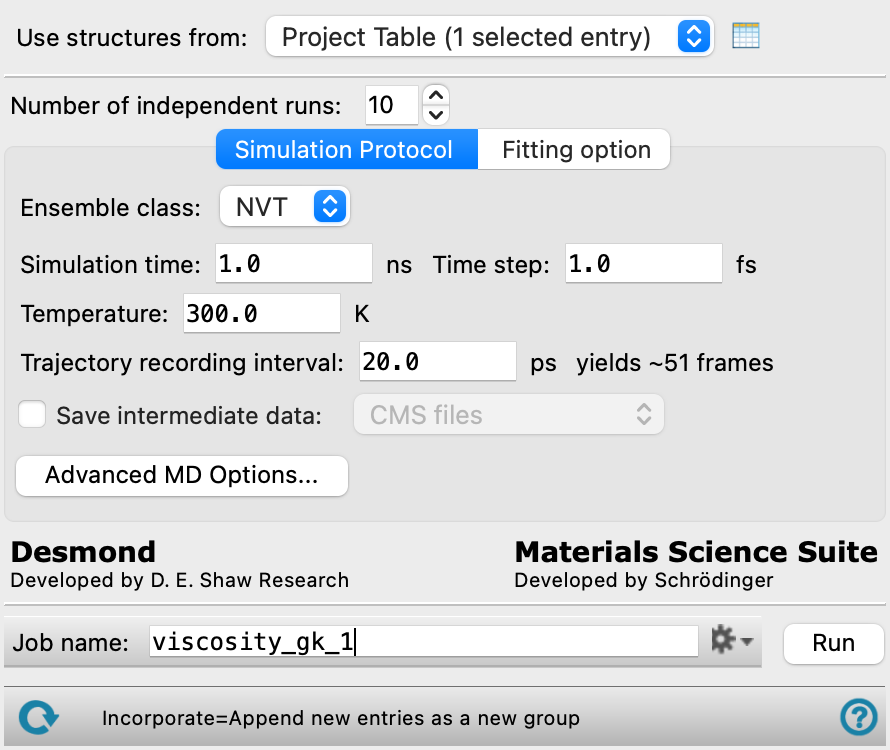
- Use structures from option menu
-
Choose the structure source for the viscosity calculations.
- Project Table (selected entry)—Use the entry that is currently selected in the Project Table. Only one entry must be selected.
- Workspace (included entry)—Use the entry that is currently included in the Workspace. Only one entry must be included in the Workspace.
- Open Project Table button
-
Open the Project Table panel, so you can

- Number of independent runs text box
-
Specify the number of independent runs that are used to obtain the viscosity. Each is an independent MD simulation with a different set of initial velocities, and each is analyzed to extract shear viscosity information.
- Simulation Protocol tab
-
Specify parameters for the MD simulations from which the shear viscosity is calculated.
- Ensemble class option menu
-
Choose the ensemble class for the simulation, from NVT or NVE. The default is NVT. Although NVE is in general more reliable, it requires a very well equilibrated system to ensure that the desired temperature is obtained and to avoid drift in the simulations. The NVT method is less dependent on the input structure equilibration, and has been found to produce reliable results.
- Simulation time text box
-
Specify the desired simulation time in ps.
-
The simulation time needed is dependent on the system and the expected viscosity. The higher the viscosity, the longer the simulation time must be. For example, 1 ns simulation time with multiple independent runs is sufficient to obtain converged viscosity values for low viscosity (< 2cP) systems. For systems with higher viscosity the simulation time will need to be longer than 1 ns.
- Time step text box
-
Specify the time step for the simulation in fs.
- Temperature text box
-
Set the temperature in kelvin for the simulation and thus for the shear viscosity.
- Trajectory recording interval text box
-
Set the recording interval for saving points on the trajectory, in ps.
- Save intermediate data option and menu
-
Select this option to save data from the Desmond MD simulations.
- CMS files—save the CMS files from each of the Desmond simulations. These are the files that contain the structure and force field information.
- CMS and trajectory—save the CMS files and the trajectories from each of the Desmond simulations. Note that trajectory files can be large and may take up a lot of disk space.
- Advanced MD Options button
-
Opens the Advanced MD Options Dialog Box, in which you can control many more of the detailed settings for the simulation than are available in the Viscosity panel.
- Fitting option tab
-
Specify options for fitting the data from the simulations to obtain the shear viscosity.
- Use last N % of simulation text box
-
Use the last N % of the simulation data for the fitting. This should correspond to the equilibrium region.
- Include Tau values from M ns to N ns for fitting text boxes
-
Include pressure tensor data between the two specified simulation times in the shear viscosity calculation. The range specified should be in the plateau region of the pressure tensor.
- Limit Tau to region with less than N % coefficient of variation option and text box
-
Adjust the cutoff for the highest Tau value so that the variation (standard deviation over mean) is less than the specified percentage.
- Compute viscosity by options
-
Choose a method for computing the shear viscosity.
- Exponential fit—use a double-exponential fit of the data.
- Average—average the shear viscosity over the specified Tau range to obtain the mean shear viscosity. This option requires multiple independent simulations, which are averaged. The simulation times should be long enough to sample a significant portion of the plateau region of the pressure tensor for fitting.
- Advanced Options button
-
Set further options for fitting. Opens the Viscosity - Advanced Options Dialog Box
- Job toolbar
-
Manage job submission and settings. See Job Toolbar for a description of this toolbar.
The Job Settings button opens the Viscosity - Job Settings Dialog Box, where you can make settings for running the job.
The Job Settings button opens the Viscosity - Job Settings Dialog Box, where you can make settings for running the job.
- Status bar
-
The status bar displays information about the current job settings and status for the panel. The settings includes the job name, task name and task settings (if any), number of subjobs (if any) and the host name and job incorporation setting. The job status can include messages about job start, job completion and incorporation.
Use the Reset button
 to reset the panel to its default settings and clear any data from the panel.
 The status bar also contains the Help button
 , which opens the help topic for the panel in your browser. If the panel is used by one or more tutorials, hovering over the Help button displays a
  button, which you can click to display a list of tutorials (or you can right-click the Help button instead). Choosing a tutorial opens the tutorial topic.