Viscosity Viewer Panel
Plot the results of a viscosity calculation and perform fitting to obtain a shear viscosity value.
To open this panel: click the Tasks button and browse to Materials → Classical Mechanics → Viscosity → Viscosity Results.
To open this panel from the entry group for the results of a viscosity job .
.
The following licenses are required to use this panel: MS Maestro, MS Transport
- Features
- Additional Resources
Viscosity Viewer Panel Features
- Load Data from Workspace button
- Plot toolbar
- Plot area
- Method option menu
- Fitting method
- Shear viscosity text box
- Standard deviation of fit text box
- Standard error
- Left tau limit text box
- Right tau limit text box/Specify the upper limit of the tau value used in the fit.
- Coefficient of variation text box
- Store Data button
- Status bar
- Load Data from Workspace button
-
Load the results for the Workspace structure into the panel
- Plot toolbar
-
The toolbar has tools for manipulating the plot and for saving images. The buttons that are common to all plot toolbars are described in the Plot Toolbar topic.
- Plot area
-
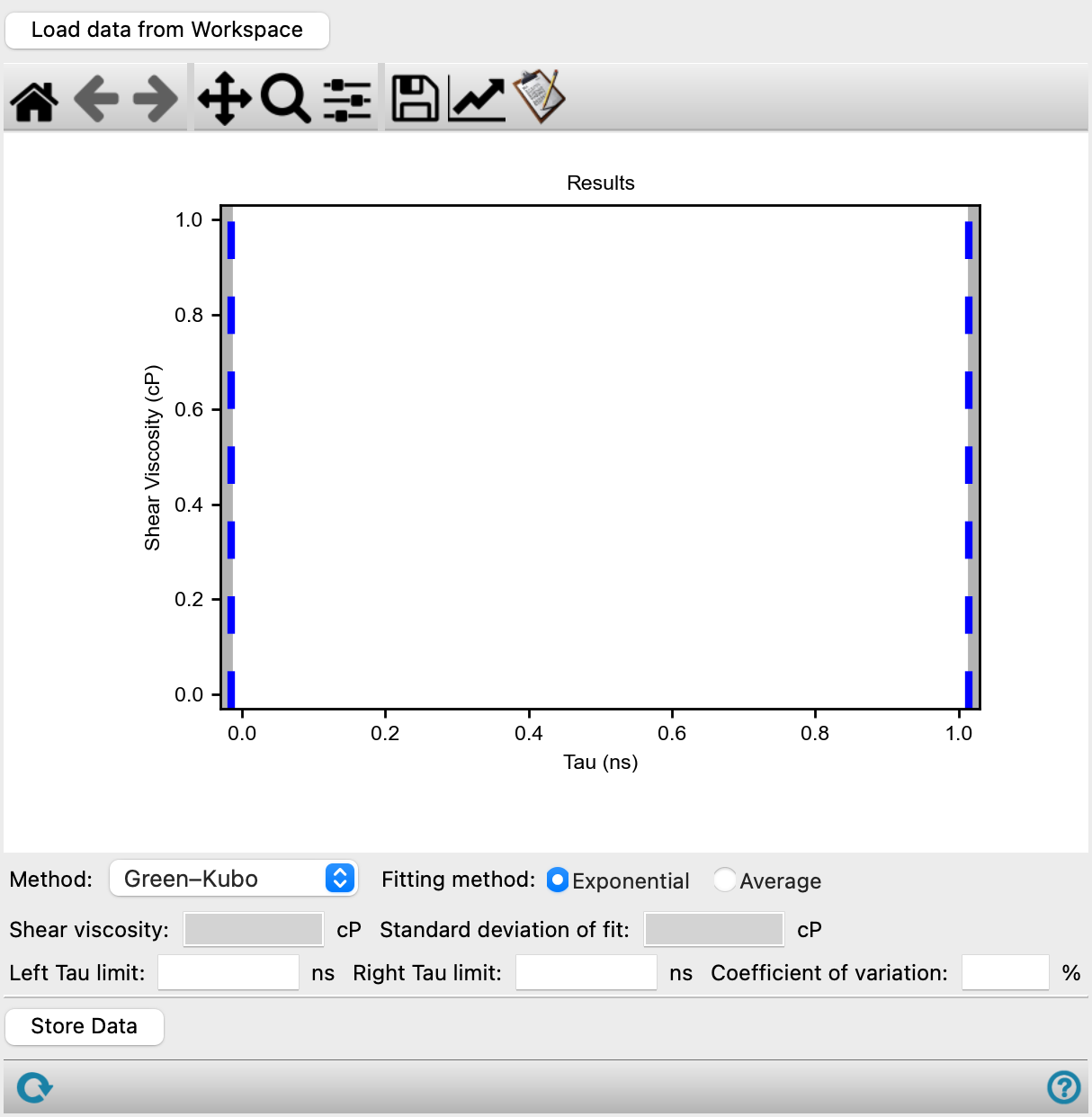
Displays the shear viscosity as a function of tau (simulation time difference) and the curve fitted to the results. If multiple simulations were run, a standard deviation band is also plotted. A legend is displayed in the lower right corner. The blue vertical dashed lines mark the left and right tau limits. You can drag these lines to change the tau limits, which are updated in the Left tau limit and Right tau limit text boxes. The lines are moved if you edit the values in the text boxes. When the limits are changed, the curve is refitted and the values in the Shear viscosity text box and Standard deviation of fit text box are updated.
- Method option menu
-
Select the method with which the viscosity was calculated, Green-Kubo or Einstein-Helfand. See Viscosity Panel.
- Fitting method
-
Select one of these options for the type of fit to perform on the data.
- Exponential fit—perform a double-exponential fit to the data between the tau limits. Only present when Green-Kubo is selected as the Method.
- Average—evaluate the viscosity as the average value over the independent runs, taken between the tau limits. Only present when Green-Kubo is selected as the Method.
- Linear—perform a linear fit to the data between the tau limits. Only present when Einstein-Helfand is selected as the Method.
- Shear viscosity text box
-
Shows the value of the shear viscosity from the fit. The value is updated as the tau limits are changed. Noneditable.
- Standard deviation of fit text box
-
Shows the standard deviation of the fit. The value is updated as the tau limits are changed. Noneditable. Only present when Green-Kubo is selected as the Method.
- Standard error
-
Shows the standard error of the fit. The value is updated as the tau limits are changed. Noneditable. Only present when Einstein-Helfand is selected as the Method.
- Left tau limit text box
-
Specify the lower limit of the tau value used in the fit. Changing this value moves the left blue dashed line in the plot; moving the left blue dashed line changes the value in this text box. When the limit is changed, the curve is refitted and the values in the Shear viscosity text box and Standard deviation of fit text box are updated.
- Right tau limit text box
-
Specify the upper limit of the tau value used in the fit. Changing this value moves the right blue dashed line in the plot; moving the right blue dashed line changes the value in this text box. When the limit is changed, the curve is refitted and the values in the Shear viscosity text box and Standard deviation of fit text box are updated.
- Coefficient of variation text box
-
Specify the percentage coefficient of variation that is used to exclude data points from the fitting procedure. This value is changed as you update the tau limits; changing this value updates the tau limits and the fit.
This text box is only available if multiple simulations were run.
- Store Data button
-
Save the viscosity value and associated parameters for the current fit, as project table properties. If these properties already exist, they are overwritten with the latest values. The properties are listed below.
Primary properties:
- Shear Viscosity GK (cP) type—viscosity value; type is exp for exponential fit, ave for viscosity average.
- Shear Viscosity GK STD (cP)—standard deviation of fit for viscosity
- Shear Viscosity GK Tau Start (ns)—starting tau value, from Left tau limit text box
- Shear Viscosity GK Tau End (ns)—ending tau value, from Right tau limit text box
Secondary properties (parameters of exponential fit):
- Shear Viscosity GK A (cP / ps)
- Shear Viscosity GK Alpha
- Shear Viscosity GK Tau1 (ps)
- Shear Viscosity GK Tau2 (ps)
- Status bar
-
 to reset the panel to its default settings and clear any data from the panel.
If you can submit a job from the panel, the status bar displays information about the current job settings and status for the panel. The settings include the job name, task name and task settings (if any), number of subjobs (if any) and the host name and job incorporation setting. The job status can include messages about job start, job completion and incorporation.
The status bar also contains the Help button
 , which opens an option menu with choices to open the help topic for the panel (Documentation), launch Maestro Assistant, or if available, choose from an option menu of Tutorials. If the panel is used by one or more tutorials, hover over the Tutorials option to display a list of tutorials. Choosing a tutorial opens the tutorial topic.