Nanoreactor
Tutorial Created with Software Release: 2026-3
Topics: Catalysis & Reactivity , Energy Capture & Storage
Methodology: Molecular Quantum Mechanics
Products Used: AutoTS , Jaguar , MS Maestro , MS Reactivity
Tutorial files |
11 MG |

This tutorial is written for use with a 3-button mouse with a scroll wheel.
Words found in the Glossary of Terms are shown like this: Workspacethe 3D display area in the center of the main window, where molecular structures are displayed

Abstract:
In this tutorial, we will learn to use the Nanoreactor panel to predict thermal decomposition products of a molecule without any prior knowledge.
Tutorial Content
1. Introduction to Nanoreactor
Understanding chemical reactivity requires identifying not only individual reaction steps, but also the full set of interconnected elementary processes that define a reaction mechanism. Traditionally, mechanistic insights have been derived from manual hypothesis-driven studies, often guided by chemical intuition and limited sampling of potential pathways. While this approach has been highly successful, it becomes increasingly challenging for complex systems involving multiple intermediates, competing channels, and high-dimensional potential energy surfaces (PESs).
Automated reaction mechanism discovery aims to overcome these limitations by systematically constructing and exploring reaction networks (RXNs), where molecular species are represented as nodes and elementary reactions as edges connecting them.
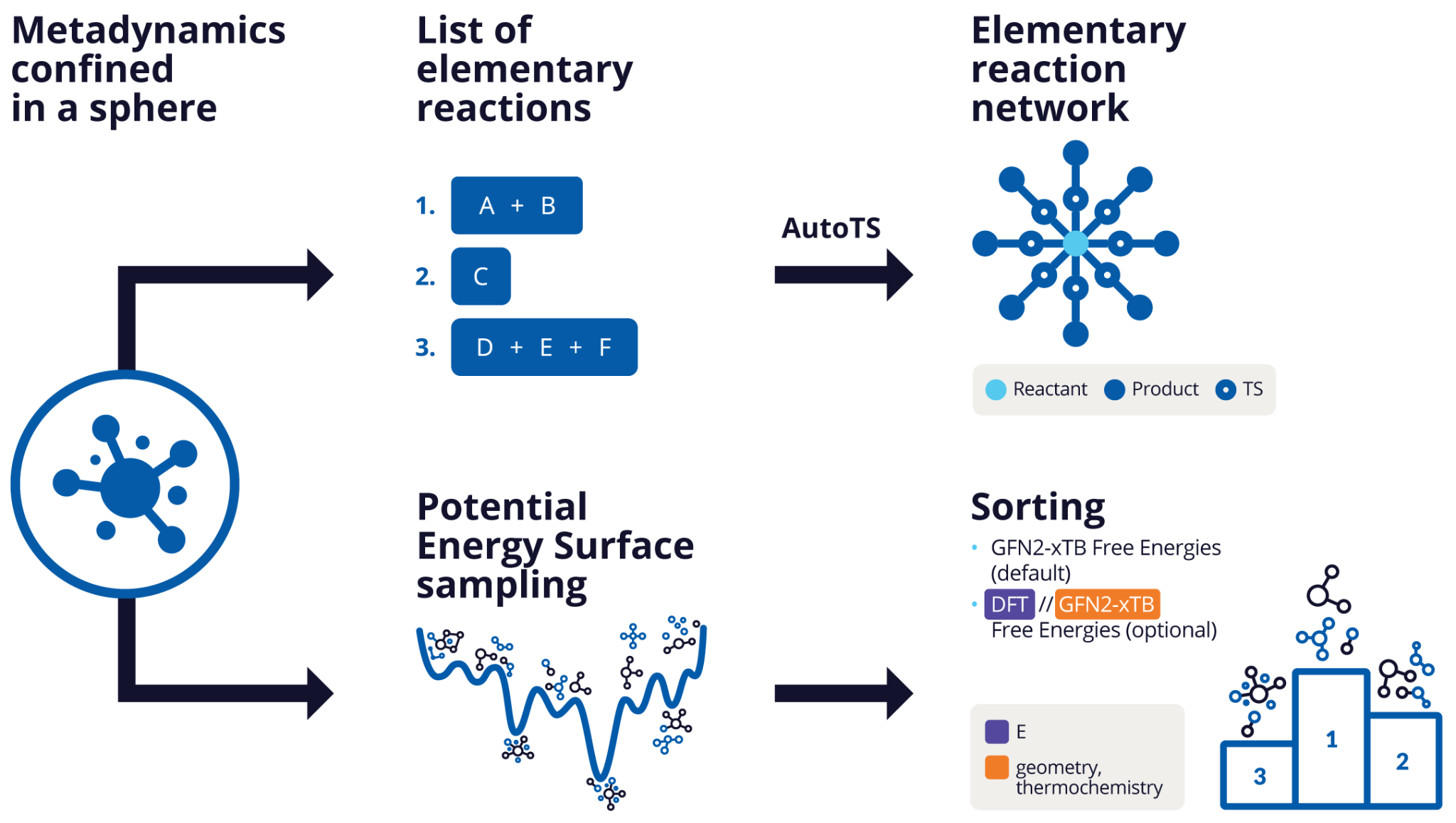
In this framework, the goal is not only to locate a single reaction pathway, but to map the broader landscape of accessible chemical transformations from a given set of initial conditions, with the ultimate objective of identifying the lowest-barrier reaction mechanism as the shortest path in a reaction network weighted by barriers or rates.
An Elementary Reaction Network (ERN) is the fundamental building block of such a reaction network, where each connection between species corresponds to a validated single-step reaction with an associated transition state. This makes ERNs suitable for quantitative kinetic modeling and mechanistic analysis.
Modern approaches for ERN discovery are based on molecular dynamics, force-driven exploration or systematic enumeration of reaction coordinates or products that enable the identification of either kinetically accessible transformations or broader sets of possible chemical transformations (see References, specifically Methods for Exploring Reaction Space in Molecular Systems). Subsequent transition-state refinement and kinetic analysis are then used to filter chemically relevant pathways and establish quantitative reaction mechanisms.
This paradigm shift—from single-pathway elucidation to network-based mechanistic exploration—enables a more comprehensive and unbiased description of chemical reactivity. It is particularly powerful for applications in degradation chemistry, where multiple competing pathways govern product distributions, and in molecular catalyst design, where understanding the full reaction space is essential for rational optimization.
Within this context, the Nanoreactor – Elementary Reaction Network (ERN) tool developed by Schrödinger automates the identification of kinetically accessible elementary reactions starting from a known local minimum on the potential energy surface (PES) via nanoreactor molecular dynamics simulations. The primary uniqueness of using molecular dynamics for elementary reaction sampling is its kinetically driven approach, which explores accessible phase space. In contrast, alternative methods target possibility space using products enumeration (e.g., YARP) or enumeration of reaction coordinates (e.g., AFIR, NT2, GSM)—approaches that suffer from a much steeper combinatorial explosion as the network grows. Complementing the ERN, PES sampling and sorting workflow enhances Nanoreactor capabilities by systematically exploring and ranking minima on Free energy surfaces. Because chemical reactions preferentially follow kinetically accessible downhill pathways on the free energy surface, this approach helps prioritize the most probable reaction products from a thermodynamic perspective.

In this tutorial, we will use the Nanoreactor, Nanoreactor Results and Reaction Network Viewer panels to sample the Elementary Reaction Network (ERN) for heptafluorobutyric acid degradation mediated by HO. radical. Additionally, you will explore the PES sampling of acetic acid to investigate its possible thermal decomposition pathways.
Nanoreactor is an integration and extension of work done by multiple individuals. See papers by Koerstz et. al., Rasmussen et. al., and Grimme. These papers are also linked in our For further reading section.
2. Creating and Saving Projects
At the start of the session, change the file path to your chosen Working Directorythe location where files are saved in MS Maestro to make file navigation easier. Each session in MS Maestro begins with a default Scratch Projecta temporary project in which work is not saved, closing a scratch project removes all current work and begins a new scratch project, which is not saved. A MS Maestro project stores all your data and has a .prj extension. A project may contain numerous entries corresponding to imported structures, as well as the output of modeling-related tasks. Once a project is saved, the project is automatically saved each time a change is made.
Structures can be built in MS Maestro or can be imported using File > Import Structures (or drag-and-dropped), and are added to the Entry Lista simplified view of the Project Table that allows you to perform basic operations such as selection and inclusion and Project Tabledisplays the contents of a project and is also an interface for performing operations on selected entries, viewing properties, and organizing structures and data. The Entry Lista simplified view of the Project Table that allows you to perform basic operations such as selection and inclusion is located to the left of the Workspacethe 3D display area in the center of the main window, where molecular structures are displayed. The Project Tabledisplays the contents of a project and is also an interface for performing operations on selected entries, viewing properties, and organizing structures and data can be accessed by Ctrl+T (Cmd+T) or Window > Project Table if you would like to see an expanded view of your project data.
- Double-click the Materials Science icon
- (No icon? See Starting Maestro)
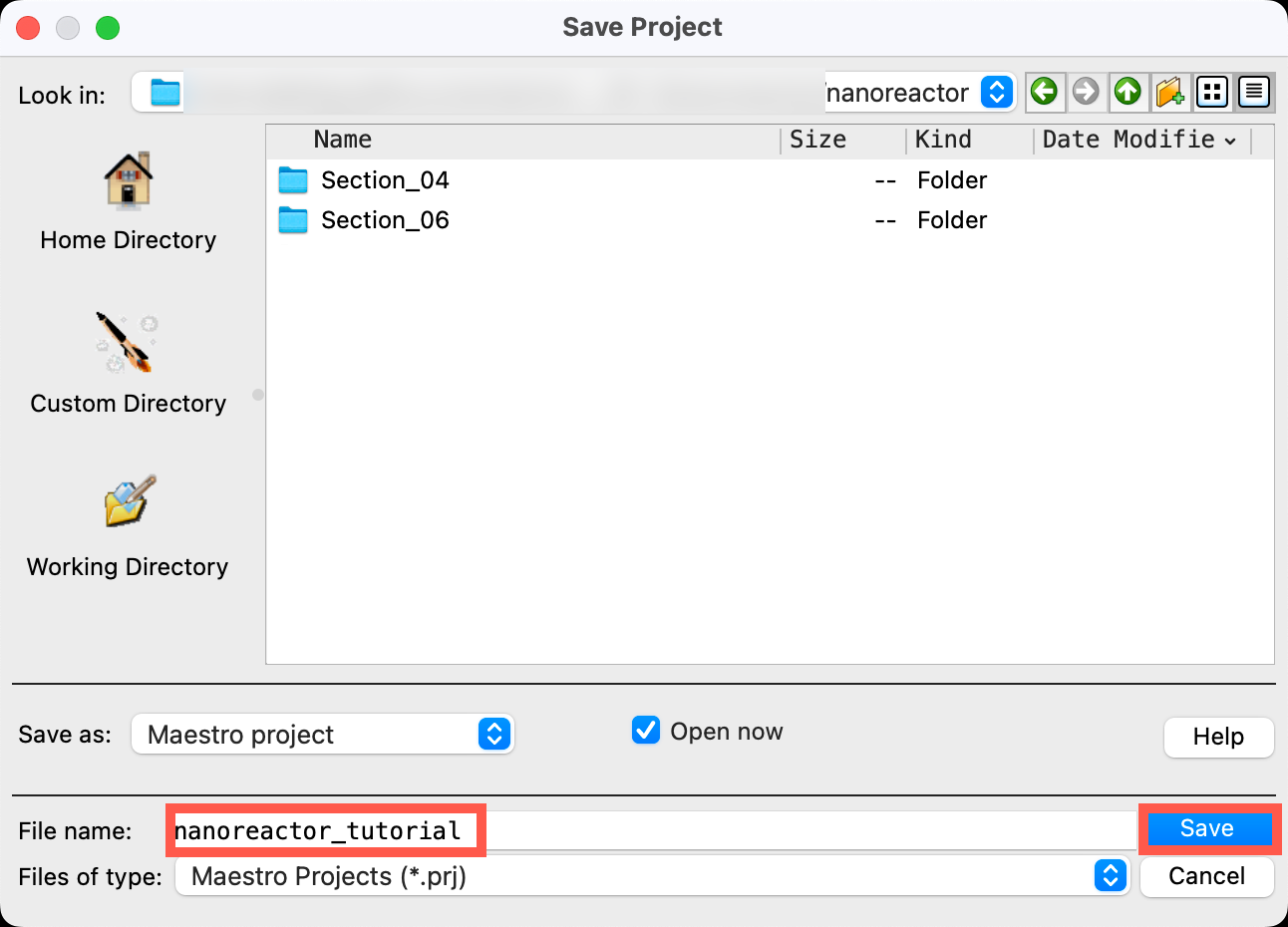
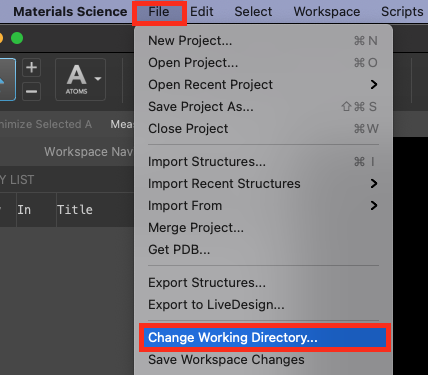
Figure 2-1. Change Working Directory option.
- Go to File > Change Working Directory
- Find your directory, and click Choose
- Pre-generated files are included for examining output. Download the zip file here: schrodinger.com/sites/default/files/s3/release/current/Tutorials/zip/nanoreactor.zip
- After downloading the zip file, unzip the contents in your Working Directory for ease of access throughout the tutorial
 Figure 2-2. Save Project panel.
- Go to File > Save Project As
- Change the File name to nanoreactor_tutorial, click Save
- The project is now named
nanoreactor_tutorial.prj
- The project is now named
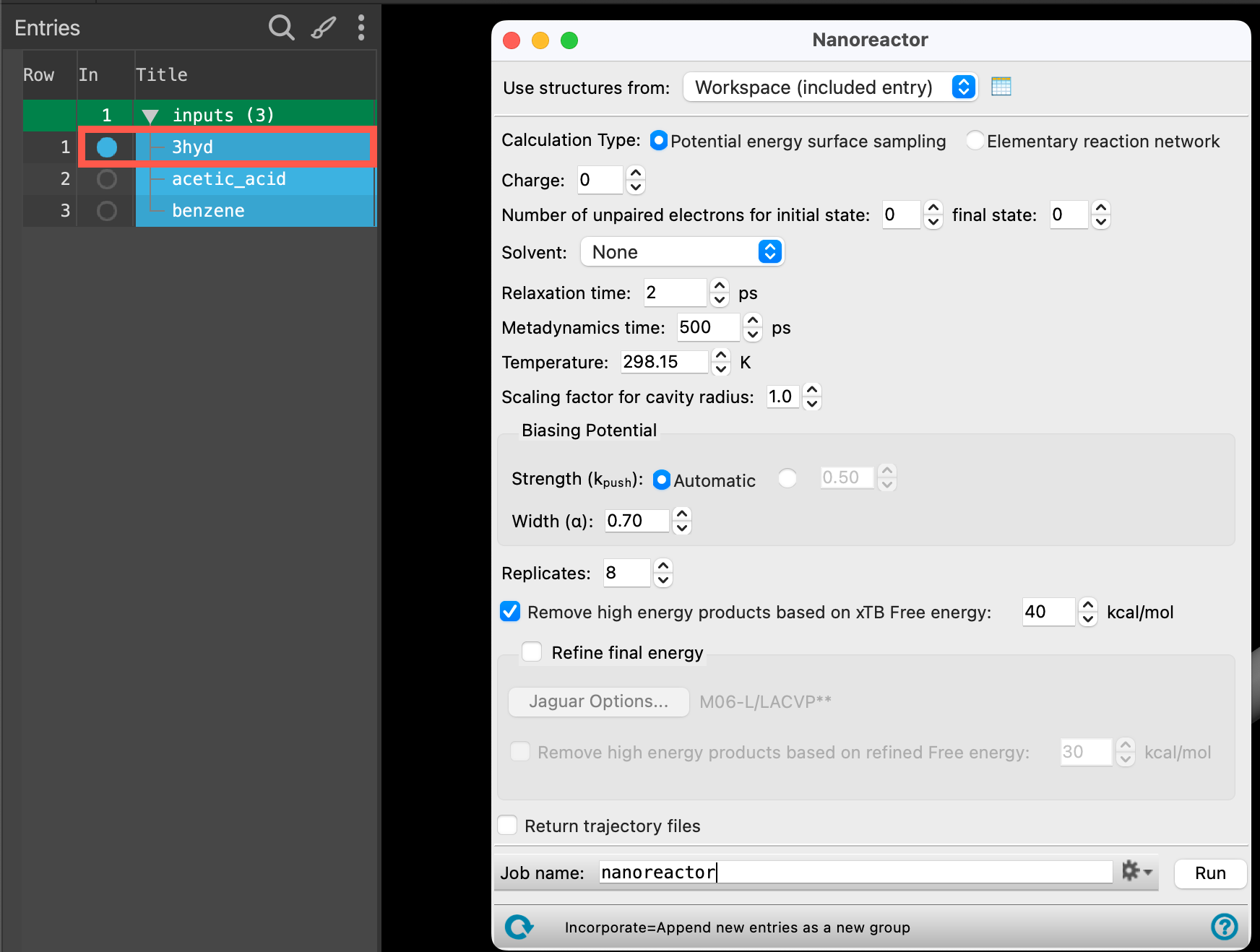
Figure 2-3. Drawing heptafluorobutyric acid and HO. radical.
We will proceed to draw the systems that we will use in the subsequent sections using the 2D Sketcher: heptafluorobutyric acid + HO. radical (as shown in the figure).
- Go to Edit > 2D Sketcher
- The 2D Sketcher panel opens
- Learn more about the 2D Sketcher in the Introduction to Materials Science Maestro tutorial
- Draw heptafluorobutyric acid
- Draw the HO. radical
- Create a water molecule (H2O), then right-click on it and choose Add Unpaired Electron from the dropdown menu to form the HO. radical
- Click Save as New
- Name the entry reagents
- Click OK
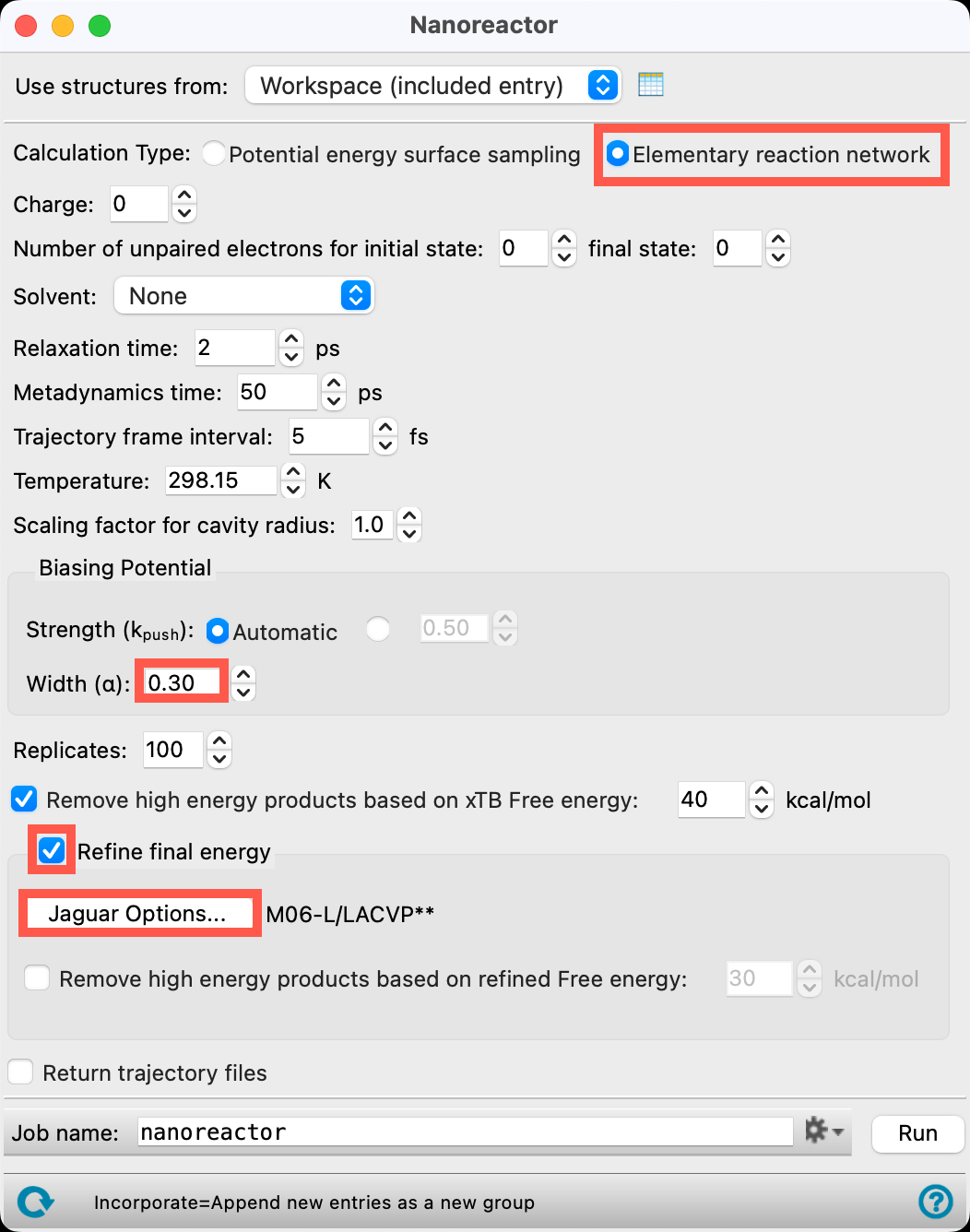
Figure 2-4. Drawing acetic acid.
- Click the piece of paper to clear the sketcher
- Draw acetic acid
- Click Save as New
- Name the entry acetic_acid
- Click OK
- Close the 2D Sketcher
Style the atoms in the workspace as desired. A ball-and-stick representation will be shown in the following steps.
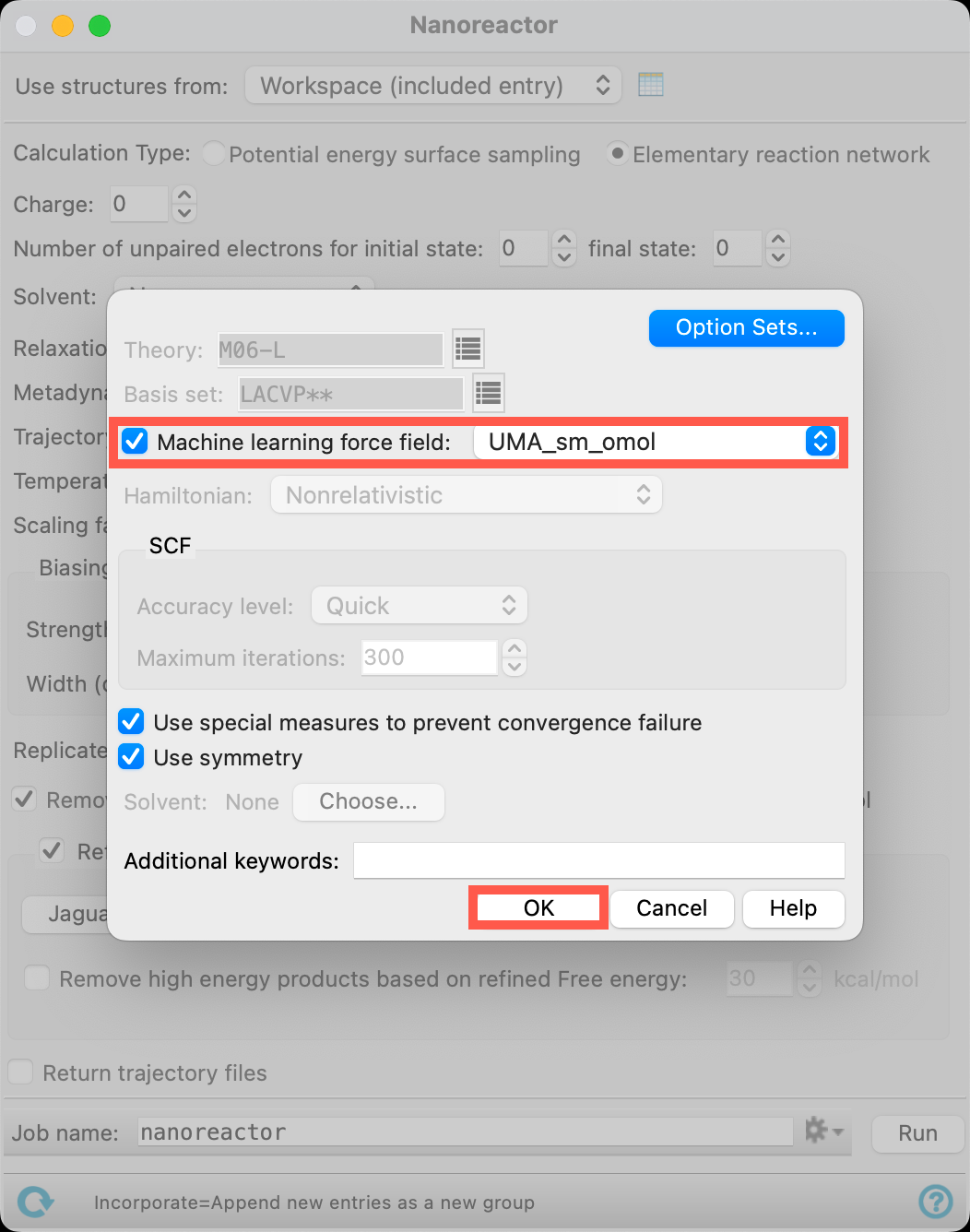
Figure 2-5. Shifting the reagents.
Note: Both Nanoreactor workflows begin with geometry minimization. However, minimizing a 3D structure generated directly from a 2D sketcher can sometimes cause premature chemical reactions—especially in bimolecular systems containing highly reactive species. As a best practice, pre-minimize your starting geometry with GFN2-xTB and confirm that it stays within the desired configurational basin before running the Nanoreactor panel. If a reaction occurs during pre-minimization, manually perturb the starting geometry in MS Maestro to guide it into the intended starting basin.
Although not required for this specific example, we will manually move the HO. radical away from the COOH group (the expected reaction site) to the opposite side of the Workspace (Figure 2-5).
- Double click the HO. radical to select
- Blue boxes will appear around each atom selected
- Right click to open the dropdown menu and select Move Atoms
- Reposition the HO. radical by clicking and dragging with the left mouse button and using the scroll wheel until it rests on the opposite side of the COOH group
3. Performing a Nanoreactor Elementary Reaction Network Calculation
This section explores the first step of heptafluorobutyric acid degradation mediated by the HO. radical (reagents) using the Nanoreactor panel.
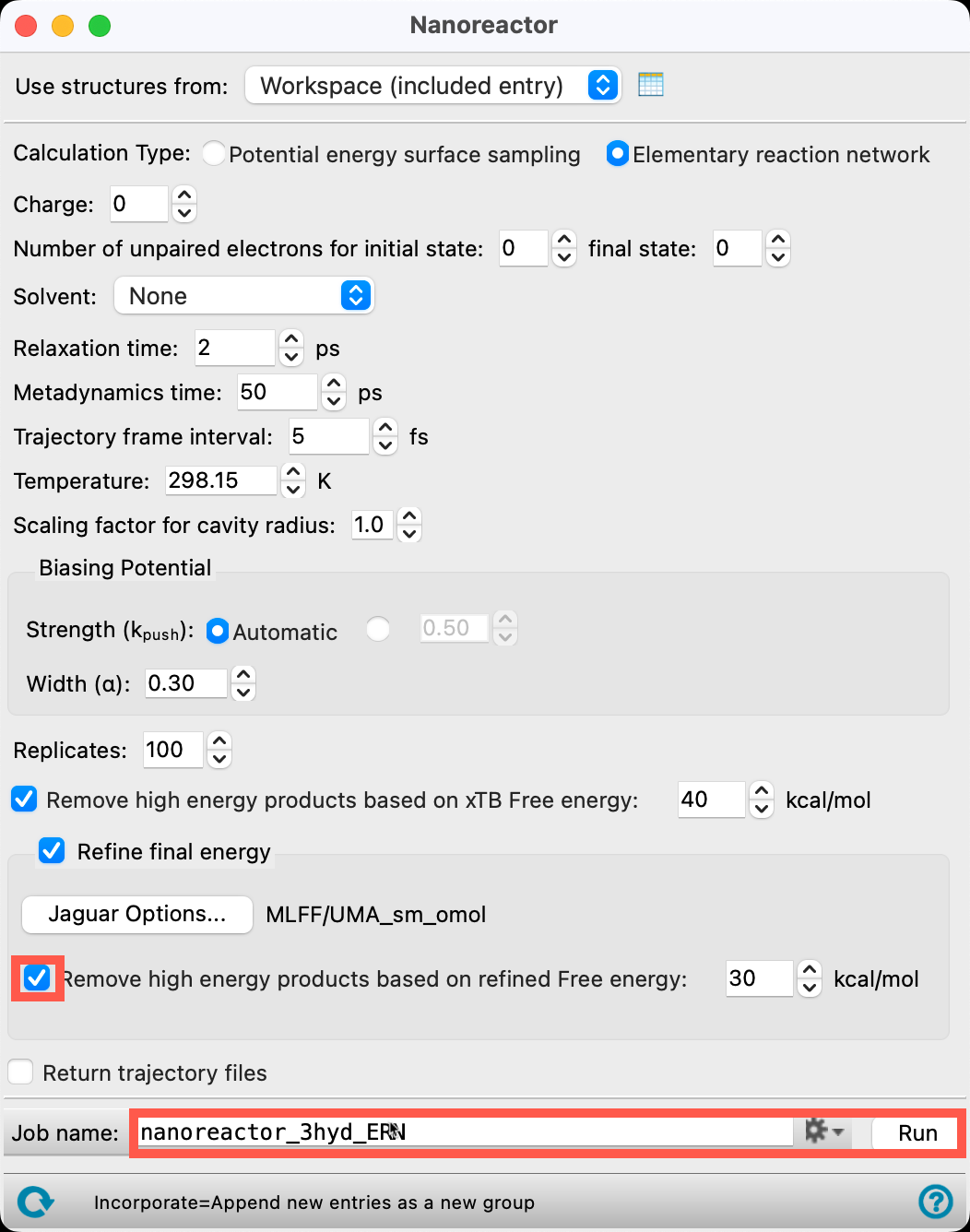
Figure 3-1. Opening the Nanoreactor panel.
- With the reagents entry selected(1) the atoms are chosen in the Workspace. These atoms are referred to as "the selection" or "the atom selection". Workspace operations are performed on the selected atoms. (2) The entry is chosen in the Entry List (and Project Table) and the row for the entry is highlighted. Project operations are performed on all selected entries and includedthe entry is represented in the Workspace, the circle in the In column is blue in the workspacethe 3D display area in the center of the main window, where molecular structures are displayed, go to Tasks > Materials > Quantum Mechanics > Reaction Network > Nanoreactor Calculations
- The Nanoreactor panel opens

Figure 3-2. Setting up the Nanoreactor panel.
- Ensure the Calculation Type is Elementary reaction network
- Choosing this calculation type to run an elementary reaction network (ERN) workflow, e.g. a reaction network composed only of elementary steps, where each step represents a single, well-defined chemical event with a valid transition state.
- Set the Number of unpaired electrons for initial state and final state to 1
- Check Refine final energy
- This setting introduces a DFT or MLFF single-point refinement on nanoreactor products, with thermal corrections taken from GFN2-xTB.
- Open the Jaguar Options panel

Figure 3-3. Setting the Jaguar advanced options.
- Check Machine learning force field
- If you are interested in using Machine Learning Force Fields (MLFF) but the necessary options are not visible, please contact your Account Manager
- Additional information about MLFF, including details on available models, is available in the help documentation and on our website
- Select the UMA_sm_omol model
- Click OK to close the panel
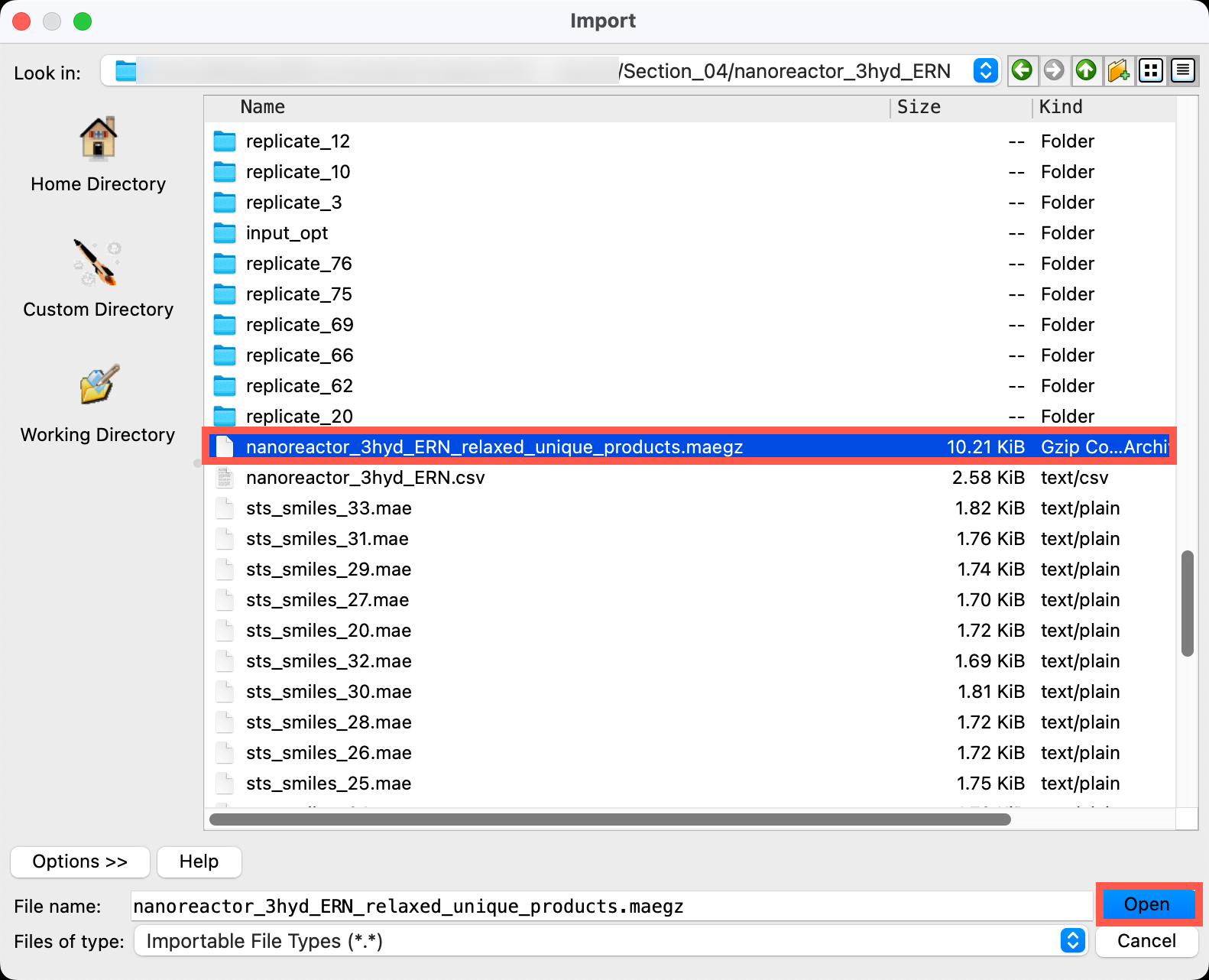
Figure 3-4. Setting parameters, naming, and running the job.
- Check Remove high energy products based on refined Free energy
- Check Calculate transition states
- Open the AutoTS Options panel
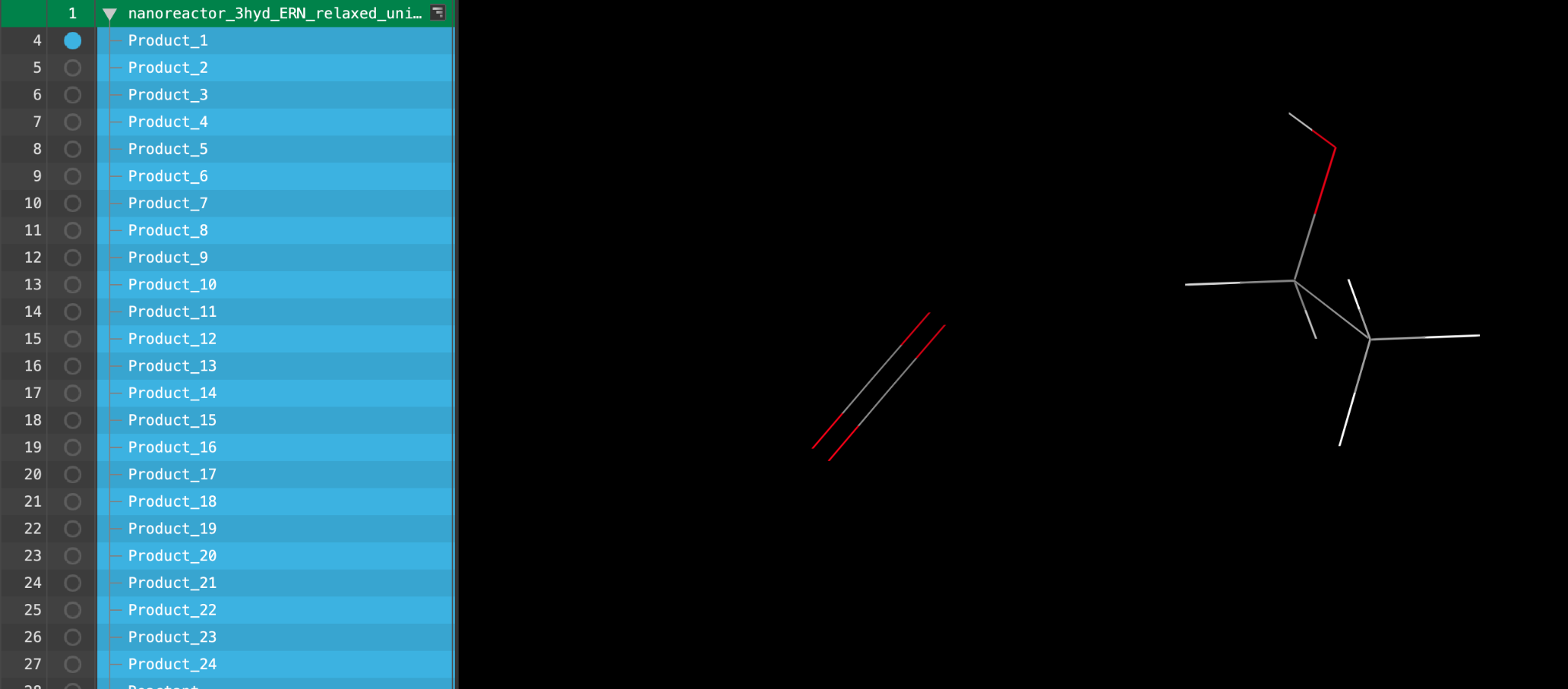
Figure 3-5. Setting the Jaguar Options
- For Methods select UMA_SM_OMOL
- Enter afir_minima_to_minima=True in the Additional AutoTS keywords section
Note: The Nanoreactor panel automatically validates elementary reaction products by running the default AutoTS workflow, which performs transition state optimizations followed by Full IRC calculations. In general case, depending on your chemistry, you can customize AutoTS calculations using one or few following optional Additional AutoTS keywords (enter as a space-separated list without commas):
afir_minima_to_minima=True Setting this mode defines a specific behavior in AutoTS: if a transition state cannot be located via standard TS optimization, AutoTS generates an estimated upper bound for the energy barrier between the reactant (or intermediates) and products. This path is generated by driving the reactant to the product state while monitoring the energy along the coordinate, with the resulting structure clearly labeled as an "approx ts". This mode is particularly helpful when users are willing to accept higher-order saddle points as conservative, upper-bound energy estimates for a transition state that cannot be located. We will enable this mode for this demo. It is completely harmless when a transition state is found via standard optimization, but it provides a reliable fallback estimate if a true TS cannot be located.
require_irc_success=True If True we require the IRC to succeed before accepting a transition state.
irc_type=three_point_irc performs quick but less-accurate 3-point IRC calculations. The first point on each side of the transition state is located as usual, then the constraint on the distance from the transition state is relaxed and the points are optimized to find the end points, corresponding to the reactant and product complexes.
eliminate_multiple_frequencies=True tries to nudge the molecule along eigenvectors corresponding to the imaginary frequencies in order to remove extra imaginary frequencies.
ts_acceptance_strictness=extra_loose will allow AutoTS to continue even with multiple negative frequencies. This keyword thus ensures that approximate transition-state connections (higher-order saddle points on PES) are also included in the network.
temperature_start = <value> set the value to get the thermodynamics at <value> K
Read more about the AutoTS input file keywords in the documentation.
- Click OK to close the panel
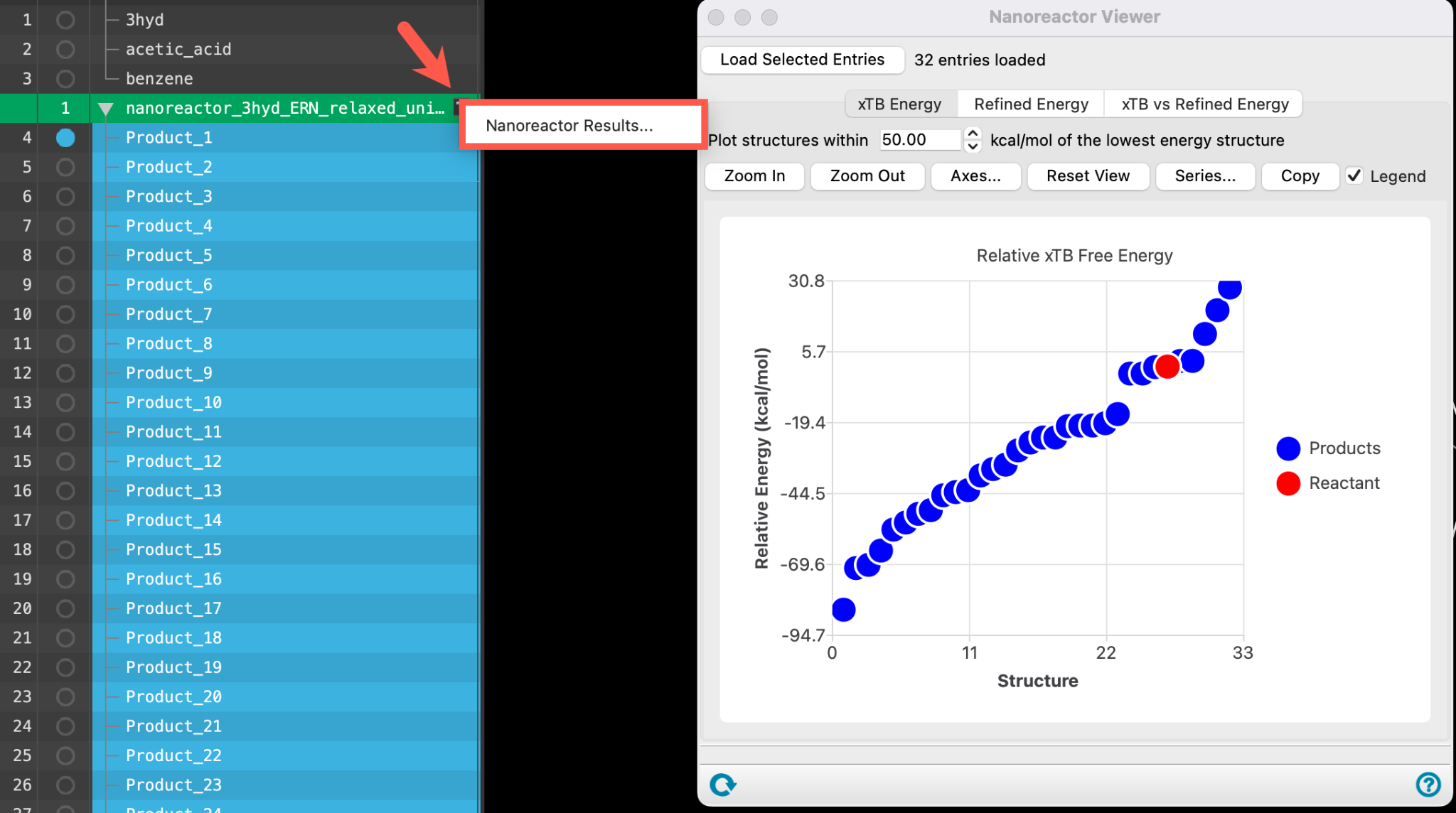
Figure 3-6. Running the calculation.
- Name the job nanoreactor_CF3HO
-
Adjust the job settings (
 ) as needed
- This job requires a CPU host (and, if available, a subhost). Use 1 core on -HOST to run the main driver script, and allocate 100 CPU cores on -SUBHOST to achieve maximum parallel efficiency during the sampling phase (each trajectory runs on 1 CPU core ). Ensure that the host has sufficient memory—ideally at least 4-8 GB RAM—as UMA_SM_OMOL is memory-intensive.
- The job is completed in about 3 hours. The sampling stage takes around 20 minutes, while the remaining time is largely spent on AutoTS calculations which takes up to 2.5 hours.
- If you would like to run the job yourself, click Run. Otherwise, we will proceed with imported results files in the next section
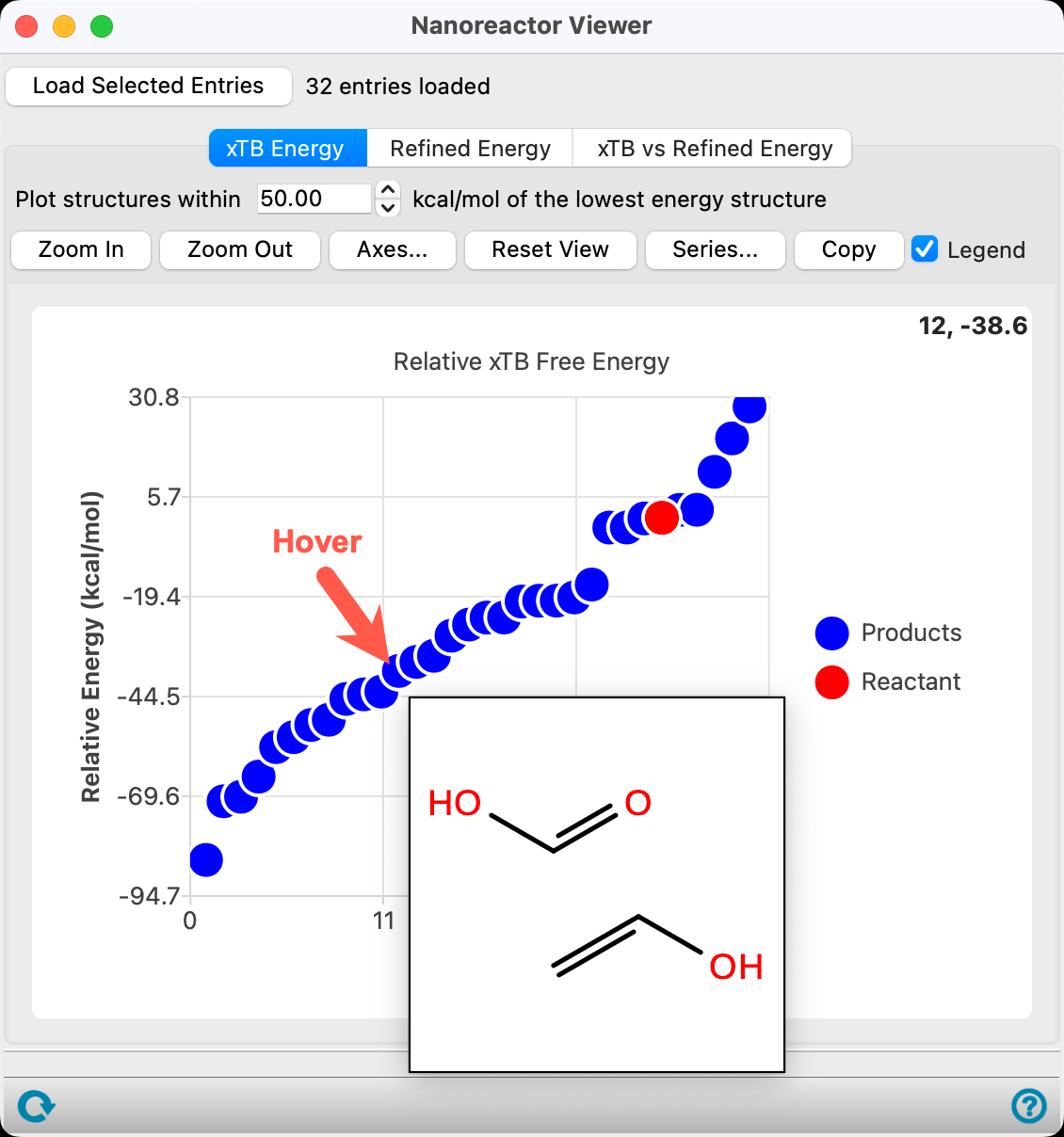
Figure 3-7. The Sampling Settings.
In this calculation we used the default Sampling Settings but let’s explore the Sampling Settings tab before closing the panel. Parameters (sampling temperature) and hyperparameters (cavity radius, strength and width of the biasing potential) for metadynamics can be configured under the Sampling Settings tab. By default, they are tuned for standard organic reactions and typically only require adjustment if MD instability occurs (which can usually be monitored via the Job Monitor; see the Troubleshooting MD Instability section below). One exception is the Cavity Radius, which can be scaled to 0.8 for bimolecular and higher-multimer reactions to potentially improve sampling, though this is often unnecessary
- Close the Nanoreactor panel
Let’s take a closer look at the workflow and features in this panel. More detailed information can be found by clicking the blue question mark (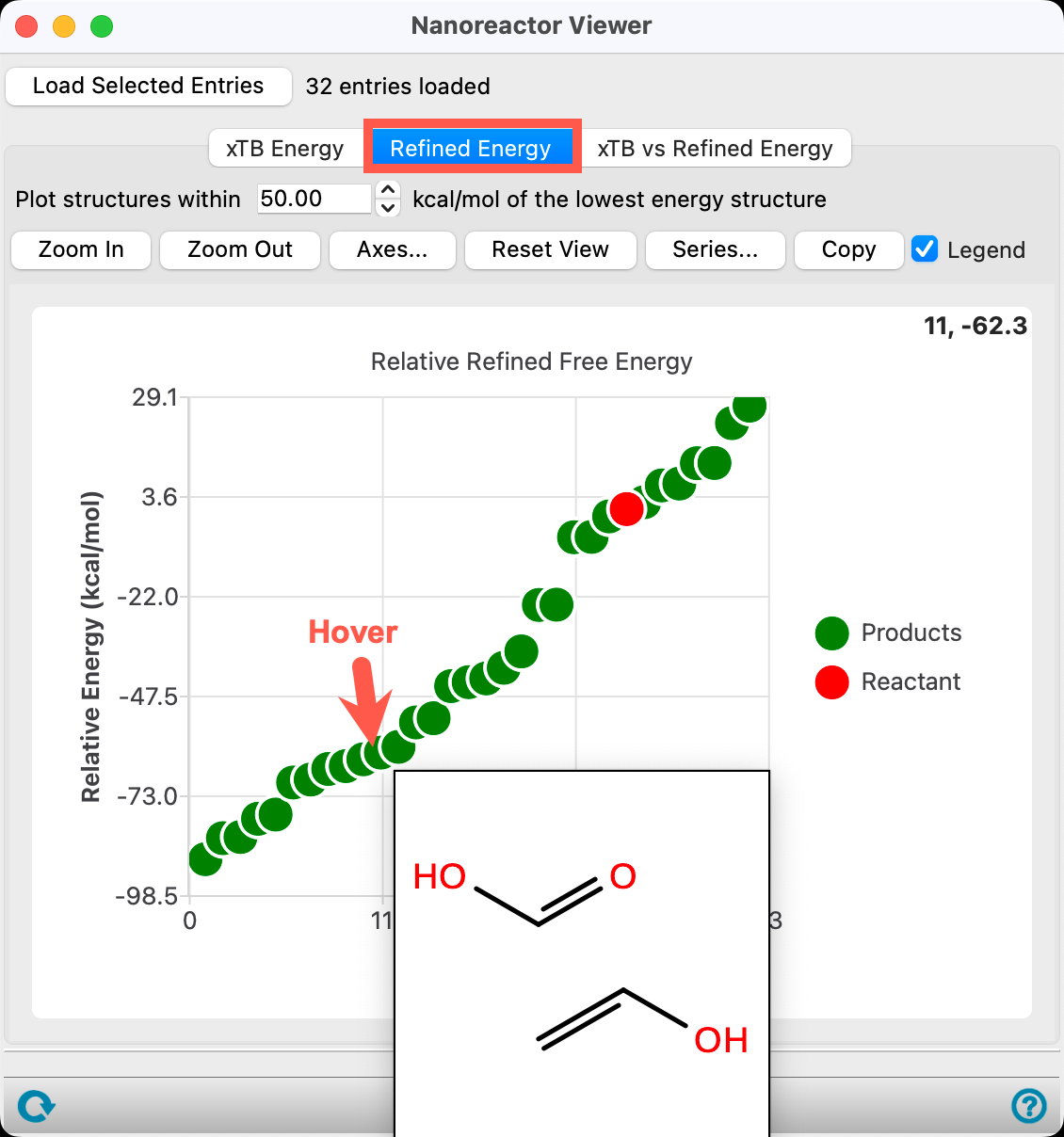 ) located at the bottom right corner of the panel or by visiting the related documentation page.
Workflow:
Features
- The Charge textbox allows the user to specify the overall charge of the system, while it can be positive, negative, or zero, the net charge does need to be an integer.
- The initial and final numbers of unpaired electrons allow the user to specify the spin state during metadynamics sampling and during GFN2-xTB minimization of the resulting products, respectively. Note, the GFN2-xTB method does not properly distinguish between ⟨S2⟩ spin eigenstates and only conserves a total spin. The spin multiplicity is propagated directly to AutoTS.
- A solvent modeled by the Poisson-Boltzmann implicit solvent model can be selected from the Solvent option menu, if None is selected the calculation is run in the gas phase.
- The MD pre-equilibration time is the total simulation time for the molecular dynamics pre-equilibration. The goal of this stage is not only thermalization and kinetic energy relaxation prior to the metadynamics run, but also the generation of a set of initial geometries that is as diverse as possible to enhance high-quality sampling. To achieve this, we run a short (10 ps) and hot (600.15K) MD simulation. Note that this value represents the sampling temperature only, rather than a physical system temperature, which can be adjusted separately in AutoTS.
- The Metadynamics time is the total simulation time for the metadynamics calculation. Here, we assume that an elementary reaction occurs within 25 ps, which is typically the case for most organic reactions under these simulation conditions
- The Trajectory Frame interval indicates a step to save molecular dynamics snapshots. Leave this value at its default unless you encounter memory issues.
- In Nanoreactor setup, there are effectively two distinct temperature concepts. Sampling temperature (exploration / driving temperature) is the temperature used to make the system explore chemistry faster. Physical temperature (“truth temperature”) is the thermodynamic temperature you want to represent. The Sampling Temperature describes dynamics sampling temperature. Physical temperature can be set in the Additional AutoTS keywords section. There are three AutoTS input keywords: temperature_start, temperature_step, temperature_count , which define a range of temperatures to calculate. All free energy properties are calculated at all the temperatures in this range. If one sets temperature_start = 400 the thermodynamics will be calculated at 400 K.
- There are three hyperparameters for metadynamics (see References, specifically Exploration of Chemical Compound, Conformer, and Reaction Space with Meta-Dynamics Simulations Based on Tight-Binding Quantum Chemical Calculations) :
- The cavity radius of the spherical region in which the molecules are constrained to move is centered at the space-fixed origin by an appropriate time-independent wall potential. Smaller values (relative to the default) generally promote isomerization and accelerate bimolecular and higher-order reactions. For bimolecular and higher-order reactions, calculations can typically be performed using the default cavity radius. However, if the dynamics are slow, it is recommended to reduce the radius to 0.8 times the default value.
- kpush is the strength of the RMSD-biasing potential. This defines how strongly the system should be “pushed” out of the previously visited structures. If the value is too small, the unbiased MD limit is approached and no reaction takes place. If the value is too high, chemical irrelevant reactions might occur.
- The parameter α defines the width of the biasing potential, dictating the structural distance from the saved reference structures where the system is still influenced by the potential. Setting α too small requires substantial structural changes for the system to be affected by the biasing potential, while a value that is too high narrows the potential, allowing the system to "escape" through smaller structural modifications, such as conformational changes.
- The Replicates textbox can be used to specify the number of trajectories used in molecular dynamics. We recommend running at least 100 trajectories—and ideally up to 1,000 for systems with 12 or more atoms—to ensure adequate sampling with the GFN2-xTB nanoreactor molecular dynamics engine which does not include the diffusion acceleration term. Sampling is fast, leaving AutoTS as the main workflow bottleneck. However, trajectories must be run in parallel, as sequential execution substantially increases runtime. For this particular example, running 1,000 trajectories produces the same results as running 100 trajectories.
- Removing products with a relative energy greater than the given threshold, relative to the lowest GFN2-xTB Free energy structure, allows the user to remove high-energy products generated by the panel before the structures are refined by a quantum mechanical calculation. It results in removing physically unlikely structures from the simulation. Knowing the energies of the expected decomposition products can help determine what this threshold should be.
- The Refine final energy option allows the user to improve the accuracy of the final free energy calculation using single-point DFT (or MLFF) refinement; the specifics of the calculation can be changed in the Jaguar Options menu.
- The Calculate transition states option allows the user to calculate the transition states with AutoTS. This procedure not only adds transition states to the network but can also refine the set of products identified during the sampling stage. The specifics of the calculation can be changed in the AutoTS Options menu.
Note
Troubleshooting MD instability on the rare and unlikely occurrence: When dealing with highly unstable MD trajectories—often seen with reactive species like highly reactive radicals—instability usually arises from bias-driven movement into electronically problematic PES regions. In such cases, the overall tuning philosophy is:
|
Parameter |
Direction |
|
Temperature |
↓ (e.g. 300 K) |
|
kpush |
↓↓↓ (e.g. x 0.25-0.1) |
|
Bias width |
↑ (e.g. x 1.5-2.0) |
4. Analyzing Nanoreactor Elementary Reaction Network Results
In this section, we will view and analyze the ERN results of the heptafluorobutyric acid + HO. radical calculation with the Nanoreactor Results panel. The simulation yields multiple output types, including vibrational frequencies, comprehensive logs, zipped AutoTS data, structure files, and specific sub-directories for sampling. Our primary focus here will be investigating the two primary output files: -out_rxnwf.mae and *_products-out.maegz.
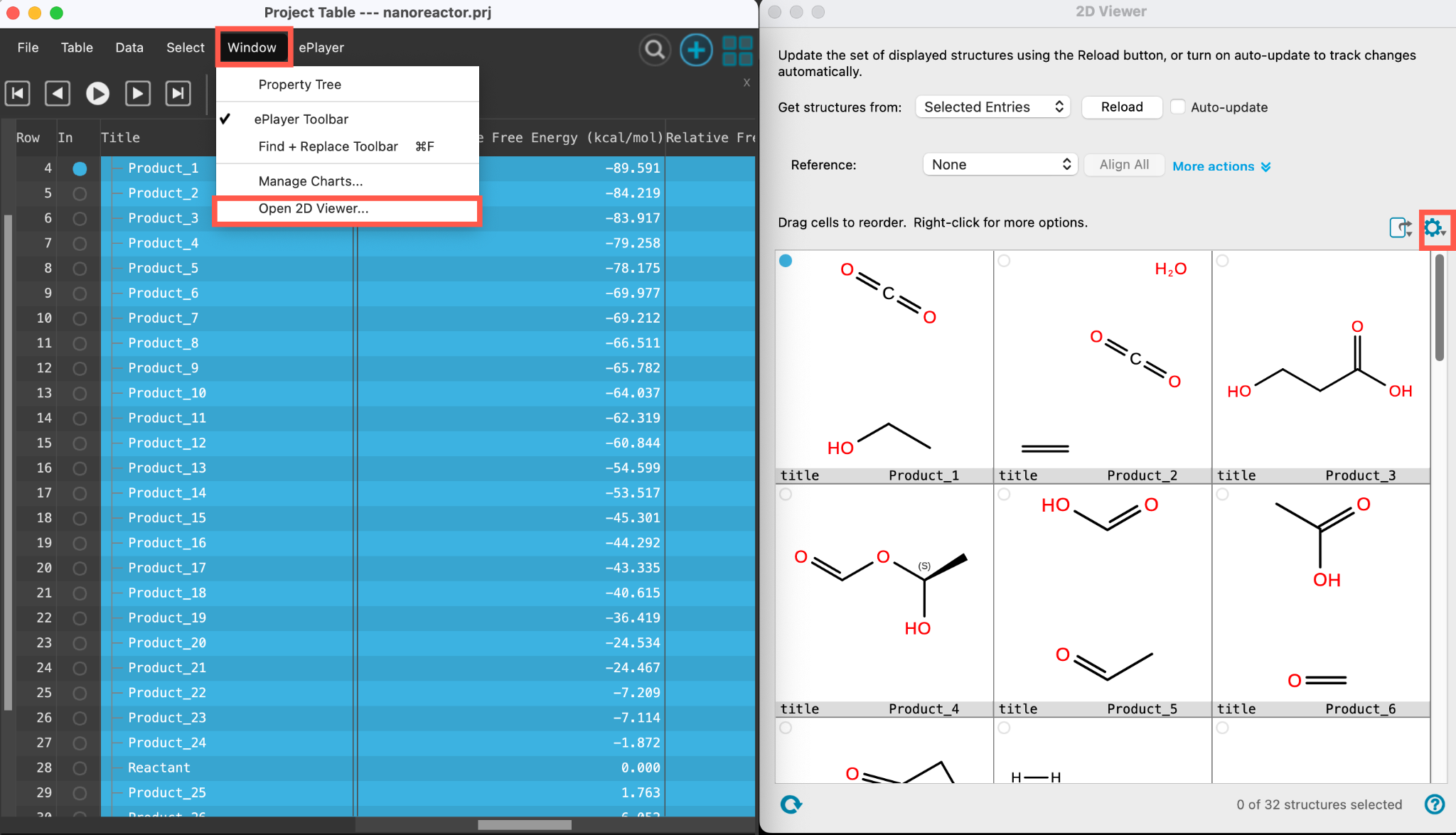
Figure 4-1. Importing the output file.
- Go to File > Import Structures
- Navigate to the provided files and choose
Section_04 > nanoreactor_CF3HO_2_afir > nanoreactor_CF3HO_2_products-out.maegz - Click Open
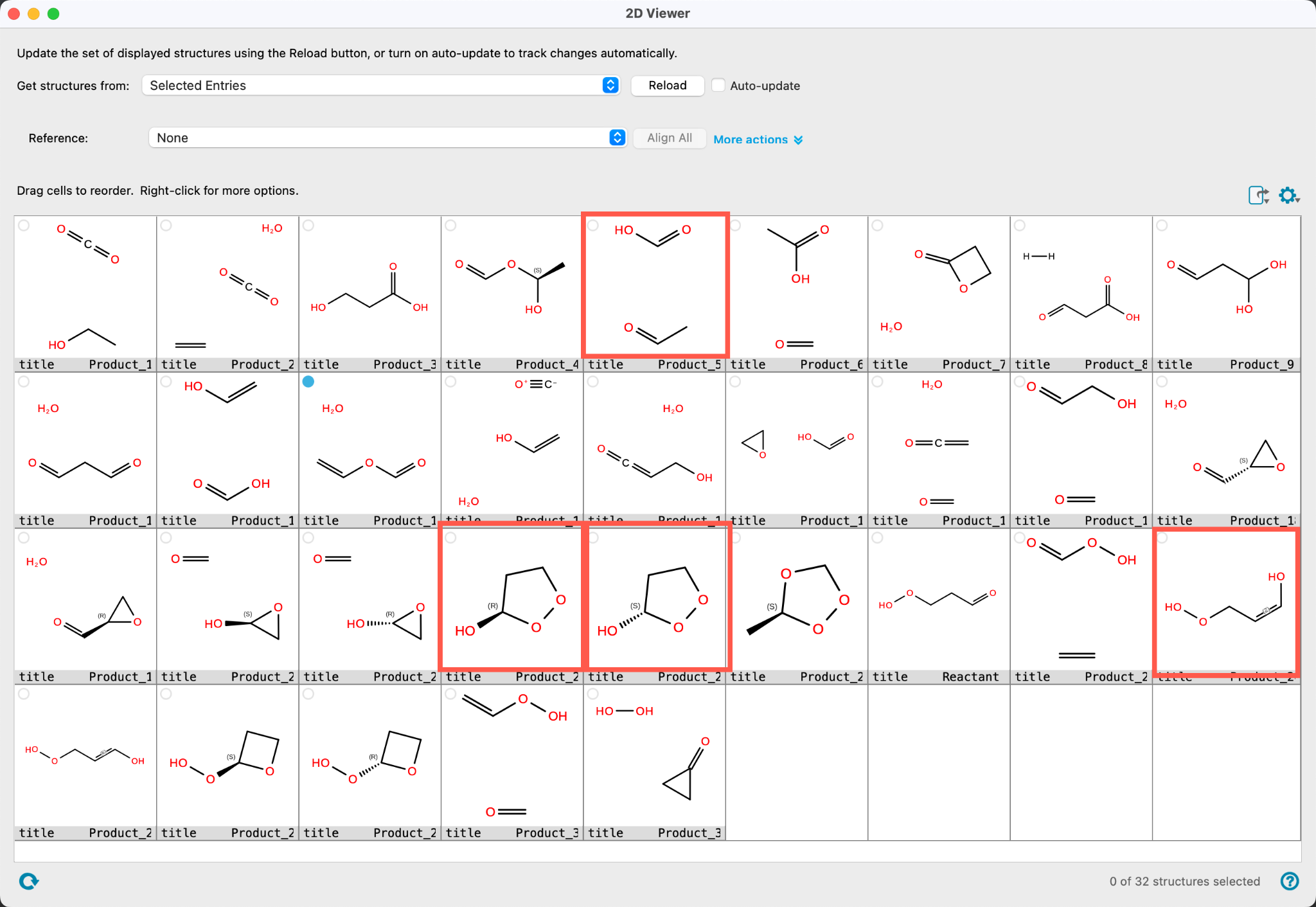
Figure 4-2. The entry list after importing.
A new entry group is added to the entry lista simplified view of the Project Table that allows you to perform basic operations such as selection and inclusion. The group contains 3 entries.
This file contains information on products that are confirmed to be elementary products with AutoTS.
Feel free to visualize any of the entries in the workspace.
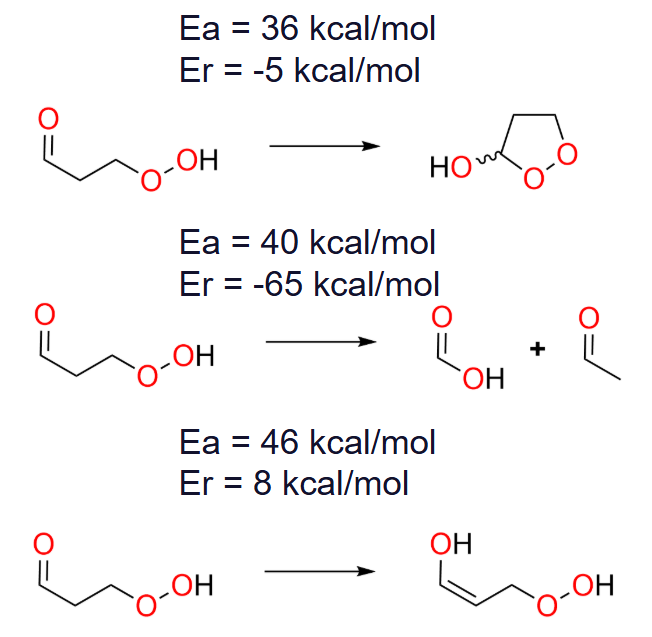
Figure 4-3. Opening the results panel with the WAM button.
Quantitative analysis can be performed in the results panel:
- Use the WAM (workflow action menu) button (
 ) to access the Nanoreactor Results panel
- Alternatively, go to Tasks > Materials > Quantum Mechanics > Reaction Network > Nanoreactor Results and use the Load selected entries button to load the entire entry group into the panel
- The Nanoreactor Results panel opens
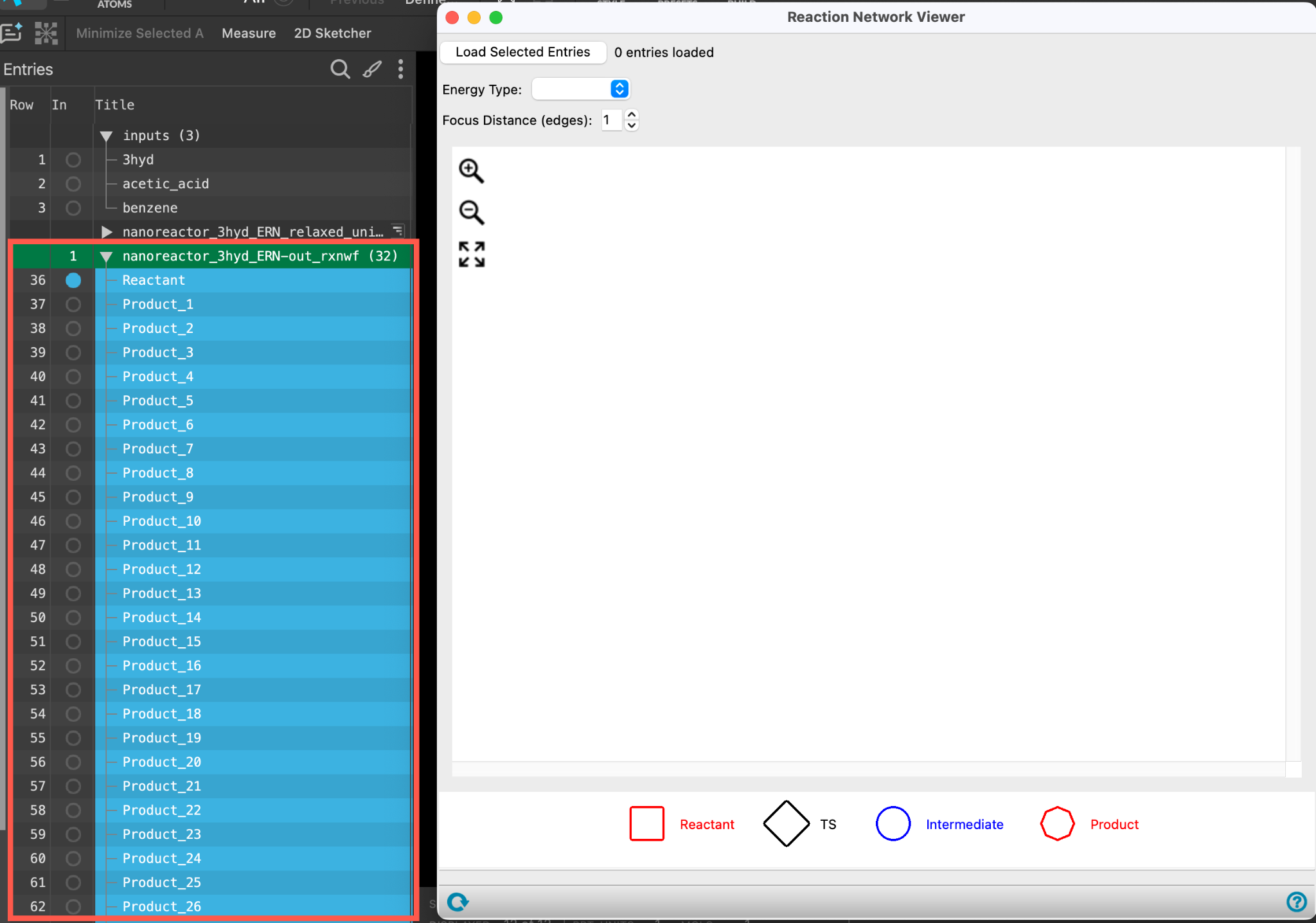
Figure. 4-4. Viewing the panel results.
The AutoTS structures are displayed based on their relative Free energy at finite separation. The reactant is marked by a red dot, and the products are marked by blue dots. Mousing over the data points will show a 2D sketch of the products.
- Close the Nanoreactor Viewer panel
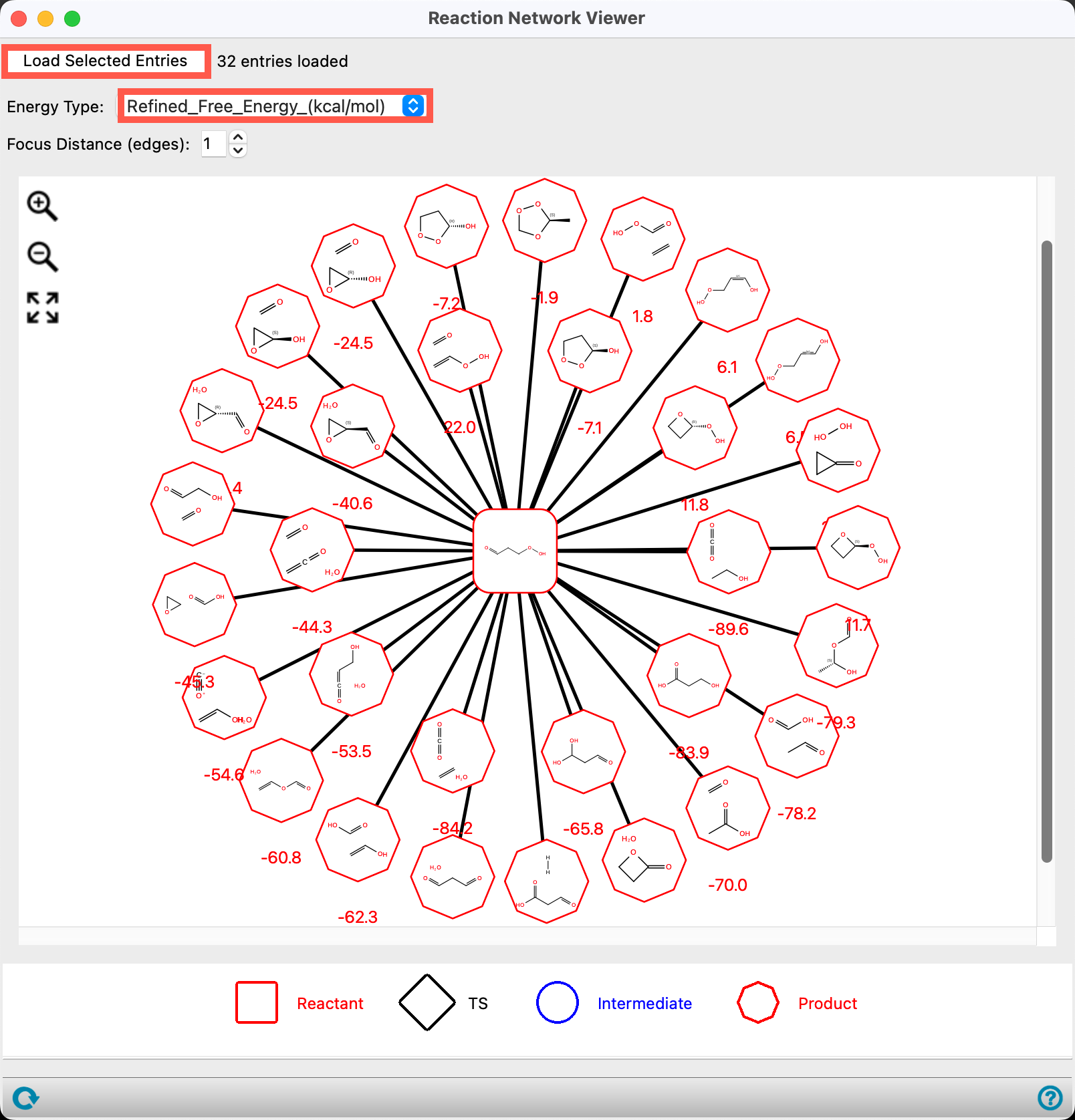
Figure 4-5. Opening the 2D Viewer panel.
- Go to Window > 2D Viewer
- The 2D Viewer panel opens
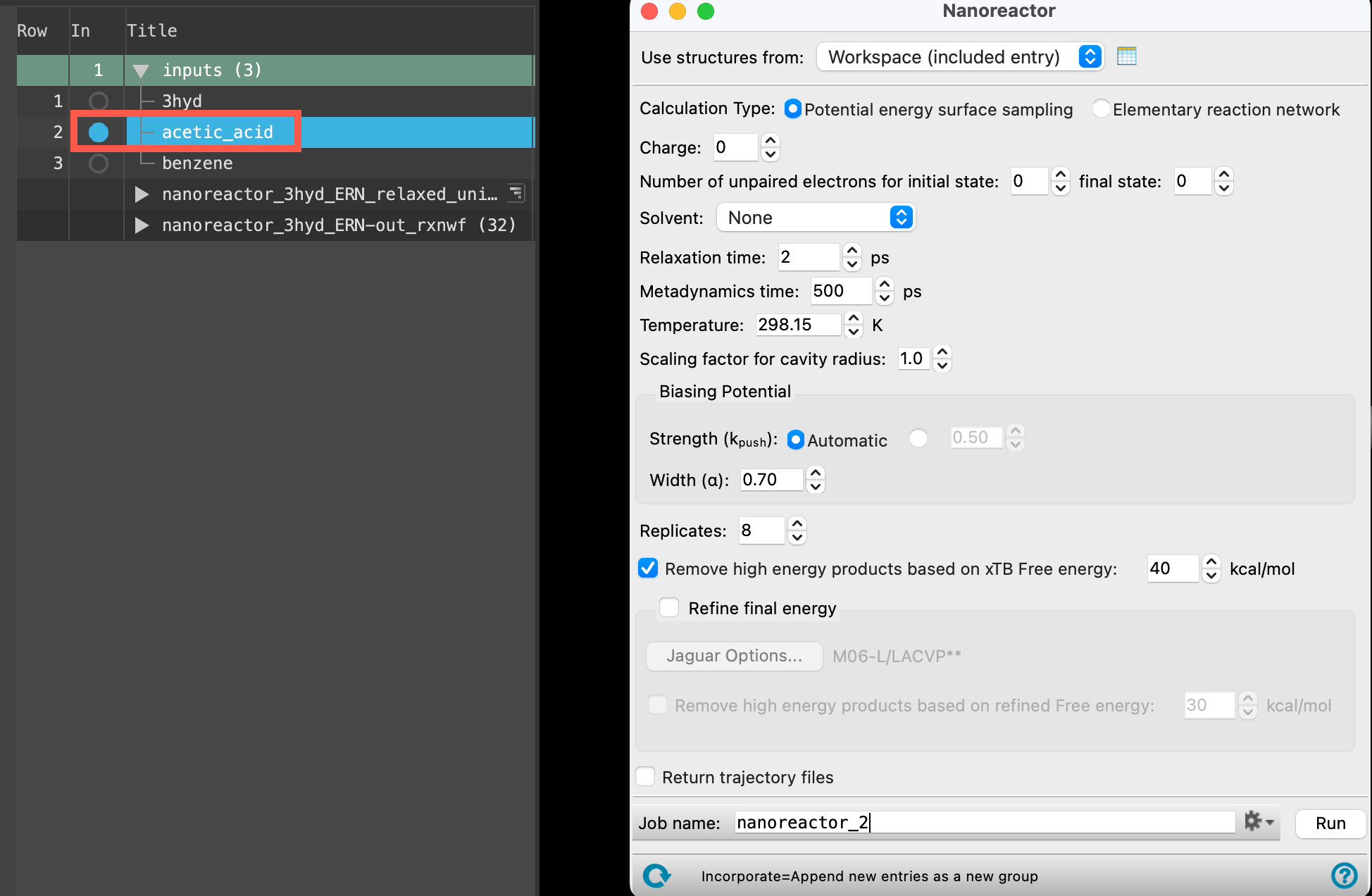
Figure 4-6. Viewing the 2D products.
The AutoTS structures are displayed.
Note: Contrary to the MS Maestro workspace, the 2D Viewer fails to display the actual radical structures for the Reactant, Product_1 and Product_2 because of its current recognition rules. To view the proper structures, please manually add the unpaired electron to the target atoms in MS Maestro
- Close the window once finished.
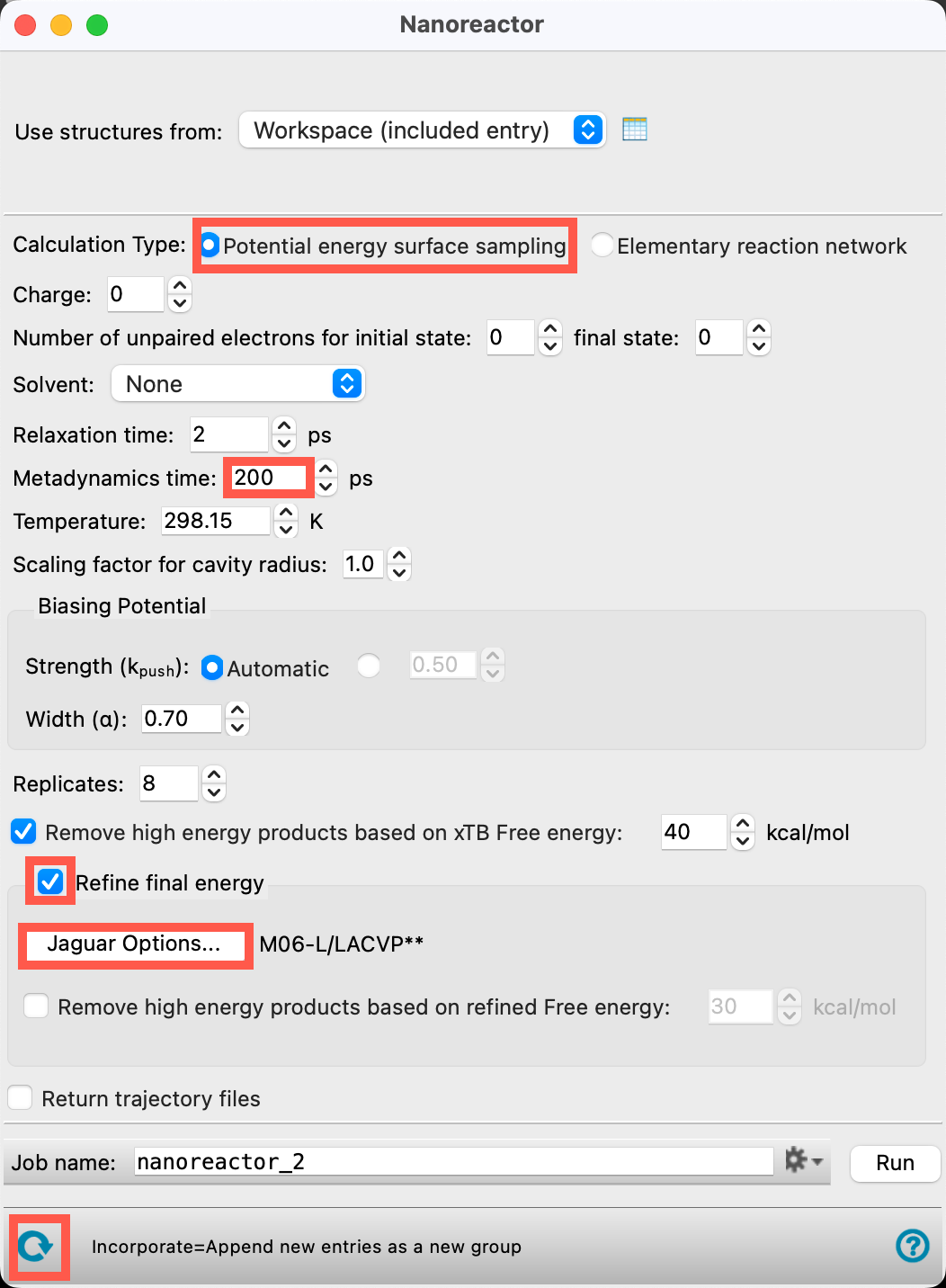
Figure 4-7. The updated entry list.
- Go to File > Import Structures
- Navigate to the provided files and choose
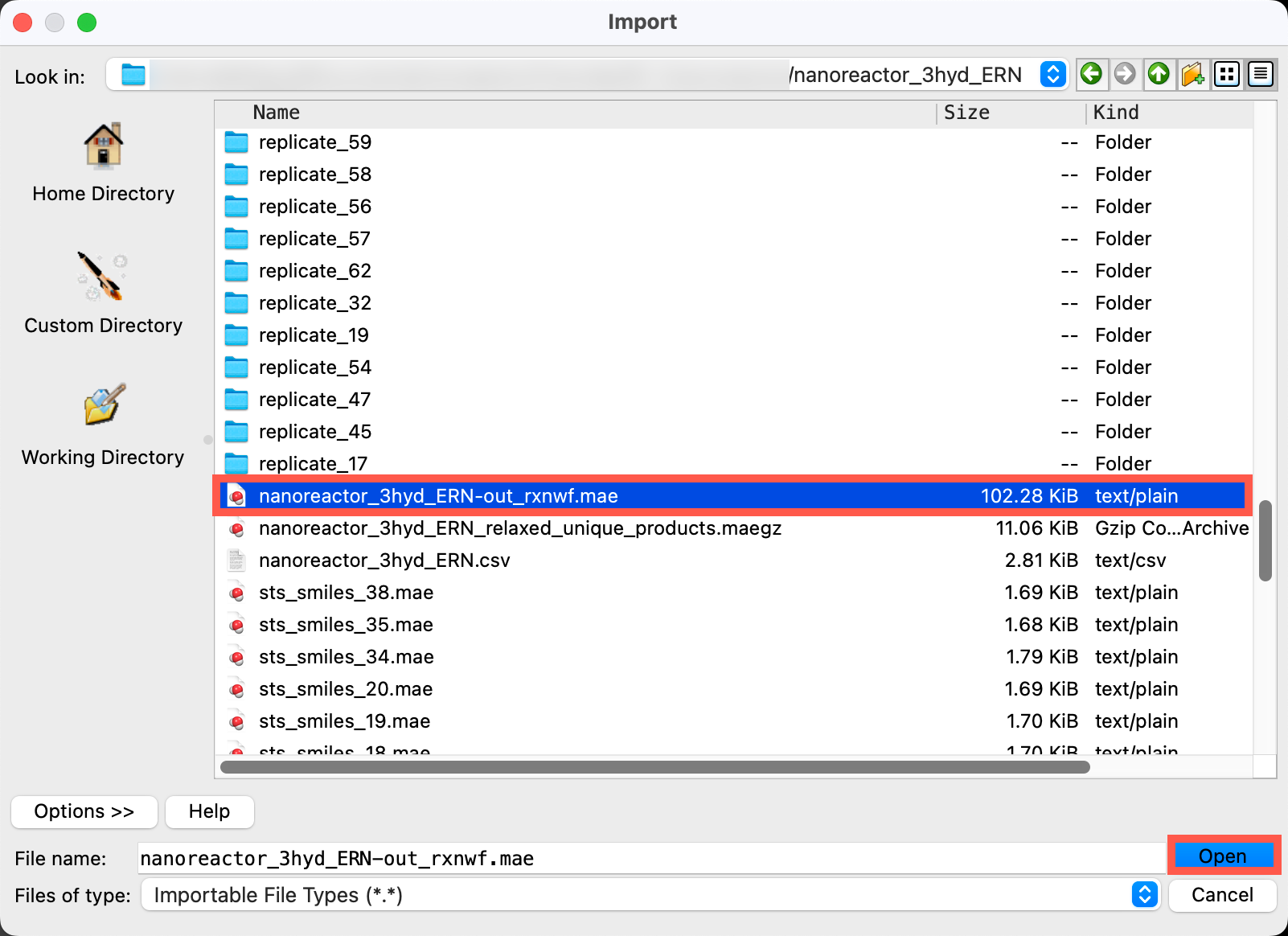
Section_04 > nanoreactor_CF3HO_2_afir > nanoreactor_CF3HO_2-out_rxnwf.mae - Click Open
- A new entry has been added, comprising 5 total components: one reactant, 2 transition states, and 2 products.

Figure 4-8. Viewing the elementary reaction network.
- With the nanoreactor_CF3HO-2-out_rxnwf entry selected(1) the atoms are chosen in the Workspace. These atoms are referred to as "the selection" or "the atom selection". Workspace operations are performed on the selected atoms. (2) The entry is chosen in the Entry List (and Project Table) and the row for the entry is highlighted. Project operations are performed on all selected entries and includedthe entry is represented in the Workspace, the circle in the In column is blue in the workspacethe 3D display area in the center of the main window, where molecular structures are displayed, go to Tasks > Materials > Quantum Mechanics > Reaction Network > Reaction Network Viewer
- The Reaction Network Viewer panel opens
- Click Load Selected Entries
- Set the Energy Type to Inf Sep Total Free Energy at 1atm 298.15K (kcal/mol) as the Energy Type to evaluate Gibbs Free energies at infinite separation
- The structures can be manually adjusted in the viewer
The reaction network places the heptafluorobutyric acid and HO. radical complex at the central square node. Transition states are indicated by diamond-shaped nodes, whereas reaction products are shown in octagonal nodes.
Tip: Optionally, feed the Nanoreactor output file nanoreactor_CF3HO-2-out_rxnwf.mae into RxnProfiler to refine the network with conformational sampling and/or re-evaluate the reaction network with an alternative QM method.
The reaction network contains only products validated by AutoTS (i.e., successful jobs corresponding to elementary reactions). When AutoTS identifies a multi-step pathway connecting reactants and products, only the first (elementary) step is retained. AutoTS results are provided in autots.tar.gz for further inspection. Because certain AutoTS runs may fail, analyzing both the failed calculations and the products identified during the sampling stage can provide valuable insights. This can be performed manually or using Bunsen.
Optional: Analysis of Sampling directory. This directory contains all products sampled by Nanoreactor across various stages of filtering and refinement. Feel free to explore and analyze its contents
Optional: Analysis of AutoTS runs. Navigate to the provided files and unzip Section_04 > nanoreactor_CF3HO_2_afir > autots.tar.gz. Upon unzipping you will see:
Open autotsProduct_1 and drag and drop autotsProduct_1_full_path.mae into the MS Maestro workspace; use the WAM button to analyze the Energy profile:
In this example, AutoTS identified a path connecting the reactant and product through one intermediate and two transition states. You can verify that these structures are true transition states—first-order saddle points on the PES—by inspecting their vibrational frequencies. You can observe that transition_state_1 is a true transition state (a first-order saddle point), while approx_transition_state_1 corresponds to a 3rd-order saddle point on the PES. AutoTS retains this structure in the output because the afir_minima_to_minima=True flag was enabled. Furthermore, since Nanoreactor focuses on uncovering elementary steps from the reactant, the workflow automatically disconnects intermediate_1 from the downstream product and reclassifies intermediate_1 as a new standalone product P_1.
Repeat the same procedure with autotsProduct_2 :
In this example, AutoTS similarly identified a path connecting the reactant and product through one intermediate and two transition states. You can verify that these structures are true transition states—first-order saddle points on the PES—by inspecting their vibrational frequencies. Since Nanoreactor focuses on uncovering elementary steps, the workflow automatically disconnects intermediate_1 from the downstream product and reclassifies intermediate_1 as a new standalone product P_2.
In summary, the Nanoreactor-ERN workflow generates primarily elementary products. However, as with any method based on PES modification (e.g., AFIR), oversampling can occasionally occur—especially for highly reactive species like those used in this example. AutoTS automatically corrects for this: it not only incorporates transition states into the reaction network, but also validates the true identity of elementary reaction products
Note
Custom script for AutoTS
The Nanoreactor-ERN panel consists of two independent stages: sampling and AutoTS refinement. If you prefer not to run AutoTS as part of the workflow, you can perform only the sampling stage and visualize the identified products stored in the sampling folder. These products can be examined manually using the 2D Viewer, and AutoTS calculations can then be initiated selectively for the products of interest. This approach potentially reduces computational resource usage at the cost of human intervention. We offer a custom script for that which should produce the same ERN file at the end:
$SCHRODINGER/run nanoreactor_gui_dir/autots_runner.py -h
Example:
$SCHRODINGER/run nanoreactor_gui_dir/autots_runner.py -infile autots.in *_products-out.maegz -HOST driver-4core-standard:1 -SUBHOST compute-16core-64gb-ondemand:Z
The autots.in file, which contains input settings for the AutoTS calculations, should be placed in the same folder as the *_products-out.maegz file. The latter stores information on the Nanoreactor products extracted from the output deck (a total of Z products, here we allocate 1 core per AutoTS job). Feel free to delete any unwanted products from the *_products-out.maegz file in MS Maestro before running.
Note
ERN Manipulation: Network stitching, appending, and deleting elementary reactions.
The Nanoreactor panel currently does not automate network expansion beyond an initial Elementary Reaction Network (ERN). However, users can grow the network recursively at all or specified positions, as demonstrated in the Introduction section. In such cases, it may be beneficial to stitch together one or more networks to store all the data in a single file. Alternatively, users may wish to manually add or delete individual reactions within an existing ERN.
Example 1: Adding AutoTS elementary reaction
Let’s add the reaction to the existing network that starts from Product_2. The reaction can be found in the existing AutoTS autotsProduct_2 folder:
- Import
nanoreactor_CF3HO_2-out_rxnwf.maeandautotsProduct_2_full_path.maeto MS Maestro - Relabel the transition_state2 and product entries to TS_3 and Product_3
- Open the Project Table and deselect All in Property Tree:
- Select:
- Perform the following operations then close the Project Table:
- Load the resultant entry list into the Reaction Network Viewer:
 Congratulations! You have just grown the network at
 Product_2position.Example 2: Growing the Network fromProduct_2Returning to Figure 4–8, we will now recursively expand the network starting fromProduct_2. To do this, we launch a separate Nanoreactor calculation using the same parameters as before. The simulation completed in 19 hours on the HPC queueing system (see execution details); the resulting directory can be found in the downloaded files .First, let's examine the output fileSection_04 > nanoreactor_product2m > nanoreactor_product2_products-out.maegz. Drag and drop this file into Schrödinger Maestro or go to File > Import Structures and use the Workspace or 2D Viewer to visualize the structures.You will immediately notice that the starting reactant structure does not match the initialProduct_2geometry fromnanoreactor_product2.maegz; instead, it corresponds toProduct_3from the stitched reaction network above. This discrepancy occurs becauseProduct_2is unstable on the GFN2-xTB PES—which is used in the first step of the Nanoreactor workflow—whereas it is stable on the UMA_SM_OMOL PES. This behavior can easily be confirmed by optimizing theProduct_2structure directly: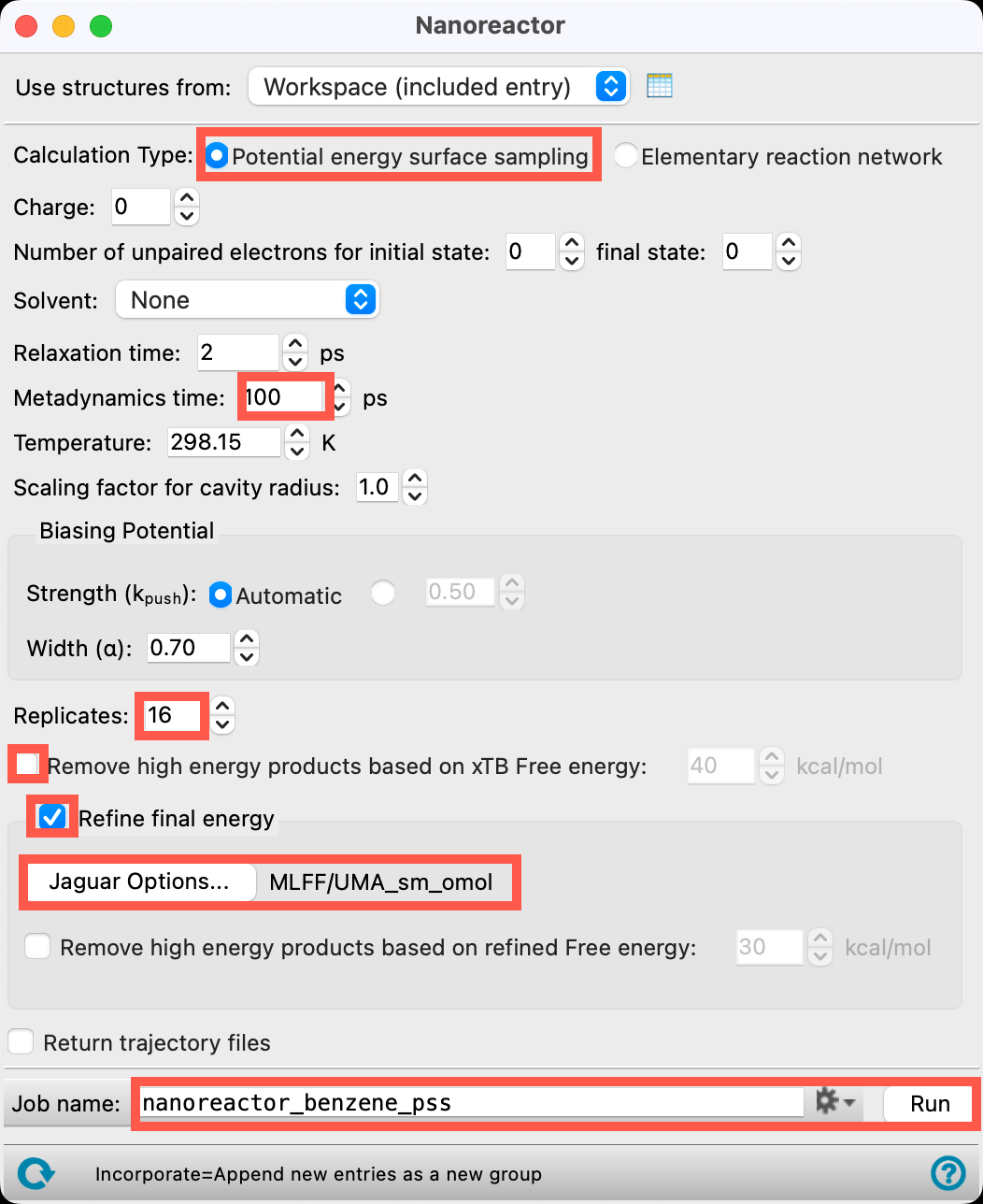 Thus, the Nanoreactor initiated sampling from
 Product_3. Our goal now is to expand the network fromProduct_3, using the final network obtained in Example 1 as the starting point. Following the same procedure as before yields a new reaction network: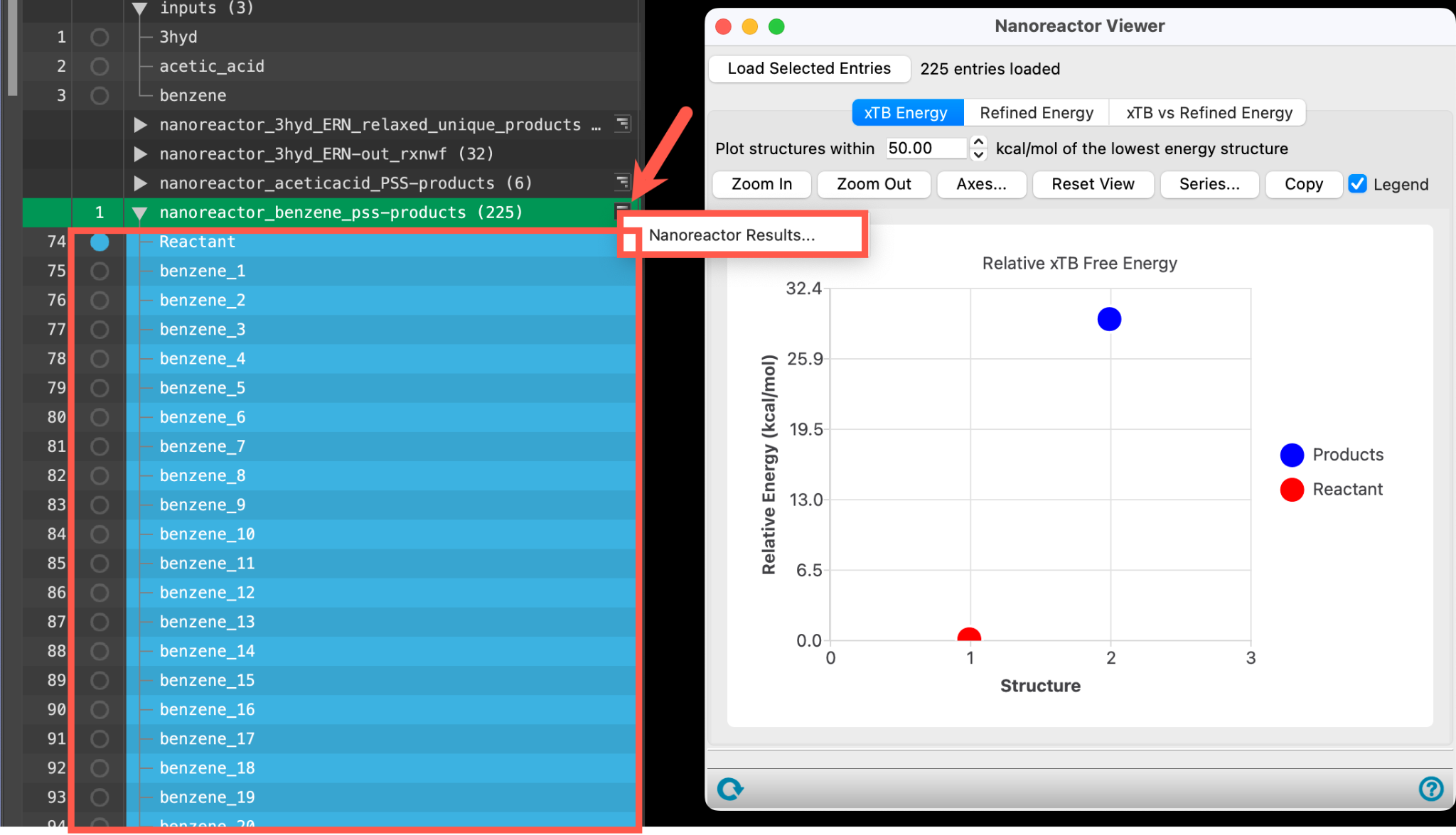
Note
Nanoreactor: Stochastic Calculations
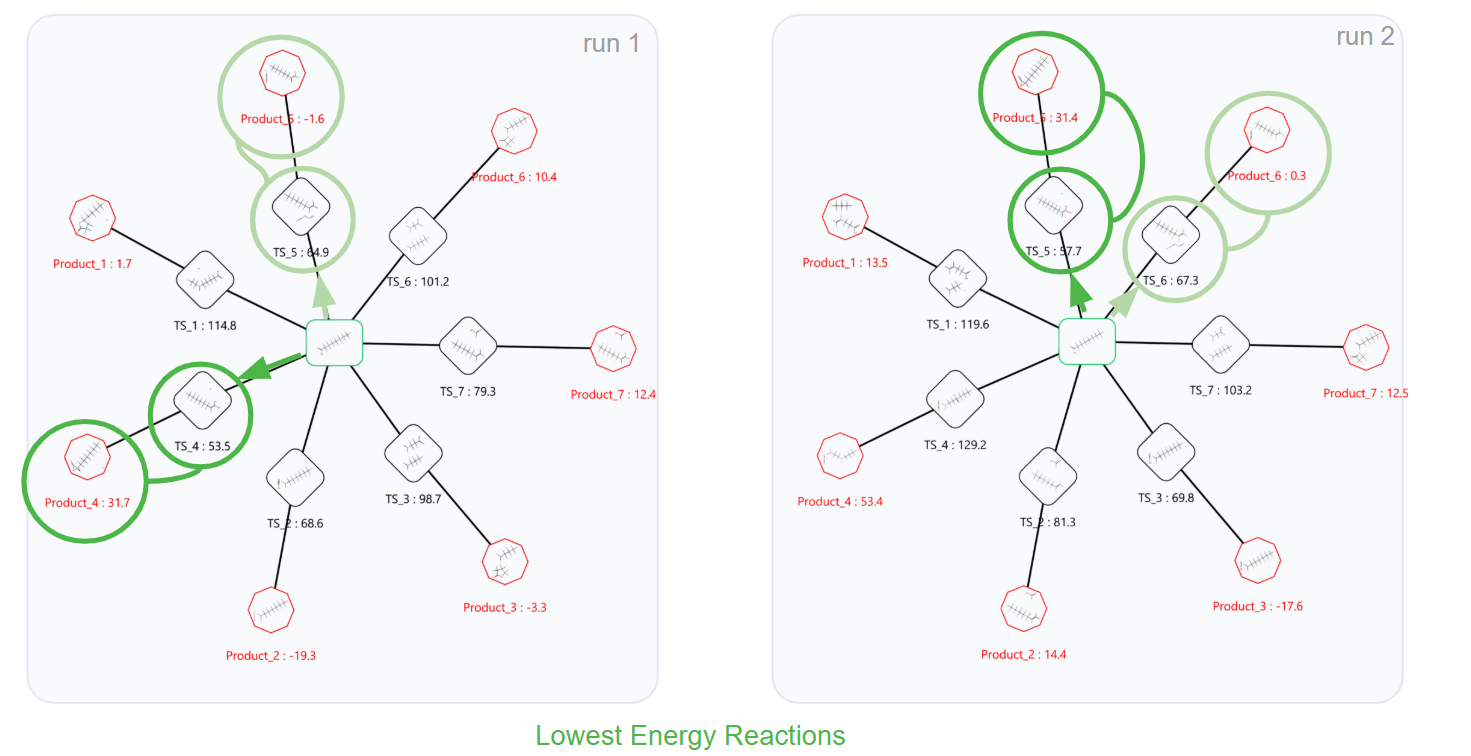
Due to the stochastic nature of the calculations, results and ERNs might naturally vary from run to run. This non-deterministic behavior is expected; differences arise primarily in high-energy reaction pathways, whereas low-energy pathways are expected to be consistently captured across all runs. A representative example illustrating the thermal degradation of perfluorooctanoic acid (PFOA) using a budget of 1,000 trajectories is shown below:
Note
Nanoreactor: uniqueness of the approach
Automated reaction discovery via reaction network exploration has been implemented in several software packages, notably GRRM and Chemoton (see References). While these tools share a similar philosophy regarding network construction, they differ significantly in their sampling strategy. Single-ended elementary step search algorithms, such as Artificial Force Induced Reaction (AFIR) in GRRM and Newton Trajectory Algorithm 2 (NT2) in Chemoton, rely on enumerating reaction coordinates across the chemically possibility space, which can trigger a severe combinatorial explosion as the network grows (the number of candidate pairs is expected to grow combinatorially O(N2) to O(N4)). In contrast, the nanoreactor molecular dynamics approach used in the Nanoreactor samples physical trajectories within the kinetically accessible space, suppressing unfeasible pathways and offering a more manageable network expansion. Below we provide a comparison between AFIR and MD for the same reaction used in tutorial:
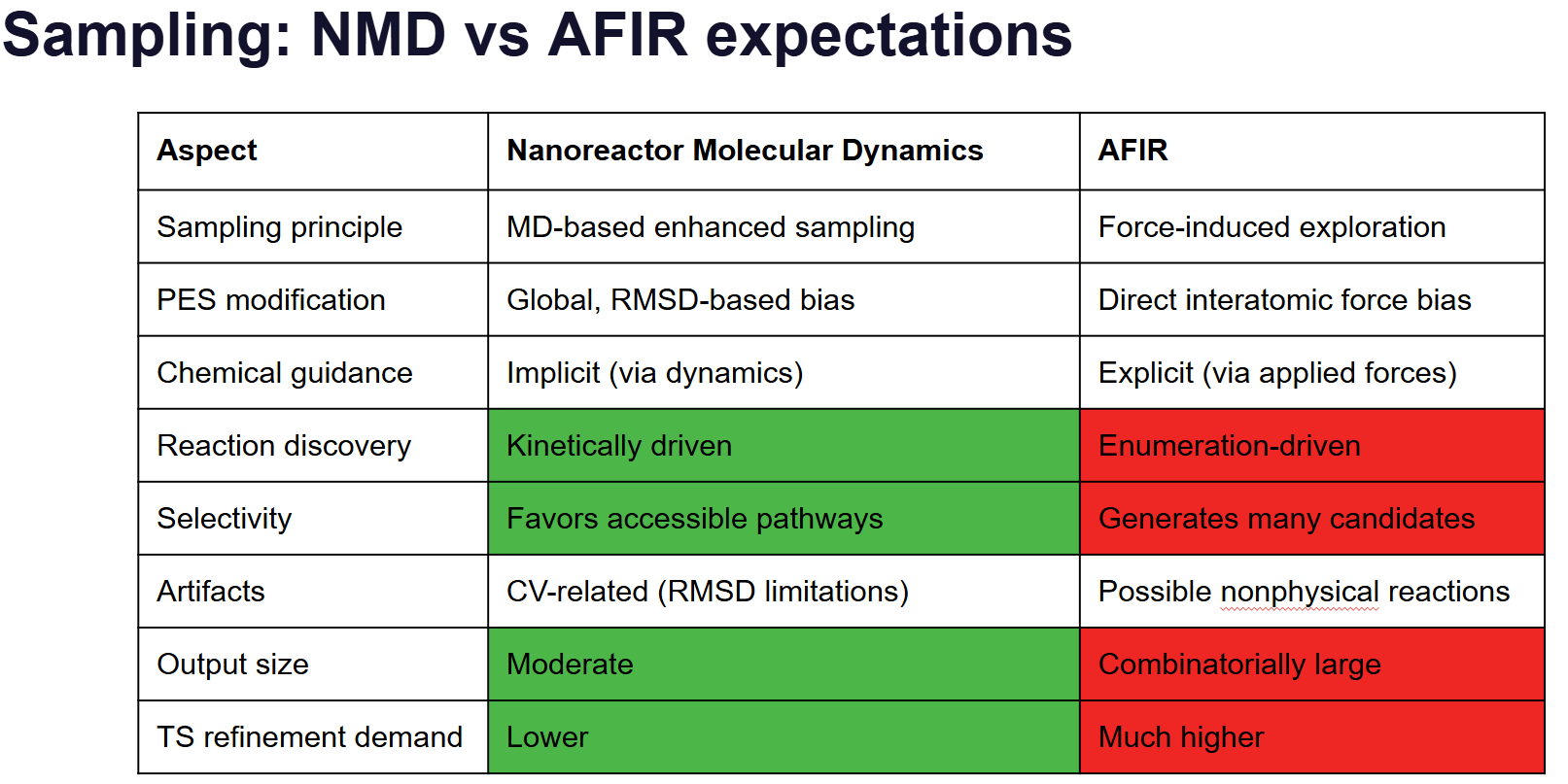
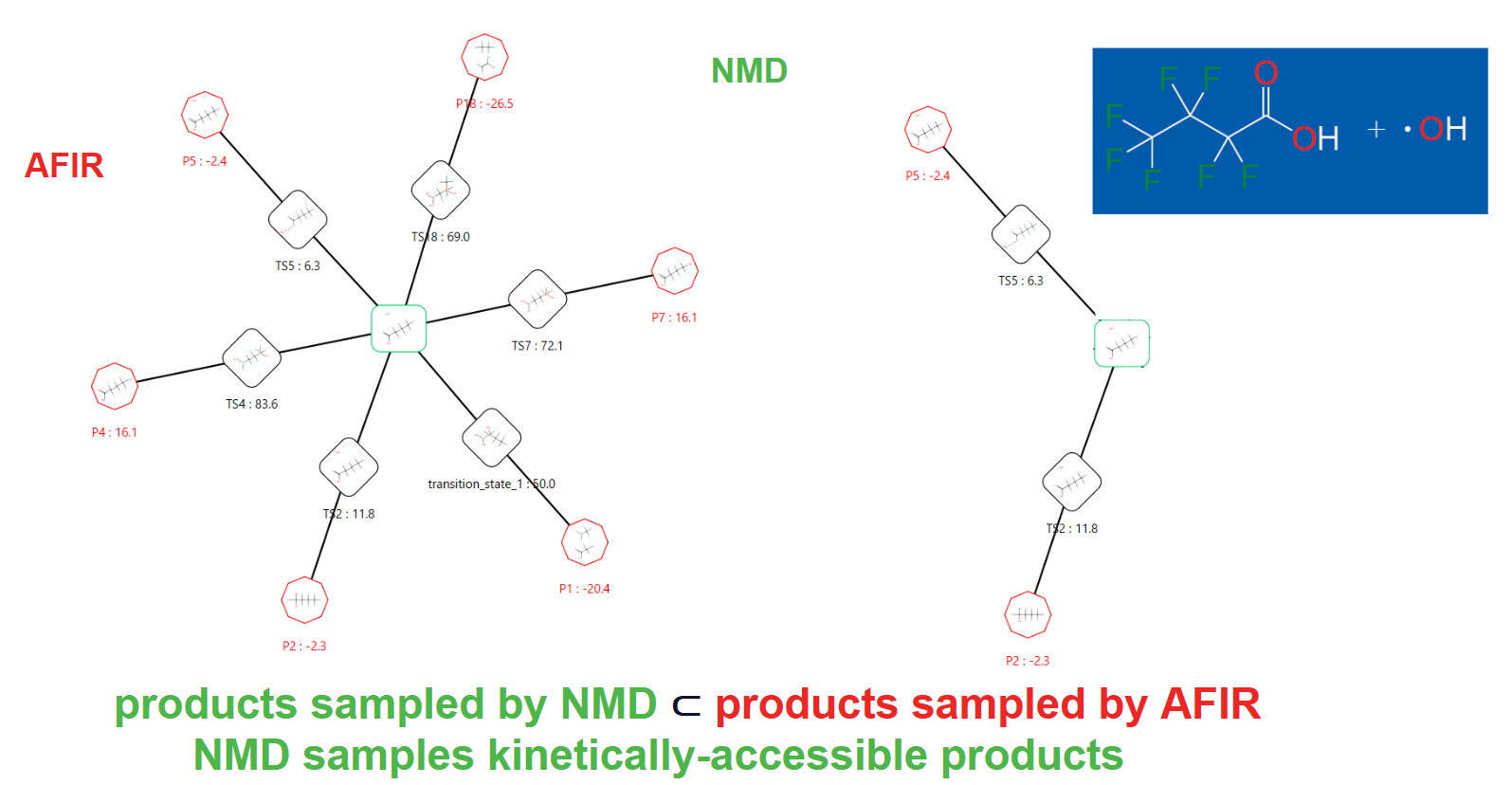
Thus:
- AFIR explores what is chemically possible, but defers computational cost to post-processing (requiring downstream TS optimization and IRC validation).
- NMD focuses on what is kinetically accessible, requiring higher upfront sampling costs but delivering an inherently pre-filtered reaction network.
5. Performing a Nanoreactor Potential Energy Surface Sampling Calculation
This section will examine the PSS of acetic acid using the Nanoreactor panel.
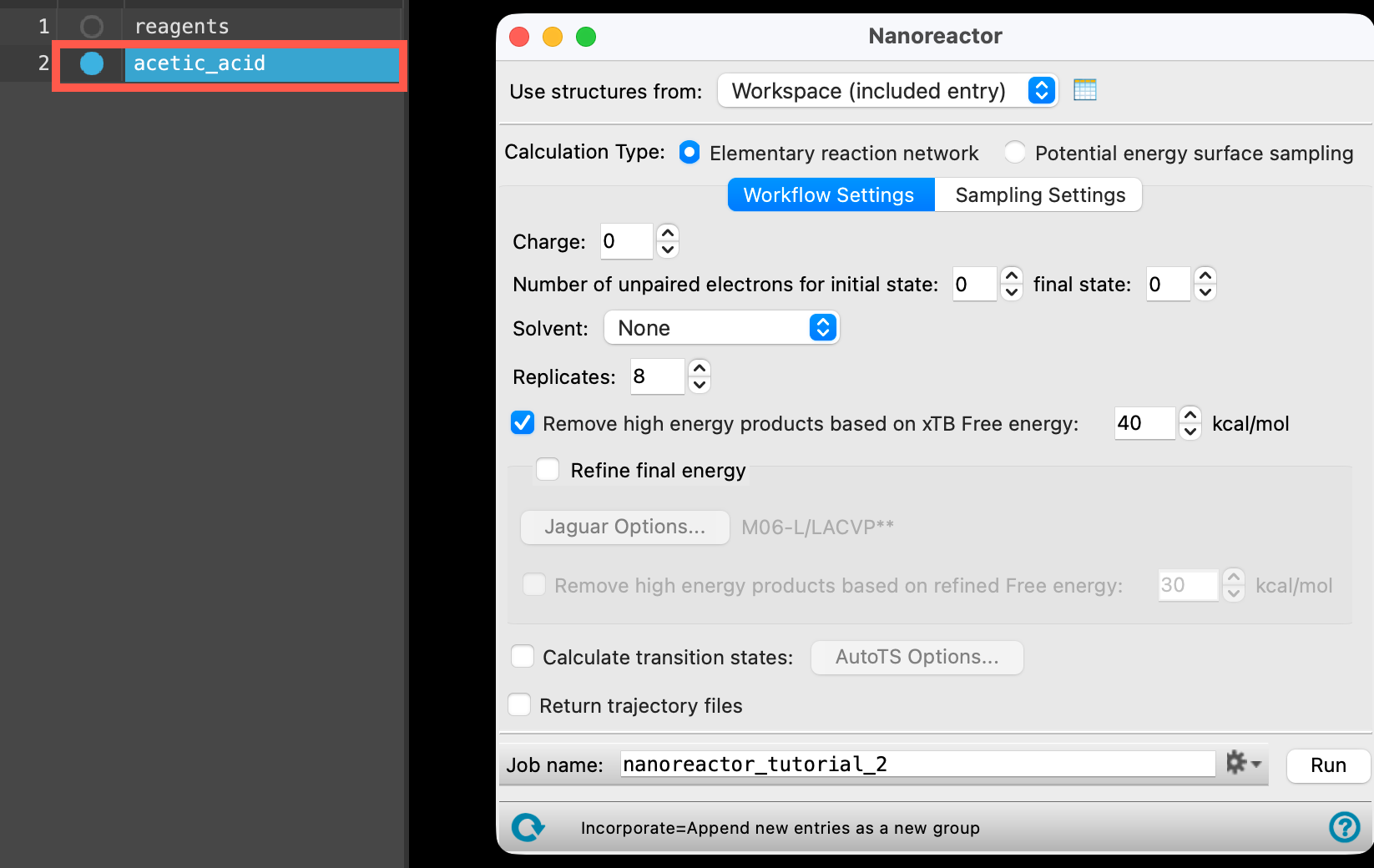
Figure 5-1. Opening the Nanoreactor panel.
- With the acetic_acid entry selected(1) the atoms are chosen in the Workspace. These atoms are referred to as "the selection" or "the atom selection". Workspace operations are performed on the selected atoms. (2) The entry is chosen in the Entry List (and Project Table) and the row for the entry is highlighted. Project operations are performed on all selected entries and includedthe entry is represented in the Workspace, the circle in the In column is blue in the workspacethe 3D display area in the center of the main window, where molecular structures are displayed, go to Tasks > Materials > Quantum Mechanics > Reaction Network > Nanoreactor Calculations
- The Nanoreactor panel opens
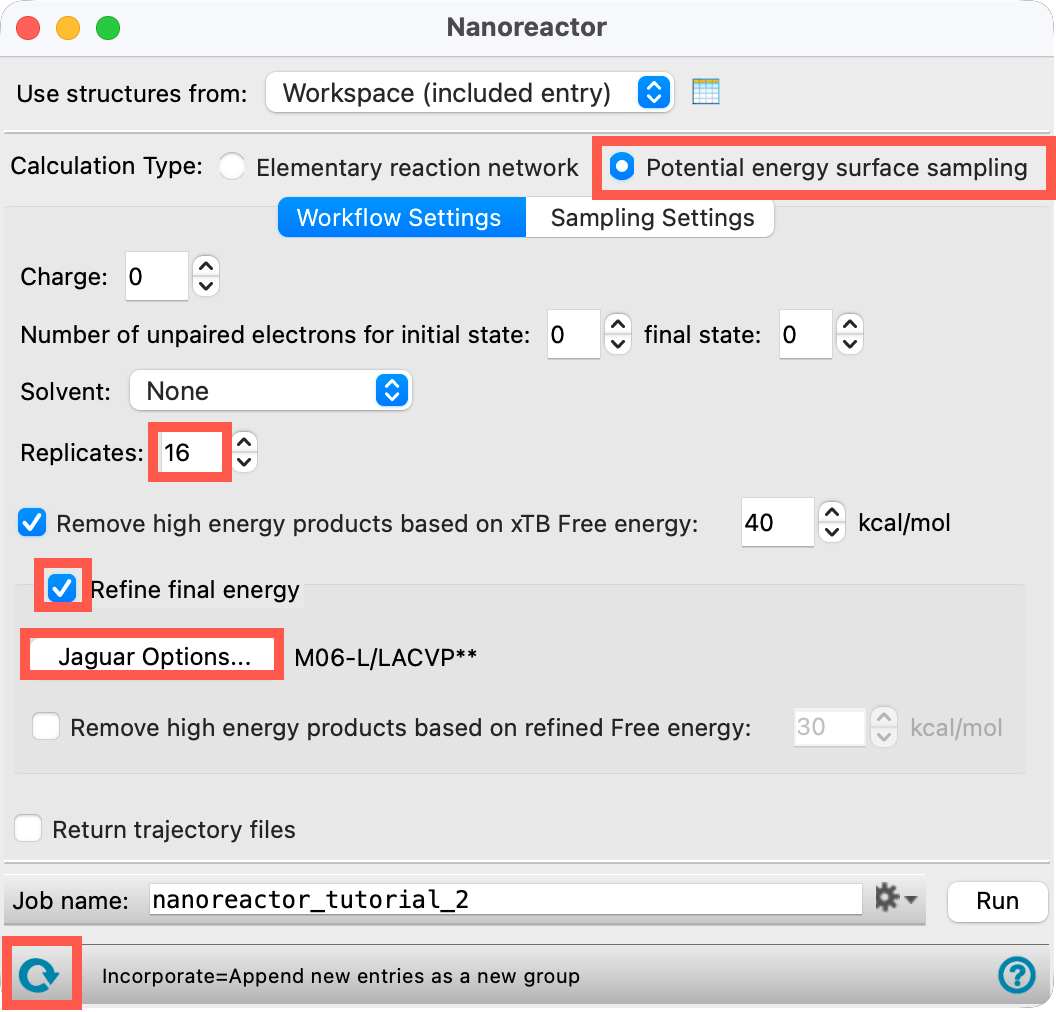
Figure 5-2. Setting parameters, naming, and running the job.
- Reset
 the panel
 - Select Potential energy surface sampling for the Calculation Type
- Set Replicates to 16
- Check Refine final energy
- Open the Jaguar Options panel
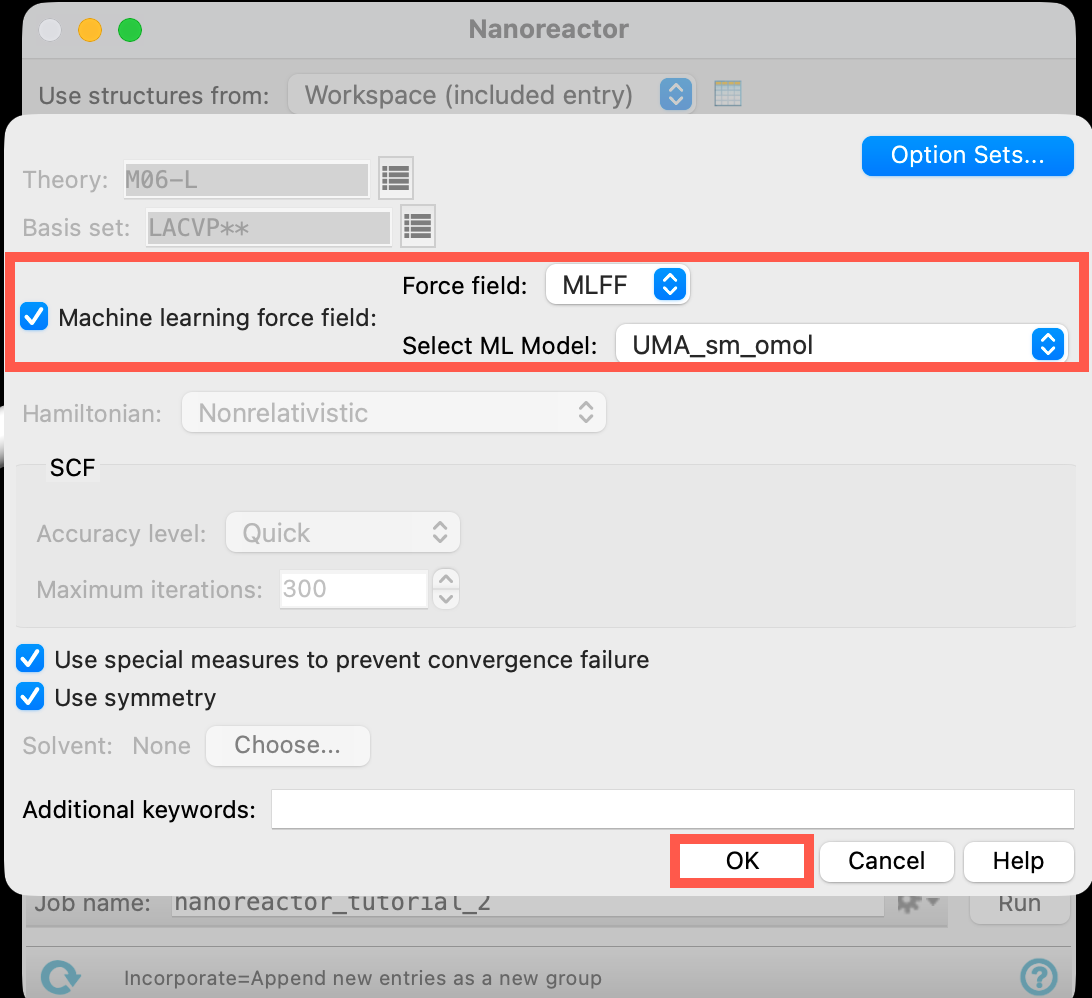
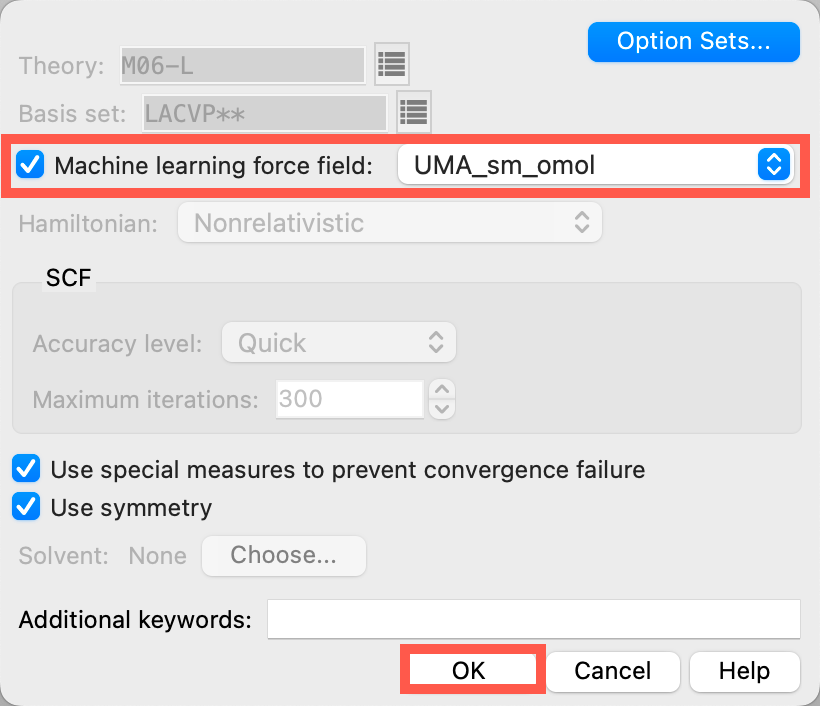
Figure 5-3. Setting the Jaguar Options.
- Select Machine learning force field to be UMA_sm_omol
- Click OK to close the panel
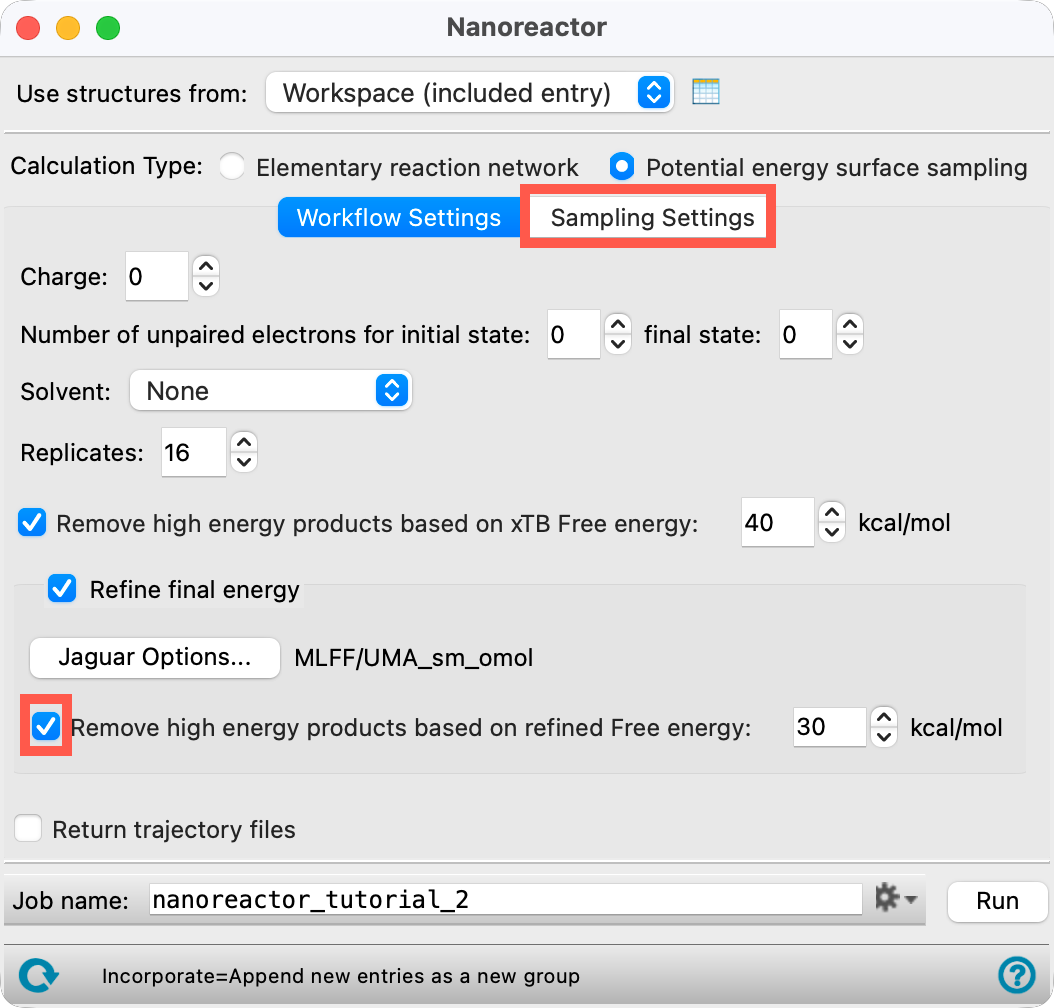
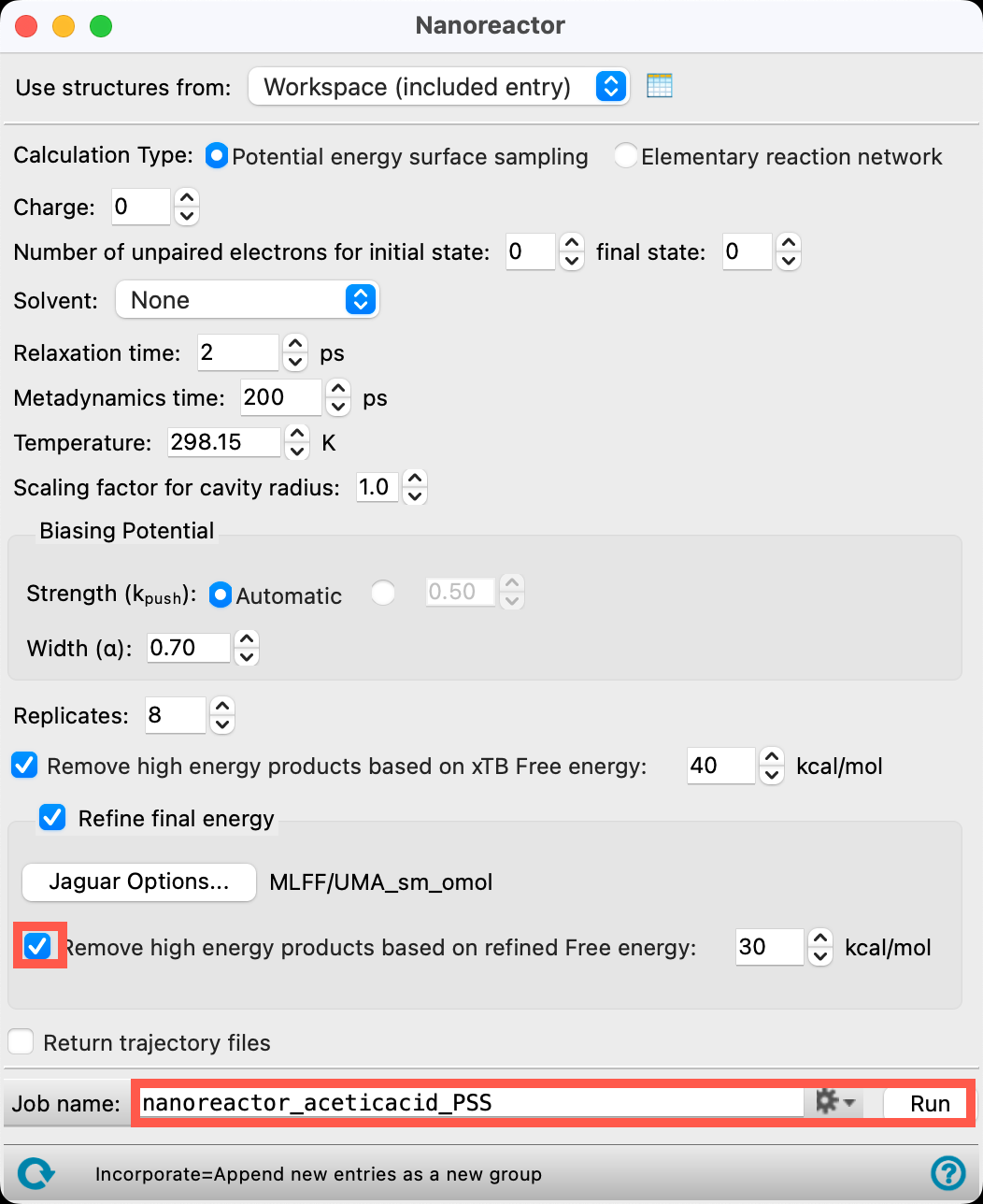
Figure 5-4. Running the calculation.
- Check Remove high energy products based on refined Free energy
- Go to the Sampling Settings tab
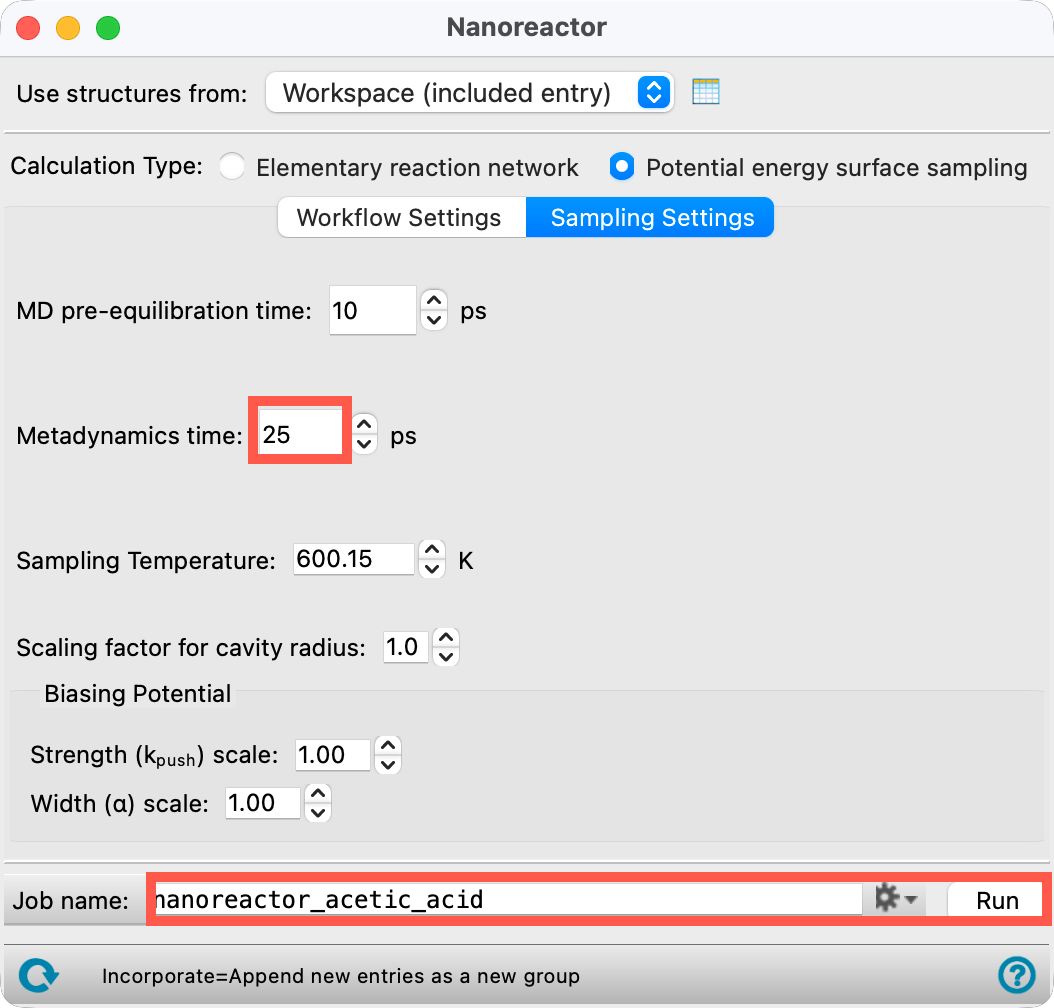
Figure 5-5. Running the calculation.
- Change the Metadynamics time to 25 ps
- This system is small so increasing the relaxation time of the molecular dynamics simulations will not increase the total time the calculation takes by an exorbitant amount
- Change the Job name to nanoreactor_aceticacid
-
Adjust the job settings () as needed
- This job requires a CPU host. The job can be completed in about 20 minutes on 16 CPUs
- If you would like to run the job yourself, click Run. Otherwise, we will proceed with imported results files in the next section
- Close the Nanoreactor panel
6. Analyzing Nanoreactor Potential Energy Surface Sampling Results
In this section, we will view and analyze the results from the decomposition of acetic acid calculation with the Nanoreactor Results panel.
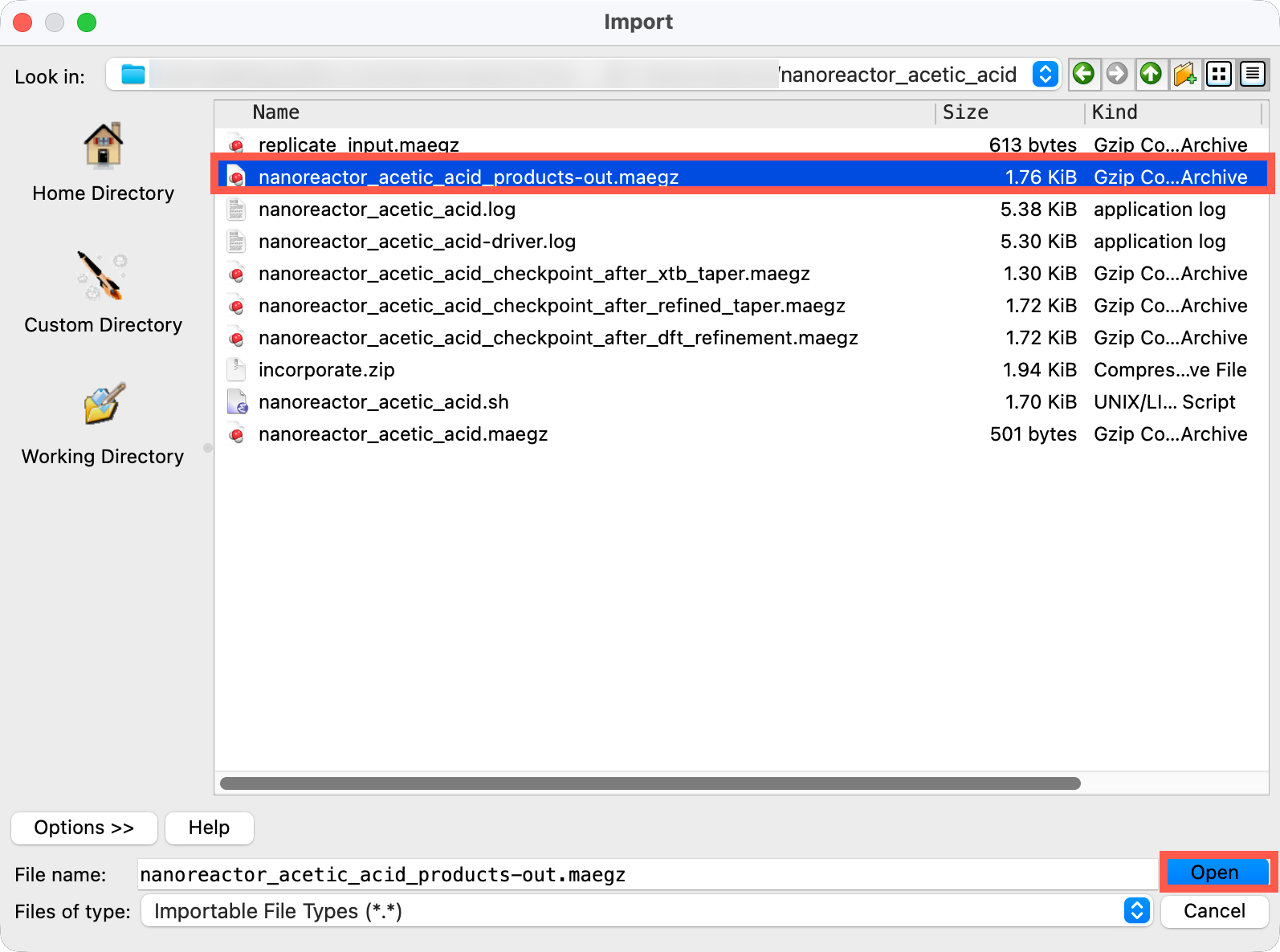
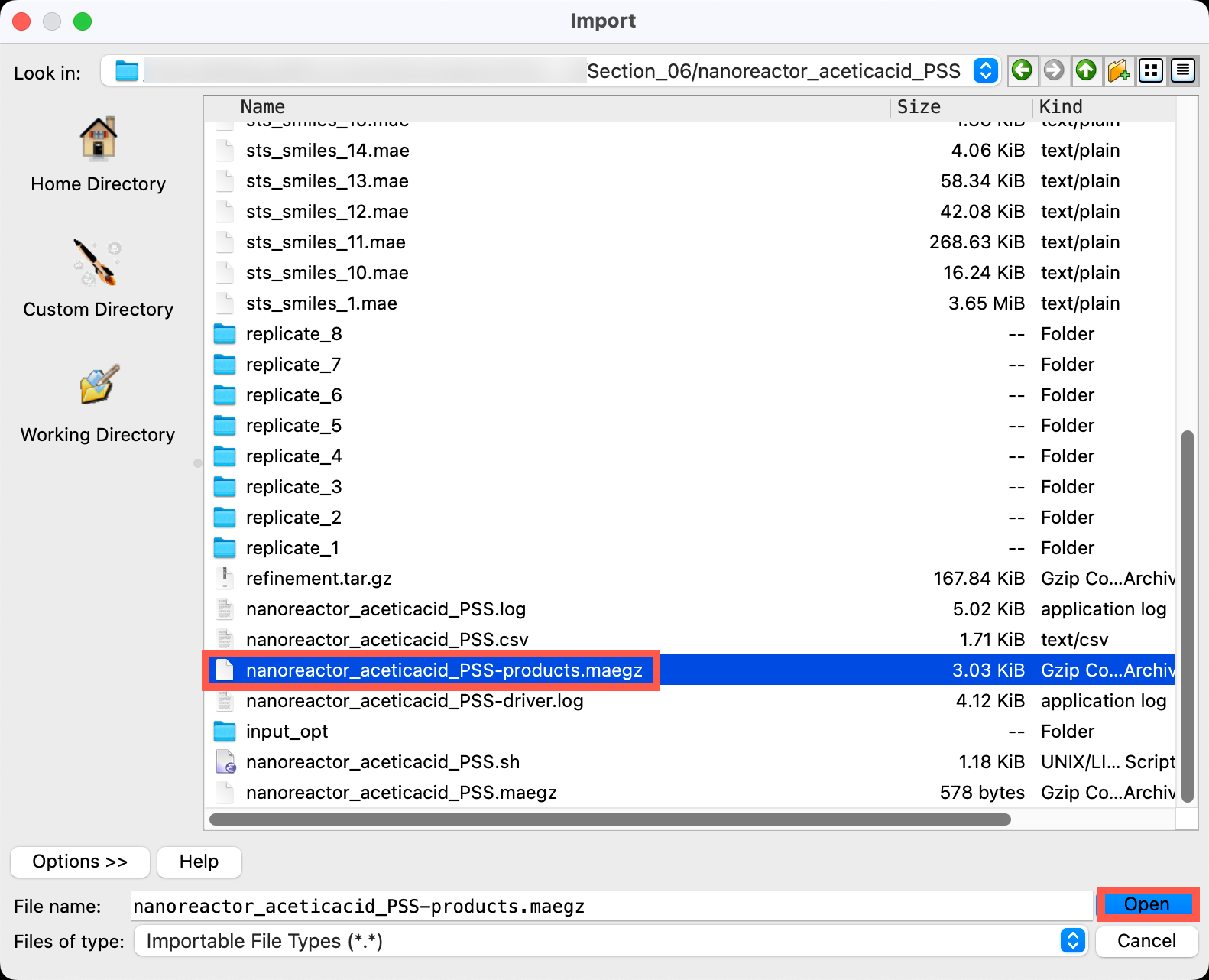
Figure 6-1. Importing the output file.
- Go to File > Import Structures
- Navigate to the provided files and choose
Section_06 > nanoreactor_aceticacid > nanoreactor_aceticacid-products-out.maegz - Click Open
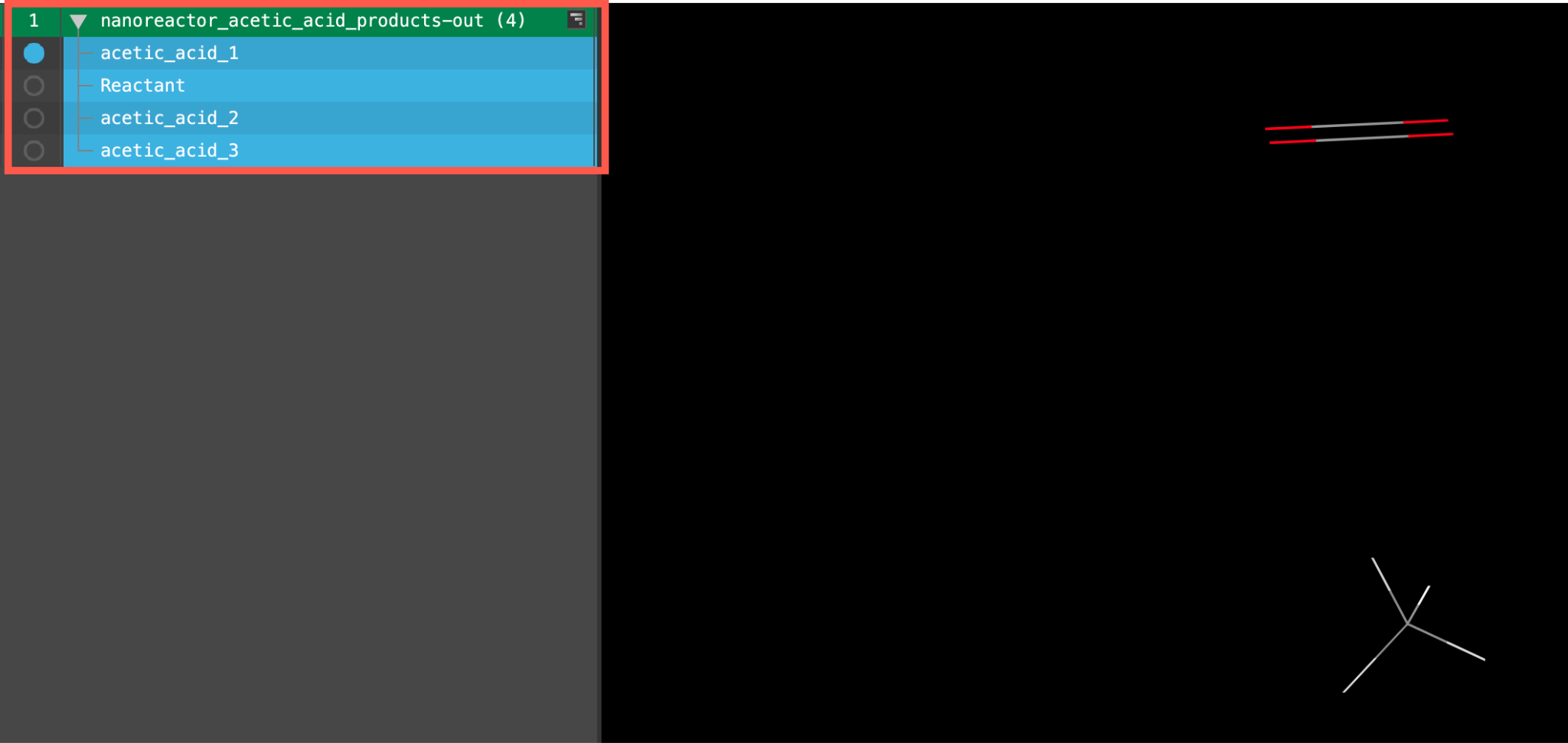
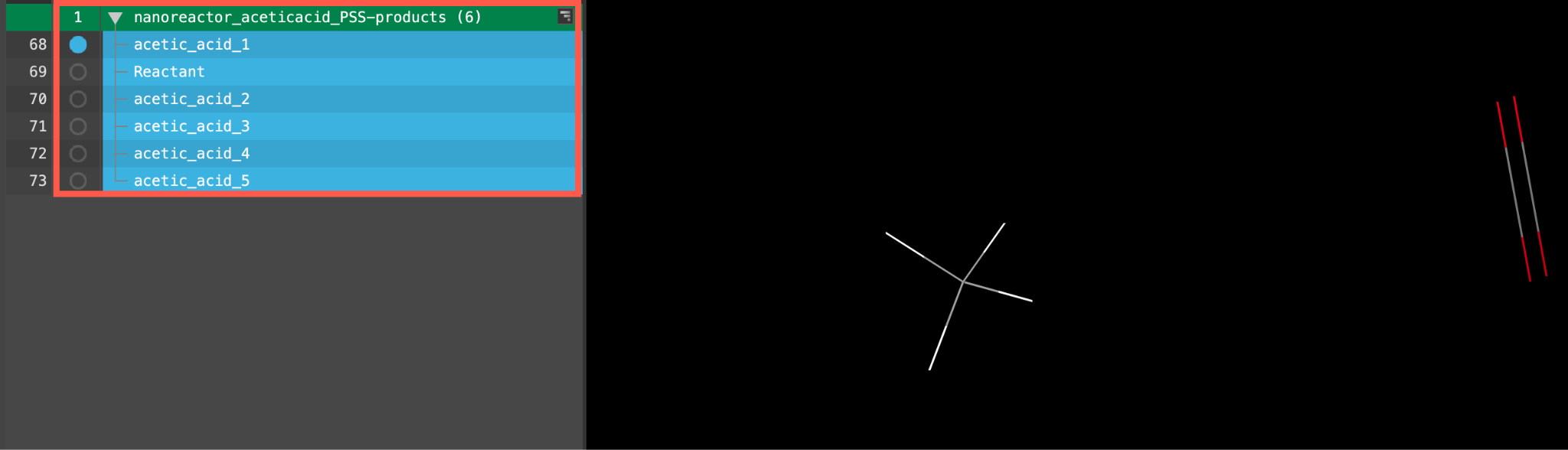
Figure 6-2. The entry list after importing.
A new entry group is added to the entry lista simplified view of the Project Table that allows you to perform basic operations such as selection and inclusion. The group contains 4 entries.
Note that if you performed the calculation yourself, the exact number of output structures may vary due to randomness in the metadynamics simulations.
Feel free to visualize any of the entries in the workspace.
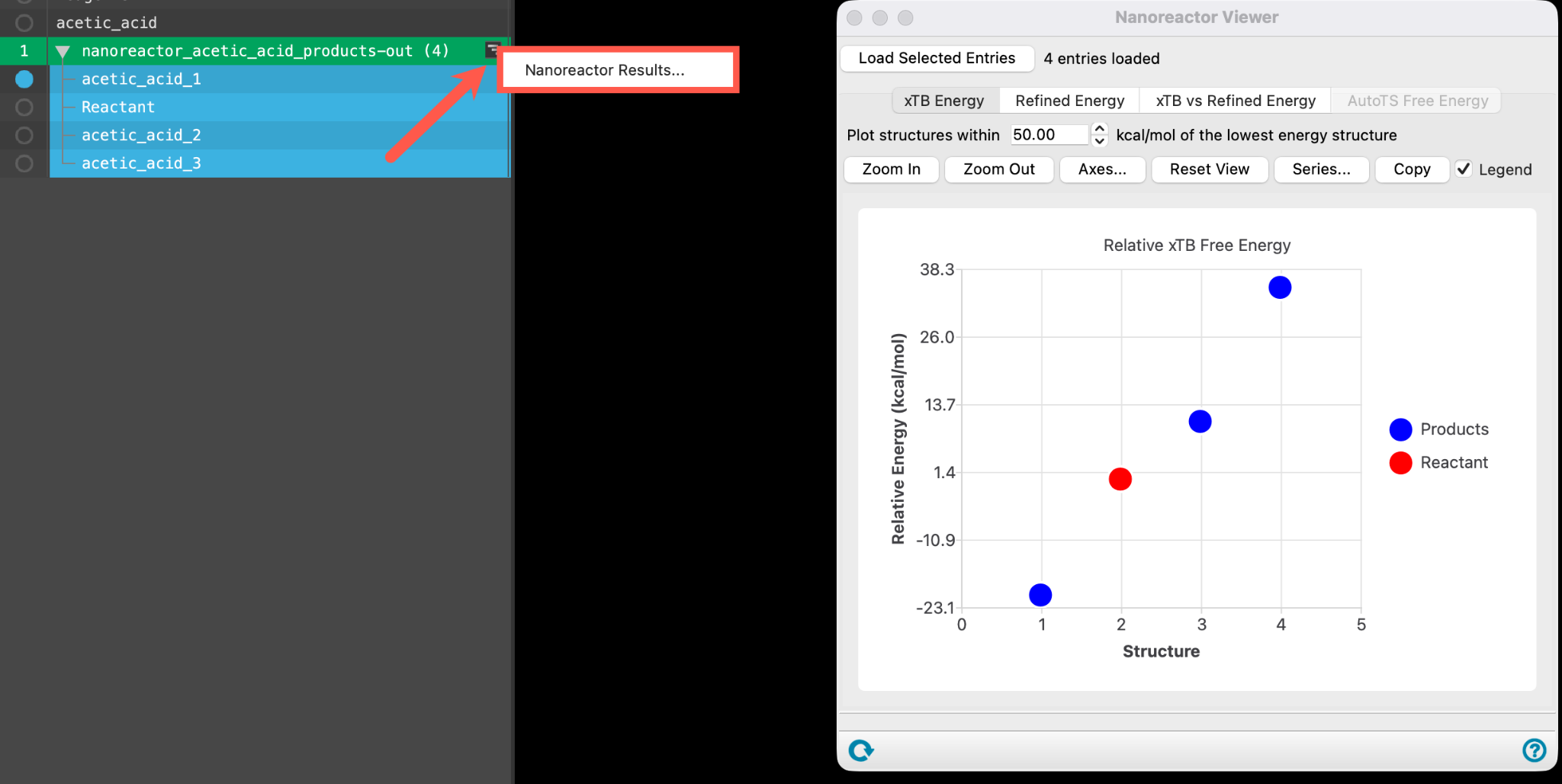
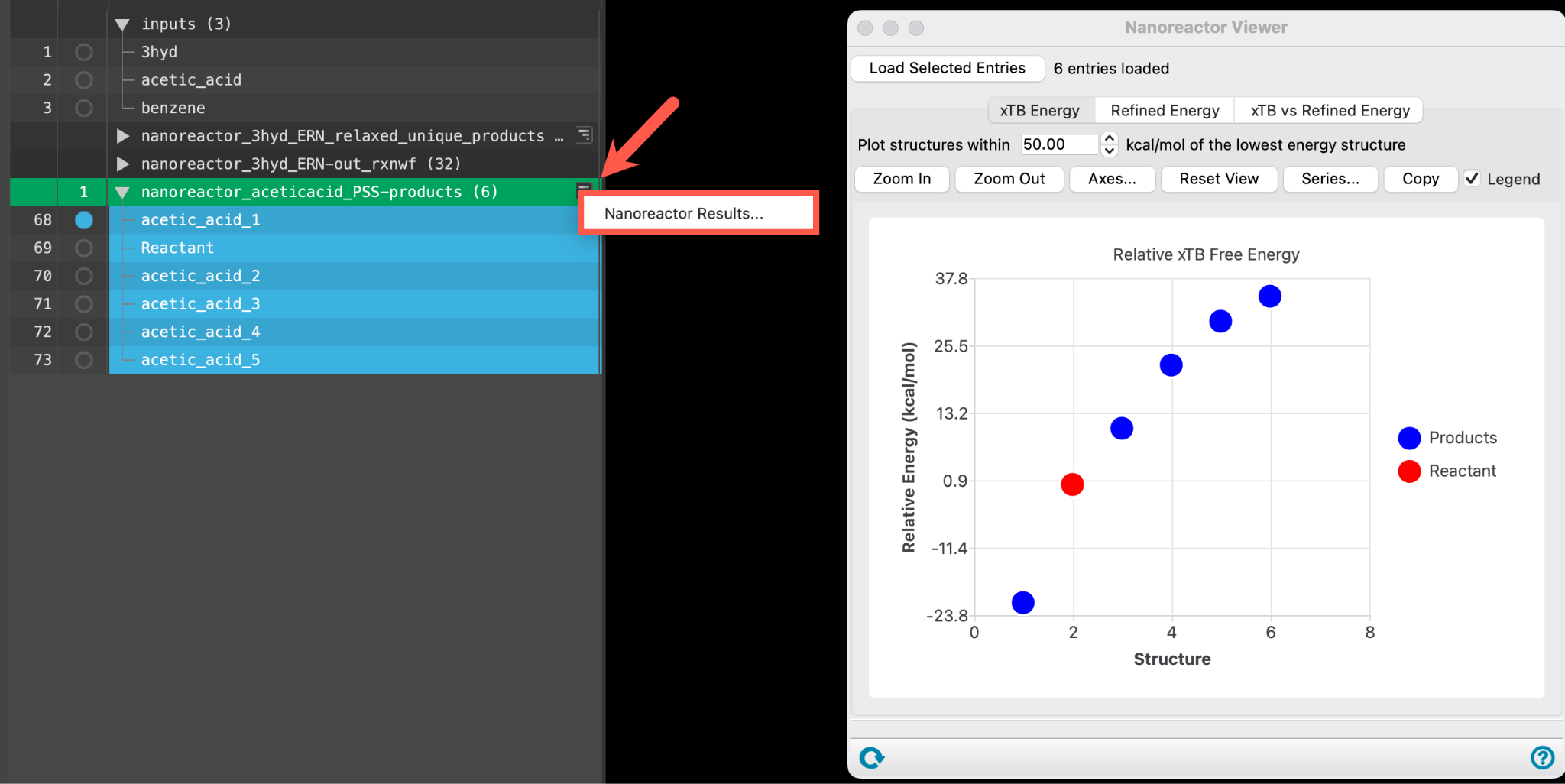
Figure 6-3. Opening the results panel with the WAM button.
Quantitative analysis can be performed in the results panel:
- Use the WAM (workflow action menu) button () to access the Nanoreactor Results panel
- Alternatively, go to Tasks > Materials > Quantum Mechanics > Reaction Network > Nanoreactor Results and use the Load selected entries button to load the entire entry group into the panel
- The Nanoreactor Results panel opens
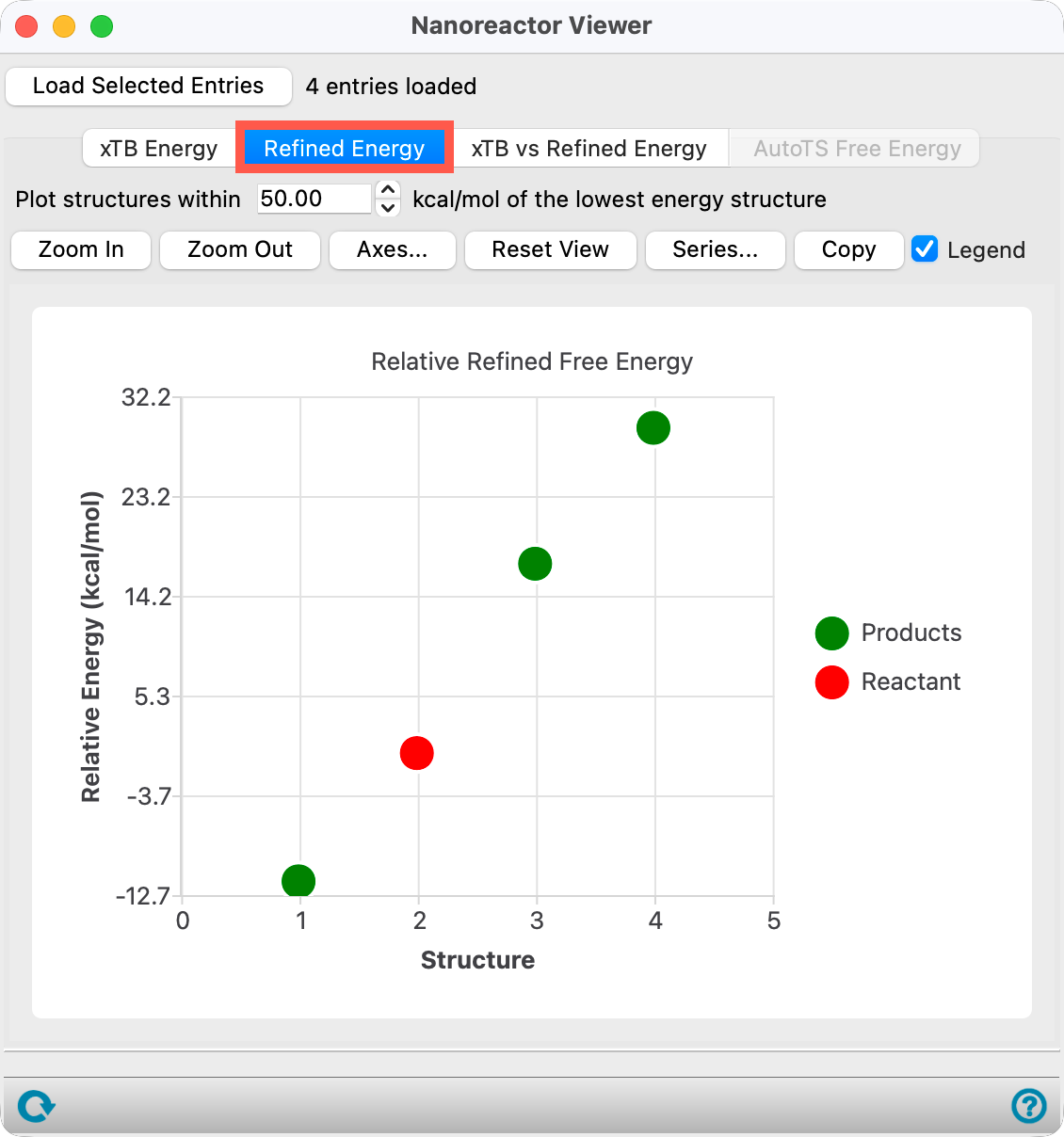
Figure 6-4. The Refined Energy tab.
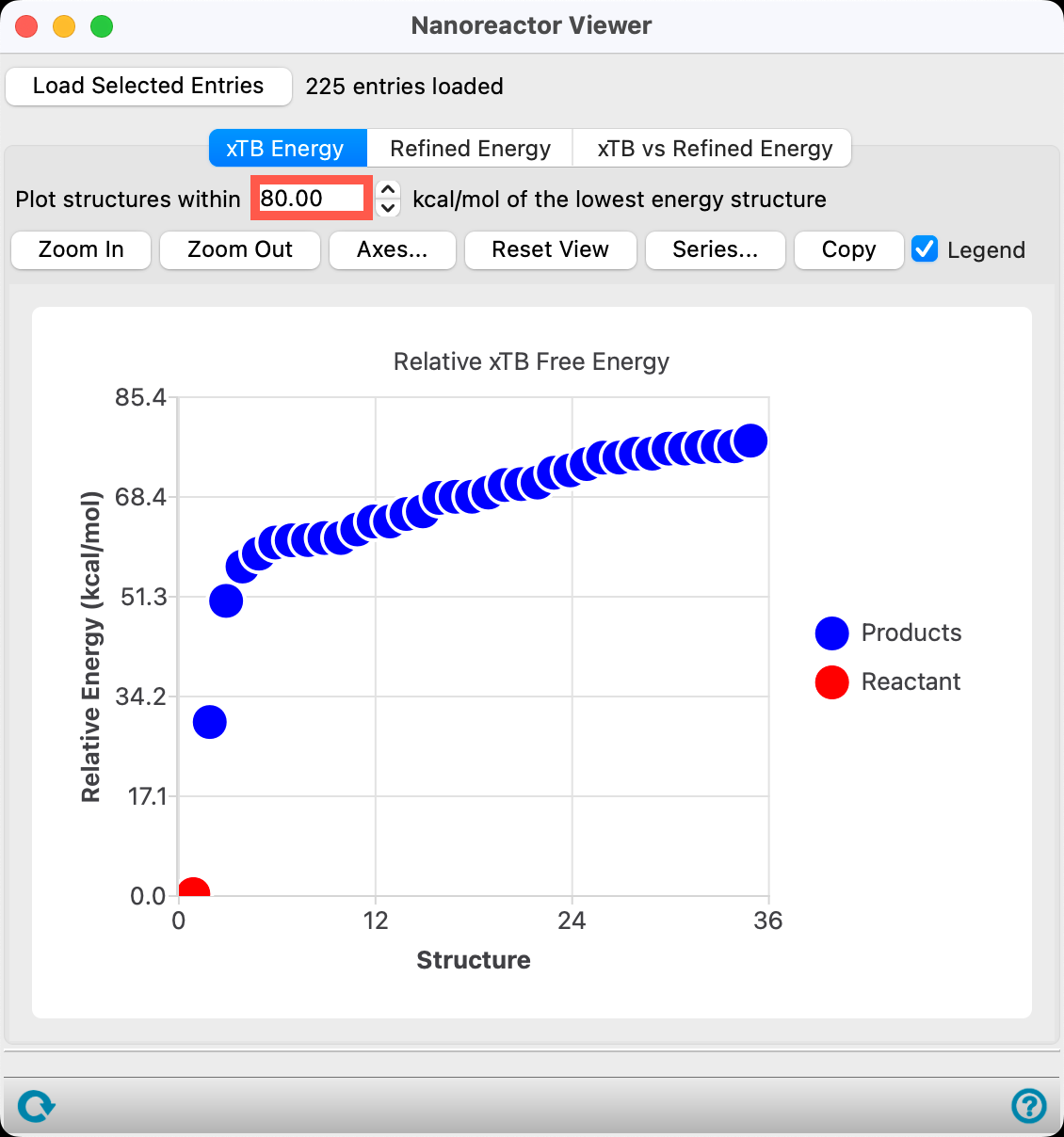
The first tab (xTB Energy) shows the relative GFN2-xTB energies for the product structures.
Note: The structures on the plot correspond to those within 50 kcal/mol of the lowest energy structure.
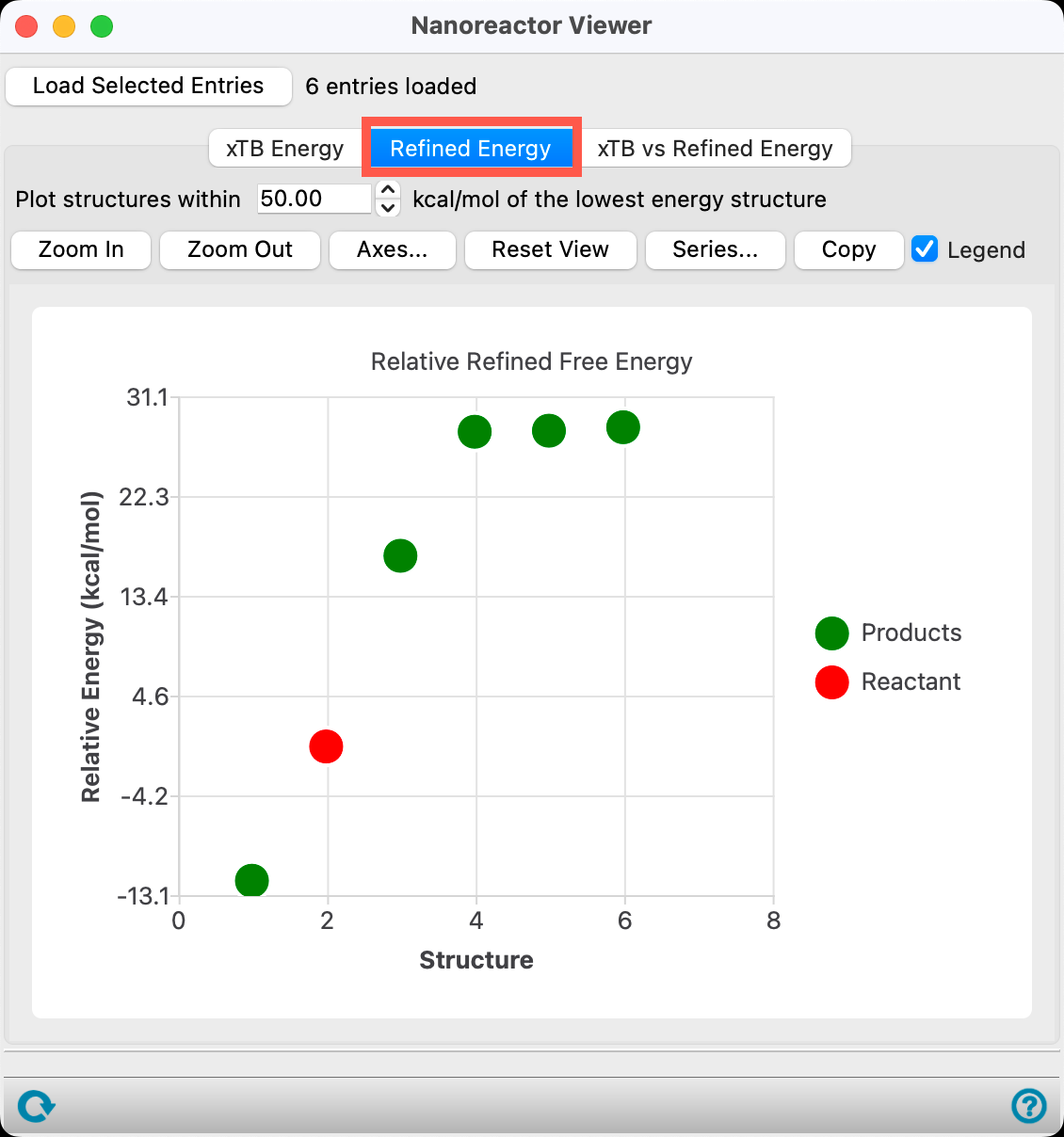
- Go to the Refined Energy tab
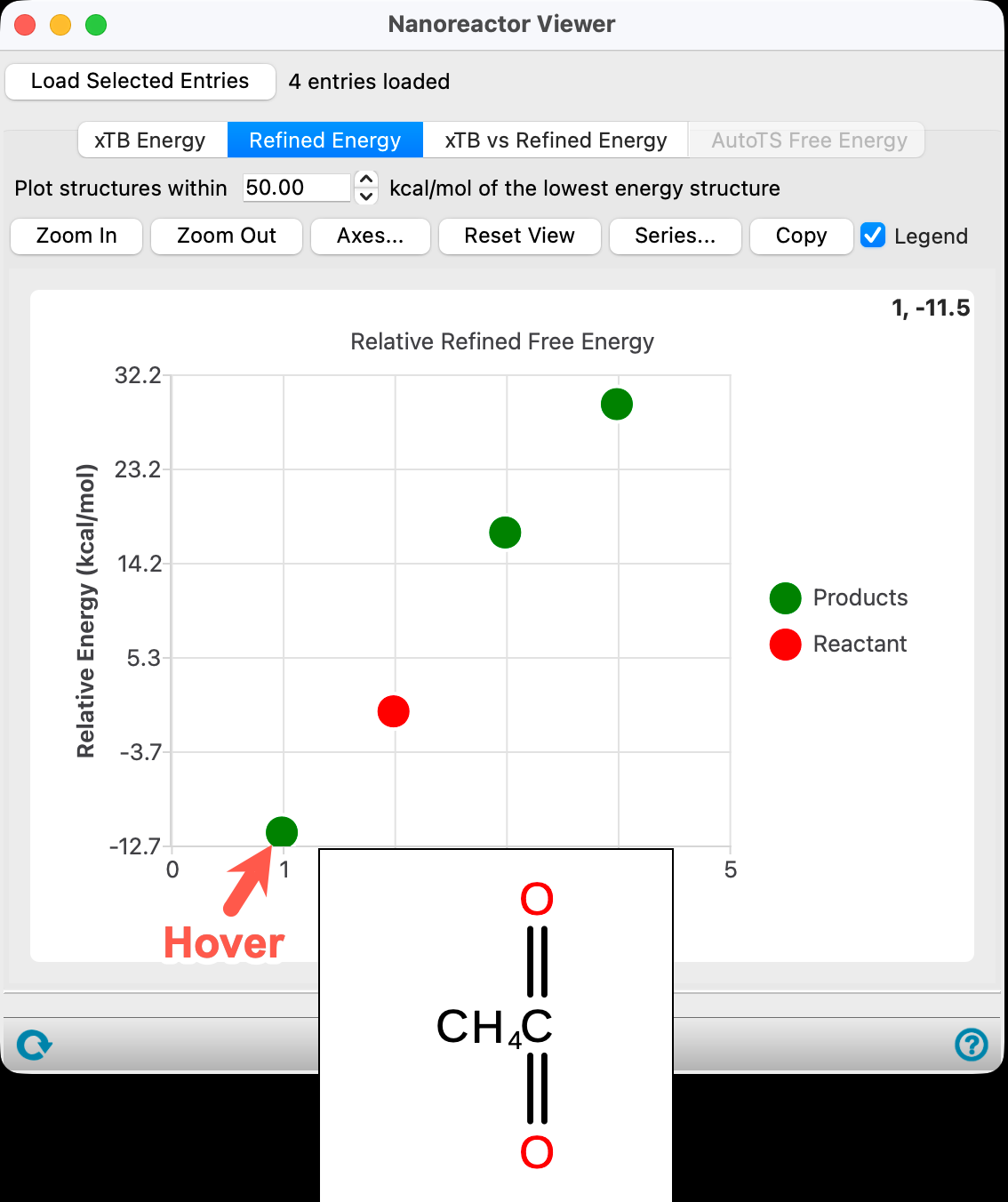
Figure 6-5. Hovering to view the structure of a data point.
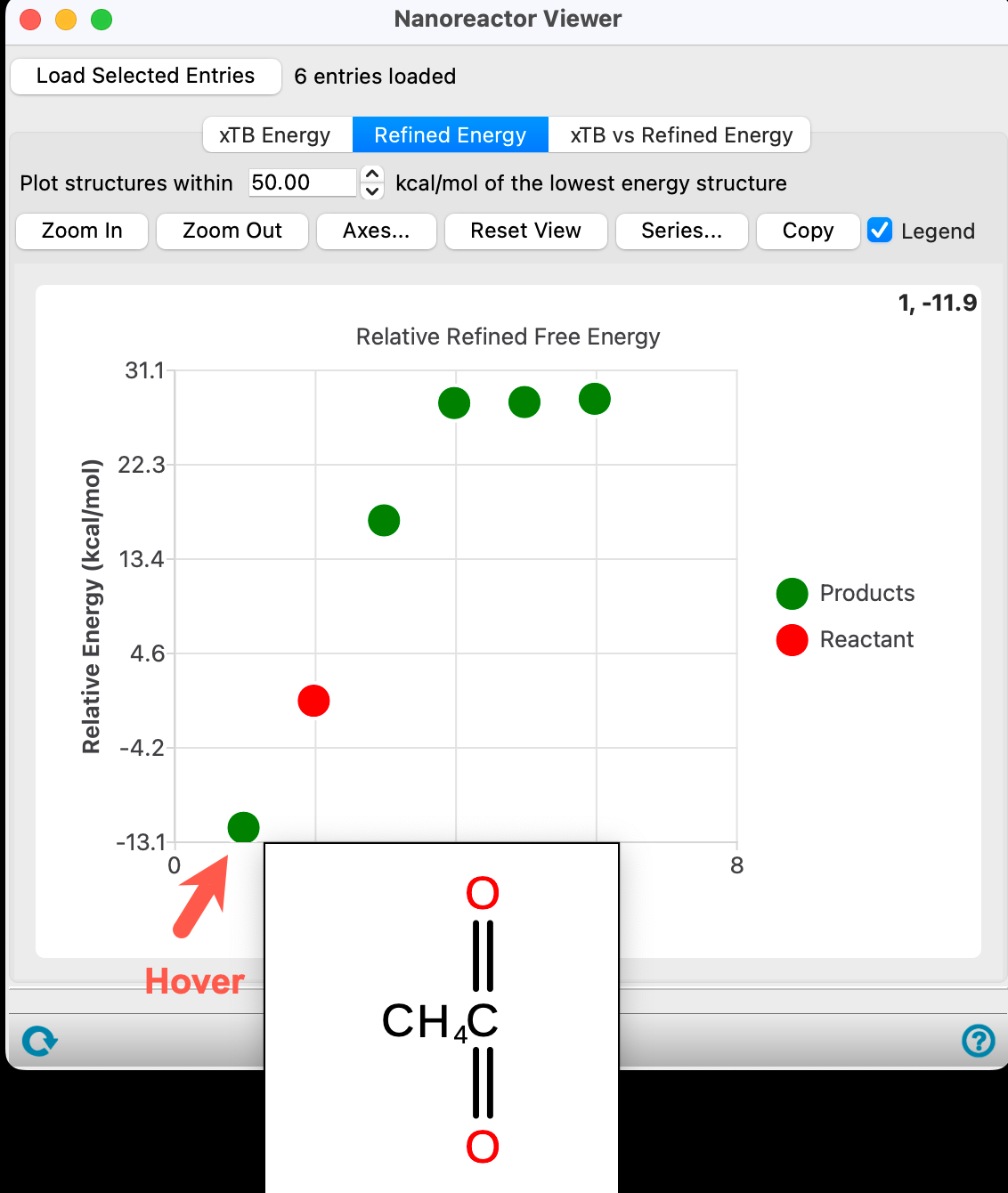
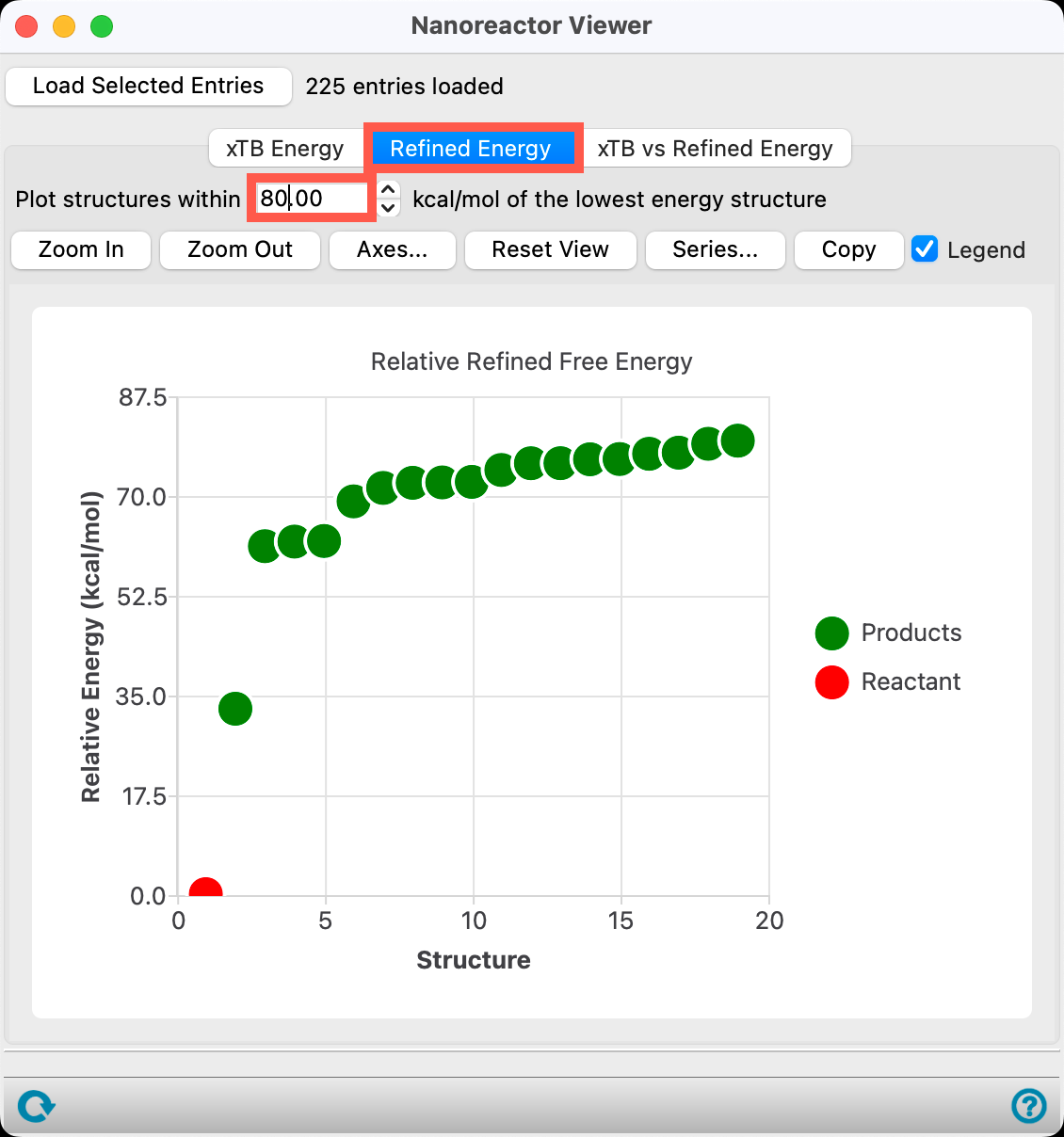
Because we checked Refine final energy in the initial calculation, relative energies are available.
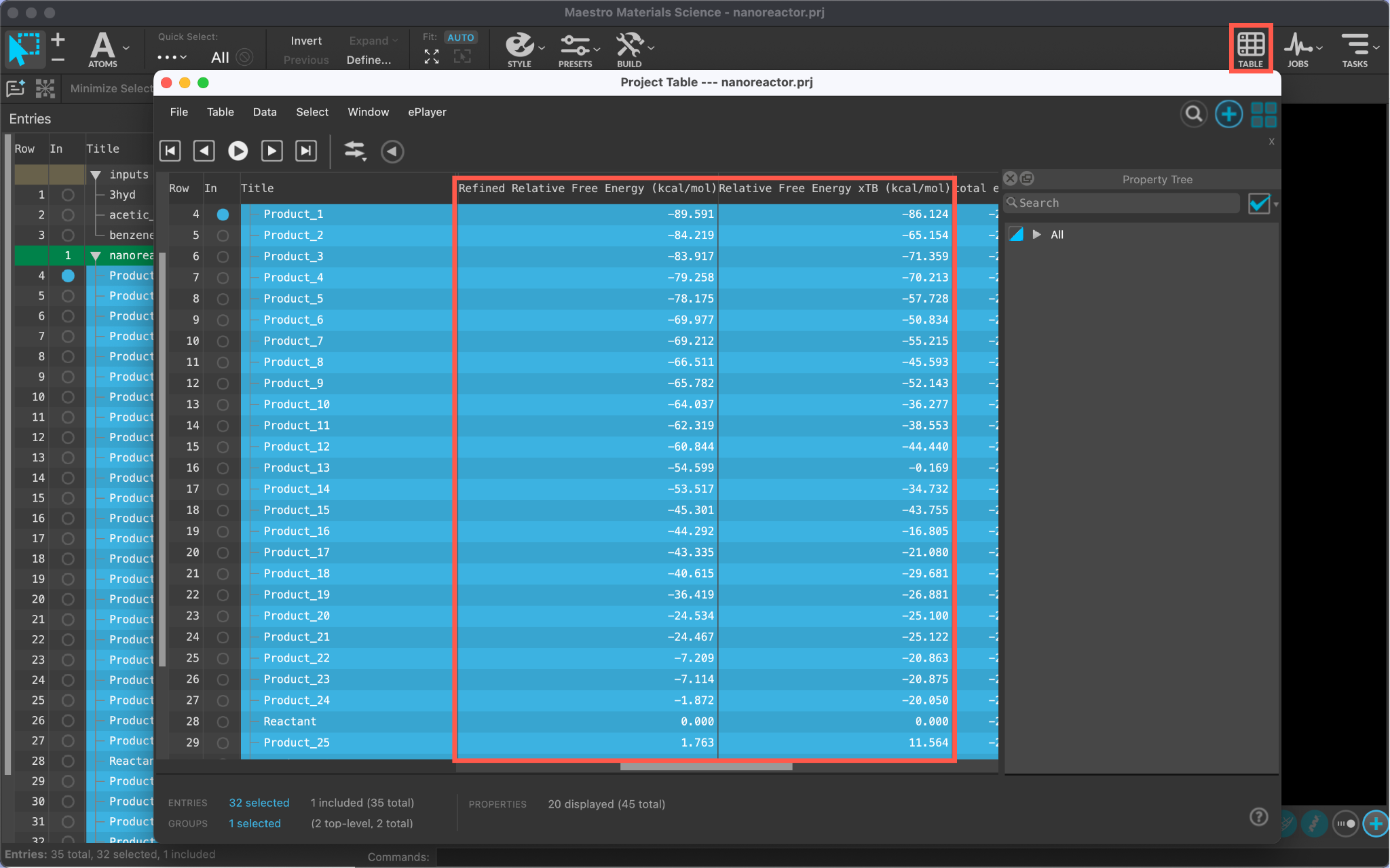
The relative energy tab sorts the products based on DFT//GFN2-xTB thermodynamics. Specifically, electronic energy is calculated with DFT and thermal corrections are calculated with GFN2-xTB.
The energy is calculated with respect to the most thermodynamically stable species taken as 0, in this case CO2 and CH4.
- For confirmation, hover the mouse over the lowest energy blue data point to visualize a 2D sketch of the products
Note: In addition to hovering in order to see a structure, clicking on the data point will update the workspacethe 3D display area in the center of the main window, where molecular structures are displayed to include the structure.
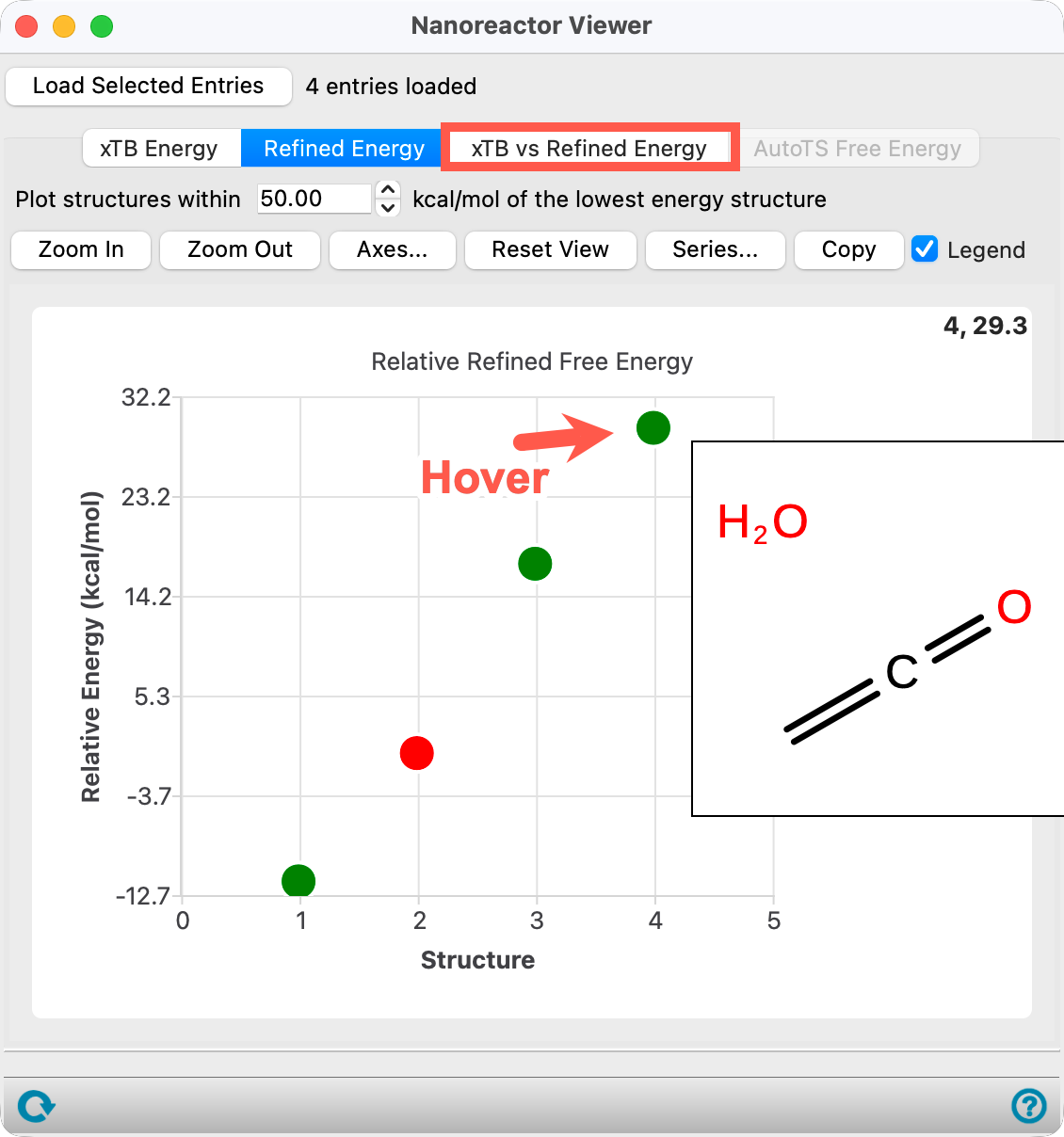
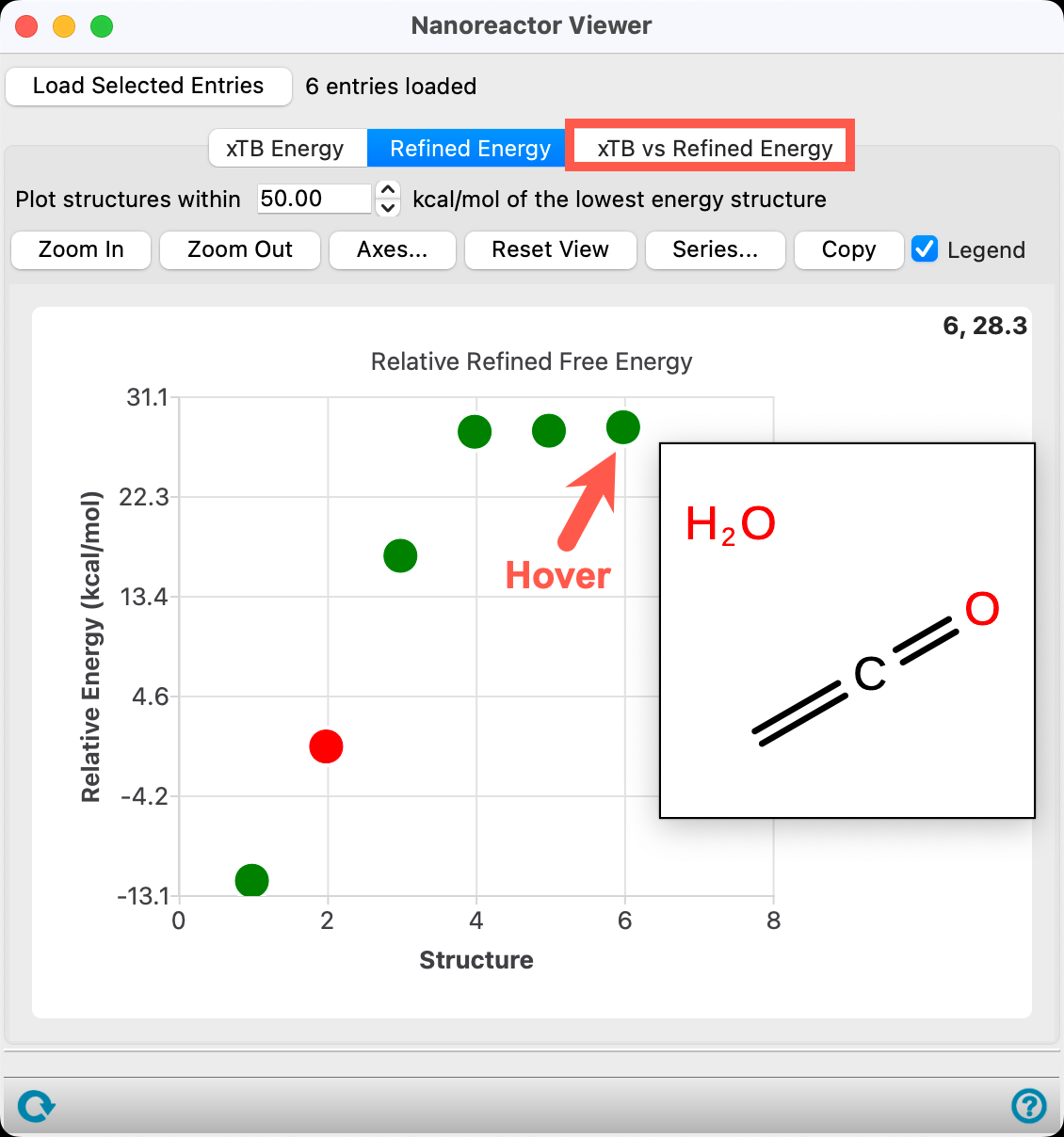
Figure 6-6. Viewing the ketene and water structure.
The red point is trans-CH3CO2H (the input state). Proceed to visualize the various structures. Keep going and visualize all other products. In the provided output, the 3rd structure represents ketene (CH2=C=O) and water.
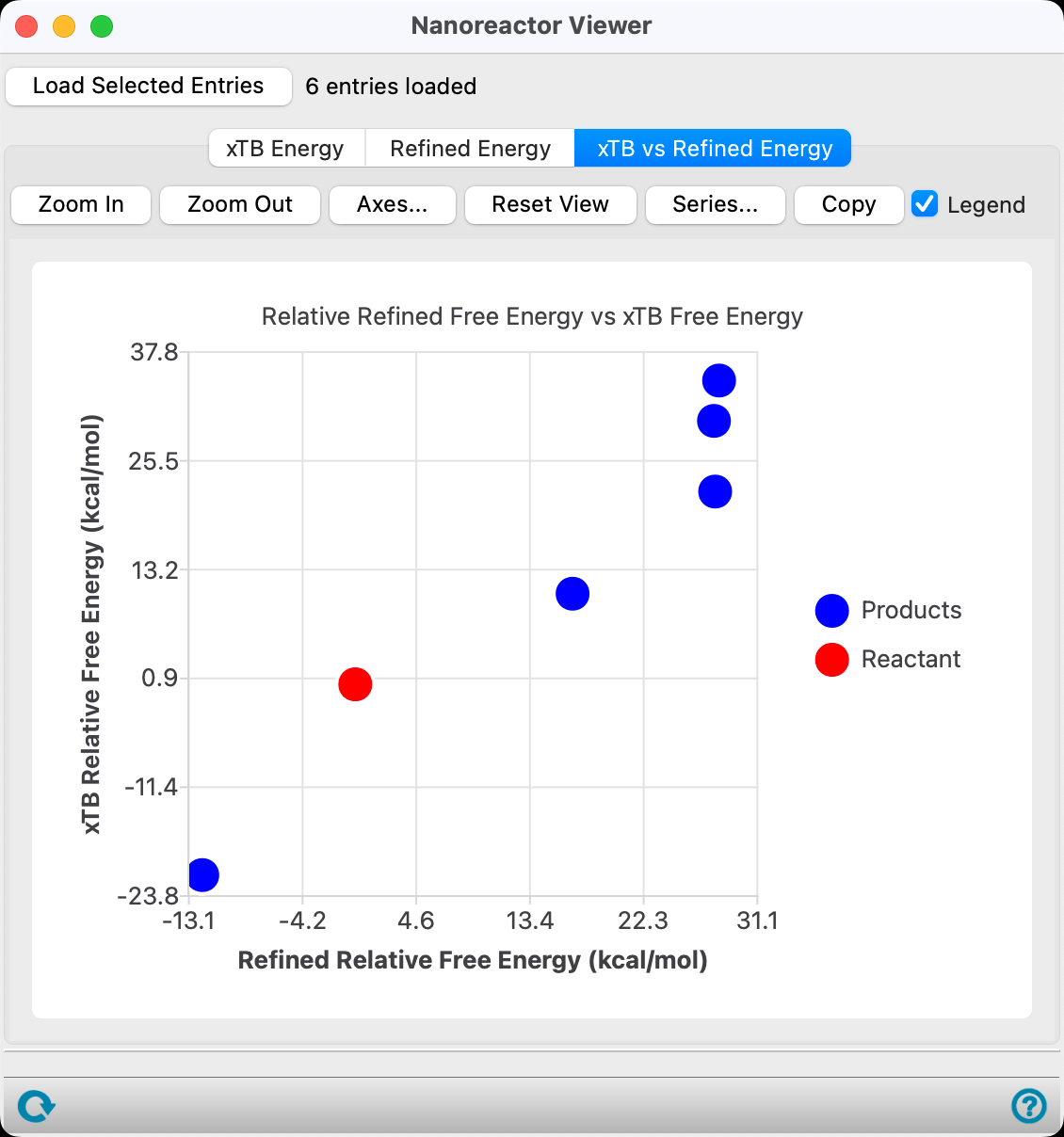
- Go to the xTB vs DFT//xTB Energy tab.
The low-energy CO2 / CH4 product as well as the CH2=C=O / H2O products are well-known experimentally detected products of acetic acid thermal decomposition in the gas-phase. See the References section (specifically, DOI:10.1002/kin.550160504).
There is also great qualitative agreement between DFT//GFN2-xTB and DFT thermodynamics. DFT thermodynamics were computed for acetic acid decomposition in the literature. See the References section (specifically, DOI:10.2174/1874123101812010014).
Moreover, Nanoreactor points out that in addition to these products, there could be several more products formed in this reaction (20+ based on the output entry group). Some of these products are more thermodynamically favorable than water and the ketene.
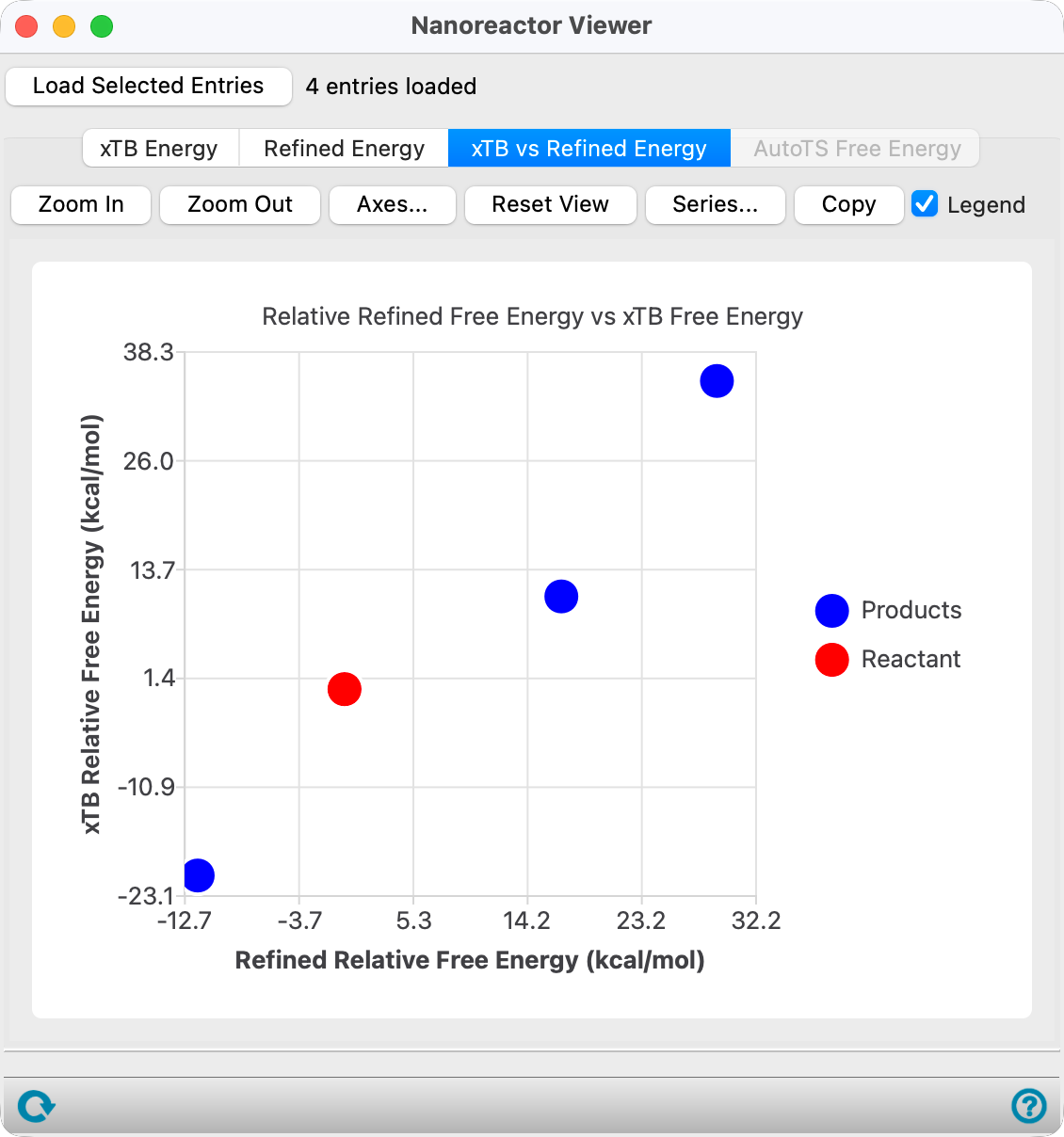
Figure 6-7. xTB vs DFT//xTB Energy tab.
Finally, we can compare the GFN2-xTB based free energy with DFT//GFN2-xTB based free energy . Of course, the GFN2-xTB data is significantly less computationally expensive.
In summary, the Nanoreactor PSS workflow considers thermodynamic stability rather than kinetic feasibility, and it does not map the sequential connectivity of elementary steps along the potential energy surface (PES). Consequently, its application is quite limited compared to the Nanoreactor-ERN workflow, which is essential for true mechanism discovery.
7. Conclusion and References
In this tutorial, we learned how to use the Nanoreactor panel to predict thermal decomposition products of acetic acid without any prior knowledge of the reaction and study the heptafluorobutyric acid degradation mediated by HO. radical.

For further learning:
For introductory content, focused on navigating the Schrödinger Materials Science interface, an Introduction to Materials Science Maestro tutorial is available. Please visit the materials science training website for access to 100+ tutorials. For scientific inquiries or technical troubleshooting, submit a ticket to our Technical Support Scientists at help@schrodinger.com.
For self-paced, asynchronous, online courses in Materials Science modeling, including access to Schrödinger software, please visit the Schrödinger Online Learning portal on our website.
For some related practice, proceed to explore other relevant tutorials:
- Introduction to Geometry Optimizations, Functionals and Basis Sets
- Introduction to Multistage Quantum Mechanical Workflows
- Calculating Reaction Energetics for Molecular Systems
- Rigid and Relaxed Coordinate Scans
- Locating Transition States: Part 1
- Locating Transition States: Part 2
- R-group enumeration with the Materials Science Suite
- Design of Asymmetric Catalysts with Reaction Network Enumeration Profiler
- Microkinetic Modeling
- Organometallic Complexes
- Cheminformatics Machine Learning for Homogeneous Catalysis

For further reading:
- Help documentation on the Nanoreactor, Nanoreactor Results, and Reaction Network Viewer panels
- Fast and automated identification of reactions with low barriers: the decomposition of 3-hydroperoxypropanal. DOI: 10.21468/SciPostChem.1.1.003.
- Fast and automated identification of reactions with low barriers using meta-MD simulations. DOI: 10.7717/peerj-pchem.22
- Exploration of Chemical Compound, Conformer, and Reaction Space with Meta-Dynamics Simulations Based on Tight-Binding Quantum Chemical Calculations. DOI:10.1021/acs.jctc.9b00143
- High-temperature kinetics of thermal decomposition of acetic acid and its products. DOI:10.1002/kin.550160504
- Kinetics of Decomposition Reactions of Acetic Acid Using DFT Approach. DOI:10.2174/1874123101812010014
- GFN2-xTB—An Accurate and Broadly Parametrized Self-Consistent Tight-Binding Quantum Chemical Method with Multipole Electrostatics and Density-Dependent Dispersion Contributions. DOI:10.1021/acs.jctc.8b01176
- Discovering chemistry with an ab-initio nanoreactor. DOI:10.1038/nchem.2099
- Unimolecular Reaction Pathways of a γ-Ketohydroperoxide from Combined Application of Automated Reaction Discovery Methods. DOI: 10.1021/jacs.7b11009
- On Benchmarking of Automated Methods for Performing Exhaustive Reaction Path Search. DOI: 10.1021/acs.jctc.8b01182
- Automated Transition State Search and Its Application to Diverse Types of Organic Reactions. DOI:10.1021/acs.jctc.7b00764
- Methods for Exploring Reaction Space in Molecular Systems. DOI: 10.1002/wcms.1354
- An Automated and Systematic Transition Structure Explorer in Large Flexible Molecular Systems Based on Combined Global Reaction Route Mapping and Microiteration Methods. DOI: 10.1021/ct9003383
- Chemoton 2.0: Autonomous Exploration of Chemical Reaction Networks. DOI: 10.1021/acs.jctc.2c00193
8. Glossary of Terms
Entry List - a simplified view of the Project Table that allows you to perform basic operations such as selection and inclusion
Included - the entry is represented in the Workspace, the circle in the In column is blue
Project Table - displays the contents of a project and is also an interface for performing operations on selected entries, viewing properties, and organizing structures and data
Recent actions - This is a list of your recent actions, which you can use to reopen a panel, displayed below the Browse row. (Right-click to delete.)
Scratch Project - a temporary project in which work is not saved, closing a scratch project removes all current work and begins a new scratch project
Selected - (1) the atoms are chosen in the Workspace. These atoms are referred to as "the selection" or "the atom selection". Workspace operations are performed on the selected atoms. (2) The entry is chosen in the Entry List (and Project Table) and the row for the entry is highlighted. Project operations are performed on all selected entries
Working Directory - the location where files are saved
Workspace - the 3D display area in the center of the main window, where molecular structures are displayed