Reaction Network Viewer Panel
Display a map of a reaction network including reactants, products, intermediates, and transition states.
To display this panel: click the Tasks button and browse to Materials → Quantum Mechanics → Reaction Network → Reaction Network Viewer
The following licenses are required to use this panel: MS Maestro
- Features
- Additional Resources
Reaction Network Viewer Panel Features
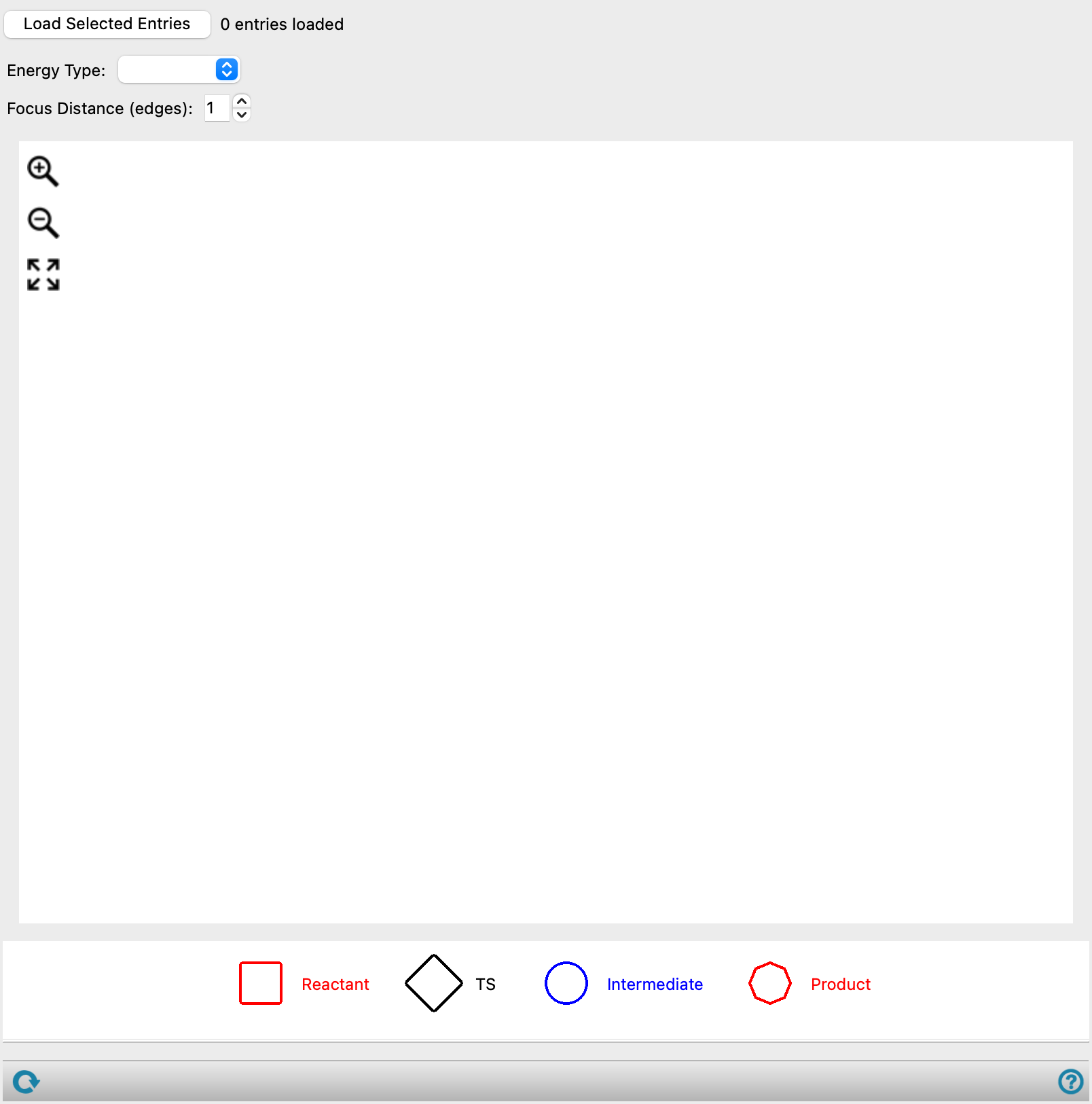
- Load Selected Entries button
-
Load the data associated with the entries selected in the Workspace, which must be the outputs from a job run from the Reaction Network Profiler Panel, Reaction Network Enumeration Profiler Panel, AutoTS: Perform Calculations Panel, or Nanoreactor Panel.
-
To display reaction networks from outputs of the Nanoreactor Panel an extra step is required. Load the
-out_rxnwf.maefile from the job directory which contains the reaction network data required to generate the map. - Energy type option menu
-
Select the energy property to display for the selected structures. The available energy types depend on the workflow that produced the network data, and can include refined free energies, xTB free energies, AutoTS free energies, and relative energies in kcal/mol.
- Focus Distance (edges) text box
-
Specify the distance of connections (edges) from the selected structure to display when focusing.
- Export Image button
-
Save an image (.png) of the reaction network diagram to file. Opens a file selector in which you can browse to a location and name the image.
- Plot area
-
The reaction network diagram consists of boxes connected by lines. The boxes (nodes in the graph) represent the structures; the lines (edges or connections) represent the connection in the network. 2D structures are displayed within the boxes. Product, transition state, and intermediate nodes also display a type label and the energy value for the selected energy type. The legend displays the different types of nodes in the diagram. You can drag the boxes to reposition them.
The buttons at the top left allow you to zoom in or out on the diagram, and fit the diagram to the display area.


Zooming in or out can also be done with the scroll wheel. Double-clicking on a connection zooms in to that connection.
When you pause the pointer over a ligand, the parts of the graph to which it is not connected are dimmed.
Clicking a node includes its structure in the Workspace.
- Legend
-
Displays the different types of nodes in the diagram. Reactants are represented as green squares, transition states by black diamonds, intermediates by blue circles, and products by red octagons.
- Status bar
-
 to reset the panel to its default settings and clear any data from the panel.
If you can submit a job from the panel, the status bar displays information about the current job settings and status for the panel. The settings include the job name, task name and task settings (if any), number of subjobs (if any) and the host name and job incorporation setting. The job status can include messages about job start, job completion and incorporation.
The status bar also contains the Help button
 , which opens an option menu with choices to open the help topic for the panel (Documentation), launch Maestro Assistant, or if available, choose from an option menu of Tutorials. If the panel is used by one or more tutorials, hover over the Tutorials option to display a list of tutorials. Choosing a tutorial opens the tutorial topic.