Entry List panel
The Entry List panel provides a high-level, organized overview of all individual data entries currently loaded into your project. While the Structure Hierarchy breaks down the internal components of a specific structure, the Entry List acts as your primary dashboard for managing whole molecules, proteins, or data sets. From this panel, you can quickly include or exclude entries from the Workspace, track selection states, and organize your project data.
To open this panel, choose Window → Entry List / Structure HierarchyWindow → Entry List, press Ctrl+E (⌘E), or click the Entries / Hierarchy button in the Workspace Configuration Toolbox.
This panel opens by default when you start Maestro.
- Using
- Features
- Additional Resources
Using the Entry List panel
This panel is intended to provide access to the basic features of the Project Table in a lightweight panel, without having the full Project Table panel open, and to provide a convenient way of performing Workspace operations on structures and substructures that can be selected from a hierarchy rather than having to use the selection toolbar.
This panel is docked into the Workspace by default, so you can easily switch focus from the panel to the Workspace. You can undock the panel if you want to place it somewhere else. To dock or undock the panel, use the docking button  in the title bar (left of the Close button) .
Entry List Features
Entry List (Entries)
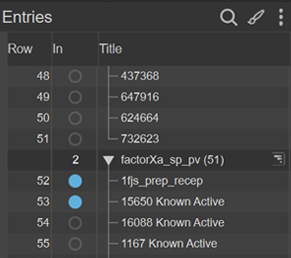
The entry list is a simplified view of the Project Table Panel that allows you to perform basic operations such as selection and inclusion without having the full Project Table open.
-
 Search button
 -
The search button displays the search text box and Filter button. These allow you to filter the list of entries that is shown in the entry list. Filtering this list has no effect on the selection or the inclusion of the entries, or what is visible in the Project Table. However, once the list is filtered, selection or inclusion of multiple entries with shift-click and control-click operates only on the filtered list.
To filter the list by entry or group title, enter the text to match in the text box. The list is filtered as you type. The matching is case-insensitive. To clear the text filter, click the Clear (X) button. You can use regular expression syntax as follows:
- use ? to represent any single character
- specify a range of characters to match inside square brackets, e.g [0-5]
- separate alternatives with |, eg; 17|25 means match 17 or 25
You can also apply a global filter, by clicking the Filter button. The button is indented, to indicate that the global filter is applied. To remove the global filter without removing the text filter, click the button again. There are three ways of defining the global filter, which you can set by clicking and holding on the button, then choosing from the menu that is displayed.
- Included—Show only the entries that are included in the Workspace in the list.
- Selected—Show only the entries that are selected in the Project Table in the list.
- Filter—Open the Select Entries by Property Values Dialog Box to define the filter in terms of entry properties or previously defined filters. If you want to change the filter, you can select this item again, even if it is already selected.
Filters are reapplied whenever the Project Table changes. For example, if the global filter is Selected, and you deselect an entry, it is removed from the list.
-
 Style button
 -
The Style button opens the Style Toolbox to style the selected entries (whereas the Style toolbox on the toolbar styles the entries in the Workspace). This instance of the Style toolbox does not have items for surfaces. See Changing Structure Styles for more information.
You can specify which parts of the entries to style from the menu at the top of the toolbox. The choice depends on the Maestro profile you are using.
In Maestro:
- All Atoms
- Ligands
- Binding Sites + Ligand
- Binding Site Residues
- Receptors
- Waters
In Maestro BioLuminate:
- All Atoms
- Receptors
- Backbone
- Side Chains
In Materials Science Maestro:
- All Atoms
- Metals
- Ions
- Waters
-
 More Options button
 -
This button menu has settings for configuring the entry list.
- Show Property—opens a property selector in which you can select properties to show in the entry list.
- Show 2D Structure—show the column that contains the 2D structure.
- Fit Columns to— fit the column widths to the Header, Data, or Header + Data (the larger of the two).
- Collapse / Expand Entry List— Collapse the Entry List so that only the title bar with the tools is visible. This allows more space for the Structure Hierarchy. The expand button restores the Entry List to its previous size. You can also drag the divider between the Entry List and the Structure Hierarchy to change their relative sizes, or double-click the divider to equalize the sizes.
- Float panel— detach the Entry List and Structure Hierarchy panel from the Workspace. You can drag the panel to where you would like to view it on your screen, allowing for more space in the Workspace. Drag the panel to the left edge or the right edge of the Workspace to dock it back in place.
- Hide panel— hide the Entry List and Structure Hierarchy panel. To open this panel, choose Window → Entry List / Structure HierarchyWindow → Entry List, press Ctrl+E (⌘E), or click the Workspace Navigator button in the Workspace Configuration toolbox.
-
- Entry list
-
Lists the project entries, with the Row column, the In column and the Title column displayed by default; other property columns can be added. For entry groups, the number of entries is shown to the right of the title. The entry list is kept synchronized with the Project Table.
You can include entries in the Workspace with the usual click, shift-click and control-click in the In column. To exclude an entry, you can either control-click or middle-click. To fix an entry in the Workspace, double-click in the In column. Double-clicking a fixed entry unfixes it but leaves it included in the Workspace; control-click excludes it.
You can select multiple entries in the list with the usual shift-click and control-click. If the list is filtered and you select with shift-click, only the entries that are shown in the list are added to the selection. For entries that are in between these entries but are hidden, the selection is not changed, so selected entries remain selected, unselected entries are not selected. The same applies to entry inclusion. If the list is filtered, only the entries that are shown in the list are included in the Workspace.
Hovering over a 3D workspace structure visually links it to its corresponding entry by highlighting the table row in the Entry List, Project Table, and any associated Shortcut rows.
Shortcut menus are displayed when you right-click on a row, so that you can perform common operations, like Duplicate, Lock, and so on. These menus are the same as the menus that appear in the Project Table, with a few exceptions. For an entry row, the Entry shortcut menu is shown; for an entry group row, the Entry group shortcut menu or the Single group shortcut menu is shown.
Menu Options Reference
Menu Item Action / Description Include / Exclude Toggles the visibility of the selected entry in the 3D Workspace. Fix in Workspace Pins the entry so it remains visible in the Workspace regardless of other inclusions. Lock (set non-editable)* Locks the entry to prevent accidental modifications to its structure or properties. Split* > Opens a submenu to split the entry into separate rows based on structural components. Duplicate > Creates an identical copy of the selected entry row(s). Merge Combines multiple selected entries into a single entry row (available when multiple rows are selected). Delete Removes the selected entry from the project. Add to Shortcut Rows Pins the selected entry to the top Shortcut Rows section for quick toggling. Color Row... Opens the color picker to change the background color of the entry's row. Set Stars > Assigns a star rating (1 to 5) to the entry for filtering. Group... Places the selected entry into a new or existing Entry Group. Move to > Moves the entry to a specific position or group in the hierarchy. Ungroup Groups Dissolves a group (only active when right-clicking an entry group row). Change Property Value / Set Property... Allows direct editing of specific property values associated with the entry. Manage Entry Properties > Opens options to add, hide, or rename properties for the entry. Group by Entry Property... Automatically groups entries sharing identical values for a selected property. Style* > Opens a submenu to change the visual representation (e.g., wire, tube) in the workspace. Export* > Saves the selected entry to an external file (e.g., .mae, .sdf, .pdb). *Note on Structureless Entries: Options marked with an asterisk (Lock, Split, Style, and Export) require atomic or structural data. If your selection contains only structureless entries (such as map-only entries), these options will be grayed out. If a mixed selection of both structural and structureless entries is selected, these options remain active.For entry group rows, the shortcut menu includes a This Group Only submenu, which applies actions only to the selected group without affecting its subgroups. The submenu includes the following options:
Rename—Rename the selected group.
Ungroup (Top Group)—Remove the selected top-level group while keeping its subgroups and entries intact.
Flatten Subgroups—Remove subgroup levels within the selected group, placing all entries into a single group.
Duplicate Entries—Duplicate the entries within the selected group.
The heading row has a reduced shortcut menu that allows you to show or hide property columns, show the 2D structure, sort, color, or select by a property value, add or remove properties from the Workspace property display, and set the column width. You can also open the shortcut menu by clicking the arrow that is displayed in any column header when the pointer is in the header.
The Title column has auxiliary feature buttons on the right, if the entry has features such as surfaces, trajectories, or hypotheses. Clicking the button opens a menu for performing actions related to the auxiliary feature. If an entry has a trajectory (T) button, you should not edit the entry. If you do, a warning is displayed when you click the button, with the choice to reset to the original structure (discarding the edits) and open the export movie, movie, or cancel the action. If you do want to modify the structure, you should create a new entry from it, and edit the new entry.
Entry groups that have been imported as a result of job incorporation may have a Workflow Action Menu (WAM) button
 at the right of the row. The button opens a menu that has three kinds of items:
- Common tasks—These are listed at the top, if there are any, as separate items.
- Analysis—These items open panels that perform appropriate analysis tasks on the entries. They are usually displayed on a submenu.
- Next Steps—These items open panels that use the entries as input to another task.
The contents of each Workflow Action Menu are determined by the job that was run, and correspond to common or useful actions to take on the job results. The actions can be applied to one entry, several entries, or all of the entries in the group, depending on the chosen action. The items available on the menu may also depend on which entries are selected in the group. If an action operates only on a single entry, but there are several entries in the group to which that action applies, a submenu is shown so you can choose the entry (including the Workspace Entry if applicable).