Style Toolbox
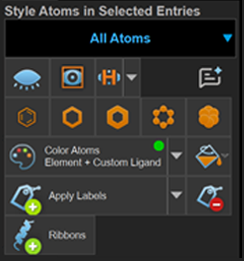
The primary tool for changing the styling of Workspace is the Style toolbox. Depending on where you open the toolbox, you can style the entries in the Workspace or the selected entries in the Project Table or Entry List (Entries). If you are styling selected entries, the toolbox has a menu for selecting atoms, and does not have surface styling tools.
To open the Style toolbox, you can do one of the following:
-
Click the Style button on the Workspace Main Toolbar.

-
Right-click on one of the selected atoms in the Workspace and choose Style from the shortcut menu.
-
Click on the Style button to the right of a structure in the Structure Hierarchy panel.

This button appears when the pointer is over a row in the hierarchy.
- Features
- Additional Resources
Style Toolbox Features
The Style Toolbox applies formatting to the selected atoms. If none are selected when the toolbox is opened, all atoms are selected temporarily for application of the style. The tools allow you to change atom visibility, color, atom and bond style, atom labels, ribbons, and surfaces as well as the Maestro Style Assistant. 
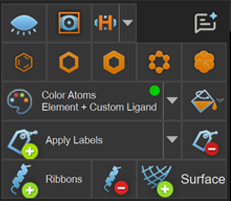
Atom Visibility
  |
Show or hide the selected atoms. If all selected atoms are visible, the hide icon (closed eye) is displayed; if there are some hidden atoms in the selection, the show icon (open eye) is displayed. |

|
Show the selected atoms and hide the unselected atoms. This action is taken regardless of whether the selection includes visible or hidden atoms. |

|
Show polar hydrogens and hide other hydrogens. Clicking the arrow offers other options for hydrogen atoms: Hide All Hydrogens, Show All Hydrogens. |
For more atom visibility options, see Showing and Hiding Atoms.
Atom and Bond Style

|
Wire frame. Displays bonds as lines with the number of lines representing the bond order. Atoms have no representation unless they are not bonded to other atoms: in this case, the atom is at the intersection of three lines, horizontal, vertical, and diagonal (like a set of axes). |

|
Thin Tube. Displays bonds as thin tubes and atoms as spheres with the same radius as the tubes. |

|
Thick Tube. Displays bonds as thick tubes and atoms as spheres with the same radius as the tubes. |

|
Ball and Stick. Displays selected atoms as spheres with thin tubes for bonds. |

|
CPK. Displays selected atoms as spheres, with no representation of bonds. |
For more molecular representation options, see Changing Structure Styles.
Color

|
Color Atoms. Applies a color scheme to the selected atoms. The left side of the button re-applies the last used color scheme. The arrow on the right opens a menu for selecting and applying another color scheme. |

|
Single color. Opens a menu of possible colors. Applies a single color to the selected atoms. |
For more coloring options, see Coloring Atoms.
Atom Labels

|
Apply Labels. Applies the current label scheme to the selected atoms. The left side of the button re-applies the last used label scheme. The arrow on the right opens a menu for selecting and applying another label scheme. |

|
Remove Labels. Removes labels from selected atoms. |
For more labeling options, see Labeling Atoms and Bonds.
Ribbons

|
Add Ribbons. Adds and updates ribbons for any selected residues (four minimum), using the default color scheme and ribbon style from the Preferences panel. Edit the ribbon properties in the panel that opens below. |

|
Remove Ribbons. Removes ribbons from selected atoms. |
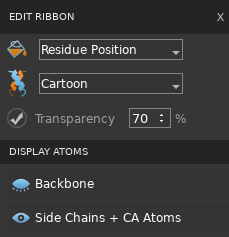
You can edit the ribbon and its associated atoms in this pane, which opens when you click the Add Ribbons button in the Style toolbox, or if you right-click on a ribbon. Options include deleting the ribbon, changing the color scheme, changing the ribbon style and transparency, and hiding or showing some or all of the associated residue atoms. The action applies to all ribbon segments in which any of the corresponding residue atoms are selected, or all ribbons if there is no selection.
Tip - If ribbons aren't properly displayed, the secondary structure might not be assigned. Choose Edit → Assign → Secondary Structure to assign it.
Surfaces

|
Create Quick Surface. Creates a surface from the selected atoms (one per entry). |