Interface Builder Panel
Build epitaxial interfaces between substrate and film crystal structures by performing topological matching to find compatible superlattice Miller index pairs, then specifying slab terminations, thicknesses, and vacuum parameters.
To display this panel: click the Tasks button and browse to Materials → Structure Builders → Build Interfaces
The following licenses are required to use this panel: MS Maestro
- Overview
- Using
- Features
- Additional Resources
Overview of Interface Builder
The Interface Builder panel constructs epitaxial interfaces between two periodic crystal structures. It is designed for applications in semiconductor and battery materials research where compatible solid interfaces are needed. A supercell of one crystal (denoted the "film") is strained so as to match a supercell of the other crystal (the "substrate") that remains unstrained.
The panel identifies compatible substrate-film surface pairs using topological matching based on the Zur and McGill method [94]. This approach searches for combinations of substrate and film Miller indices where the in-plane superlattice vectors can be matched with minimal lattice strain. The search considers all Miller indices up to a specified maximum and returns matches ranked by superlattice area and von Mises strain of the film. Once compatible surface pairs are identified, you specify the slab parameters for each interface (surface terminations, slab thicknesses, and vacuum spacing) and the panel builds the interface structures with the film strained to match the substrate lattice.
The film von Mises strain reported for each match is a scalar measure of the lattice deformation required to match the film to the substrate. It is computed from the deviatoric part of the Green-Lagrange strain tensor as εvM = √(2/3 Σ ε′ij²), where ε′ij = εij − (1/3)tr(ε)δij. Unlike the biaxial strain (a − a0)/a0, where a and a0 are the in-plane lattice parameters of the strained and bulk film respectively, the von Mises strain captures the full anisotropic deformation including shear components. Lower strain results in less elastic energy stored at the interface, a lower driving force for misfit dislocation nucleation, and more realistic coherent epitaxy. High-strain matches are unlikely to form coherent interfaces, as the film will either relax through defects or not grow epitaxially.
The match area is the minimum area required for lattice coincidence between surface supercells of the substrate and of the film. A smaller match area means a smaller periodic repeat at the interface, fewer atoms per cell, and therefore more computationally feasible models for subsequent DFT or MD calculations. A smaller match area also correlates with a higher density of coincidence sites, which generally indicates stronger interface bonding. Very large match areas imply that the two lattices barely match, so the interface is likely incoherent and the resulting supercell may be too large for practical atomistic simulations. The ideal match has both low strain and a small area, but in practice trade-offs are necessary: a slightly higher-strain match with a much smaller supercell may be more useful than a zero-strain match that requires thousands of atoms.
Using the Interface Builder Panel
The Interface Builder panel operates in two phases. In the first phase, substrate and film crystal structures are loaded and a topological matching job identifies compatible superlattice pairs. In the second phase, you select interfaces from the results and configure slab parameters to build the interface structures. The Run button is context-aware: if no topological matching results are loaded, clicking Run launches a topological matching job. If results are loaded and interface rows are defined in the table, clicking Run launches an interface construction job.
Running a Topological Matches Job
-
Load a periodic substrate crystal structure by selecting the source from the Substrate option menu and clicking Import.
-
Load a periodic film crystal structure by selecting the source from the Film option menu and clicking Import.
-
Set the Maximum Miller index for topological matches to control the range of Miller indices searched. Higher values explore more surface orientations but increase computation time.
-
Name the job and click Run.
When the topological matches job completes, the results are automatically imported into the panel and displayed in the heatmap. You can also import results from a previous job using the Import File button.
Building Interfaces
-
Adjust the Plot matches for this number of lowest unique areas and Plot matches for this number of lowest unique film von Mises strains values to control which matches appear in the heatmap.
-
Click on cells in the Select Interfaces heatmap to add the corresponding matches to the Options For Building Interfaces table. Click the same cell again to add a duplicate row, which is useful for exploring different slab parameters for the same Miller index pair. If the substrate orientation is predetermined (for example, a specific crystal face used in a device), the allowed film orientations can be read from that column of the heatmap.
-
In the table, set the surface termination, slab thickness (in number of layers), vacuum over film, and substrate-film separation for each interface.
-
Name the job and click Run to build the interface structures.
The output consists of one interfacial structure per table row, added to the Entry List in a hierarchy of subgroups organized by substrate and film orientation, interface termination, slab thicknesses, match area, and film von Mises strain. If Also return substrate and film slab structures is selected, the individual substrate and film slab structures are also returned.
The output interface structures are unrelaxed, with the substrate-film separation set to the initial value specified in the table. Relaxing the atomic positions at the interface — often while constraining atoms far from the interface to their bulk positions — with periodic DFT (Quantum ESPRESSO) or MLFF finds the equilibrium interfacial geometry and bond lengths. From the relaxed structure, the adhesion energy can be computed as the difference between the total energy of the interface and the energies of the isolated substrate and film slabs.
For a step-by-step example, see the Building Epitaxial Interfaces tutorial.
To write out the input file and a script for running the job from the command line, click the arrow next to the Settings button  and choose Write.
Interface Builder Panel Features
- Substrate option menu
- Film option menu
- Topological matches output section
- Maximum Miller index for topological matches text box
- Plot matches for this number of lowest unique areas text box
- Plot matches for this number of lowest unique film von Mises strains text box
- Select Interfaces section
- Options For Building Interfaces section
- Job toolbar
- Status bar
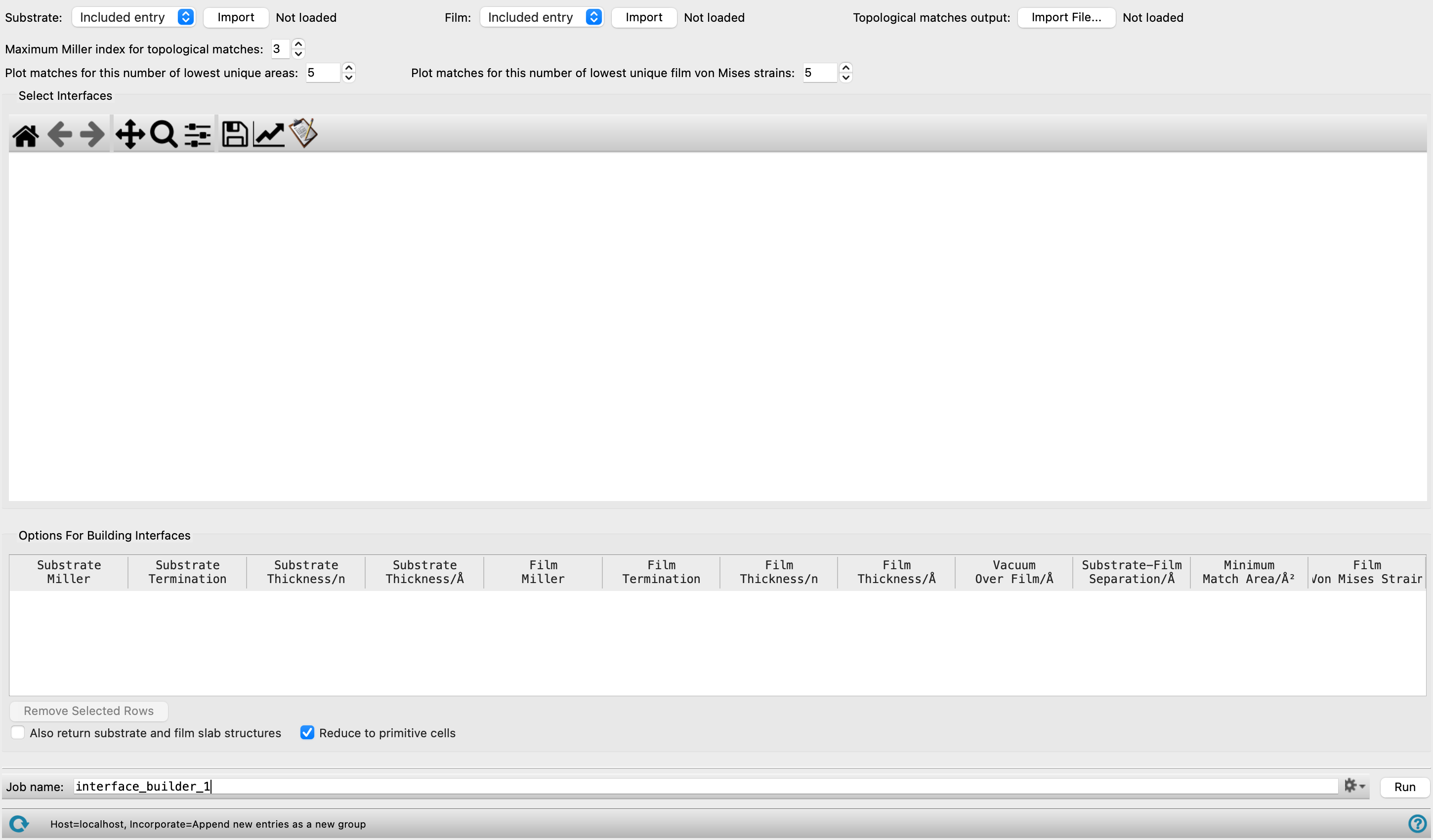
- Substrate option menu
-
Select the source of the substrate crystal structure and click Import to load it. Only periodic structures are accepted. This lattice is not strained. Loading a new substrate structure resets the topological matches and interface parameters.
- Film option menu
-
Select the source of the film crystal structure and click Import to load it. Only periodic structures are accepted. This lattice is strained to match a substrate supercell. Loading a new film structure resets the topological matches and interface parameters.
- Topological matches output section
-
Click Import File to import the output
.csvfile from a topological matches job. Importing the file also loads the substrate and film structures that were used in the job. The number of loaded matches is displayed next to the button. - Maximum Miller index for topological matches text box
-
Specify the maximum Miller index for the topological matching search. The same value is used for both the substrate and the film. All combinations of Miller indices from −N to N for h, k, and l are enumerated. Higher values explore more surface orientations but increase computation time. Low-index surfaces (0, 1, and sometimes 2) are usually the most stable and most likely to form interfaces.
- Plot matches for this number of lowest unique areas text box
-
Specify how many of the lowest unique superlattice area values to plot matches for. The heatmap displays the union of these matches and the matches selected by Plot matches for this number of lowest unique film von Mises strains. All matches tied at the included boundary value are also plotted, so the total number of matches shown can differ from the sum of the two settings.
- Plot matches for this number of lowest unique film von Mises strains text box
-
Specify how many of the lowest unique film von Mises strain values to plot matches for. See Plot matches for this number of lowest unique areas for how this setting combines with the match area selection.
- Select Interfaces section
-
Interactive heatmap displaying topological matching results. Substrate Miller indices are on the x-axis, film Miller indices are on the y-axis, match area is shown as cell color, and film von Mises strain is shown as an annotation in each cell. Click a cell to add the corresponding match to the Options For Building Interfaces table. Click the same cell again to add a duplicate row, which is useful for exploring different slab parameters for the same Miller index pair.
- Options For Building Interfaces section
-
Table of selected interfaces with parameters for building. Each row represents one interface to build. The substrate and film Miller indices, match area, and von Mises strain columns are populated automatically and are not editable. The editable columns are:
-
Substrate termination — the atomic plane of the substrate exposed at the substrate-film interface, not the substrate's outer surface. For a given Miller index, different terminations are possible depending on the cleavage plane location, and a Miller index can have more than one available termination. Different terminations expose different atoms, affecting adhesion, reactivity, and charge transfer.
-
Substrate thickness — the number of oriented unit cells of the substrate stacked along the surface normal. This is generally not the same as the number of atomic planes. The corresponding thickness in angstroms is displayed automatically. The thickness should be large enough that the slab interior behaves in a bulk-like fashion.
-
Film termination — the atomic plane of the film exposed at the substrate-film interface. As with the substrate termination, this is the plane facing the substrate across the interface, not the film's outer surface.
-
Film thickness — the number of oriented unit cells of the film stacked along the surface normal, analogous to substrate thickness.
-
Vacuum over film — the vacuum gap above the film, needed to decouple periodic images along the surface normal. To build a hetero-stack with two interfaces per cell and no vacuum, set this to the same value as the substrate-film separation, so that the film's top face bonds to the bottom face of the next periodic image of the substrate, instead of being separated by vacuum.
-
Substrate-film separation — the initial distance between the top of the substrate and the bottom of the film. The choice depends on the expected bonding at the interface and is typically refined during geometry optimization.
- Remove Selected Rows button
-
Click to remove the selected rows from the table. This button is only available when one or more rows are selected.
- Also return substrate and film slab structures option
-
Select this option to return the individual substrate and film slab structures in addition to the interface structures.
- Reduce to primitive cells option
-
Select this option to reduce interface and slab cells to their primitive form. When deselected, the returned interface cells are conventional cells, and the match area shown in the table is for the conventional cell with the smallest in-plane area among those returned.
-
- Job toolbar
-
Manage job submission and settings. See Job Toolbar for a description of this toolbar.
The Job Settings button opens the Interface Builder - Job Settings Dialog Box, where you can make settings for running the job.
- Status bar
-
 to reset the panel to its default settings and clear any data from the panel.
If you can submit a job from the panel, the status bar displays information about the current job settings and status for the panel. The settings include the job name, task name and task settings (if any), number of subjobs (if any) and the host name and job incorporation setting. The job status can include messages about job start, job completion and incorporation.
The status bar also contains the Help button
 , which opens an option menu with choices to open the help topic for the panel (Documentation), launch Maestro Assistant, or if available, choose from an option menu of Tutorials. If the panel is used by one or more tutorials, hover over the Tutorials option to display a list of tutorials. Choosing a tutorial opens the tutorial topic.