Optoelectronics Calculations Panel
Calculate electronic properties of molecules relevant to optoelectronics: oxidation and reduction potentials, hole and electron reorganization energies, singlet-triplet excitation energies, and electronic absorption spectra.
To open this panel, click the Tasks button and browse to Quantum Mechanics → Perform Calculations.
For a tutorial, see Optoelectronics.
The following licenses are required to use this panel: MS Maestro, Jaguar
- Using
- Features
- Additional Resources
Using the Optoelectronics Calculations Panel
One of the main intended uses of this panel is to screen a set of related molecules for properties that are of importance in optoelectronics. For this purpose, it is useful to generate the set of related molecule by varying a functional group at a particular position on a reference molecule. This can be done in the R-Group Creator Panel, which you can open from the Task Tool, or the Custom R-Group Enumeration Panel, which you can open from the 3D Builder panel. As the structures are optimized as part of the optoelectronics calculation procedure, any structural deficiencies in the enumeration should no longer be present when the properties are calculated. The results can be used as the basis for a QSPR model, or simply examined directly to locate structures that show improvements in key properties. The Optoelectronics Results Panel allows you to show scatter plots of any two properties, and the Spectrum Plot Panel allows you to plot multiple spectra for comparison.
Although the chosen set of properties is fixed, you can customize the methods used to calculate the properties, in the Advanced Options dialog box. The properties and the methods used to calculate them are described in detail in the next section.
If a calculation fails due to problems like network or hardware issues, you can restart the job with the Restart Workflow Panel. Results for successful subjobs (a single molecule) are returned in .tar.gz archives.
If subjobs fail for some structures, you can import these structures from the jobname_failed.maegz file. Each structure has a set of Successful step-name Boolean properties, which you can use to determine which steps in the workflow failed. As these are secondary properties you will have to show them in the Project Table first—see Organizing Properties for more information.
To write out the input file and a script for running the job from the command line, click the arrow next to the Settings button  and choose Write.
Optoelectronics Calculations Panel Features
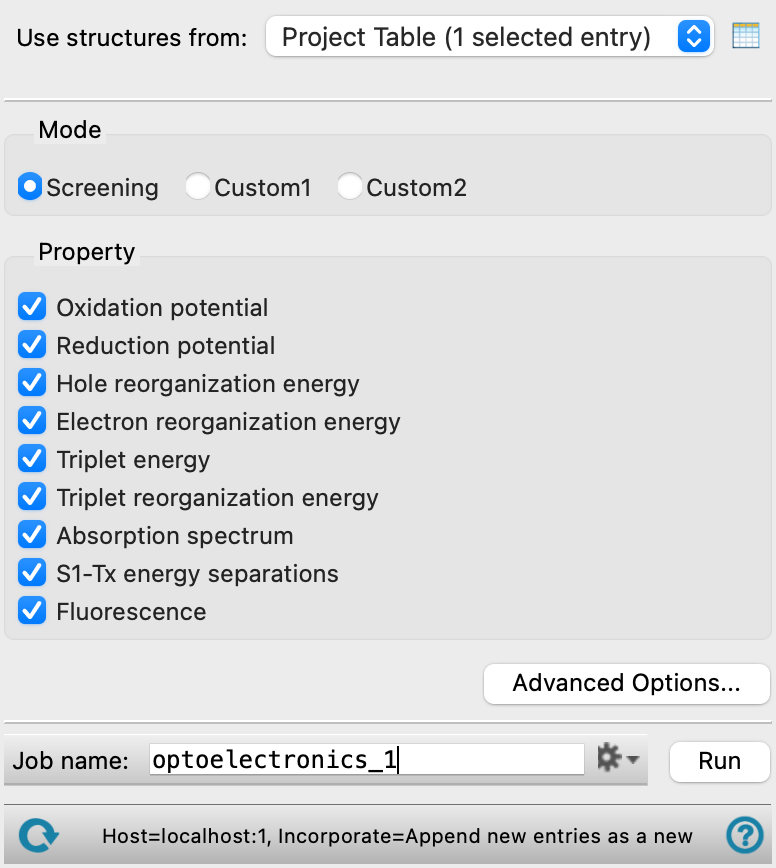
- Use structures from option menu
-
Choose the structure source for the current task.
- Project Table (selected entries)—Use the entries that are currently selected in the Project Table.
- Workspace (included entries)—Use the entries that are currently included in the Workspace, treated as separate structures.
- File—Use the specified file. When this option is selected, the File name text box and Browse button are displayed.
- File name text box and Browse button
-
Enter the file name in this text box, or click Browse and navigate to the file. The name of the file you selected is displayed in the text box.
- Mode options
-
Select an option for the type of calculation that is done. The first option, Screening is a rapid calculation based on a well-parametrized model for the redox potentials and triplet energy using a small basis set, and is suitable for screening a larger number of molecules. The other two options (Custom1 and Custom2) allow you to customize the calculations to your own specifications. See the Optoelectronics - Advanced Options Dialog Box topic for more information.
- Property options
-
Select the properties that you want to calculate. By default, all of them are selected. The properties are:
- Oxidation potential
- Reduction potential
- Hole reorganization energy
- Electron reorganization energy
- Triplet energy
- Triplet reorganization energy
- Absorption spectrum
- S1-Tx energy separations
- Fluorescence
See Optoelectronics Properties for a description of these properties.
- Advanced Options button
-
Open the Optoelectronics - Advanced Options Dialog Box, to make settings for the method of calculating the oxidation and reduction potentials, the triplet energy, and the QM methods used. Settings can be made for each of the three calculation modes: Screening, Custom1, and Custom2.
- Job toolbar
-
Manage job submission and settings. See Job Toolbar for a description of this toolbar.
The Job Settings button opens the Optoelectronics Calculations - Job Settings Dialog Box, where you can make settings for running the job.
- Status bar
-
The status bar displays information about the current job settings and status for the panel. The settings includes the job name, task name and task settings (if any), number of subjobs (if any) and the host name and job incorporation setting. The job status can include messages about job start, job completion and incorporation.
Use the Reset button
 to reset the panel to its default settings and clear any data from the panel.
 The status bar also contains the Help button
 , which opens the help topic for the panel in your browser. If the panel is used by one or more tutorials, hovering over the Help button displays a
  button, which you can click to display a list of tutorials (or you can right-click the Help button instead). Choosing a tutorial opens the tutorial topic.