Organometallic Conformational Search Panel
Perform a conformational search on an organometallic complex with the coordination around the metal held fixed, using MacroModel, with optional QM refinement.
To open this panel: click the Tasks button and browse to Materials → Quantum Mechanics → Workflows → Organometallic Conformational Search.
The following licenses are required to use this panel: MS Maestro, Jaguar, OPLS (optional), MacroModel
- Using
- Features
- Additional Resources
Using the Organometallic Conformational Search Panel
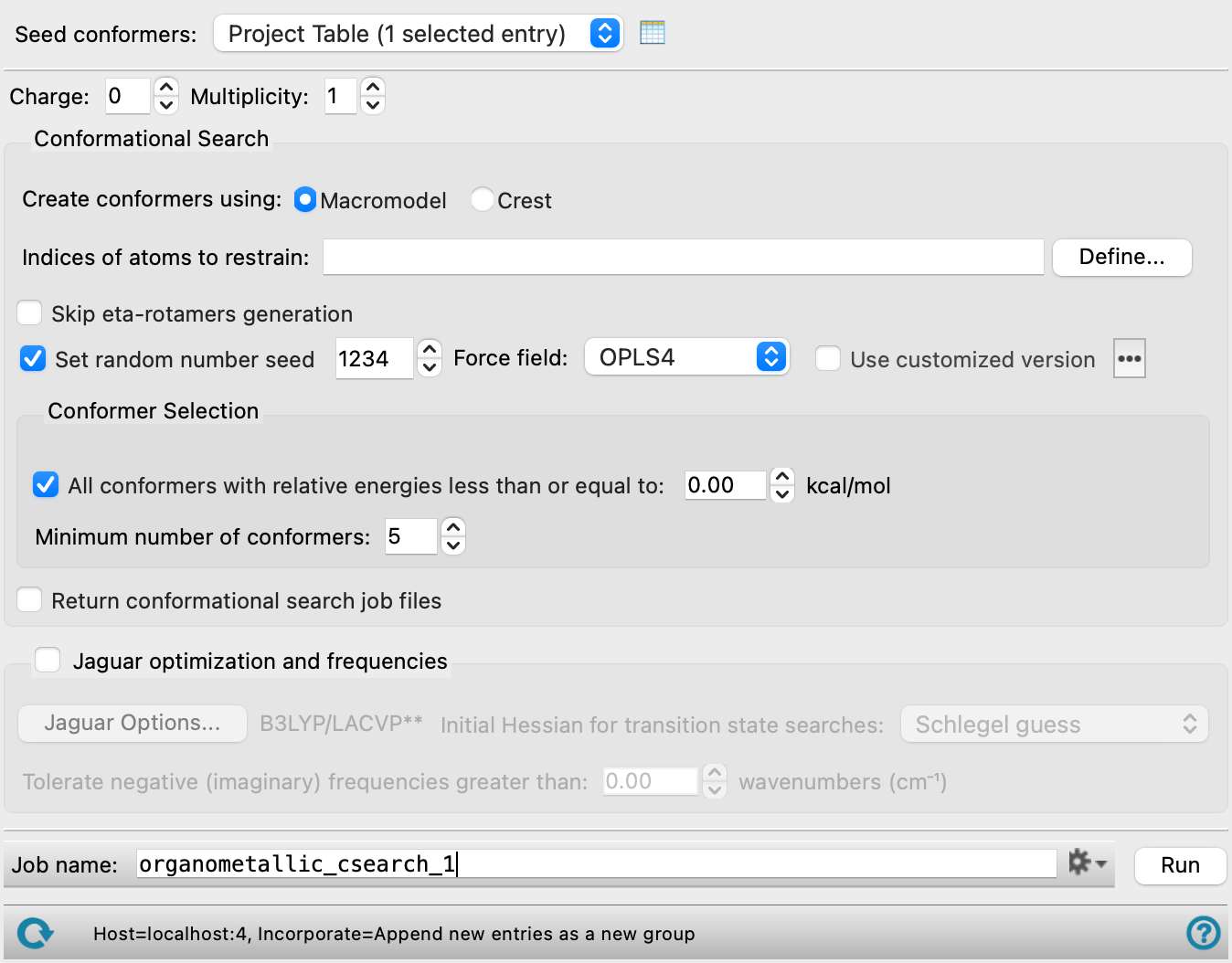
This panel allows you to perform a MacroModel conformational search on an organometallic complex with restraints to preserve the coordination to the metal, and elimination of redundant conformers. The restraints are necessary because force fields for metals are mostly not available and are based on simple ionic interactions: they do not account for things like eta bonding. The panel can be used for all sorts of ligand bonding to metals. After performing a conformational search, you can run a Jaguar optimization on each conformer to obtain minimum-energy structures. Sometimes the QM optimization with Jaguar on distinct MM-generated conformers results in redundant structures. You should examine them before further use. You can eliminate redundant structures automatically on the basis of energies and structure with the Redundant Conformer Elimination Panel.
The complexes can be generated from any source. Some of the tools available for building complexes are the Single Complex Builder Panel, the Build Multiple Complexes Panel, and the Complex Enumeration and Stability Analysis Panel.
To write out the input file and a script for running the job from the command line, click the arrow next to the Settings button  and choose Write.
Organometallic Conformational Search Panel Features
- Seed conformers option menu
- Open Project Table button
- File name text box and Browse button
- Charge text box
- Multiplicity text box
- Conformational Search section
- Seed conformers option menu
-
Choose the structure source for the conformers to use as seeds in the conformational search.
- Project Table (n selected entries)—Use the entries that are currently selected in the Project Table or Entry List. The number of entries selected is shown on the menu item.
- Workspace (included entry)—Use the entry that is currently included in the Workspace. Only one entry must be included in the Workspace.
- File—Use the specified file. When this option is selected, the File name text box and Browse button are displayed.
- Project Table (n selected entries)—Use the entries that are currently selected in the Project Table or Entry List. The number of entries selected is shown on the menu item.
- Open Project Table button
-
Open the Project Table panel, so you can

- File name text box and Browse button
-
Enter the file name in this text box, or click Browse and navigate to the file. The name of the file you selected is displayed in the text box. The file should contain conformers of an organometallic complex.
- Charge text box
-
Specify the total charge on the complex.
- Multiplicity text box
-
The label and meaning of this input field changes dynamically based on the selection in the Create Conformers using option. When Macromodel is selected, the label shown is Multiplicity. Specify the spin multiplicity of the complex. When Crest is selected, the label shown is Number of unpaired electrons.
- Conformational Search section
-
Specify parameters for the conformational search. The search is performed with MacroModel, using restraints on the metal and any other designated atoms, and eliminating redundant conformers.
- Create conformers using options
-
Choose the tool to use for generating conformers.
-
MacroModel—Use MacroModel to perform a Monte Carlo Multiple Minimum (MCMM) search with 100 steps and the requested minimum or maximum number of structures, using the selected force field. Conformers are ordered by energy, and the thresholds on the number of structures and the energy are applied to this list. Structures within 0.1 Å RMSD of each other are considered the same conformer.
-
Crest—Use the Conformer-Rotamer Ensemble Sampling Tool to perform very efficient conformational space sampling based on metadynamics MD with the GFN2-xTB quantum mechanical method.
The options below are only available if MacroModel was chosen for conformational search.
-
- Indices of atoms to restrain text box and Define button
-
Specify the indices (atom numbers) of the atoms to restrain during the conformational search. Atom numbers are shown when the pointer is over an atom in the Workspace, and you can label atoms with atom numbers. Click the Define button to open the Atom Selection Dialog Box to select the atoms to restrain, or enter the atom numbers directly in the text box.
- Skip eta-rotamer generation option
-
Do not generate rotamers for eta-bonded ligands.
- Set random number seed option and text box
-
Select this option to specify a random seed for the conformational search. Specifying the seed allows you to reproduce the results, unless other factors affect them. If this option is not selected, a seed is chosen at random. The value must be between 1 and 78593, inclusive.
- Force field option menu
-
Choose the force field for the conformational search.
- Use customized version option
-
Use your customized version of the OPLS4 force field, rather than the standard version in the distribution.
If the customized version is missing or invalid, the text of this option turns orange and an orange warning icon is displayed to the right, with a tooltip about the problem.
- Parameter set button
-
Select the set of custom parameters for the OPLS4 force field. Opens the Set Custom Parameters Location Dialog Box.
- All conformers with relative energies less than or equal to option and text box
-
Restrict the conformers returned to those with an energy within the specified cutoff relative to the lowest-energy conformer.
This option also controls whether you can request to return a minimum number of conformers (if it is set) or a maximum number of conformers (if not set)—see the options below.
- Minimum number of conformers text box
-
Specify the minimum number of conformers to return if conformers are filtered by energy using the All conformers with relative energies less than or equal to option. If there are fewer conformers returned from the filter, conformers that did not pass the energy filter are added in order of energy until the minimum number is reached.
- Jaguar optimization and frequencies option and section
-
Select this option to refine the conformers with a Jaguar geometry optimization and frequency calculation. These calculations can take hours to run.
- Options button
-
Set Jaguar options for the conformer refinement. Opens the Jaguar Options - Organometallic Conformational Search Dialog Box. This dialog box also allows you to specify additional Jaguar keywords. The solvent (if any), level of theory, and basis set are shown to the right of the button.
- Tolerate negative (imaginary) frequencies greater than W wavenumbers text box
-
Consider structures to be at a minimum if they have negative values of the frequency that are above the negative-valued cutoff given in the text box. (The negative values of the frequency are a convenient way of representing the imaginary values in terms of a real number: these represent negative eigenvalues of the mass-weighted Hessian.)
- Initial Hessian for transition state searches textbox
-
Specify the Hessian used in transition state searches from the following:
-
- Schlegal guess
- Fischer-Almolf guess
- Unit Hessian
- Quantum-mechanical
- GFN2-xTB
- Job toolbar
-
Manage job submission and settings. See Job Toolbar for a description of this toolbar.
The Job Settings button opens the Organometallic Conformational Search - Job Settings Dialog Box, where you can make settings for running the job.
- Status bar
-
 to reset the panel to its default settings and clear any data from the panel.
If you can submit a job from the panel, the status bar displays information about the current job settings and status for the panel. The settings include the job name, task name and task settings (if any), number of subjobs (if any) and the host name and job incorporation setting. The job status can include messages about job start, job completion and incorporation.
The status bar also contains the Help button
 , which opens an option menu with choices to open the help topic for the panel (Documentation), launch Maestro Assistant, or if available, choose from an option menu of Tutorials. If the panel is used by one or more tutorials, hover over the Tutorials option to display a list of tutorials. Choosing a tutorial opens the tutorial topic.