Thin Plane Shear Panel
Simulate Couette flow by using non-equilibrium molecular dynamics to shear a system confined between two planes moving at constant velocity. Calculate the shear viscosity and friction coefficient of the system.
To display this panel: click the Tasks button and browse to Materials → Classical Mechanics → Thin Plane Shear → Thin Plane Shear Calculations
The following licenses are required to use this panel: MS Maestro, MS Transport, Desmond, OPLS (optional), MS Force Field Applications (optional)
- Using
- Features
- Additional Resources
Using the Thin Plane Shear Panel
In this panel, you can set up and run non-equilibrium molecular dynamics to shear a system confined between two planes moving at constant velocity to simulate Couette flow.
A common configuration used in viscometry is that of fluid flow between two parallel plates of area  , separated in the z-direction by distance
  . When one or both plates are set in motion at constant velocity in the x-direction (
 ), shear forces at the plate/fluid interface transfer momentum to the fluid. Newton suggested the following equation to describe the force required to maintain the motion of the plate(s):

|
(1) |
Where  is the shear stress, which describes the drag force in the x-direction (
 ) on a unit area (
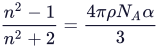 ) perpendicular to the z-direction, and
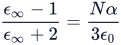
 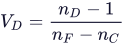 is a proportionality constant known as the viscosity. Fluids for which this relationship holds are called Newtonian fluids. At steady state, we can assume a linear velocity profile (
 ) and describe viscosity as:
|
(2) |
We can also use the drag force to compute the coefficient of friction by dividing the drag force by the force normal to the shearing plane, 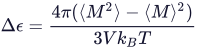 :
:

|
(3) |
To enforce a constant velocity, biasing forces are applied to the outermost layers, or slabs, of an input configuration. The force which opposes the motion of these slabs is directly measured. This workflow is suitable for studying homogeneous systems as well as complex mixtures. While viscosity and coefficient of friction are the two main quantitative outputs, there is also considerable value in visualizing the behavior of solutions under shear.
The input structure must be an all-atom or coarse-grained Desmond model system (.cms). The system should consist of two slabs separated by a bulk fluid. It is important that the system contains enough vacuum in the z-direction to prevent the two slabs from clashing in periodic images.
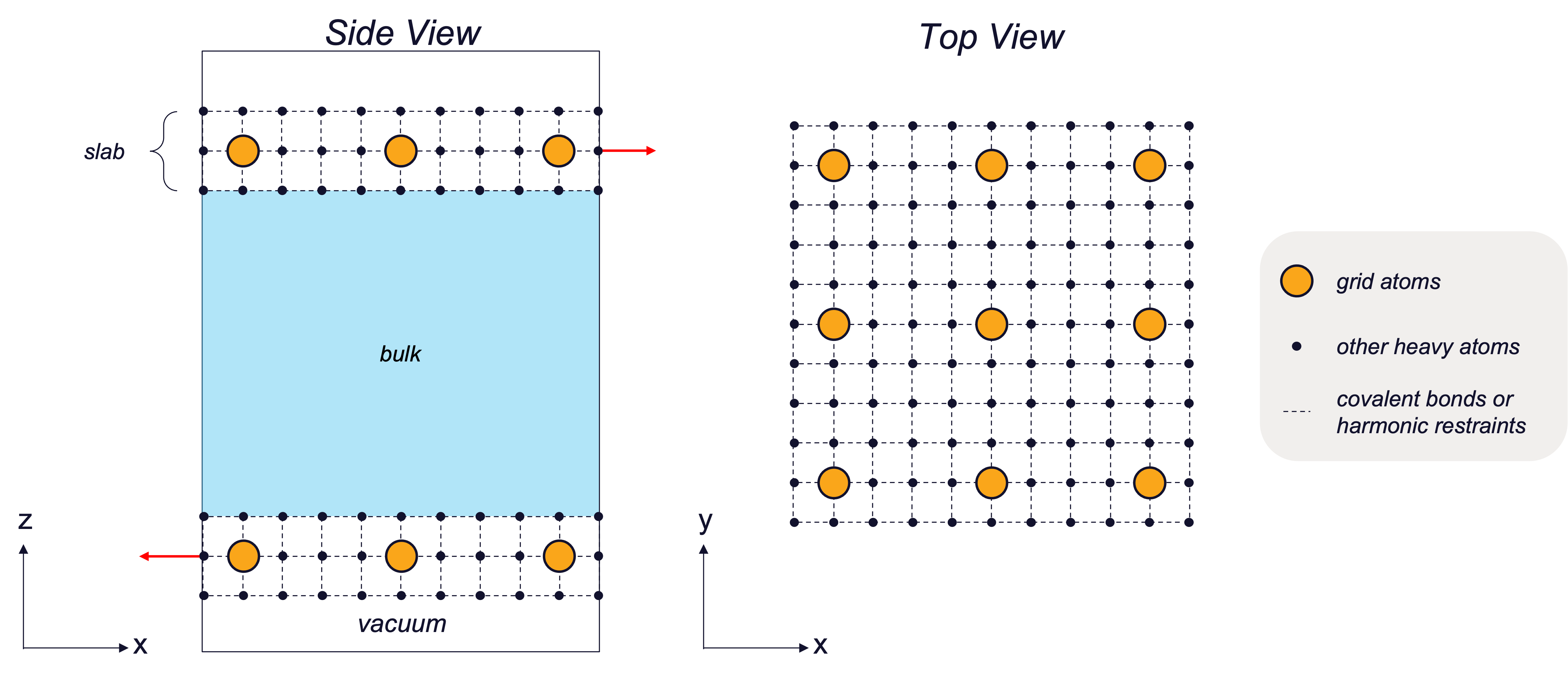
When shearing a system, the top and bottom most layers of the system are pulled in opposite directions. In the panel, slabs are selected using the Plane selection section. Nine atoms are chosen automatically from the slab selection to use as the grid atoms. The shearing force is applied to the grid atoms in the x-direction and the other atoms in the slab are forced to follow via harmonic restraints. The viscosity and friction coefficient are calculated from the drag force of the shear. This workflow is best applied to higher viscosity fluids and mixtures.
If your main objective is only to compute viscosity of a homogeneous system whose viscosity is expect to be low (≲100 mPa-s), it may be more accurate to use an equilibrium molecular dynamics (MD) method in the Viscosity Panel instead.
To visualize the results, you can use the Thin Plane Shear Viewer Panel (click the Tasks button and browse to Materials → Classical Mechanics → Thin Plane Shear).
To write out the input file and a script for running the job from the command line, click the arrow next to the Settings button  and choose Write.
Thin Plane Shear Panel Features
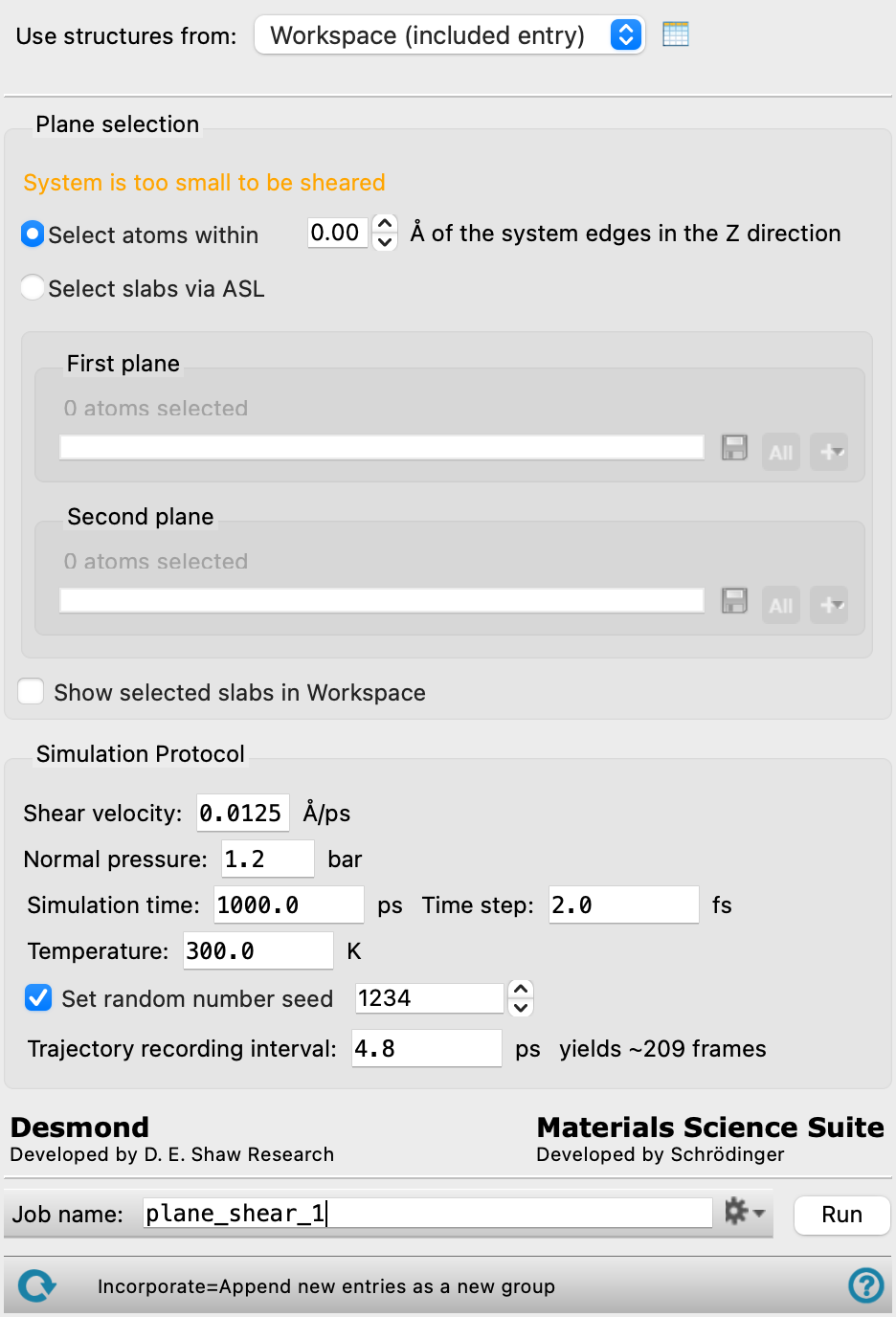
- Use structures from option menu
-
Choose the structure source for the current task.
- Workspace (included entries)—Use the entries that are currently included in the Workspace, treated as separate structures.
- File—Use the specified file. When this option is selected, the File name text box and Browse button are displayed.
- Open Project Table button
-
Open the Project Table panel, so you can

- File name text box and Browse button
-
Enter the file name in this text box, or click Browse and navigate to the file. The name of the file you selected is displayed in the text box.
- Plane selection section
-
Specify the atoms to select in the shearing slabs. If the selected slabs include more than one molecule, a harmonic restraint is applied between all slab heavy and non-hydrogen atoms and their neighbors (within 5.5 Å). These restraints persist in the output file (
-out.cms) after the calculation. There are two methods available:- Select atoms within N of the system edges in the Z direction option and text box
-
Select all atoms within the specified distance, in angstroms, on the edges of the cell in the Z direction. The grid atoms used in the simulations are calculated automatically from the slab selection.
- Select slabs via ASL option
-
Select the atoms on the edges of the cell in the Z direction using ASL. The grid atoms used in the simulations are calculated automatically from the slab selection.
- First plane ASL
-
Select the atoms for the first slab. This section contains a standard set of picking tools that you can use to select atoms.
- Second plane ASL
-
Select the atoms for the second slab. This section contains a standard set of picking tools that you can use to select atoms.
- Show selected slabs in Workspace option
-
Display the shearing slabs and the grid atoms in the Workspace. The non-hydrogen atoms of the shearing slabs are colored in purple and the grid atoms are shown as large spheres, colored in green, with arrows showing the direction of the shear velocity (x-direction). See the Using tab for more information on how the shearing slabs and grid atoms are used in the simulations.
- Simulation Protocol section
-
Specify parameters for the shearing simulations. The molecular dynamics simulation is run in the NVT ensemble.
- Shear velocity text box
-
Specify the velocity magnitude, in Å/ps, of planes in the shear direction (x-direction) for the simulation. Top and bottom slabs have equal velocity magnitudes but opposite directions, resulting in a net relative velocity of twice this value. Note that 1 Å/ps is equivalent to 100 m/s.
- Normal pressure text box
-
Specify the pressure, in bar, to apply normal to the shearing planes for the simulation.
- Simulation time text box
-
Specify the desired simulation time in ps.
- Time step text box
-
Specify the time step for the simulation in fs.
- Temperature text box
-
Specify the temperature to be used, in kelvin.
- Set random number seed option and text box
-
Select this option to specify a random seed to be used in the simulations. Specifying the seed allows you to reproduce the results, unless other factors affect them. If this option is not selected, a seed is chosen at random.
- Trajectory recording interval text box
-
Set the recording interval for saving points on the trajectory, in ps. This is the amount of time between frames in the trajectory. The entered value is rounded to an integer multiple of the far time step size. The resultant number of records to be written is reported to the right.
- Enable velocity profile option
-
Select this option to enable velocity profile analysis in the results viewer. When enabled, anti-drift barrier potentials are applied during the simulation to prevent system drift in the direction orthogonal to the shear plane, allowing a more accurate velocity profile to be computed. The velocity profile results can be viewed in the Velocity Profile tab of the Thin Plane Shear Viewer Panel.
- Job toolbar
-
Manage job submission and settings. See Job Toolbar for a description of this toolbar.
The Job Settings button opens the Thin Plane Shear - Job Settings Dialog Box, where you can make settings for running the job.
- Status bar
-
 to reset the panel to its default settings and clear any data from the panel.
If you can submit a job from the panel, the status bar displays information about the current job settings and status for the panel. The settings include the job name, task name and task settings (if any), number of subjobs (if any) and the host name and job incorporation setting. The job status can include messages about job start, job completion and incorporation.
The status bar also contains the Help button
 , which opens an option menu with choices to open the help topic for the panel (Documentation), launch Maestro Assistant, or if available, choose from an option menu of Tutorials. If the panel is used by one or more tutorials, hover over the Tutorials option to display a list of tutorials. Choosing a tutorial opens the tutorial topic.