Coarse-Grained Backmapping Panel
Backmap a coarse-grained structure to an all-atom representation and refine the structure using constrained molecular dynamics.
To display this panel: click the Tasks button and browse to Materials → Classical Mechanics → Coarse Grain Models → Coarse-Grained Backmapping
The following licenses are required to use this panel: MS Maestro, MS CG, Desmond
- Overview
- Using
- Features
- Additional Resources
Overview of Coarse-Grained Backmapping
Coarse-grained (CG) backmapping converts a CG particulated system back to a fully atomistic (all-atom) representation. This is useful when a CG simulation reveals configurations of interest that require study at higher resolution, or when CG results need to be validated against all-atom models.
The backmapping workflow reconstructs all-atom coordinates from CG particle positions, resolves structural artifacts such as ring spears, and refines the structure through constrained molecular dynamics relaxation. The constrained MD relaxation is run for 10 ns. If the structure contains stereocenters, the workflow also enforces the original stereochemistry.
Using the Coarse-Grained Backmapping Panel
To backmap a coarse-grained (CG) structure:
-
Include a periodic CG structure in the Workspace. The structure must have been generated using a Schrödinger CG mapping workflow to include the backmapping information needed to reconstruct the all-atom structure.
-
Select a force field for the all-atom system.
-
Choose job settings and run the job.
The output is a relaxed all-atom structure in CMS format. If stereocenters are present in the backmapped structure, an additional refinement step is performed to enforce the original stereochemistry.
To write out the input file and a script for running the job from the command line, click the arrow next to the Settings button  and choose Write.
Coarse-Grained Backmapping Panel Features
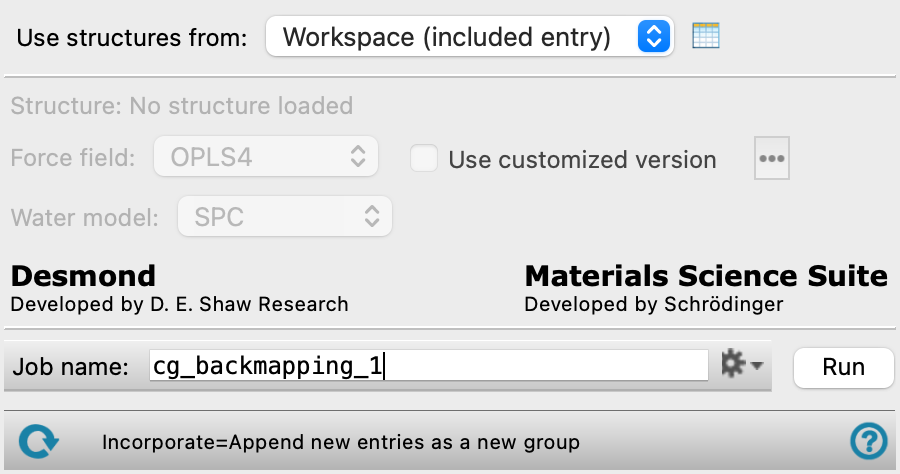
- Use structures from option menu
-
Choose the structure source for the current task.
- Workspace (included entry)—Use the entry that is currently included in the Workspace. Only one entry must be included in the Workspace.
- Workspace (included entry)—Use the entry that is currently included in the Workspace. Only one entry must be included in the Workspace.
- Open Project Table button
-
Open the Project Table panel, so you can

- Force field option menu
-
Choose the force field for backmapping.
- Use customized version option
-
Use your customized version of the OPLS4 force field, rather than the standard version in the distribution.
If the customized version is missing or invalid, the text of this option turns orange and an orange warning icon is displayed to the right, with a tooltip about the problem.
- Parameter set button
-
Select the set of custom parameters for the OPLS4 force field. Opens the Set Custom Parameters Location Dialog Box.
- Water model option menu
-
If water is one of the components of the system, choose the water model for the simulations. The water models available on the menu depend on the force field. For OPLS4, the models are SPC, SPCE, TIP3P, TIP4P, TIP4P2005, TIP4PEW, TIP5P, TIP4PD. For OPLS_2005, only the SPC, TIP3P, and TIP4P models are available. If the water model is already assigned, choose Current to retain this model.
- Job toolbar
-
Manage job submission and settings. See Job Toolbar for a description of this toolbar.
The Job Settings button opens the Coarse-Grained Backmapping - Job Settings Dialog Box, where you can make settings for running the job.
- Status bar
-
 to reset the panel to its default settings and clear any data from the panel.
If you can submit a job from the panel, the status bar displays information about the current job settings and status for the panel. The settings include the job name, task name and task settings (if any), number of subjobs (if any) and the host name and job incorporation setting. The job status can include messages about job start, job completion and incorporation.
The status bar also contains the Help button
 , which opens an option menu with choices to open the help topic for the panel (Documentation), launch Maestro Assistant, or if available, choose from an option menu of Tutorials. If the panel is used by one or more tutorials, hover over the Tutorials option to display a list of tutorials. Choosing a tutorial opens the tutorial topic.