Desorption Enumeration Panel
Build candidate geometries for all combinations of desorption of a set of molecules from a set of functionalized surfaces.
To display this panel: click the Tasks button and browse to Materials → Enumeration → Desorption
The following licenses are required to use this panel: MS Maestro, MS Surface
- Using
- Features
- Additional Resources
Using the Desorption Enumeration Panel
The purpose of this panel is to prepare structures that can be used as inputs for calculating desorption energies. The input is a gas molecule and a functionalized surface. The panel checks whether the gas molecule is present in the functionalized surface as a molecular adsorbate or as fragments that can form that molecule. If it is, then the adsorbate structure is tagged so that the structure after desorption is defined. If the adsorbate is present at multiple locations on the surface, then the enumeration generates multiple structures tagged in the corresponding ways. The panel also accommodates multiple adsorbates and/or multiple gas molecules, each time considering desorption of one gas (if present) from one surface. In the output structure, the tagged gas molecule and the corresponding reactive atom on the substrate are displayed in the ball-and-stick representation. No structural relaxation is carried out. The tagged adsorbate structures can be used as initial geometries for further calculations, such as periodic DFT optimizations with Quantum ESPRESSO, or calculation of the desorption energies with the Adsorption Energy Calculations Panel, where the tagged adsorbate is recognized as input.
Both the gas molecule(s) and the adsorbate(s) must exist as entries in the project first, having been previously imported, built or computed. You can then select one or more adsorbate structures in the Project Table (or include them in the Workspace), and load them into the panel, then select or include one or more gas molecules and load them into the panel. The panel does not allow the list of individual structures to be edited; instead you can replace the list with a new selection from the Project Table.
Adsorbates can be periodic systems such as surfaces from the Enumerate Adsorbates Panel or Nudged Elastic Band Calculations Panel. The output of the enumeration is periodic and is incorporated into the project as an entry group. This group is valid input for the Adsorption Energy Calculations Panel.
To write out the input file and a script for running the job from the command line, click the arrow next to the Settings button  and choose Write.
Desorption Enumeration Panel Features
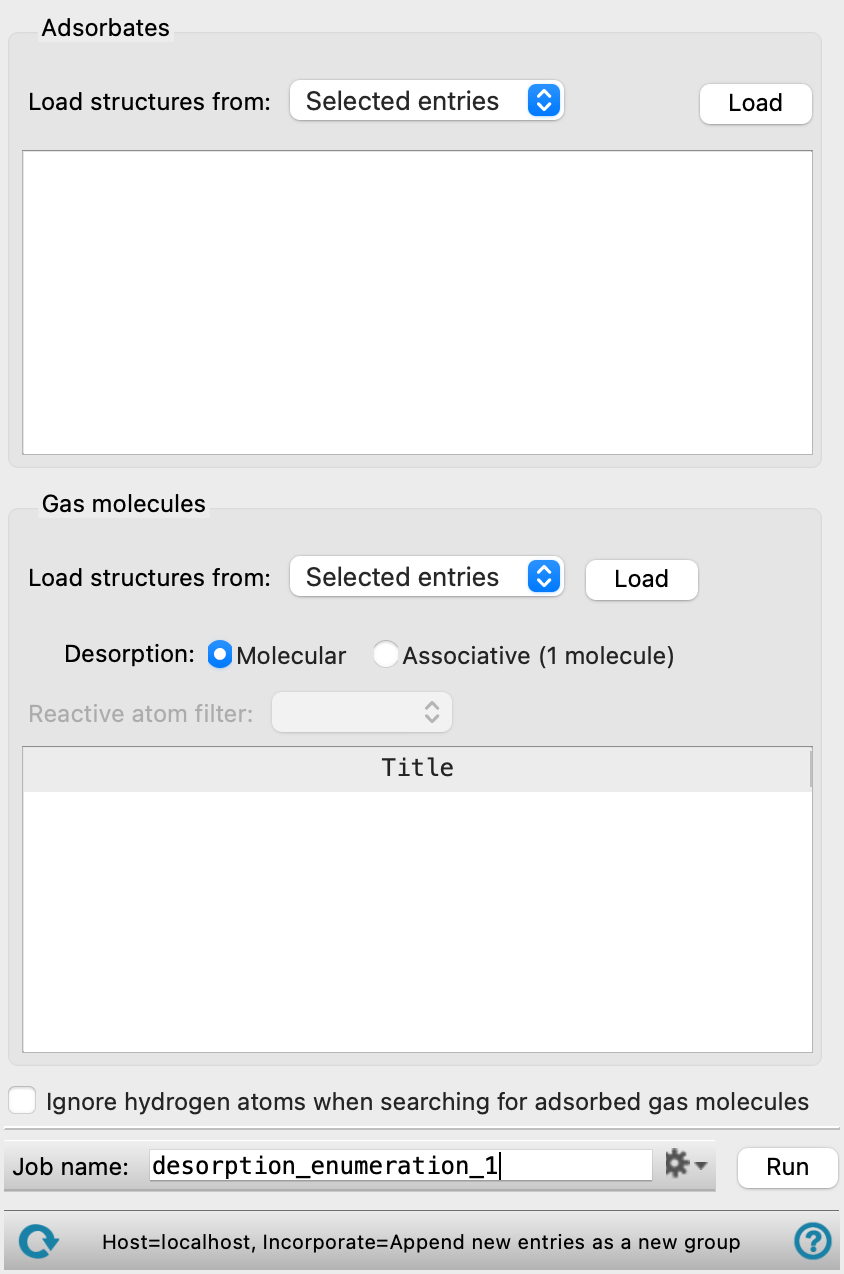
- Adsorbates section
-
In this section, you load the adsorbates. Each imported adsorbate structure is searched for the presence of each gas molecule to desorb. Adsorbates can be periodic structures, such as a structure prepared with the Enumerate Adsorbates Panel or Nudged Elastic Band Calculations Panel.
- Load structures from option menu and Load button
-
Select the source for the structures, from Selected entries or Included entries. Click the Load button to load these structures into the workflow. The structures replace any existing structures.
- Structure list
-
The structures are listed here, identified by title. Click on a structure to include it in the Workspace.
- Gas molecules section
-
In this section you load the gas molecules to desorb from the adsorbate surface. There are no restrictions on the molecule; if it has periodic boundary conditions these are ignored. Each imported gas molecule is searched against each imported adsorbate structure.
- Load structures from option menu and Load button
-
For the Molecular option, select the source for the structures, from Selected entries or Included entries. For the Associative option, select the source for the structures, from Selected entry or Included entry. Click the Load button to load the(se) structure(s) into the workflow. The structures replace any existing structures.
- Desorption options
-
- Molecular option
-
Select this option to perform molecular desorption with the specified gas molecule(s). Multiple gas molecules can be specified for enumeration.
- Associative option
-
Select this option to perform associative desorption with the specified gas molecule. Only one molecule can be specified for associative desorption. The fragments for the molecule are based around the selected reactive atom.
- Reactive atom filter option menu
-
Select classes of atoms to use as a filter for the automatic selection of reactive atoms. The menu items include Any, Heavy atoms, Metals, Non-metals, the elements in the structure, SMARTS, for more complex restrictions, and Atom index. The default is Any, meaning no restriction on the atom chosen. If you choose SMARTS or Atom index, a text box is displayed for entering the SMARTS pattern/ index value.
-
Only available when Associative is selected as the Desorption option.
- Structure table
-
The structures are listed in this table, identified by title. For Associative desorption, the reactive atom is identified by element and atom number in the Reactive Atom column. By default, the column is automatically populated based on the selection in the Reactive atom filter option menu. You can manually pick the reactive atom from the Workspace by clicking the Pick in WS button in the Pick Atom column, and picking an atom in the structure in the Workspace.
- Ignore hydrogen atoms when searching for adsorbed gas molecules option
-
Select this option to ignore hydrogen atoms when searching adsorbate structures for adsorbed gas molecules. This can dramatically reduce the search time for gas molecules with many symmetrically identical hydrogen atoms. However, this option is not recommended for structures that adsorb through hydrogen atoms.
- Job toolbar
-
Manage job submission and settings. See Job Toolbar for a description of this toolbar.
The Job Settings button opens the Desorption Enumeration - Job Settings Dialog Box, where you can make settings for running the job.
- Status bar
-
 to reset the panel to its default settings and clear any data from the panel.
If you can submit a job from the panel, the status bar displays information about the current job settings and status for the panel. The settings include the job name, task name and task settings (if any), number of subjobs (if any) and the host name and job incorporation setting. The job status can include messages about job start, job completion and incorporation.
The status bar also contains the Help button
 , which opens an option menu with choices to open the help topic for the panel (Documentation), launch Maestro Assistant, or if available, choose from an option menu of Tutorials. If the panel is used by one or more tutorials, hover over the Tutorials option to display a list of tutorials. Choosing a tutorial opens the tutorial topic.