MD Descriptors Panel
Calculate descriptors for molecular structures using molecular dynamics simulations, which can then be used in machine learning.
To display this panel: click the Tasks button and browse to Materials → Informatics → Molecular Dynamics
The following licenses are required to use this panel: MS Maestro, MS Informatics, OPLS (optional), MS Force Field Applications (optional), Desmond
- Using
- Features
- Additional Resources
Using the MD Descriptors Panel
This panel utilizes molecular dynamics (MD) simulations to generate descriptors that capture intermolecular interactions. These MD descriptors can be integrated into machine learning (ML) models to predict properties like viscosity, melting point, and glass transition temperatures, which rely heavily on these interactions. By supplementing traditional cheminformatics descriptors with MD descriptors from this panel, the accuracy of ML models can be significantly enhanced, particularly in cases involving small datasets.
The MD Descriptors panel accepts pure materials and formulations as inputs. Pure materials are defined as molecular compounds. See the Use pure materials from option and option menu description for more information on inputting pure materials. Formulations are defined as a mixture of multiple chemical species with a composition ratio for each component. Formulations must be input as a CSV file containing structural and composition information about the formulations. For each formulation, a single entry is added to the Project Table containing one structure of each component of the formulation for visualization. These entries have secondary properties containing the names of the components (Component n) and the composition ratio (Composition Weight %).
The CSV file for formulations must adhere to a specific format with headers that are compatible with the panel. These headers must include identification for each formulation (ID), the structures of the components in SMILES format (SMILES_n) or paths to the files containing the component structure (STRUCTURE_FILE_n), and their relative compositions in percentages (comp_n). Optionally the names of all components separated by the pipe ("|") character in the same order as the SMILES_n columns (label) and the total number of components in the formulation (num_components) can be specified. If the label and num_components are not specified, they are assumed based on the provided SMILES strings. If any SMILES_n field is left empty, that component should not be included in the total num_components. The compositions (comp_n) must sum up to 100% for each formulation.
For example, a system of up to 3 components should have 3 columns for SMILES strings or structure files, and compositions. The headers for such a CSV file are:
ID,SMILES_0,SMILES_1,SMILES_2,STRUCTURE_FILE_0,STRUCTURE_FILE_1,STRUCTURE_FILE_2,comp_0,comp_1,comp_2,label,num_components
An example data set could be formatted as follows:
ID,SMILES_0,SMILES_1,SMILES_2,STRUCTURE_FILE_0,STRUCTURE_FILE_1,STRUCTURE_FILE_2,comp_0,comp_1,comp_2,label,num_components
0,,,,/path-to-file/trans-Cinnamaldehyde.mae,,,100.0,0.0,0.0,trans-Cinnamaldehyde,1
1,CC(=O)C(C)C,CCCCCCCOC(C)=O,,,,,50.0,50.0,0.0,3-Methyl-2-butanone|Heptyl acetate,2
2,CCOCCO,CC(C)NC(C)C,CCO,,,,33.3333,33.3333,33.3333,2-Ethoxyethanol|Diisopropylamine|Ethanol,3
A high-throughput, routine molecular dynamics simulation is run on each pure material or each formulation. The protocol includes automated construction of amorphous simulation cells of approximately the specified number of atoms, equilibration, and tabulation of descriptors. The descriptors are generated through analyzing the final stage of the molecular dynamics simulation and running free volume, radial distribution function, and structure factor calculations. For more details about the construction of the amorphous cell or the following molecular dynamics simulations, please see Table 1 and Ref. 57.
 Table 1: Simulation Protocol
Table 1 provides details for the simulation protocol run on each structure in this panel. user_defined_p and user_defined_t are place holders for the values entered in the Pressure and Temperature text boxes, respectively.
| Stage Number | Stage Type | Simulation Details | Time Step (fs) | Pressure (bar) | Temperature (K) | |||||
| 01 | Brownian Dynamics | 0.15 ns/NVT | 1.00 | 10 | ||||||
| 02 | Molecular Dynamics | 0.50 ns/NVT | 1.00 | 300 | ||||||
| 03 | Molecular Dynamics | 0.50 ns/NVT | 1.00 | 500 | ||||||
| 04 | Molecular Dynamics | 1.00 ns/NPT | 1.00 | 1000 | 400 | |||||
| 05 | Molecular Dynamics | 2.00 ns/NPT | 2.00 | 1.01 | 300 | |||||
| 06 | Molecular Dynamics | 2.00 ns/NPT | 1.00 | user_defined_p | user_defined_t | |||||
| 07 | Molecular Dynamics | 10.00 ns/NPT | 2.00 | user_defined_p | user_defined_t | |||||
| 08 | Average Cell | average the last 20% of the previous step | ||||||||
| 09 | Molecular Dynamics | 20.00 ns/NVT | 2.00 | user_defined_t |
The output includes a Maestro file, which can be incorporated into the project, and a CSV file, with all calculated descriptors. It is possible that subjobs in the automated protocol, such as MD simulations, fail. If so, the structure(s) corresponding to the failure will not be incorporated when the calculation is complete.
There are two types of calculated descriptors, bulk and component. Bulk descriptors are computed over the entire formulation and are labeled according to Table 2. Component descriptors are computed separately for each component in the formulation, and then the average (ave), minimum (min), maximum (max), and standard deviation (std) are taken over all the components in the formulation and reported. For single component formulations the average, minimum, and maximum will all be equivalent. Pure materials are treated the same as single component formulations. For more details about the calculated descriptors, please see Table 2 and Ref. 57.
Table 2: Descriptors
| Name | Label | Type | Description | Units | ||||
| Packing density | r_matsci_Density_(g/cm^3) | Bulk | Calculated by taking the average cell size of the last 20% of a stage from the equilibration protocol which includes 10 ns NPT at Texp and pressure of 1 atm. | g/cm3 | ||||
| Percentage free volume | r_matsci_Free_Volume_% | Bulk | Extracted by taking the free volume percentage from the output of the production run, which includes 20 ns NVT at Texp and pressure of 1 atm. A grid point spacing of 0.25 Angstrom is used for the free volume calculation. | |||||
| Hansen solubility parameter | r_matsci_Solubility_Parameter_ |
Bulk | The total solubility parameter, also referred to as the Hildebrand solubility parameter. Please see Ref. 57 for the equation used to calculate the solubility parameter. ∆HV and VM is the molar volume. The values are averaged over the last 10 ns of the production NVT trajectory. | MPa(1/2) | ||||
| Hansen solubility parameter electrostatics | r_matsci_Solubility_Parameter_ |
Bulk | We also compute the electrostatic contributions to the Hansen solubility parameter. The values are averaged over the last 10 ns of the production NVT trajectory. | MPa(1/2) | ||||
| Hansen solubility parameter vdW | r_matsci_Solubility_Parameter_ |
Bulk | We also compute the van der Waals (vdW) contributions to the Hansen solubility parameter. The values are averaged over the last 10 ns of the production NVT trajectory. | MPa(1/2) | ||||
| Specific heat | r_matsci_Specific_Heat_(J/gK) | Bulk | Please see Ref. 59 for the equation used to calculate specific heat capacity. Here we calculate specific heat capacity at constant volume. E is the total energy, kB is the Boltzmann constant and T is the temperature held by a thermostat in the NVT simulation. | J/gK | ||||
| Heat of vaporization | r_matsci_Heat_of_Vaporization_ |
Bulk | Please see Ref. 57 for the equation used to calculate heat of vaporization. Heat of vaporization is calculated from the energy of the periodic unit cell (Ecell) minus the sum of the N individual molecules, Ei, averaged over the last 10 ns of production NVT trajectory. R is a gas constant with a value of 1.9872036 × 10⁻³ kcal K−1 mol−1, and Texp is the experimental temperature. | kcal/mol | ||||
| Radius of gyration of the molecule | r_matsci_Radius_of_Gyration_(A) | Component | Calculated by taking the average Rg of all molecules across all the snapshots in the last 10 ns of the production run, which is 100 snapshots in total. | Angstrom | ||||
| Root mean squared displacement (RMSD) | r_matsci_ml_rsmd | Component | Root mean squared displacement (RMSD) of the molecules. | Angstrom | ||||
| Order parameter (descriptor: moment of inertia, director: dipole) | r_matsci_ml_op_md | Component | Order parameter is determined considering moment of inertia of each molecule as descriptor relative to the dipole as director. The value is the average of order parameters computed over last 10 ns of the production simulation, i.e., 100 snapshots in total. | |||||
| Order parameter (descriptor: dipole, director: system dipole) | r_matsci_ml_op_ds | Component | Order parameter is determined considering dipole of each molecule as descriptor relative to the system dipole as director. The value is the average of order parameters computed over last 10 ns of the production simulation, i.e., 100 snapshots in total. | |||||
| Order parameter (descriptor: moment of inertia, director: system dipole) | r_matsci_ml_op_ms | Component | Order parameter is determined considering moment of inertia of each molecule as descriptor relative to the system dipole as director. The value is the average of order parameters computed over last 10 ns of the production simulation, i.e., 100 snapshots in total. | |||||
| RDF: r_max | r_matsci_ml_rmax_(A) | Component | From the calculated radial distribution function (RDF) of all the atoms (for the last 10 ns of the production run, i.e., 100 snapshots in total), obtain the radius at the first peak. | Angstrom | ||||
| RDF: gr_max | r_matsci_ml_grmax | Component | From the calculated RDF of all the atoms (for the last 10 ns of the production run, i.e., 100 snapshots in total), obtain the height of the first peak. | |||||
| RDF: r_width | r_matsci_ml_r_width_(A) | Component | From the calculated RDF of all the atoms (for the last 10 ns of the production run, i.e., 100 snapshots in total), obtain the width of the first peak. The width is computed as the difference between the two radial distances which are nearest to r_max and where the value of g(r) is 1/√2 times the height of the first peak. | Angstrom | ||||
| RDF: nr_width (r_width/r_max) | r_matsci_ml_nr_width | Component | From the calculated RDF of all the atoms (for the last 10 ns of the production run, i.e., 100 snapshots in total), obtain the width of the first peak and then normalize it with respect to r_max. | |||||
| RDF: int_lim (igr at limiting r) | r_matsci_ml_int_lim | Component | From the calculated RDF of all the atoms (for the last 10 ns of the production run, i.e., 100 snapshots in total), obtain it's integral and then determine the value of integral at the limiting value of radius (default is 12 Å). | |||||
| RDF: int_max (igr at r_max) | r_matsci_ml_int_max | Component | From the calculated RDF of all the atoms (for the last 10 ns of the production run, i.e., 100 snapshots in total), obtain it's integral and then determine the value of integral at the r_max. | |||||
| RDF: nr_int_lim (int_lim/r_max) | r_matsci_ml_nr_int_lim | Component | From the calculated RDF of all the atoms (for the last 10 ns of the production run, i.e., 100 snapshots in total), obtain it's integral and then determine the normalized value of limiting integral. The normalization factor is r_max. | |||||
| RDF: nr_int_max (int_max/r_max) | r_matsci_ml_nr_int_max | Component | From the calculated RDF of all the atoms (for the last 10 ns of the production run, i.e., 100 snapshots in total), obtain it's integral and then determine the normalized value of integral at r_max. The normalization factor is r_max. | |||||
| RDF: ng_int_lim (int_lim/gr_max) | r_matsci_ml_ng_int_lim | Component | From the calculated RDF of all the atoms (for the last 10 ns of the production run, i.e., 100 snapshots in total), obtain it's integral and then determine the normalized value of limiting integral. The normalization factor is g(r) at r_max. | |||||
| RDF: ng_int_max (int_max/gr_max) | r_matsci_ml_ng_int_max | Component | From the calculated RDF of all the atoms (for the last 10 ns of the production run, i.e., 100 snapshots in total), obtain it's integral and then determine the normalized value of integral at r_max. The normalization factor is g(r) at r_max. | |||||
| RDF: ni_int (int_lim/int_max) | r_matsci_ml_ni_int | Component | From the calculated RDF of all the atoms (for the last 10 ns of the production run, i.e., 100 snapshots in total), obtain it's integral and then determine the normalized value of limiting integral. The normalization factor is integral at r_max. | |||||
| Structure factor: q_max | r_matsci_ml_qmax | Component | From the calculated structure factor of all the atoms using the center of mass positions of molecules (for the last 10 ns of the production run, i.e., 100 snapshots in total), obtain the value of q at the first peak. | |||||
| Structure factor: sq_max | r_matsci_ml_sqmax | Component | From the calculated structure factor of all the atoms using the center of mass positions of molecules (for the last 10 ns of the production run, i.e., 100 snapshots in total), obtain the height of the first peak. | |||||
| Structure factor: q_width | r_matsci_ml_q_width | Component | From the calculated structure factor of all the atoms using the center of mass positions of molecules (for the last 10 ns of the production run, i.e., 100 snapshots in total), obtain the width of the first peak. The width is computed as the difference between the two values of q which are nearest to q_max and where the value of s(q) is 0.96 times the height of the first peak. | |||||
| Structure factor: nq_width (q_width/q_max) | r_matsci_ml_nq_width | Component | From the calculated structure factor of all the atoms using the center of mass positions of molecules (for the last 10 ns of the production run, i.e., 100 snapshots in total), obtain the normalized width of the first peak. The normalization factor is q_max. | |||||
| Angle energy | r_matsci_ml_self_ene_angle | Component | The total energy corresponding to all the angles present in the bonded atoms is evaluated for the last 10 ns of production MD (i.e., 100 snapshots in total) and then averaged. | kcal/mol | ||||
| Dihedral energy | r_matsci_ml_self_ene_dihedral | Component | The total energy corresponding to all the dihedrals present in the bonded atoms is evaluated for the last 10 ns of production MD (i.e., 100 snapshots in total) and then averaged. | kcal/mol | ||||
| Coulomb energy | r_matsci_ml_self_ene_elec | Component | The total energy corresponding to all the non-bonding electrostatic interactions is evaluated for the last 10 ns of production MD (i.e., 100 snapshots in total) and then averaged. | kcal/mol | ||||
| Bond energy | r_matsci_ml_self_ene_stretch | Component | The total energy corresponding to all the bonds present in the bonded atoms is evaluated for the last 10 ns of production MD (i.e., 100 snapshots in total) and then averaged. | kcal/mol | ||||
| van Der Waals energy | r_matsci_ml_self_ene_vdw | Component | The total energy corresponding to all the non-bonding van der Waals interactions is evaluated for the last 10 ns of production MD (i.e., 100 snapshots in total) and then averaged. | kcal/mol |
The descriptors generated from this panel can be used in building ML models with tools such as the Formulation Machine Learning Panel, AutoQSAR Panel, and DeepAutoQSAR Panel. When applying a ML model trained with MD based descriptors, ensure the descriptors for the test set are generated using the same simulation parameters as the training set.
To write out the input file and a script for running the job from the command line, click the arrow next to the Settings button  and choose Write.
MD Descriptors Panel Features
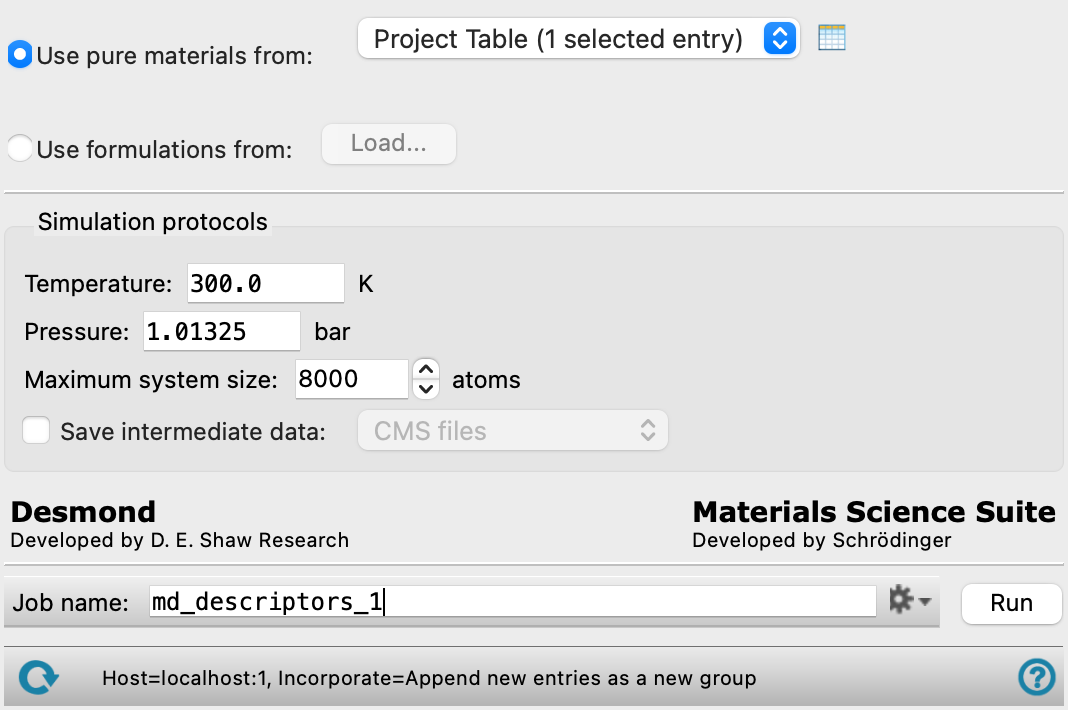
- Use pure materials from option and option menu
-
Choose the structure source for for generation of descriptors.
- Project Table (n selected entries)—Use the entries that are currently selected in the Project Table or Entry List. The number of entries selected is shown on the menu item.
- Workspace (n included entries)—Use the entries that are currently included in the Workspace, treated as separate structures. The number of entries in the Workspace is shown on the menu item.
- File—Use the specified file. When this option is selected, the File name text box and Browse button are displayed.
- Project Table (n selected entries)—Use the entries that are currently selected in the Project Table or Entry List. The number of entries selected is shown on the menu item.
- Open Project Table button
-
Open the Project Table panel, so you can

- File name text box and Browse button
-
Enter the file name in this text box, or click Browse and navigate to the file. The name of the file you selected is displayed in the text box.
- Use formulations from option and Load button
-
Select this option to calculate descriptors for a CSV file with formulations data. Click Load to open the Formulation Data File dialog box, where you can navigate to the file. The name of the file you selected is displayed to the right of the Load button. This CSV file is copied into the job directory as
jobname.csv. -
The CSV file for formulations must adhere to a specific format with headers that are compatible with the panel. These headers must include identification for each formulation (ID), the structures of the components in SMILES format (SMILES_n) or paths to the files containing the component structure (STRUCTURE_FILE_n), and their relative compositions in percentages (comp_n). Optionally the names of all components separated by the pipe ("|") character in the same order as the SMILES_n columns (label) and the total number of components in the formulation (num_components) can be specified. The compositions (comp_n) must sum up to 100% for each formulation.
For example, a system of up to 3 components should have 3 columns for SMILES strings or structure files, and compositions. The headers for such a CSV file are:
ID,SMILES_0,SMILES_1,SMILES_2,STRUCTURE_FILE_0,STRUCTURE_FILE_1,STRUCTURE_FILE_2,comp_0,comp_1,comp_2,label,num_components
See the Using the MD Descriptors Panel section for more information.
- Simulation protocols section
-
Specify options for the MD simulation.
- Temperature text box
-
Specify the temperature to be used, in kelvin.
- Pressure text box
-
Specify the pressure to be used, in bar.
- Maximum system size text box
-
Specify the maximum number of atoms to pack into the amorphous simulation cell. This is treated as a target value, the actual number of atoms may be less than the specified value to maintain the specified number of molecules or ratio of molecules.
- Save intermediate data option and menu
-
Select this option to save data from the Desmond MD simulations.
- CMS files—save the CMS files from each of the Desmond simulations. These are the files that contain the structure and force field information.
- CMS and trajectory—save the CMS files and the trajectories from each of the Desmond simulations. Note that trajectory files can be large and may take up a lot of disk space.
- Job toolbar
-
Manage job submission and settings. See Job Toolbar for a description of this toolbar.
The Job Settings button opens the MD Descriptors - Job Settings Dialog Box, where you can make settings for running the job.
- Status bar
-
 to reset the panel to its default settings and clear any data from the panel.
If you can submit a job from the panel, the status bar displays information about the current job settings and status for the panel. The settings include the job name, task name and task settings (if any), number of subjobs (if any) and the host name and job incorporation setting. The job status can include messages about job start, job completion and incorporation.
The status bar also contains the Help button
 , which opens an option menu with choices to open the help topic for the panel (Documentation), launch Maestro Assistant, or if available, choose from an option menu of Tutorials. If the panel is used by one or more tutorials, hover over the Tutorials option to display a list of tutorials. Choosing a tutorial opens the tutorial topic.