Optoelectronics Genetic Optimization Panel
Optimize one or more optoelectronic properties of a set of molecules using a genetic algorithm for modifying the structure.
To open this panel, click the Tasks button and browse to Materials → Quantum Mechanics → Optoelectronics → Genetic Optimization.
The following licenses are required to use this panel: MS Maestro, GA Optoelectronics, (Deep)AutoQSAR (optional), MacroModel (optional), Canvas (optional), Jaguar (optional), MS Informatics (optional)
- Using
- Features
- Additional Resources
Using the Optoelectronics Genetic Optimization Panel
The main purpose of this panel is to identify new structures for which a chosen set of optoelectronic properties is optimized by mutating the structures with a genetic algorithm. Each structure is considered an individual in a population, and is mutated by changing aspects of its chemistry into another structure. The goal is to generate a diverse set of structures that have the desired properties. In this sense, it is a discovery tool rather than an optimization tool. As well as the standard optimization, you can optimize the properties of monomer molecules, which can then be used to build a polymer. Restrictions are placed on the mutation of the monomers so that they retain their monomer character (designated end points).
You can visualize the results in the Optoelectronics Genetic Optimization Viewer Panel (click the Tasks button and browse to Materials → Quantum Mechanics → Optoelectronics → Genetic Optimization Monitoring). To open this panel from the entry group for the results of a job .
.
To write out the input file and a script for running the job from the command line, click the arrow next to the Settings button  and choose Write.
Optoelectronics Genetic Optimization Panel Features
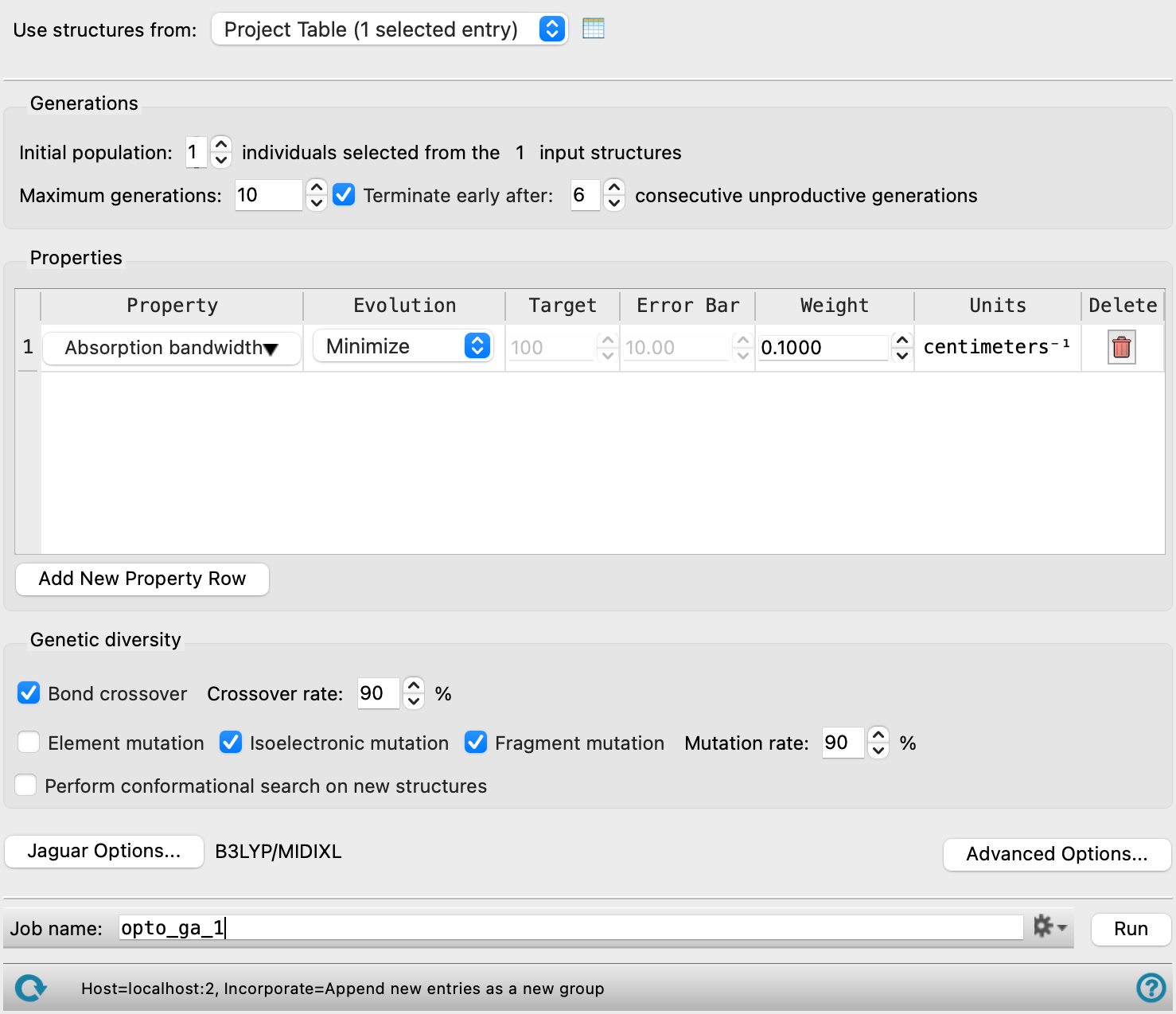
- Structure selection
-
Select the structures to be used in the genetic optimization of optoelectronic properties. As the goal of the optimization is to find new, diverse structures, the input structures should not be closely related (as in a congeneric series, for example).
You can optimize monomer structures that are intended for building of polymers. These can be generated from the Polymer Builder Panel, and can be actual monomers or oligomers (small chains). You can also use the Mark Monomer Head and Tail Panel to create monomers from ordinary molecules. As the end result of the optimization must be a set of monomer structures, you cannot include both monomers and ordinary molecules in the input structure set.
- Use structures from option menu
-
Choose the structure source for the genetic optimization.
- Project Table (n selected entries)—Use the entries that are currently selected in the Project Table or Entry List. The number of entries selected is shown on the menu item.
- File—Use the specified file. When this option is selected, the File name text box and Browse button are displayed.
- Project Table (n selected entries)—Use the entries that are currently selected in the Project Table or Entry List. The number of entries selected is shown on the menu item.
- Open Project Table button
-
Open the Project Table panel, so you can

- File name text box and Browse button
-
Enter the file name in this text box, or click Browse and navigate to the file. The name of the file you selected is displayed in the text box.
- Generations section
-
In this section you can specify the initial population and the number of generations.
- Initial population option
-
Specify the number of individuals (structures) to use from the set of input structures. The number must be less than or equal to the number of input structures. If it is less than the input number, a selection is made at random. The population (number of individuals) is maintained at each generation of the genetic optimization.
- Maximum generations text box
-
Specify the maximum number of generations, after which the optimization stops.
- Terminate early after N consecutive unproductive generations option and box
-
Stop the optimization if there is no improvement in the total score after the specified number of generations.
- Properties section
-
In this section you choose the properties to be optimized, and set optimization criteria. You can choose more than one property and specify a weight in the optimization. The properties include the usual optoelectronic properties calculated with the Optoelectronics Calculations Panel, various properties calculated using ML models in the Machine Learning Property Prediction Panel, and some structure-based properties (molecular weight, number of atoms, number of elements). You can also specify SMARTS patterns, for which the property is the number of occurrences of matches to a pattern in a structure.
- Property table
-
The properties that are optimized are specified by the rows in this table. Many of the columns have controls for making a choice or specifying a value.
Property Choose the property to optimize from the option menu in this column. Four groups of properties are available, QM, ML, Statistical, and Other. Common QM properties are calculated from the Optoelectronics Calculations Panel and ML properties from the Machine Learning Property Prediction Panel. In addition to the usual numerical properties, you can define multiple SMARTS-based properties, to optimize the occurrence of functional groups in the structure. You can also optimize properties derived from a kernel-based partial least-squares (KPLS) model for a training set of molecules. The glass transition temperature included as a built-in property, but you can define others by running a fingerprint-based Canvas KPLS model for the desired properties. See Custom Canvas KPLS Property Definition Dialog Box for more information. You can also optimize properties derived from AutoQSAR or DeepAutoQSAR models. See Custom AutoQSAR Property Definition Dialog Box or Custom DeepAutoQSAR Property Definition Dialog Box for more information. You can also define a custom property by providing a Python function that evaluates the property. See Custom Property Definition Dialog Box for more information. Evolution Choose the criterion on which the success of the mutation is assessed for the chosen property. Target Specify the target value for the property if the criterion is "greater than", "less than", or "equals". Error Bar Specify the allowed deviation from the target value if the criterion is "equals". Weight Specify the optimization weight for the property. You might want to use this value to compensate for different units or property ranges. Units This column shows the units of the property. Delete Use the button in this column to delete the property row. - Add New Property Row button
-
Add another property row to the table, to set up another property for optimization.
- Genetic diversity section
-
In this section, you can select the actions that are taken to diversify the population, creating new individuals.
- Bond crossover option
-
Swap fragments from two structures. An acyclic single bond that does not involve hydrogen is chosen at random in each structure, to create two fragments in each structure. One of the fragments in one structure is exchanged with one of the fragments in the other structure, to create two new structures.
If the input structures are monomers for polymer building, crossovers are only accepted if both resulting structures are properly marked monomers. For example, if the bonds in both structures are to side chains, only the side chains will be swapped.
- Crossover rate text box
-
Specify the crossover rate as a percentage, which defines the frequency of crossover events.
- Element mutation option
-
Mutate an element in the structure to another element in the same group of the periodic table, e.g. O to S. Hydrogen is mutated to a halogen.
- Isoelectronic mutation option
-
Mutate an element in the structure to another element in the same row of the periodic table, with addition or deletion of hydrogens to maintain the same number of electrons, e.g. NH to O or to CH2.
- Fragment mutation option
-
Replace a fragment on a structure with a fragment selected at random from the specified fragment libraries. The fragment that is replaced is one that has a single acyclic bond that is not to a hydrogen atom. To select fragment libraries, click Advanced Options, then in the dialog box that opens, click Choose Fragment Libraries.
- Mutation rate text box
-
Specify the mutation rate as a percentage, which defines the frequency of mutations.
- Perform conformational search on new structures option
-
Perform a conformational search with MacroModel on the new structures produced by genetic operations. The lowest-energy conformer is used for the property evaluation. If the conformational search fails, the new structure is used as is, and a property is added to the structure to indicate that the search failed.
Performing a conformational search is especially useful for structures coming from bond crossover and fragment mutation operations.
The conformational search parameters used are the defaults. If you want to customize the search, you can create a MacroModel simplified input file use it instead. Click Advanced Options, then in the dialog box that opens, click Load Custom Conformational Search Options to load the file.
- Options button
-
Set Jaguar options for the optimization of structures. Opens the Jaguar Options - Optoelectronics Genetic Optimization Dialog Box. This dialog box also allows you to specify additional Jaguar keywords. The solvent (if any), level of theory, and basis set are shown to the right of the button.
-
You may want to specify the density functional, the basis set, or convergence parameters. A geometry optimization is performed on each structure, so you may want to consider including optimization-related keywords if you encounter failures.
- Advanced Options button
-
Click this button to set options for individual selection, property based termination, setting a seed value, choosing fragment libraries, and loading conformational search options. Opens the Genetic Optimization Advanced Options Dialog Box.
- Job toolbar
- Status bar
Manage job submission and settings. See Job Toolbar for a description of this toolbar.
The Job Settings button opens the Optoelectronics Genetic Optimization - Job Settings Dialog Box, where you can make settings for running the job.
The status bar displays information about the current job settings and status for the panel. The settings includes the job name, task name and task settings (if any), number of subjobs (if any) and the host name and job incorporation setting. The job status can include messages about job start, job completion and incorporation.
Use the Reset button  to reset the panel to its default settings and clear any data from the panel.
The status bar also contains the Help button  , which opens the help topic for the panel in your browser. If the panel is used by one or more tutorials, hovering over the Help button displays a
  button, which you can click to display a list of tutorials (or you can right-click the Help button instead). Choosing a tutorial opens the tutorial topic.