Thermal Conductivity Calculation Panel
Calculate thermal conductivity using reverse nonequilibrium MD simulations.
To display this panel: click the Tasks button and browse to Materials → Classical Mechanics → Thermal Conductivity → Thermal Conductivity Calculations
The following licenses are required to use this panel: MS Maestro, MS Transport, Desmond, OPLS (optional), MS Force Field Applications (optional)
- Using
- Features
- Additional Resources
Using the Thermal Conductivity Calculation Panel
In this panel, you can set up and run reverse nonequilibrium molecular dynamics (RNEMD) simulations which are analyzed to obtain the thermal conductivity of the system.
The input structure must be an orthorhombic all-atom Desmond model system (.cms). Systems containing water are not supported by the thermal conductivity workflow. If you are not running the optional relaxation step as part of the thermal conductivity job, please ensure that the Desmond system is well equilibrated. You can run calculations on multiple systems simultaneously, by using multiple project entries as input. Each system is run as a separate job, and you can specify the host for the driver job and the GPU subhost for each job in the Thermal Conductivity Calculation - Job Settings Dialog Box.
The RNEMD method used herein imposes a heat flux on the system, calculates the resulting temperature gradient from the simulation, and uses the temperature gradient to calculate thermal conductivity [60, 61]. To generate a heat flux, the input Desmond system is separated into hot and cold regions (bins). Thermal transport occurs from the hot region to the cold region. The direction and quantity of the regions are specified by the temperature gradient direction option menu and the number of bins text box, respectively. The velocity of the hottest atom in the cold region and the coldest atom in the hot region is swapped every N fs to create the heat flux during the simulation. Velocities are exchanged between atoms that conserve momentum when swapped. The heat flux  is given by:

Here, the sum is taken over all exchange events through the simulation time  .
.  and
and  correspond to the velocity of the hot and the cold atoms respectively of mass
  and
and  . The terms in the denominator
  and
and  refer to the box dimension of the plane perpendicular to the flux direction (z).
The temperature gradient,  in the z-direction, is calculated from the simulation and is used to obtain thermal conductivity
  :
:

In simulations, finite size effects can lead to inaccuracies. The quantization of vibrational energy levels (phonons) can be a source of error in the calculation of the thermal conductivity below the Debye temperature (θD). Therefore corrections need to be applied to account for phonon scattering that can affect the heat transfer [62 - 64]. The thermal conductivity calculated using the RNEMD method can be corrected for the error using a quantum correction:
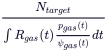
Here,  can be obtained from the vibrational density of states.
To write out the input file and a script for running the job from the command line, click the arrow next to the Settings button  and choose Write.
To visualize the results, you can use the Thermal Conductivity Viewer Panel (click the Tasks button and browse to Materials → Classical Mechanics → Thermal Conductivity → Thermal Conductivity Results).
Thermal Conductivity Calculation Panel Features
- Use structures from option menu
- Open Project Table button
- File name text box and Browse button
- Add relaxation step option
- Temperature gradient direction option menu
- Number of swap text box
- Number of bins text box
- Swap interval text box
- Ensemble class option menu
- Simulation time text box
- Time step text box
- Set random number seed option and text box
- Trajectory recording interval text box
- Save intermediate data option and menu
- Temperature recording interval text box
- Correction for frozen phonons option
- Job toolbar
- Status bar
- Use structures from option menu
-
Choose the structure source for the current task.
- Project Table (n selected entries)—Use the entries that are currently selected in the Project Table or Entry List. The number of entries selected is shown on the menu item.
- Workspace (n included entries)—Use the entries that are currently included in the Workspace, treated as separate structures. The number of entries in the Workspace is shown on the menu item.
- File—Use the specified file. When this option is selected, the File name text box and Browse button are displayed.
- Project Table (n selected entries)—Use the entries that are currently selected in the Project Table or Entry List. The number of entries selected is shown on the menu item.
- Open Project Table button
-
Open the Project Table panel, so you can

- File name text box and Browse button
-
Enter the file name in this text box, or click Browse and navigate to the file. The name of the file you selected is displayed in the text box.
- Add relaxation step option
-
Select this option to add a series of minimizations and short molecular dynamics simulations to relax the model system before performing the simulation. Consists of a 20 ps NVT Brownian minimization at 10 K, a 20 ps NPT Brownian minimization at 100 K, then a 1000 ps NVT MD stage, 2000 ps NPT stage, and then a 1000 ps NVE stage.
Normally, this option is needed only for model systems that have just been prepared (for example with the Disordered System Builder Panel) and have not been relaxed. This option is off by default.
- Temperature gradient direction option menu
-
Select in what direction the temperature gradient should be established. The choices are the a, b, or c vectors of the simulation box.
- Number of swap text box
-
Specify the number of hot and cold atom velocities to be swapped during the simulation to establish the temperature gradient. Increasing the number of atoms to swap during the simulation will increase the heat flux.
- Number of bins text box
-
Specify the number of bins to create. The default is 10 and minimum is 8. The number of bins is even to have an equal number of hot and cold bins.
A related parameter is bin width and is calculated by dividing the cell length in the direction of the temperature gradient by the number of bins. The bin width should be a minimum of 5 angstroms and is recommended to be approximately 9 angstroms. The system size and number of bins must be carefully decided to ensure this. Too small of a bin width can cause temperature fluctuations.
- Swap interval text box
-
Specify the time interval at which to swap the velocity of the hot and cold atoms in ps. If the heat flux is not achieving steady state within a reasonable simulation time, it is possible the velocity swap is too infrequent. If the heat flux is very high and there are non-linear regions in the temperature gradient, it is possible the velocity swap is too frequent.
- Ensemble class option menu
-
Choose the ensemble class from this option menu. The following classes are available:
- NVE—constant particle number (N), volume (V) and energy (E). This class represents the microcanonical ensemble.
- NVT—constant particle number (N), volume (V) and temperature (T). This class represents the canonical ensemble.
-
- Simulation time text box
-
Specify the desired simulation time in ps.
- Time step text box
-
Specify the time step for the simulation in fs.
- Set random number seed option and text box
-
Select this option to specify a random seed to be used in the simulations. Specifying the seed allows you to reproduce the results, unless other factors affect them. If this option is not selected, a seed is chosen at random.
- Trajectory recording interval text box
-
Set the recording interval for saving points on the trajectory, in ps. This is the amount of time between frames in the trajectory. The entered value is rounded to an integer multiple of the far time step size. The resultant number of records to be written is reported to the right.
- Save intermediate data option and menu
-
Select this option to save data from the Desmond MD simulations.
- CMS files—save the CMS files from each of the Desmond simulations. These are the files that contain the structure and force field information.
- CMS and trajectory—save the CMS files and the trajectories from each of the Desmond simulations. Note that trajectory files can be large and may take up a lot of disk space.
- Temperature recording interval text box
-
Set the recording interval for saving the local temperature, in ps. The resultant number of temperature records to be written is reported to the right.
- Correction for frozen phonons option
-
Calculate the frozen phonon correction factor to the thermal conductivity calculation. The phonon correction is helpful when thermal conductivity is calculated below the Debye temperature (θD). See the Using section for more information.
- Job toolbar
-
Manage job submission and settings. See Job Toolbar for a description of this toolbar.
The Job Settings button opens the Thermal Conductivity Calculation - Job Settings Dialog Box, where you can make settings for running the job.
- Status bar
-
 to reset the panel to its default settings and clear any data from the panel.
If you can submit a job from the panel, the status bar displays information about the current job settings and status for the panel. The settings include the job name, task name and task settings (if any), number of subjobs (if any) and the host name and job incorporation setting. The job status can include messages about job start, job completion and incorporation.
The status bar also contains the Help button
 , which opens an option menu with choices to open the help topic for the panel (Documentation), launch Maestro Assistant, or if available, choose from an option menu of Tutorials. If the panel is used by one or more tutorials, hover over the Tutorials option to display a list of tutorials. Choosing a tutorial opens the tutorial topic.