Multiple Sequence Viewer/Editor Panel
Perform modeling tasks with sequences, including visualization, alignment, structure and property predictions, analysis, and homology modeling.
To open this panel, in the Maestro main window, choose Window → Multiple Sequence Viewer.
To open this panel with the Homology Modeling pane displayed, search for "homology" in the Task Tool, and select the Multiple Sequence Viewer/Editor item from the search results.
- Using
- Features
- Additional Resources
Using the Multiple Sequence Viewer/Editor Panel
For introductions to various aspects of modeling with the Multiple Sequence Viewer/Editor, see the following tutorials:
Multiple Sequence Viewer/Editor Panel Features
Some of the features of the panel are described in separate topics, which are linked below.
Tabs
The main part of the MSV consists of a series of tabs, each of which can be used for modeling with a set of sequences. Each tab has its own toolbar, sequence display area, status bar, and configuration toggles.
The Workspace tab shows the sequences that are present in the Maestro Workspace. The sequences are always synchronized with the Workspace content, so changing the structures in the Workspace changes the content of this tab.
The View tabs are for sequences that you want to perform tasks on. You can create tabs for new tasks or sequences, and you can delete tabs that you are no longer using.
Sequence display
The sequence display takes up the main part of the panel.
On the left, information on the sequence is displayed in a table.
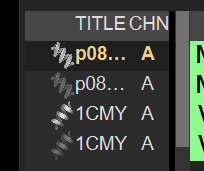
- The title and the chain name columns identify the sequence and its annotations. There is a shortcut menu for the sequences, and another for the heading row that allows you to sort the sequences or find a sequence in the list (same as View → Find Sequence in List). You can select sequences for an action. The sequences in an Multiple Sequence Viewer/Editor — Shortcut Menus can be selected by clicking on the Alignment set annotation for one of the sequences.
- An icon (right-leaning helix) is shown to the left of the title if the sequence has an associated structure in the Maestro project. You can right-click on the icon to perform Workspace inclusion and exclusion: choose Include Entry in Workspace (if the entry isn't in the Workspace) or Exclude Entry from Workspace (if it is in the Workspace), or Exclude All Others to include only this entry in the Workspace. A different icon (left-leaning helix) is used to represent Alphafold structures, as shown in the first two rows in the image above.
- To the left of the structure icon is a turner that can be used to show or hide the annotations to the sequence. There is a shortcut menu for the annotations.
-
The annotation shortcut menu includes an Apply Colors to Structures option for annotations displayed as colored blocks or bracketed regions. This option applies the annotation colors to linked structures in the Workspace. This option is available only for annotations that use color to represent regions or properties. The submenu provides the following options: Across This Annotation — Applies the annotation colors to all sequences in the panel that display this annotation and have linked structures. This Sequence Only — Applies the annotation colors only to the structure associated with the selected sequence. Color Entire Residues — When selected, applies colors to entire residues; otherwise, colors are applied to residue carbons only.
In the center the sequences are displayed. The first sequence is always the reference sequence.
- The tooltip for a residue shows information on that residue.
- Annotations are displayed under the sequence by default, but can be grouped into annotation types—see Annotation settings section.
- There is a shortcut menu for operations on the residue (or gap) selection. The first sequence is always the reference sequence.
- Nonstandard residues are shown with a gray line below the letter code. If the residue is mapped to a standard residue for alignment purposes (in the Nonstandard Residues Panel), the standard residue letter is shown, still with the gray line. The tooltip shows the nonstandard residue name, but the side-chain chemistry of the standard residue.
- You can select residues with the usual selection actions. To expand the selection to an entire secondary structure, double-click the SSA annotation.
On the right, statistics and properties for each sequence are displayed.
- Standard statistics such as percent identity relative to the reference sequence are shown.
- Properties can be added from the Project Table
Status bar
The status bar shows information about the sequences.
The first section shows the number of sequence selected and the total number in the current tab, and the number of structures associated with the sequences and how many are in the Workspace.
The second section shows the identity of the reference sequence and the number of sequences in other tabs, when the pointer is not over a residue; when it is, information for that residue is shown instead.
The number of residues selected and how the selection is distributed is shown to the right, with a Clear link to clear the selection.
Toggles
The toggles are shown at the right end of the status bar. Some toggles have a "more" button  , which is displayed above the toggle when the pointer is over the toggle.

|
Edit mode. Turn on sequence editing, and display the editing tools in the toolbar. Same as Edit → Edit Sequence in Place. |

|
Annotations: Show or hide annotations in the sequence display. Pause the pointer over the toggle, then click the "more" button to open the Annotations Pane, where you can choose the annotations to display. |

|
Color: Turn the coloring of sequences on or off. Pause the pointer over the toggle, then click the "more" button to open the reference, consensus, sequence coloring, color by, color carbons, transfer color, apply coloring, where you can choose color schemes and settings, highlighting of selected residues, and coloring of structures in the Workspace according to sequence colors. |

|
View Options: Set options for the scope of alignment calculations and the properties shown for the alignment, and for the appearance of the sequence display. Opens the alignment calculations, sequence display pane. |
Tutorials
- Chimeric Homology Modeling Using the Multiple Sequence Viewer/Editor
- Building Homology Models with the Multiple Sequence Viewer/Editor
- Batch Homology Modeling Using the Multiple Sequence Viewer/Editor
- Heteromultimer Homology Modeling with the Multiple Sequence Viewer/Editor
- Sequence Annotation of Antibodies with the Multiple Sequence Viewer/Editor
- Introduction to BioLuminate and the Multiple Sequence Viewer/Editor
- Introduction to T Cell Receptor Modeling with BioLuminate