KMC Database Browser Panel
View KMC Database data as tables and export data from the tables.
To open this panel: click the Tasks button and browse to Materials → Quantum Mechanics → KMC Charge Mobility → Browse Charge Hopping Data.
The following licenses are required to use this panel: MS Maestro, MS Mobility
- Features
- Additional Resources
KMC Database Browser Panel Features
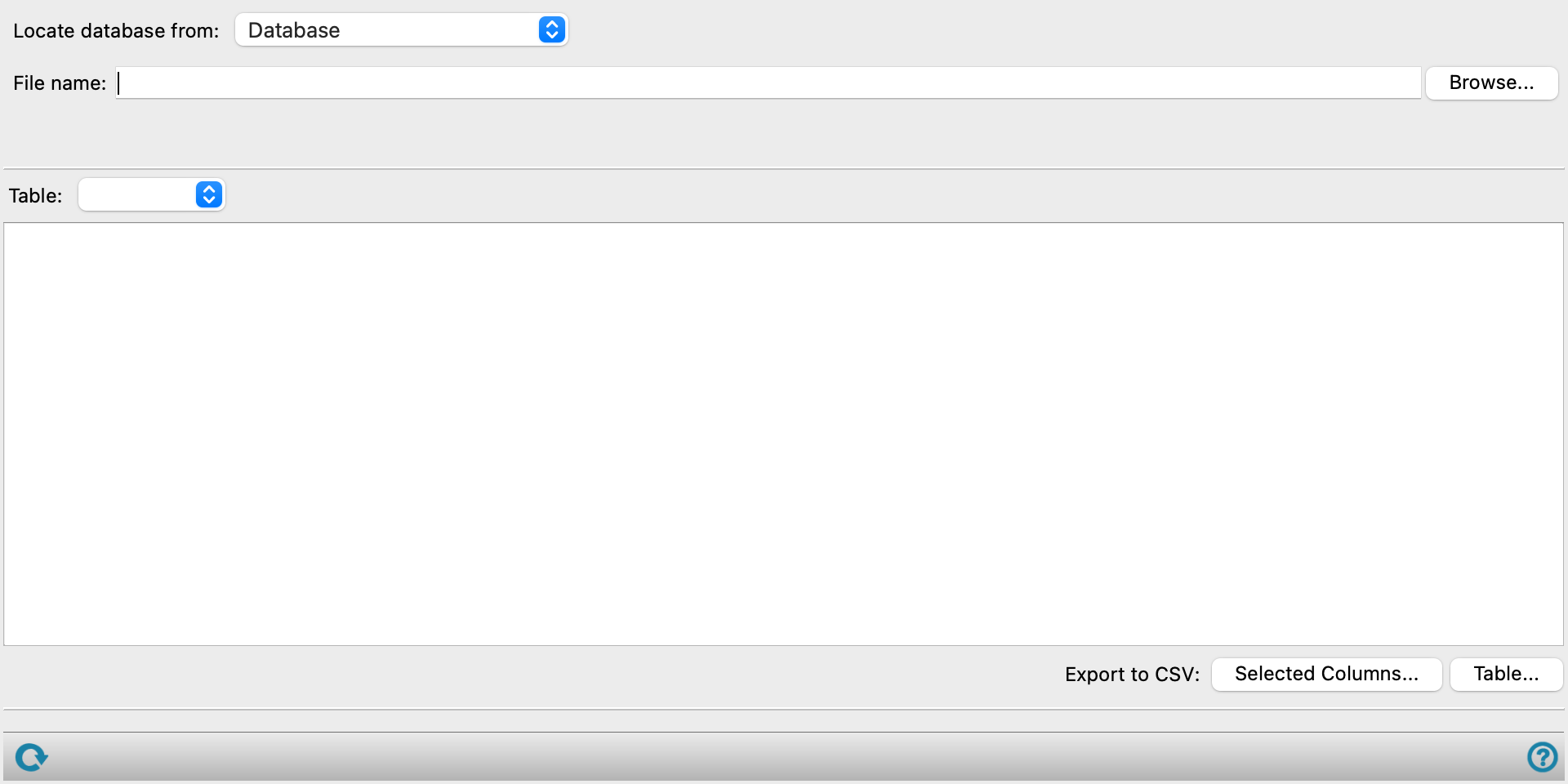
- Locate database from option menu
-
Choose the structure source for locating the corresponding database.
- Workspace (included entry)—Use the entry that is currently included in the Workspace. Only one entry must be included in the Workspace.
- Database—Use the structure whose identity is recorded in the specified SQL database. When this option is selected, the File name text box and Browse button are displayed, so you can specify the database.
- Workspace (included entry)—Use the entry that is currently included in the Workspace. Only one entry must be included in the Workspace.
- Open Project Table button
-
Open the Project Table panel, so you can

- File name text box and Browse button
-
Enter the file name in this text box, or click Browse and navigate to the file. The name of the file you selected is displayed in the text box.
- Use database for this structure menu
-
Choose a database to browse that is associated with the Workspace structure from the menu. For a given structure there may be multiple databases, corresponding to different field values.
- Table option menu
-
Choose the database table whose values you want to display in the table below.
- Data table
-
Data from the selected database table is displayed in this table. You can select columns to export to a CSV file. The data is noneditable.
- Export to CSV buttons
-
Export the designated data from the table to a CSV file.
-
Selected Columns—export the data from the colums selected in the data table.
-
Table—export the data from all columns in the data table.
-
- Status bar
-
 to reset the panel to its default settings and clear any data from the panel.
If you can submit a job from the panel, the status bar displays information about the current job settings and status for the panel. The settings include the job name, task name and task settings (if any), number of subjobs (if any) and the host name and job incorporation setting. The job status can include messages about job start, job completion and incorporation.
The status bar also contains the Help button
 , which opens an option menu with choices to open the help topic for the panel (Documentation), launch Maestro Assistant, or if available, choose from an option menu of Tutorials. If the panel is used by one or more tutorials, hover over the Tutorials option to display a list of tutorials. Choosing a tutorial opens the tutorial topic.