Visualize Restraints Panel
Visualize restraints set on atom positions, bonds, angles, and dihedrals.
To display this panel: click the Tasks button and browse to Materials → Classical Mechanics → MD Simulations → Visualize Restraints
The following licenses are required to use this panel: MS Maestro
- Using
- Features
- Additional Resources
Using the Visualize Restraints Panel
The Visualize Restraints panel can be used to confirm restraints in a model system before or after a calculation. The panel requires a model system file (CMS) as an input and allows you to visualize restrained positions, bonds, angles, and dihedrals in all-atom or coarse-grained systems. For all-atom systems, these restraints can be set using the MD Multistage Workflow Panel. For coarse-grained systems, restraints can be set using the Coarse-Grained Force Field Builder Panel or Coarse-Grained Mapping Panel and applied to the structure using the Prepare for MD Panel or Coarse-Grained Force Field Assignment Panel. Restraints can additionally be set directly in a multisim configuration (MSJ) file.
Visualize Restraints Panel Features
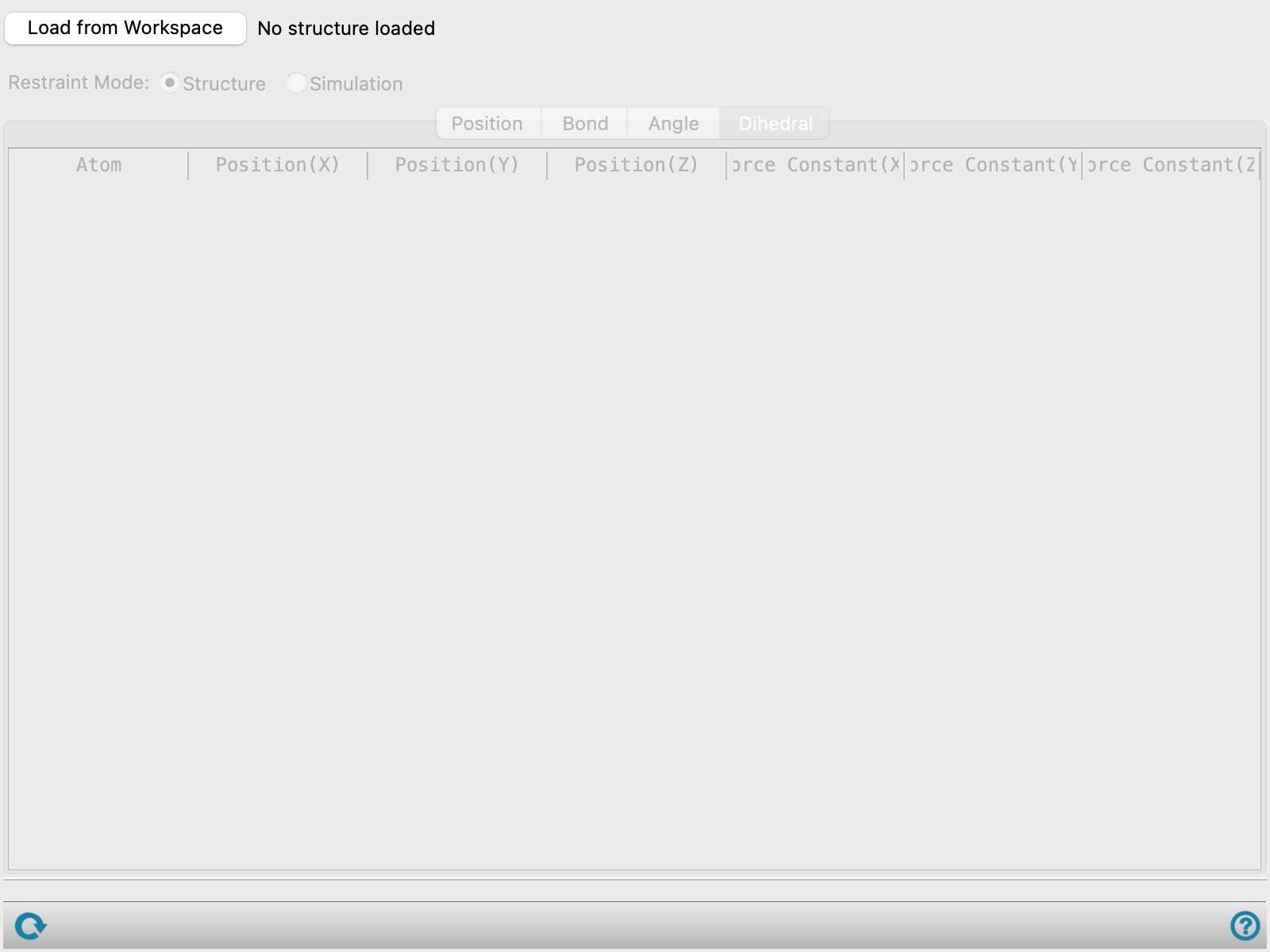
- Load from Workspace button
-
Load the restraints associated with the structure in the Workspace, which must be a CMS file.
- Restraint mode options
-
- Structure—These restraints are found in the CMS file itself.
- Simulation—These restraints are part of the MSJ file and are applied to the CMS file during the simulation. These restraints can be edited directly in the MSJ file.
Specify the mode to load restraints from:
- Position tab
-
Restrained atoms in the system are listed here in a table. Click any row in the table to highlight it in yellow and display the associated restraint in the Workspace. The restraints are noneditable. The columns in the table are described below:
-
Atom—The label for the atom.
-
Position(N)— The position of the atom along the x-, y-, or z-axis.
-
Force Constant—The force constant for the restraint along the x-, y-, and z-axis.
-
Sigma—The range of the flat-bottom well where no restraining force acts on the system, in Å.
-
- Bond tab
-
Restrained bonds between atoms in the system are listed here in a table. Click any row in the table to highlight it in yellow and display the associated restraint in the Workspace. The restraints are noneditable. The columns in the table are described below:
-
Atom—Labels for the two atoms that make up the bond.
-
Force Constant—The force constant for the restraint, in kcal/mol/Å2.
-
Distance—The bond distance, in Å.
-
- Angle tab
-
Restrained angles between atoms in the system are listed here in a table. Click any row in the table to highlight it in yellow and display the associated restraint in the Workspace. The restraints are noneditable. The columns in the table are described below:
-
Atom—Labels for the three atoms that make up the angle.
-
Force Constant—The force constant for the restraint , in kcal/mol/Å2.
-
Theta—The bond angle, in degrees.
-
- Dihedral tab
-
Restrained dihedral angles between atoms in the system are listed here in a table. Click any row in the table to highlight it in yellow and display the associated restraint in the Workspace. The restraints are noneditable. The columns in the table are described below:
-
Atom—Labels for the four atoms that make up the dihedral angle.
-
Force Constant—The force constant for the restraint in kcal/mol/Å2.
-
Phi—The dihedral angle, in degrees.
-
- Status bar
-
 to reset the panel to its default settings and clear any data from the panel.
If you can submit a job from the panel, the status bar displays information about the current job settings and status for the panel. The settings include the job name, task name and task settings (if any), number of subjobs (if any) and the host name and job incorporation setting. The job status can include messages about job start, job completion and incorporation.
The status bar also contains the Help button
 , which opens an option menu with choices to open the help topic for the panel (Documentation), launch Maestro Assistant, or if available, choose from an option menu of Tutorials. If the panel is used by one or more tutorials, hover over the Tutorials option to display a list of tutorials. Choosing a tutorial opens the tutorial topic.