Excited State Analysis Panel
Analyze the content of the excited states of one or more molecules in terms of charge transfer to and from atoms or fragments in the molecules.
To open this panel: click the Tasks button and browse to Materials → Quantum Mechanics → Excited State Analysis → Excited State Analysis.
For a tutorial, see Excited State Analysis on the web site.
The following licenses are required to use this panel: MS Maestro, Jaguar
- Using
- Features
- Additional Resources
Using the Excited State Analysis Panel
The purpose of the panel is to provide an analysis of an electronic single excitation into contributions from transfer of charge from one fragment to another. The analysis involves running a DFT and a TDDFT calculation on each of the molecules, which must be closed-shell molecules. For more information on the methods, see Ref. 46.
An important application of this analysis is to categorize transitions in a metal complex in terms of ligand-to-metal or metal-to-ligand charge transfer. If you want to build a complex or several complexes for excited state analysis, you can use the Single Complex Builder Panel, the Build Multiple Complexes Panel, or the Complex Enumeration and Stability Analysis Panel. For purely organic systems, you might want to use the Custom R-Group Enumeration Panel to make variations on a chromophore-containing molecule.
To write out the input file and a script for running the job from the command line, click the arrow next to the Settings button  and choose Write..
To visualize the results, you can use the Excited State Analysis Viewer Panel. To open this panel from the entry group for the results of a job, use the Workflow Action Menu  .
.
Excited State Analysis Panel Features
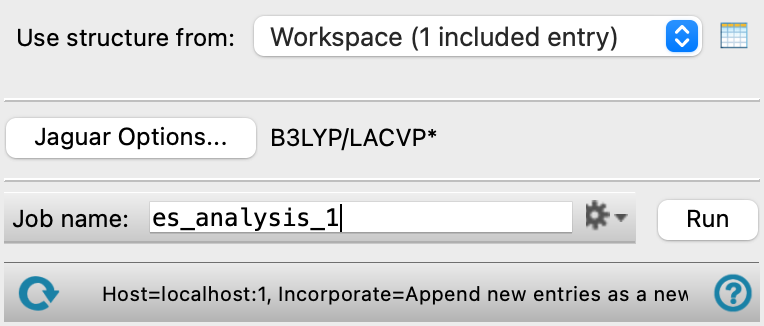
- Use structure from option menu
-
Choose the structure source for the excited state analysis. You can analyze multiple structures in a single run.
- Project Table (n selected entries)—Use the entries that are currently selected in the Project Table or Entry List. The number of entries selected is shown on the menu item.
- Workspace (included entries)—Use the entries that are currently included in the Workspace, treated as separate structures.
- File—Use the specified file. When this option is selected, the File name text box and Browse button are displayed.
- Project Table (n selected entries)—Use the entries that are currently selected in the Project Table or Entry List. The number of entries selected is shown on the menu item.
- Open Project Table button
-
Open the Project Table panel, so you can

- File name text box and Browse button
-
Enter the file name in this text box, or click Browse and navigate to the file. The name of the file you selected is displayed in the text box.
- Options button
-
Set Jaguar options for the calculations on the ground and excited states. The Additional keywords text box contains the settings for the TDDFT excited calculations. You can change the number of roots (excited states) Opens the Jaguar Options - Excited State Analysis Dialog Box. This dialog box also allows you to specify additional Jaguar keywords. The solvent (if any), level of theory, and basis set are shown to the right of the button.
- Job toolbar
-
Manage job submission and settings. See Job Toolbar for a description of this toolbar. Each structure is analyzed in a separate subjob, and you can set a limit on the number of subjobs that run simultaneously. The analysis done on each structure can be run multithreaded, by setting the number of threads.
The Job Settings button opens the Excited State Analysis - Job Settings Dialog Box, where you can make settings for running the job.
- Status bar
-
 to reset the panel to its default settings and clear any data from the panel.
If you can submit a job from the panel, the status bar displays information about the current job settings and status for the panel. The settings include the job name, task name and task settings (if any), number of subjobs (if any) and the host name and job incorporation setting. The job status can include messages about job start, job completion and incorporation.
The status bar also contains the Help button
 , which opens an option menu with choices to open the help topic for the panel (Documentation), launch Maestro Assistant, or if available, choose from an option menu of Tutorials. If the panel is used by one or more tutorials, hover over the Tutorials option to display a list of tutorials. Choosing a tutorial opens the tutorial topic.