Import Slabs Panel
Import slabs from a library in the installation, which contains already prepared slabs of common materials.
To open this panel: click the Tasks button and browse to Materials → Tools → Import Slabs.
The following licenses are required to use this panel: MS Maestro
- Using
- Features
- Additional Resources
Using the Import Slabs Panel
This panel allows you to import slabs that have been prepared and equilibrated, and are ready for use in simulations. Once you have imported a slab, you might want to run a periodic DFT calculation on it with Quantum ESPRESSO (see Quantum ESPRESSO Calculations Panel), or expand it into a larger structure for use in other applications (see Workspace Tools for Periodic Structures). With a slab, either original or expanded, you might then want to add adsorbates or layers using the Disordered System Builder Panel, the Enumerate Adsorbates Panel, or the Molecular Deposition Panel, or use the Maestro 3D builder to add molecules to the surface, either manually or by enumeration of structures (see Custom R-Group Enumeration Panel).
The slabs are obtained from the literature, and you are required to cite the original sources in all work that makes use of the slab structures.
Import Slabs Panel Features
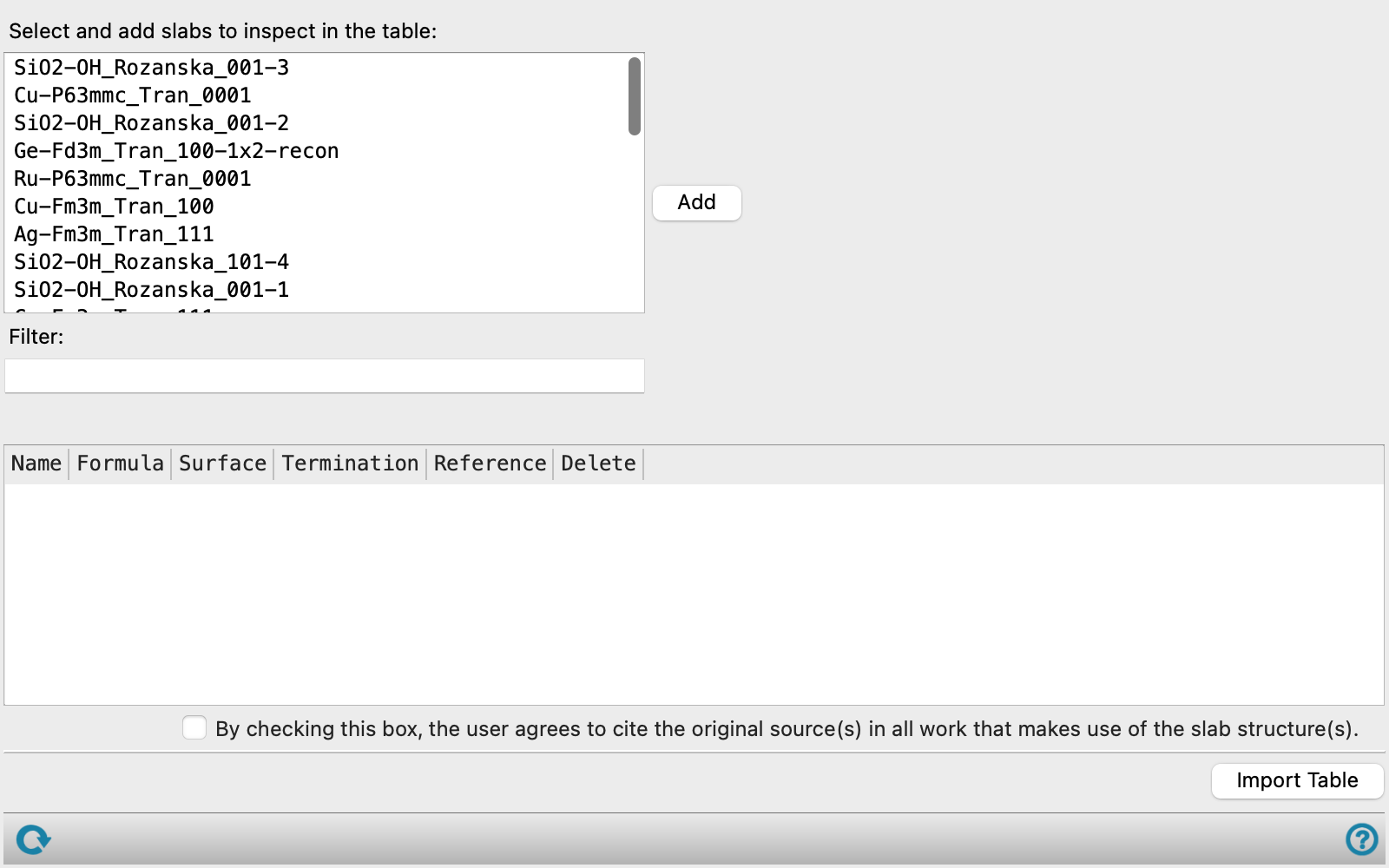
- Select and add slabs to inspect in the table list
-
List of slabs available in the library. You can select multiple items in the list to add to the table for import. The slab names give the stoichiometry of the slab, the hkl triple for the surface, and the atoms exposed at the surface.
- Add button
-
Add the slabs that are selected in the list to the table below.
- Filter text box
-
Filter the list of slabs to show only those that contain the text entered in the box. The filter is applied as you type.
- Slab table
-
Table of selected slabs. The columns display various properties of the slabs that you can use to select the desired slab. The Reference column has a View button that displays the literature reference for the slab and a web link to the reference. To delete a slab from the table, click the X button in the Delete column.
- Agreement to cite source papers check box
-
You must check this box indicating that you agree to cite the original sources for the slabs used in any work that makes use of the slab structures. If the box is not checked, the slabs will not be imported. The reference can be viewed from the table.
- Import Table button
-
Import all the slabs in the table into the Maestro project. You should ensure that only the desired slabs are in the table, and you must check the agreement to cite source papers check box.
- Status bar
-
 to reset the panel to its default settings and clear any data from the panel.
If you can submit a job from the panel, the status bar displays information about the current job settings and status for the panel. The settings include the job name, task name and task settings (if any), number of subjobs (if any) and the host name and job incorporation setting. The job status can include messages about job start, job completion and incorporation.
The status bar also contains the Help button
 , which opens an option menu with choices to open the help topic for the panel (Documentation), launch Maestro Assistant, or if available, choose from an option menu of Tutorials. If the panel is used by one or more tutorials, hover over the Tutorials option to display a list of tutorials. Choosing a tutorial opens the tutorial topic.