Remove Molecules from System Panel
Remove molecules from a system prepared for MD simulations, by random selection, preserving force-field information.
To open this panel: click the Tasks button and browse to Materials → Classical Mechanics → MD Simulations → Remove Molecules from System.
The following licenses are required to use this panel: MS Maestro, MS CG (optional)
- Using
- Features
- Additional Resources
Using the Remove Molecules from System Panel
This panel allows you to remove molecules from a system that is already prepared for MD simulations, and ensure that the new system is prepared for simulations. The system can be an all-atom system or a coarse-grained system. For all-atom systems, the removal is done so that you do not have to reassign the force-field parameters; for coarse-grained systems, you can specify the force field for the reassignment, which is done as part of the job.
The system is analyzed to find out how many different molecules there are ("components") and how many of each molecule there are in a component. You can then choose how many molecules to remove from each component. The selection is done randomly. If you have multiple systems of the same composition, you can apply the same choice of molecules for removal to each system.
This panel is useful when you have built a system but the dimensions or concentrations are not exactly what you want after the built system is equilibrated. You can remove a few solvent molecules, for example, to adjust the volume occupied by the solvent, and so reduce the size of the system. You could also build a series of solutions of increasing concentration by successively removing solvent molecules. Another type of application is to create voids in a system randomly, after building a system without voids.
The output structures can be used as input for MD simulations. You can choose a simulation task from the Workflow Action Menu  for the output structures in the Entry List (Entries).
Remove Molecules from System Panel Features
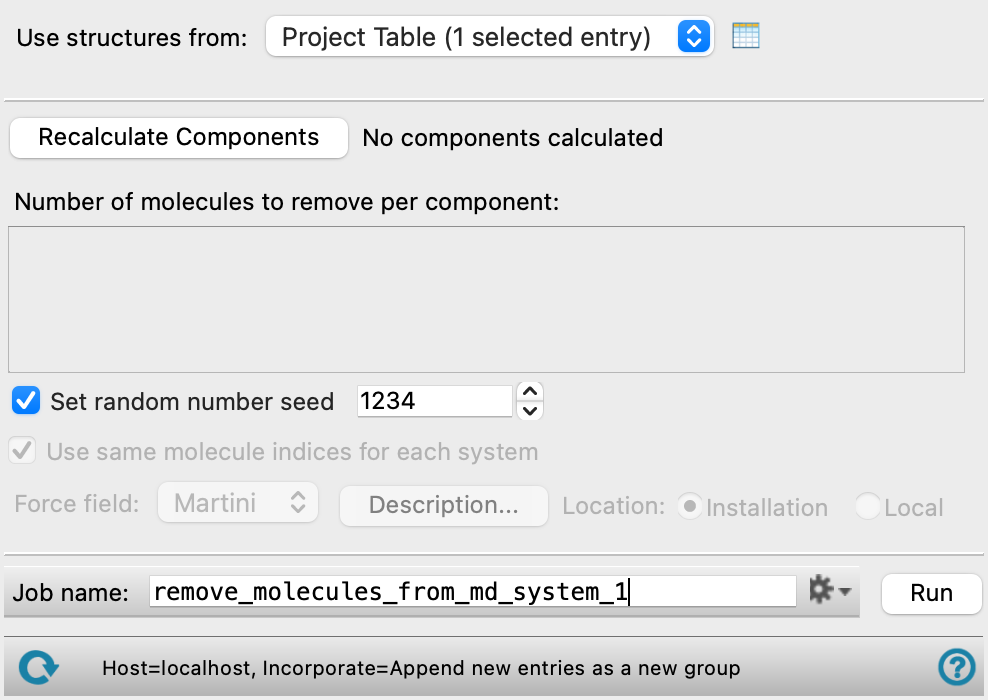
- Use structures from option menu
- Open Project Table button
- File name text box and Browse button
- Recalculate Components button
- Number of molecules to remove per component section
- Random seed option and text box
- Use same molecule indices for each system option
- Force field option menu
- Description button
- Location options
- Job toolbar
- Status bar
- Use structures from option menu
-
Choose the structure source for the removal of molecules. Selecting replicates of a system allows you to remove the same molecules from each replicate.
- Project Table (n selected entries)—Use the entries that are currently selected in the Project Table or Entry List. The number of entries selected is shown on the menu item.
- Workspace (n included entries)—Use the entries that are currently included in the Workspace, treated as separate structures. The number of entries in the Workspace is shown on the menu item.
- File—Use the specified file. When this option is selected, the File name text box and Browse button are displayed.
- Project Table (n selected entries)—Use the entries that are currently selected in the Project Table or Entry List. The number of entries selected is shown on the menu item.
- Open Project Table button
-
Open the Project Table panel, so you can

- File name text box and Browse button
-
Enter the file name in this text box, or click Browse and navigate to the file. The name of the file you selected is displayed in the text box.
- Recalculate Components button
-
Analyze the system to find each molecular species ("component"). The results are used to set up the Number of molecules to remove per component section.
- Number of molecules to remove per component section
-
Choose the number of molecules of each species (component) to remove from the system. The section contains text boxes labeled with the chemical formula for each component, in which you set the number of molecules to remove.
- Set random number seed option and text box
-
Select this option to specify the random seed used to choose the molecules to remove. Specifying a seed allows you to reproduce the results, by using the same seed for each run. If this option is not selected, a seed is chosen at random for each run.
- Use same molecule indices for each system option
-
Use the same indices of molecules to be removed for each of the input structures. If this option is not selected, an independent set of molecule indices is used for each input structure. This option is only available if there is more than one input structure.
This option is useful for structures that have the same molecular composition, such as replicates of a system created with the Disordered System Builder Panel, Polymer Builder Panel, or Semicrystalline Polymer Builder Panel.
- Force field option menu
-
Specify the force field to be used for reassignment of parameters in a coarse-grained system. This option and the related options below are only available if the system is coarse-grained.
- Description button
-
Display a description of the chosen force field in a separate panel.
- Location options
-
Select an option for the location of the coarse-grained force field. The force fields listed on the Force field option menu depend on this choice.
- Installation—use the force fields in the installation. These are the Martini or Martini_solution force fields [15].
- Local—import a force field from your local user resources directory. These are force fields that you have saved for your own use.
- Job toolbar
-
Manage job submission and settings. See Job Toolbar for a description of this toolbar.
The Job Settings button opens the Remove Molecules from System - Job Settings Dialog Box, where you can make settings for running the job.
- Status bar
-
 to reset the panel to its default settings and clear any data from the panel.
If you can submit a job from the panel, the status bar displays information about the current job settings and status for the panel. The settings include the job name, task name and task settings (if any), number of subjobs (if any) and the host name and job incorporation setting. The job status can include messages about job start, job completion and incorporation.
The status bar also contains the Help button
 , which opens an option menu with choices to open the help topic for the panel (Documentation), launch Maestro Assistant, or if available, choose from an option menu of Tutorials. If the panel is used by one or more tutorials, hover over the Tutorials option to display a list of tutorials. Choosing a tutorial opens the tutorial topic.